You press the top button on your iPad (10th generation), tap the glass, and nothing happens; the Liquid Retina display that worked an hour ago is now completely dark.
It is hard to tell whether the tablet is switched off, frozen, or simply out of charge, which is exactly what makes a black screen so frustrating.
The good news is that on this model a dark screen is far more often a power or software issue than broken hardware, so most cases clear up without a repair.
Work through the fixes below in order, starting with the gentlest, and stop as soon as the screen lights up.
You will not need a phone app for any of this; when the iPad is too unresponsive to fix on its own, the later steps finish the job from a computer.
Give the Battery a Full Hour on Power
A deeply drained battery is the most common reason an iPad (10th generation) shows nothing at all, and it can stay dark for a while even after you plug it in.
Connect the iPad to power using its USB-C cable and adapter, then leave it alone instead of repeatedly tapping the screen.
Apple says you might need to charge for up to an hour before the iPad responds, so give it that time.
Watch for the charging indicator or the low-battery screen to appear, which confirms power is reaching the device.
If neither shows up after an hour, move on to checking the charging hardware rather than assuming the iPad is dead.
Rule Out the Cable, Adapter, and Outlet
If a full hour on power changes nothing, the fault may sit in the charging hardware rather than the iPad itself.
Apple recommends checking each part of the chain before you assume the tablet is broken.
Swap in a known-good USB-C cable that you have seen work on another device.
Try a different power adapter that is rated for charging.
Plug directly into a wall outlet rather than a computer port or a hub.
Make sure every connection is firmly seated, then charge again and watch for the charging screen.
Changing one part of the chain at a time tells you which piece was at fault, and a single bad cable or adapter is a far more common culprit than a failed iPad.
Force Restart With the Volume and Top Buttons
A frozen iPad can look identical to a dead one; the screen is black, but the system is simply locked up.
Because the iPad (10th generation) has no Home button (Touch ID is built into the top button), the force restart uses the two volume buttons and the top button in a precise order.
- 1.Press and quickly release the volume button closest to the top button.
- 2.Press and quickly release the volume button farthest from the top button.
- 3.Press and hold the top button until you see the Apple logo, then let go.
The first two presses are quick taps, not long holds, and only the final top-button press is held until the logo appears.
This does not erase anything; it only forces the iPad to power cycle.
If the Apple logo appears, let the tablet finish booting on its own.
Install the Latest iPadOS Once It Wakes Up
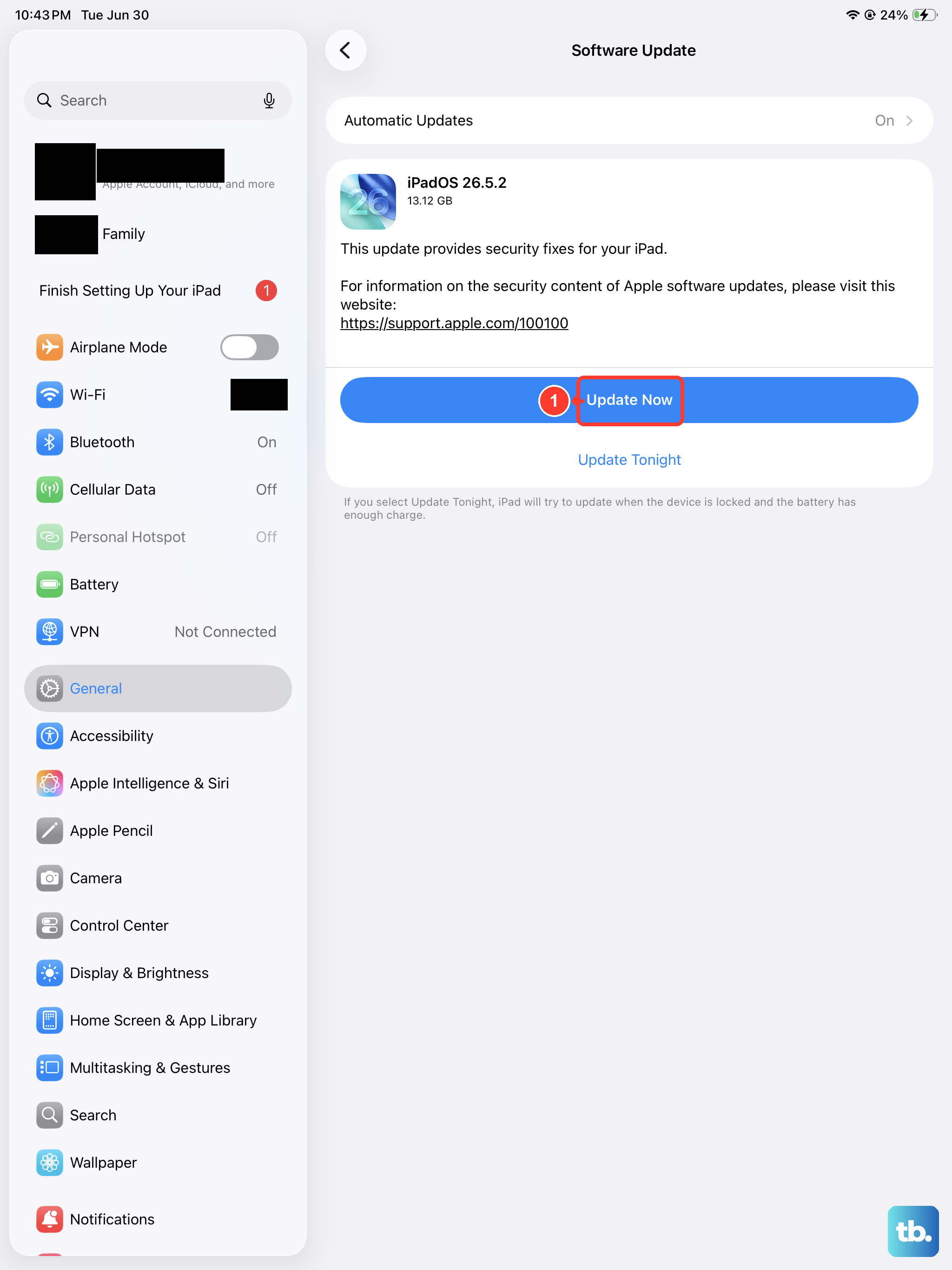
If your iPad boots but the screen goes black intermittently, outdated software can be the trigger.
Installing the current iPadOS often clears these random blackouts, and it leaves your data and settings unchanged.
Go to Settings > General > Software Update, then tap Download and Install.
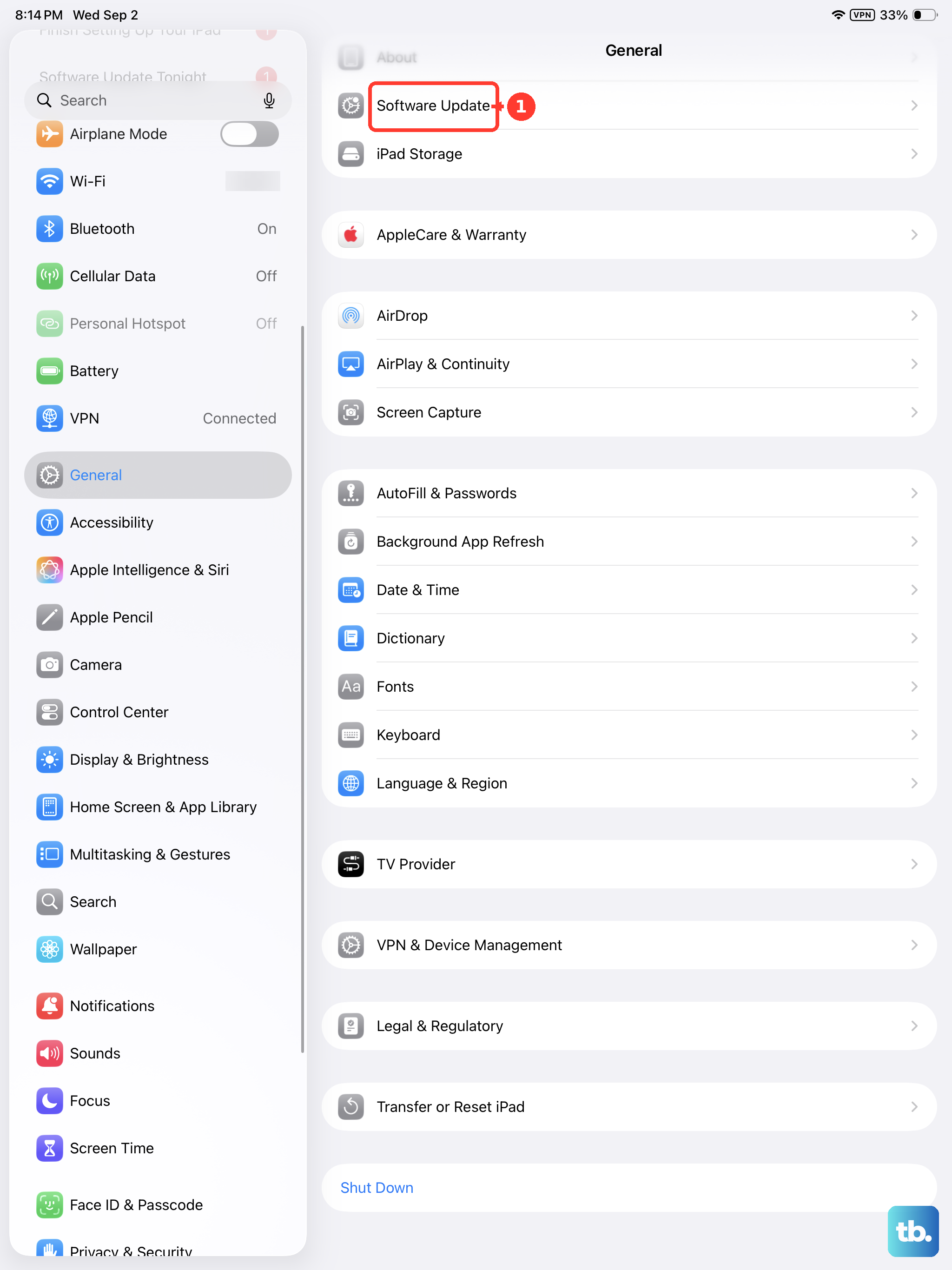
Keep the iPad on power and connected to Wi-Fi until the update finishes, and avoid locking the screen until it reports that the install is complete.
Reinstall iPadOS Through Recovery Mode
When the iPad will not boot at all, you can reinstall iPadOS from a computer without erasing your files.
Connect it to a Mac and open Finder, or to a Windows PC and open the Apple Devices app (use iTunes on older systems that do not have the Apple Devices app).
Recovery mode works over the USB-C cable, so the computer can supply a fresh copy of iPadOS even when the screen never reaches the Home Screen.
Now do the same button sequence as a force restart, but keep holding the top button past the Apple logo until the recovery-mode screen appears.
Press and quickly release the volume button closest to the top button.
Press and quickly release the volume button farthest from the top button.
Press and hold the top button, and keep holding it until you see the recovery-mode screen.
When you get the option to restore or update, choose Update so iPadOS reinstalls without erasing your data.
If the download takes more than 15 minutes, the iPad exits recovery mode on its own.
If that happens, repeat the steps and let the download finish the next time.
Reset Settings Without Touching Your Files
If the iPad boots but behaves oddly after a black screen, a misconfigured setting may be involved.
You can return settings to their defaults without deleting any of your content.
Go to Settings > General > Transfer or Reset iPad > Reset.
This keeps your photos, apps, and files in place while clearing settings that could be causing the trouble, so it is a low-risk step to try before any erase.
Erase the iPad and Start Clean
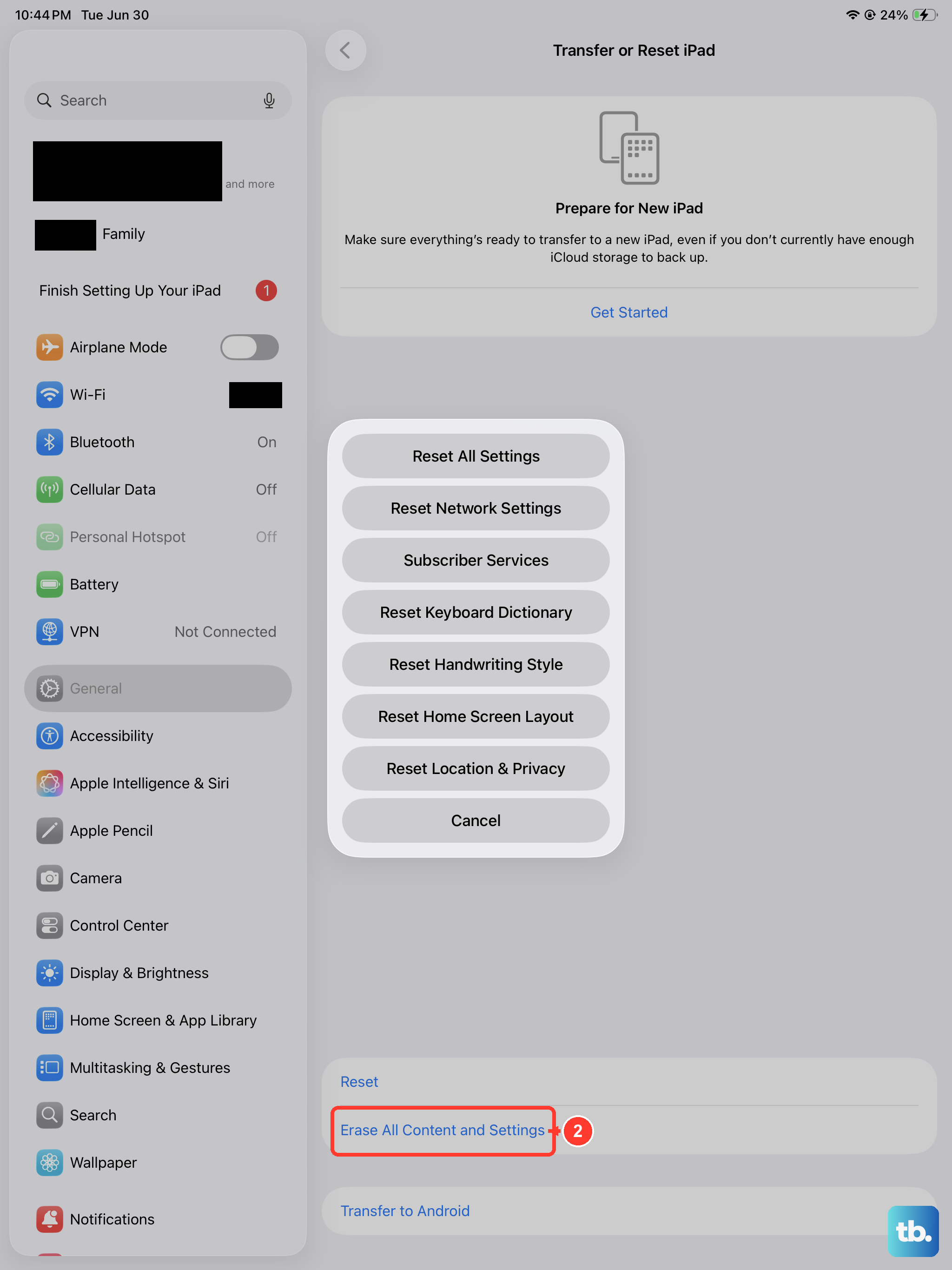
As a last on-device step, a full erase can resolve a software fault that nothing else fixed.
This deletes everything on the iPad, so back it up first.
Erasing removes your personal information, content, and settings and restores the iPad to factory settings, which is why a current backup is essential before you begin.
Back up the iPad so you can restore your data afterward.
Go to Settings > General > Transfer or Reset iPad > Erase All Content and Settings.
Enter your iPad passcode or Apple Account password and tap Continue.
Restore the iPad From a Computer
If a recovery-mode Update did not help, a full restore from a computer is the next step.
Connect the iPad to a Mac and use Finder, or to a Windows PC and use the Apple Devices app or iTunes.
Restoring erases the device and installs the latest iPadOS, so use a backup if you have one.
Because it wipes everything, treat this as a data-erasing last resort before you arrange service.
Book a Repair When the Screen Stays Dark
If the iPad still will not turn on after charging, a force restart, and a recovery-mode update or restore, the problem is most likely hardware.
At that point it may need service rather than another software attempt.
Use the Get service options on the official Apple Support site to arrange a repair.
Have your iPad details ready so the support flow can route you to the right repair option for your model.
Frequently Asked Questions
Is a black screen on my iPad (10th generation) a hardware problem?
Usually not. Most black screens come from a drained battery, a frozen system, or outdated software, all of which the steps above address. Hardware service is the right call only after charging, a force restart, and a recovery-mode update or restore all fail.
Will a force restart delete my data?
No. The force restart (the volume button closest to the top button, then the volume button farthest from it, then hold the top button until the Apple logo appears) only power cycles the iPad and leaves your files untouched.
How long should I charge before deciding the iPad is dead?
Give it up to an hour on power. Apple notes that a deeply drained iPad may need that long before it responds, so leave it connected and watch for the charging or low-battery screen.
What is the difference between Update and Restore in recovery mode?
Choosing Update reinstalls iPadOS while keeping your data, which is why it comes first. Restore erases the iPad and installs the latest iPadOS, so it is a last resort and is best done with a backup ready.
Why does my iPad keep leaving recovery mode before it finishes?
If the download takes more than 15 minutes, the iPad automatically exits recovery mode. Repeat the button sequence to re-enter recovery mode and let the download complete the next time.
Do I need an app on another phone to fix a black screen?
No. There is no phone companion app for this iPad. The on-device steps happen in Settings, and when the iPad is too unresponsive for that, you connect it to a computer and use Finder on a Mac, or the Apple Devices app on Windows (iTunes on older systems).











