
Is your iPad 10th Generation stuck in one orientation and refusing to flip when you turn it? This is a common hiccup where the screen rotation feature stops responding, and it can happen for a few different reasons.
Usually, it's a quick software setting or a minor glitch. Let's run through the most effective ways to get your iPad's screen rotating properly again, starting with the simplest check.
Check the Rotation Lock
The most likely culprit is the Rotation Lock. This feature is handy for reading in bed, but it's easy to toggle on by accident from the Control Center. When it's active, a small lock icon appears in your status bar.
To turn it off, swipe down from the top-right corner of your screen to open Control Center. Look for the circular arrow icon with a lock around it and tap it. The icon should change from white with a red lock to just a white arrow, indicating rotation is unlocked.
Restart Your iPad
If the lock wasn't on, a simple restart can clear out any temporary software bugs that might be confusing the sensors. It only takes a minute and doesn't affect your data.
Press and hold the top button and either volume button until the power off slider appears. Drag the slider, wait about 30 seconds for the iPad to turn off completely, then press and hold the top button again until you see the Apple logo.
Force Restart Your iPad
For a more thorough refresh, a force restart can help if a standard restart didn't do the trick. This is different from just turning it off and on, as it clears the device's memory without deleting anything.
On the iPad 10th Generation, you do this by quickly pressing and releasing the Volume Up button, then quickly pressing and releasing the Volume Down button. Finally, press and hold the Top button. Keep holding it until you see the Apple logo appear, then you can let go.
Update iPadOS
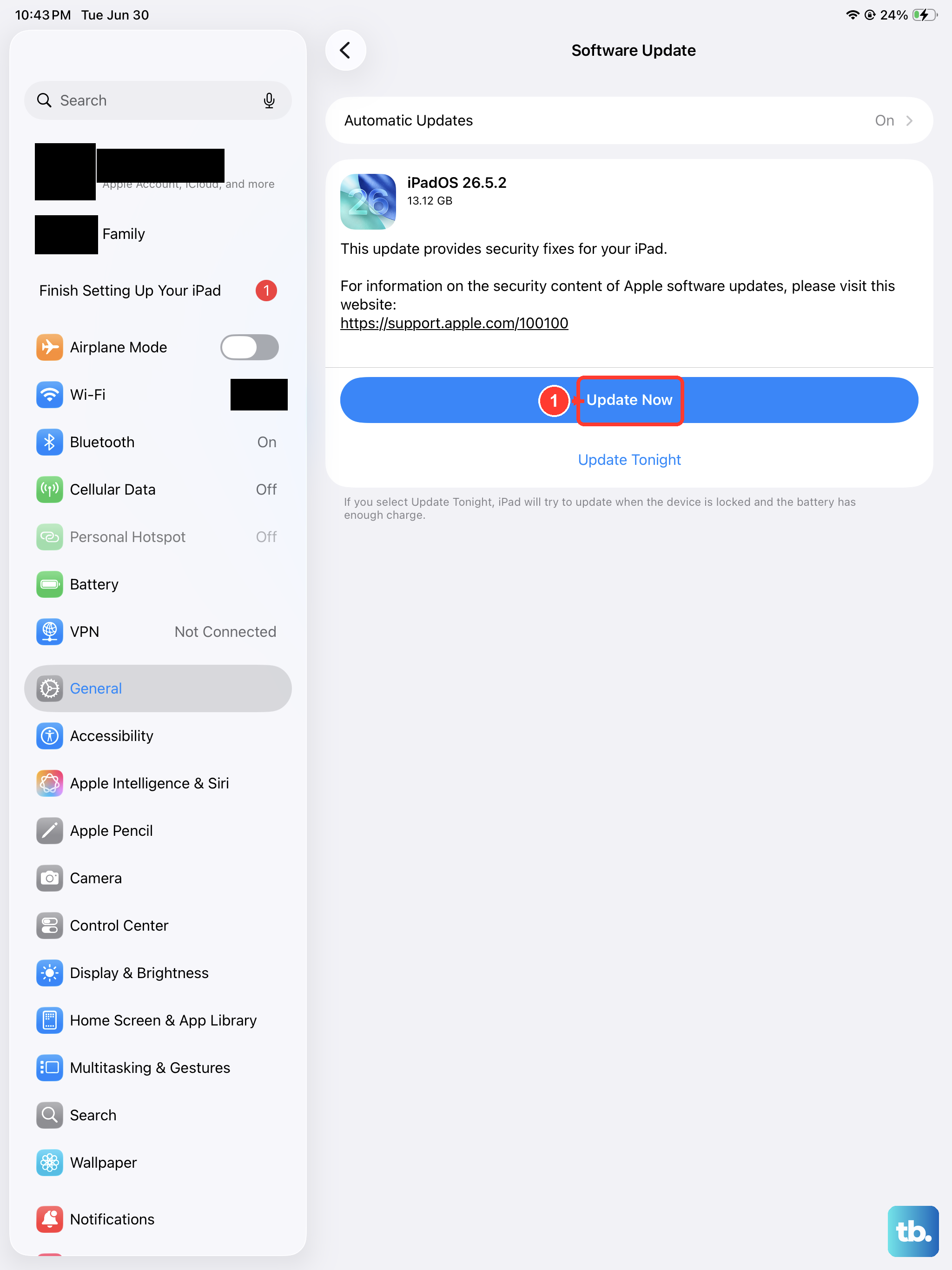
Sometimes, a bug in the operating system itself can cause sensor issues. Apple regularly releases updates that fix these kinds of problems. Making sure you're on the latest version of iPadOS is a good step.
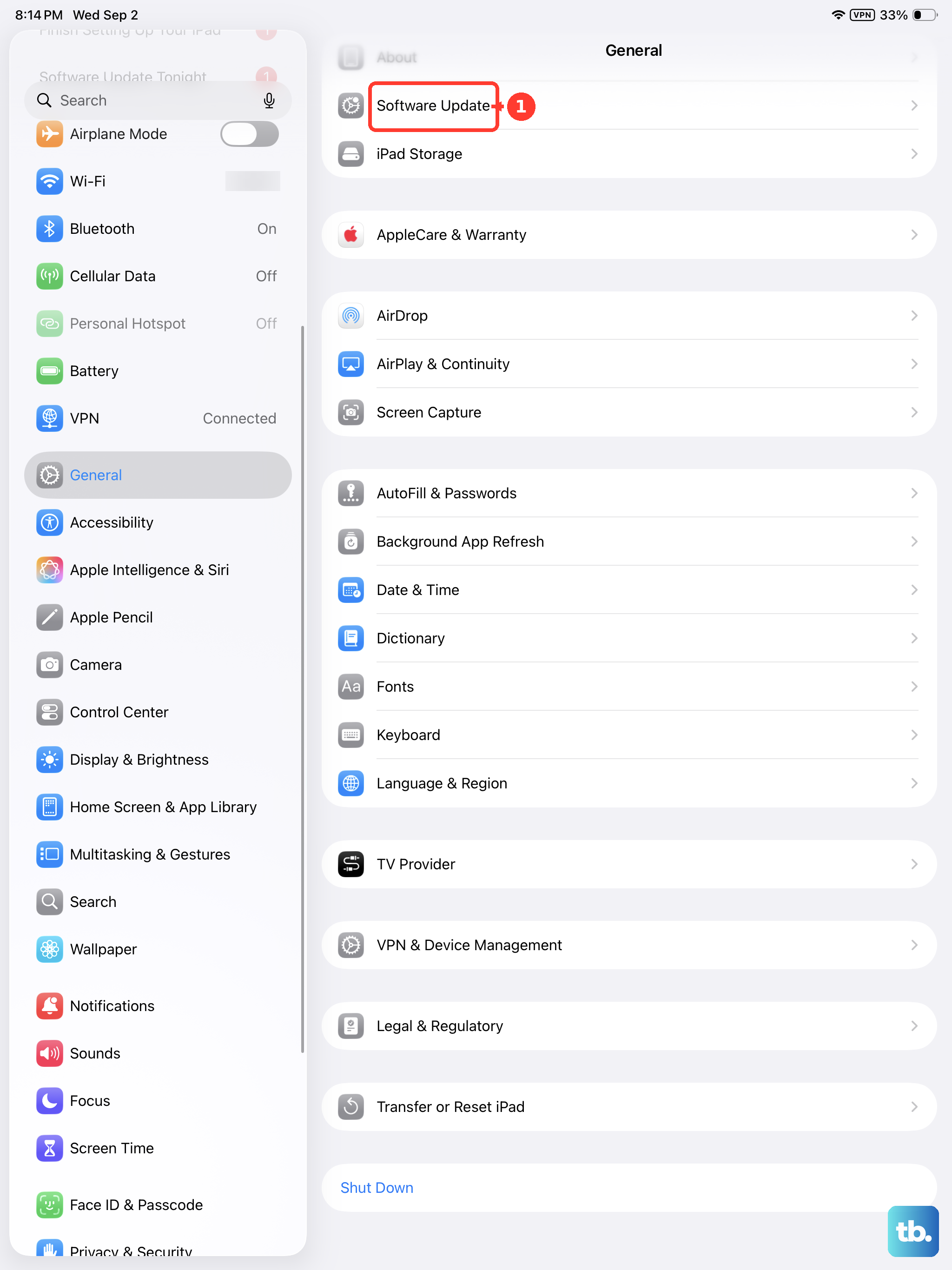
Go to Settings > General > Software Update. Your iPad will check for any available updates. If one is there, tap Download and Install. I'd recommend doing this while your iPad is connected to power and Wi-Fi.
Check for App-Specific Problems
Not every app supports both portrait and landscape modes. If rotation works perfectly in the Photos app but not in your web browser, the issue is likely with that specific app, not your iPad.
Try opening a few different apps to see where the problem occurs. If it's just one app, check the App Store for an update for that app, as the developer may have fixed a rotation bug. You can also try force-closing the app by swiping it away from the App Switcher and reopening it.
Test the Gyroscope and Accelerometer
Auto-rotate relies on two internal sensors: the gyroscope and accelerometer. You can use a simple, built-in method to see if they're working. Open the Measure app that comes pre-installed on your iPad.
Switch to the Level tool. As you tilt and rotate your iPad, the on-screen level should move correspondingly. If it doesn't react at all to movement, it could point to a deeper sensor issue. Make sure you're not using the iPad on a very soft surface like a bed, as this can muffle the sensor readings.
Reset All Settings
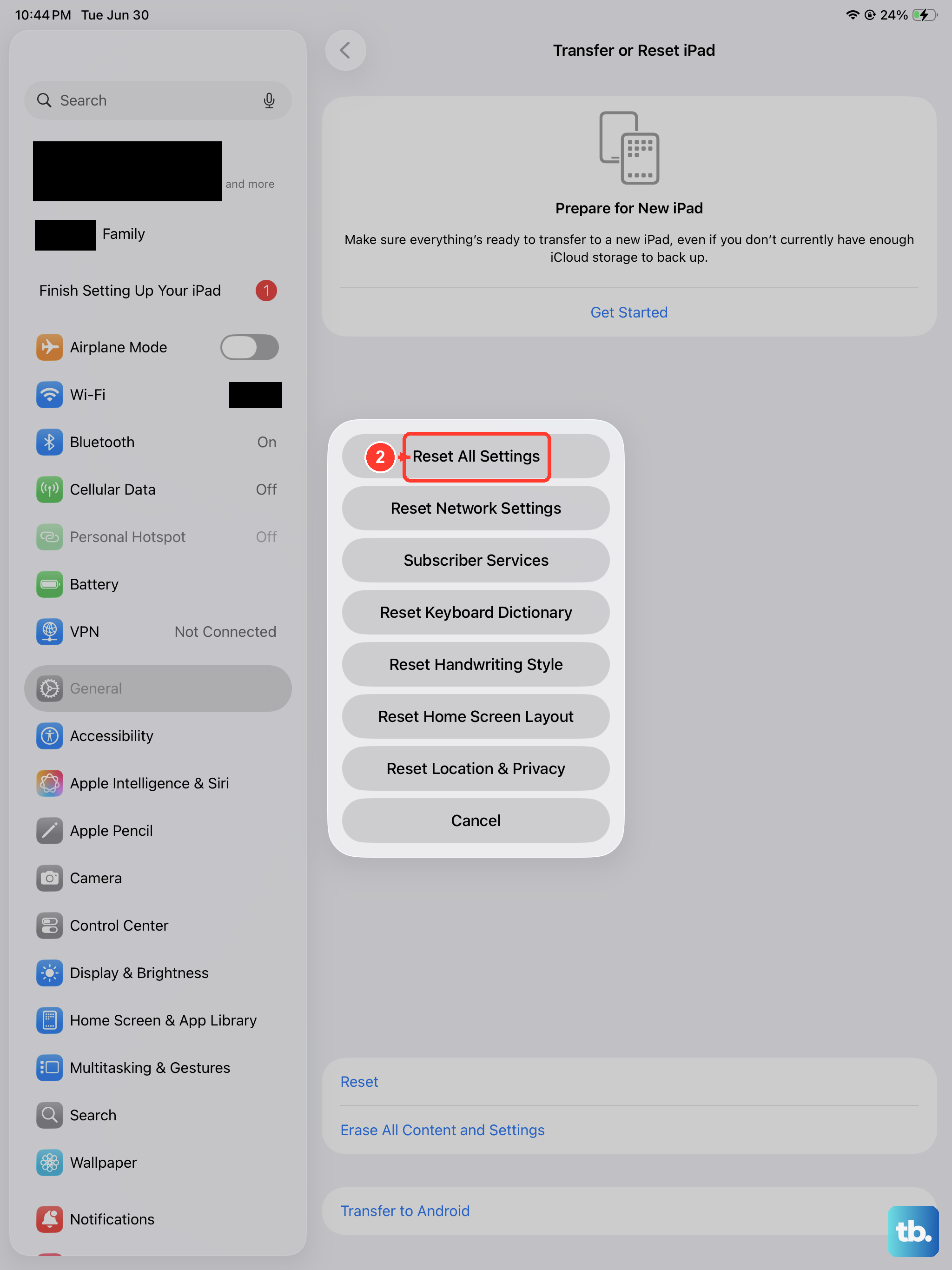
This is a more significant step, but it can resolve conflicts caused by a misconfigured setting. It will reset your wallpaper, privacy permissions, and network settings back to default, but it won't delete any of your personal data or apps.
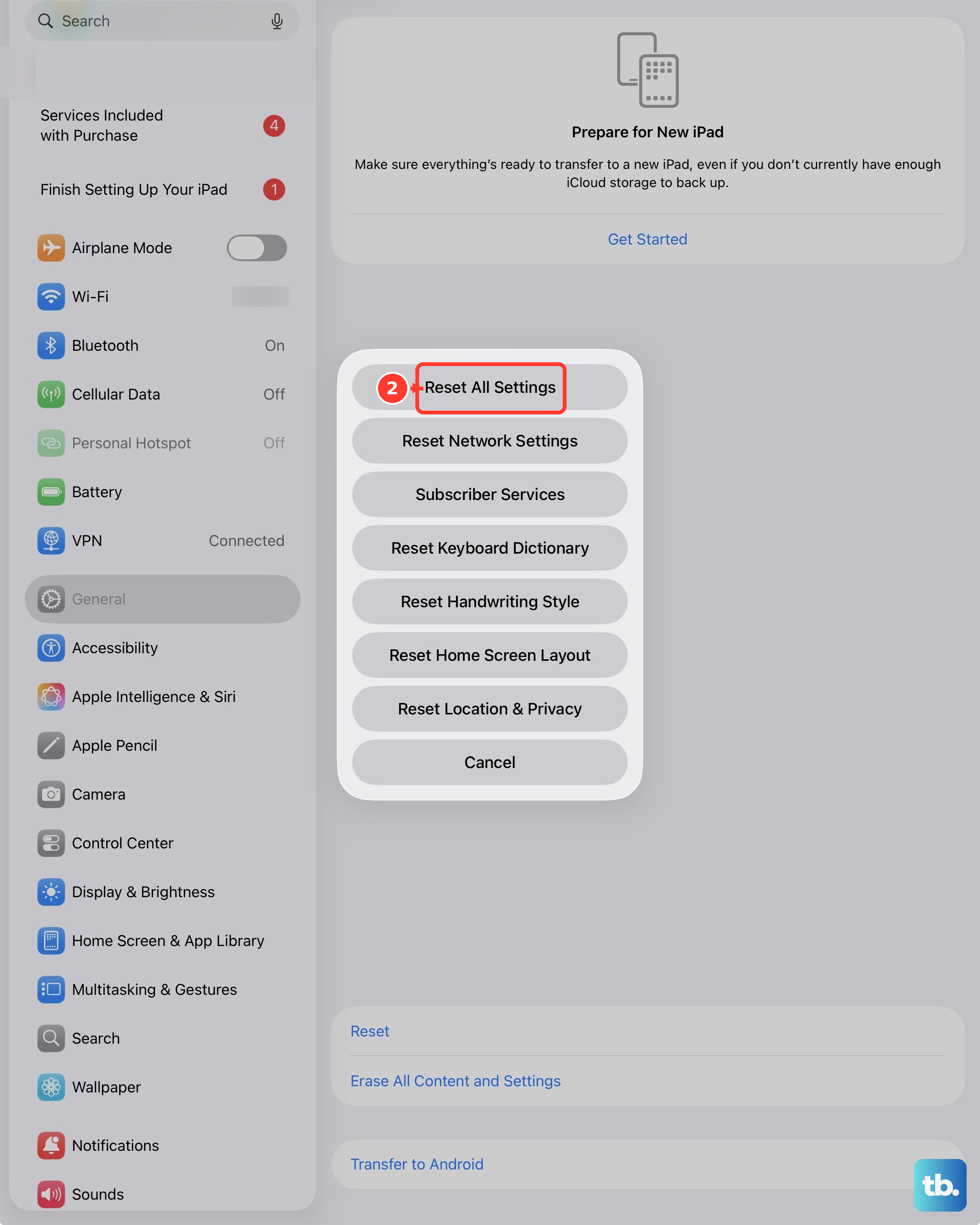
Go to Settings > General > Transfer or Reset iPad. Tap Reset and then choose Reset All Settings. You'll need to enter your passcode to confirm. After the iPad restarts, you'll need to reconnect to Wi-Fi and re-adjust some preferences, but it's worth trying.
Consider a Hardware Check
If you've tried every step here and your iPad's screen still won't rotate, and the Level tool shows no movement, there's a chance of a hardware fault. The iPad 10th Generation doesn't have a laminated display, meaning there's a small air gap between the glass and the screen.
While this design choice is mostly about cost, it doesn't typically cause sensor issues. However, if the iPad has suffered a significant drop or impact, it could potentially damage the internal sensors. In that case, contacting Apple Support or visiting an Apple Store or Authorized Service Provider for a diagnostic would be the next step.