
When your Infinix Note 40 Pro's volume buttons stop working, it can feel like you're stuck on mute. You press them, but nothing happens, no sound adjustment, no haptic feedback. The good news is that most of the time, this is a software hiccup or a simple obstruction that you can fix yourself without a trip to a service center.
I'd start with the quickest fixes first. They often do the trick.
Remove Your Phone Case
Take your phone out of its case. Sometimes, a case that's a bit too tight or has worn down can physically block the button's travel. This is especially true for cases that weren't designed specifically for the Note 40 Pro's button placement.
With the case off, press the volume rocker a few times. If it starts working, you've found your culprit.
Perform a Force Restart
A force restart is the go-to fix for most random glitches on Android phones, including unresponsive buttons. It clears the phone's temporary memory without touching your personal data.
For the Infinix Note 40 Pro, press and hold the Power button and the Volume Down button together for about 10 to 15 seconds. Keep holding until you see the Infinix or XOS logo appear on the screen, then release. Once the phone boots back up, test the volume buttons immediately.
Clean Around the Buttons
Dust, lint, and pocket debris are common enemies of physical buttons. Over time, they can get packed in around the edges and stop the button from clicking properly.
Grab a can of compressed air and give the area around the volume rocker a few short bursts. You can also use a dry, soft-bristled toothbrush to gently dislodge any visible gunk. Avoid using liquids directly on the phone.
Check for Software Updates
Since your phone runs on Android 14 with XOS 14, a bug in the system software could be causing the issue. Infinix regularly releases updates that fix these kinds of problems.
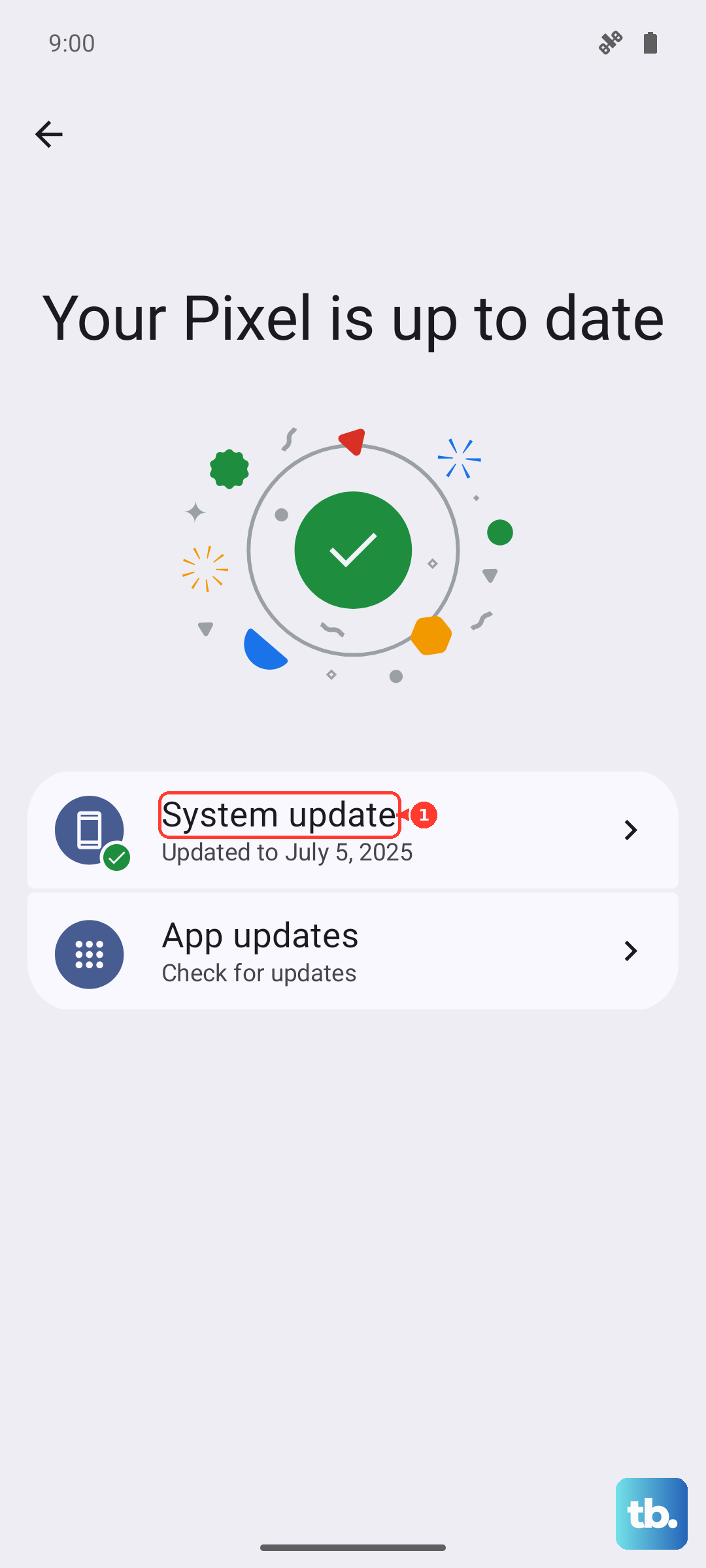
Go to Settings > System > System updates. Tap "Check for updates" and install any that are available. Make sure your phone is connected to Wi-Fi and has at least 50% battery before starting the update.
Test in Safe Mode
Booting into Safe Mode temporarily disables all third-party apps you've installed. If a recently downloaded app is causing a conflict with the system controls, this will tell you.
To enter Safe Mode, press and hold the power button until the power menu appears. Then, press and hold the "Power off" option on your screen. A prompt will ask if you want to reboot to Safe Mode, tap "OK".
Once in Safe Mode (you'll see "Safe Mode" in the bottom corner), test your volume buttons. If they work, a third-party app is likely the problem. You'll need to restart your phone to exit Safe Mode and then uninstall apps one by one to find the culprit.
Check Accessibility Settings
Some accessibility features can remap or alter how the physical buttons function. It's worth a quick look to make sure nothing is turned on by accident.
Head to Settings > Accessibility. Look through the options here, particularly under "Interaction controls". Make sure features like "Volume key shortcut" or any button remapping services are set to your preference or turned off.
Use the On-Screen Volume Slider
While you're figuring this out, you can still control your volume. Just press the physical volume button once, and a volume slider should appear on the side of your screen.
You can drag this slider up or down with your finger. You can also adjust media volume directly from the Quick Settings panel by swiping down from the top of your screen twice.
Consider a Factory Reset
If you've tried everything else and the buttons are still dead, a factory reset can wipe out any deep-seated software corruption. This is a last resort because it will erase all data from your phone.
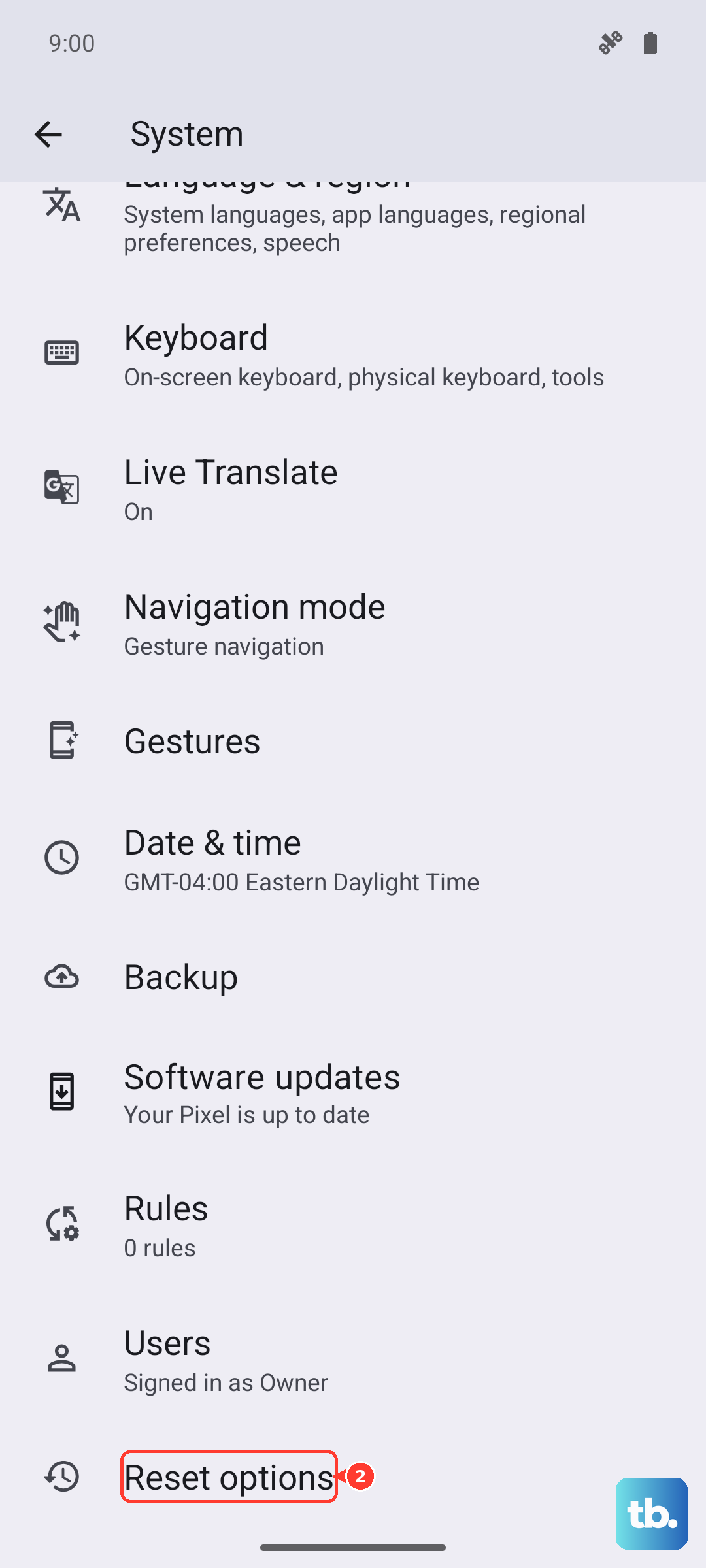
Back up everything important first. Photos, messages, and app data should be saved to your Google account or transferred to a computer. To reset, go to Settings > System > Reset options > Erase all data (factory reset). Follow the prompts to complete the process.
If the volume buttons don't work even after a factory reset, the issue is almost certainly hardware-related. The button mechanism itself could be damaged or disconnected inside the phone. Since the Infinix Note 40 Pro is a 2024 model, it should still be under warranty, so contacting Infinix support would be your next step.