
When your Infinix Note 40 Pro stops listening for "Hey Google" or your assistant of choice, it defeats the purpose of having a smart voice helper. The good news is this is usually a quick software or settings glitch to fix. I'd start with the simplest check first.
Verify Your Assistant is Enabled and Listening
First, make sure the voice activation feature is actually turned on. Open the Google app on your phone and tap your profile picture in the top right corner. Go to Settings > Voice > Voice Match.
Ensure "Hey Google" is toggled on. Also, check the setting for "While driving" or "When locked" if you want it to work in those scenarios. If you're using a different assistant app, like Alexa, you'll need to check its specific settings for a similar wake word option.
Check for Microphone Blockages
The Infinix Note 40 Pro has multiple microphones for noise cancellation and voice pickup. If they're covered, your assistant can't hear you. Check around the top edge, bottom speaker grille, and near the rear camera for tiny microphone holes.
Gently brush away any lint or dust with a soft, dry toothbrush. Avoid using compressed air or liquids, as you could push debris further in or cause damage. Also, make sure your phone case isn't covering any of these ports.
Disable Battery Saver and Data Saver Modes
XOS, like many Android skins, can be aggressive about background processes. Both Battery Saver and Data Saver modes can restrict the always-listening function needed for "Hey Google".
Swipe down from the top of your screen twice to open the quick settings panel. Look for the battery icon or leaf symbol (Battery Saver) and the two arrows forming a circle (Data Saver). Tap them to turn them off, then try your voice command again.
Manage Conflicting Audio Outputs
If your phone is connected to a Bluetooth speaker, headphones, or even a car stereo, the audio routing can get confused. The assistant might be hearing you but sending its response to the wrong output, or the connection might be interfering entirely.
Go to Settings > Connected devices and disconnect any Bluetooth audio accessories. Test "Hey Google" with just the phone's speaker. If it works, you know the issue is with that specific Bluetooth connection.
Retrain Your Voice Model
Background noise, a different speaking style, or even a slight cold can change your voice enough that the phone doesn't recognize it. You can retrain the voice model easily. Open the Google app and go to Settings > Voice > Voice Match.
Tap "Retrain voice model" and follow the prompts, speaking the phrases clearly in your normal voice. Do this in a relatively quiet room for the best results. This process only takes a minute and often solves recognition problems.
Clear the Google App Cache and Data
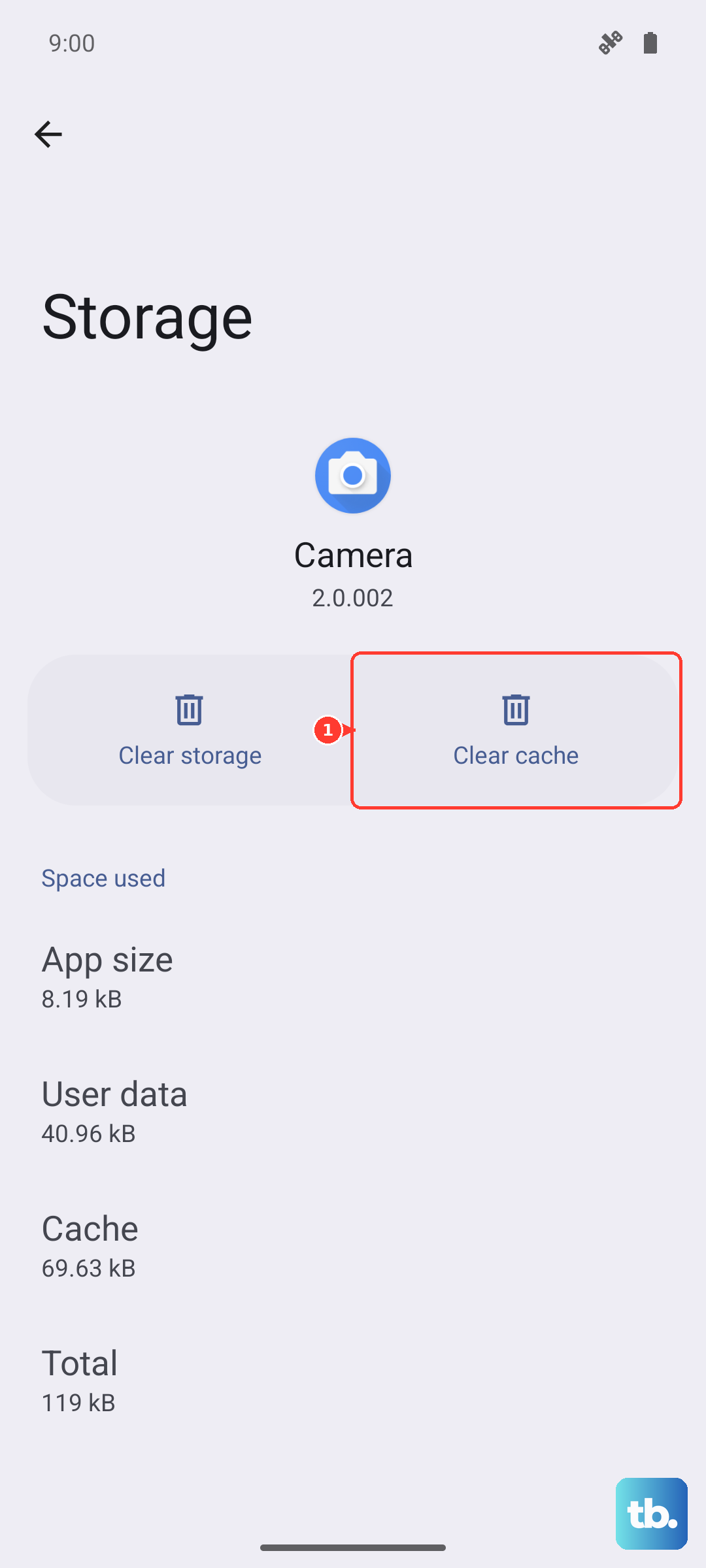
Corrupted temporary files in the Google app can break the voice assistant. Clearing the cache is safe and won't delete your personal data. Go to Settings > Apps > See all apps.
Find and tap on "Google". Select Storage & cache. Tap "Clear cache" first and test the assistant. If it still doesn't work, you can try "Clear storage" or "Manage space" > "Clear all data". This will reset the app, so you may need to sign back in.
Update the Google App and Android System
An outdated app or operating system can have bugs that break core functions. Open the Google Play Store, tap your profile icon, and go to Manage apps & device > Updates available. Update the "Google" app if it's listed.
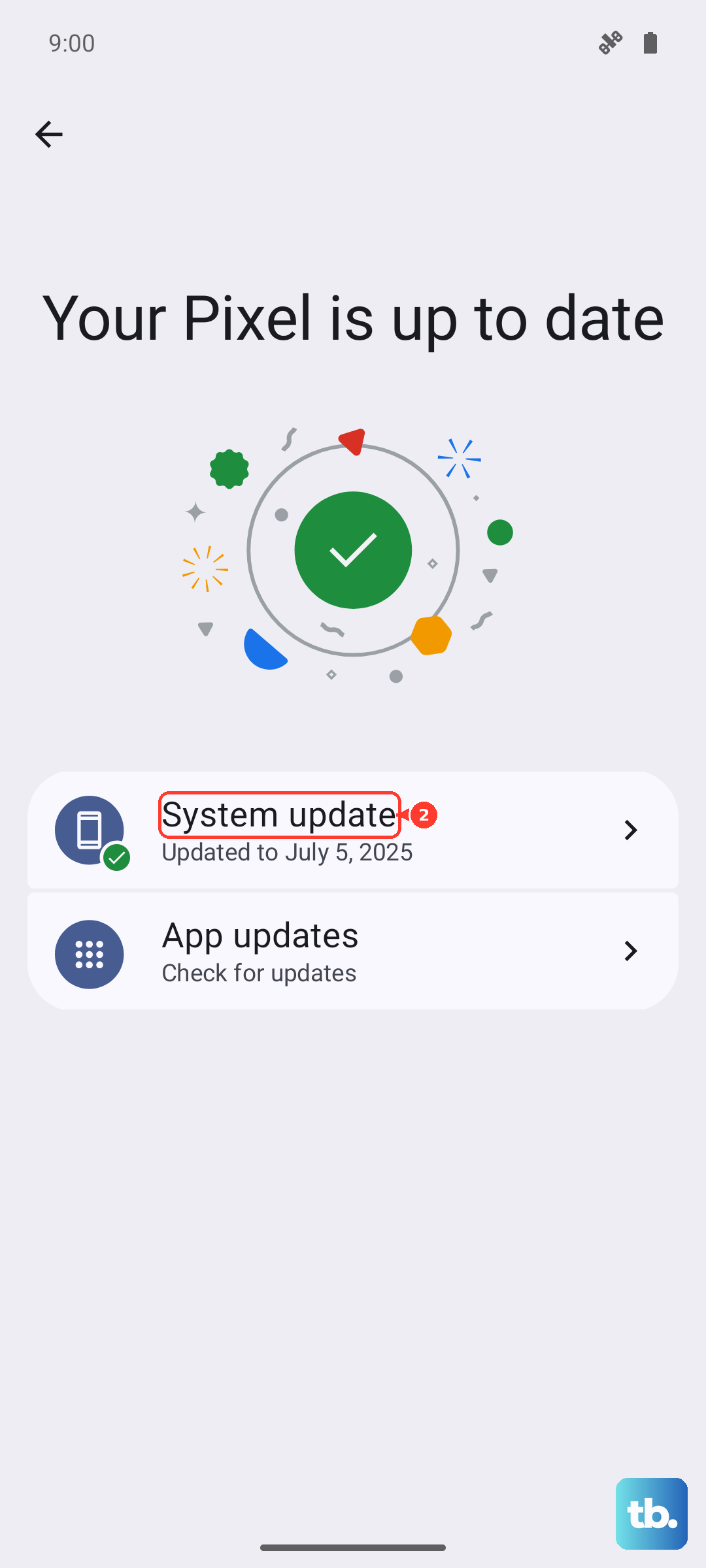
Next, check for a system update. Go to Settings > System > System updates. Infinix occasionally pushes updates that fix performance and stability issues, which can include assistant problems.
Disable Conflicting Accessibility Features
Certain accessibility services, like screen readers or sound detectors, can interfere with the microphone or the assistant's ability to process audio. Go to Settings > Accessibility.
Look through the list of installed services. If you have any third-party accessibility apps enabled, try turning them off temporarily to see if "Hey Google" starts working again.
Perform a Force Restart
A soft reset can clear out temporary glitches in the system that a normal power-off might not. For the Infinix Note 40 Pro, press and hold the Power button and the Volume Down button together for about 10 seconds.
Keep holding until you see the Infinix or Android logo appear on the screen, then release. The phone will reboot. This is different from a factory reset and won't delete any of your files or settings.
Check for XOS Bloatware Interference
Infinix's XOS is known for including promotional apps and services that can sometimes run in the background. While I haven't seen a specific app that blocks Google Assistant, general system sluggishness from bloatware could contribute.
You can disable some of these services. Go to Settings > Smart Service (this might be called something similar) and look for options to turn off personalized recommendations or ads. A cleaner-running system often resolves odd, intermittent issues.