
If your Infinix Note 40 Pro videos are stuttering, freezing, or dropping frames, it's a common headache with a few clear culprits. The good news is you can usually sort it out without too much fuss.
Restart Your Phone First
This is the quickest thing to try. A simple restart clears out temporary glitches and refreshes all the phone's processes. Just press and hold the Power button and Volume Down button together for about 10 seconds until you see the Infinix logo appear.
I'd start here because it takes less than a minute and often clears up random playback hiccups.
Check Your Available Storage
When your phone's storage is nearly full, it struggles to read and write video files smoothly, which causes lag and stutter. The Infinix Note 40 Pro needs breathing room to handle video processing properly.
Head to Settings > Storage to see how much space you have left. If you're below 3-4GB free, it's time for a cleanup. Delete old downloads, clear app caches, or move some photos and videos to cloud storage or a computer.
Close Background Apps and Processes
The MediaTek Dimensity 7020 chip in the Note 40 Pro is solid for everyday tasks, but it's a mid-range processor. If you have too many apps running in the background, especially heavy games or social media, they can steal the resources your video player needs.
Swipe up from the bottom and hold to see your recent apps, then swipe each one away to close it. Also, take a look in Settings > Battery to see if any apps are using an unusual amount of power in the background.
Disable XOS Ads and Bloatware
This is a big one specific to Infinix phones. XOS can be filled with promotional notifications and ads that run in the background. These processes can interfere with smooth video playback.
Go to Settings and search for "Smart Service" or "Advertisement". Turn off options for personalized ads and recommendations. You should also go through your notification settings for system apps and disable any that seem promotional.
Update Your Software and Apps
An outdated version of Android or XOS might have bugs that affect video decoding. Similarly, your video player app (like YouTube, Netflix, or your gallery app) might need an update.
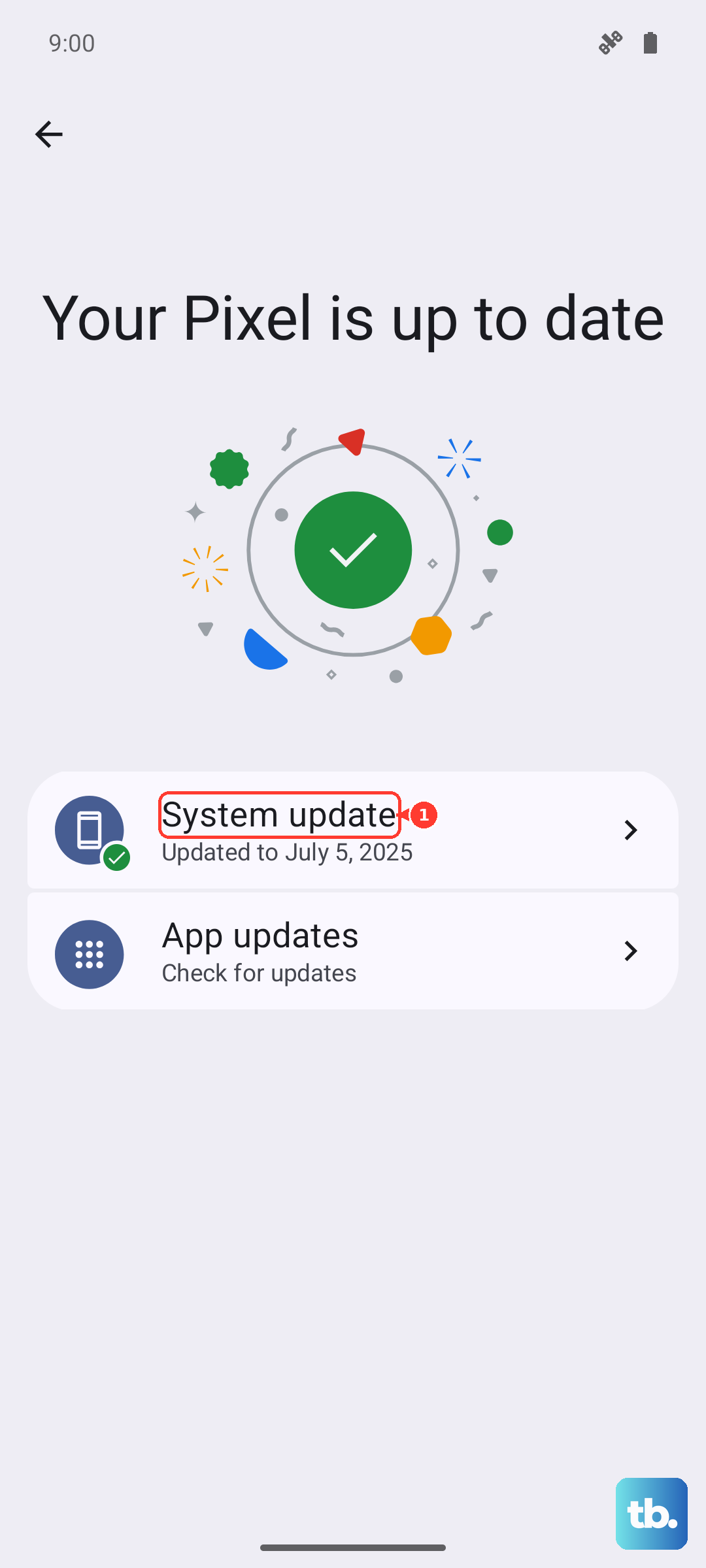
Check for a system update by going to Settings > System > System update. For your apps, open the Google Play Store, tap your profile icon, and select Manage apps & device > Updates available.
Try a Different Video Player
Sometimes the issue isn't with your phone, but with the app you're using to play the video. The built-in gallery app or a specific streaming service might have a temporary bug.
If a video is lagging in your gallery, try playing it in a different app like VLC Player, which is free on the Play Store. If a streaming video is buffering, try lowering the playback quality within the app's settings.
Check Your Network Connection for Streaming
For videos streamed from YouTube, Netflix, or other services, a weak Wi-Fi or mobile data signal is the most common cause of lag. The video constantly stops to buffer more data.
Try switching between Wi-Fi and your mobile data to see if one is more stable. You can also run a speed test using an app like Ookla. For HD streaming, you generally want a connection of at least 5 Mbps.
Clear the App Cache and Data
If the problem is isolated to one app, like YouTube or your gallery, its stored cache data might be corrupted. Clearing it can resolve playback issues without deleting your personal account or downloads.
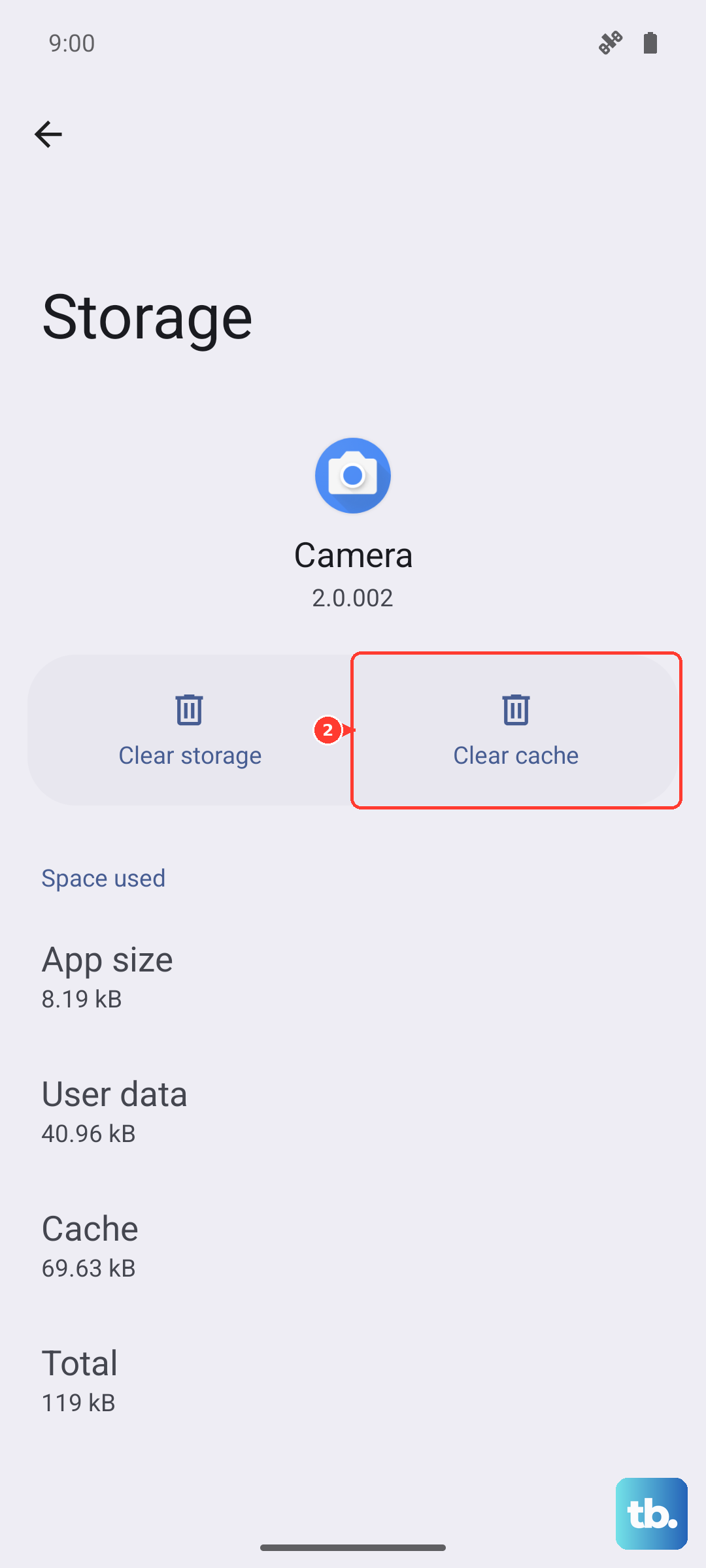
Go to Settings > Apps, select the problematic app, then tap Storage & cache. Tap "Clear cache" first. If that doesn't work, you can try "Clear storage" or "Clear data", but be aware this will reset the app to its default state.
Perform a Soft Reset on Network Settings
If your streaming issues persist across all apps, there might be a deeper network configuration problem. Resetting these settings can help, but you'll need to re-enter any saved Wi-Fi passwords.
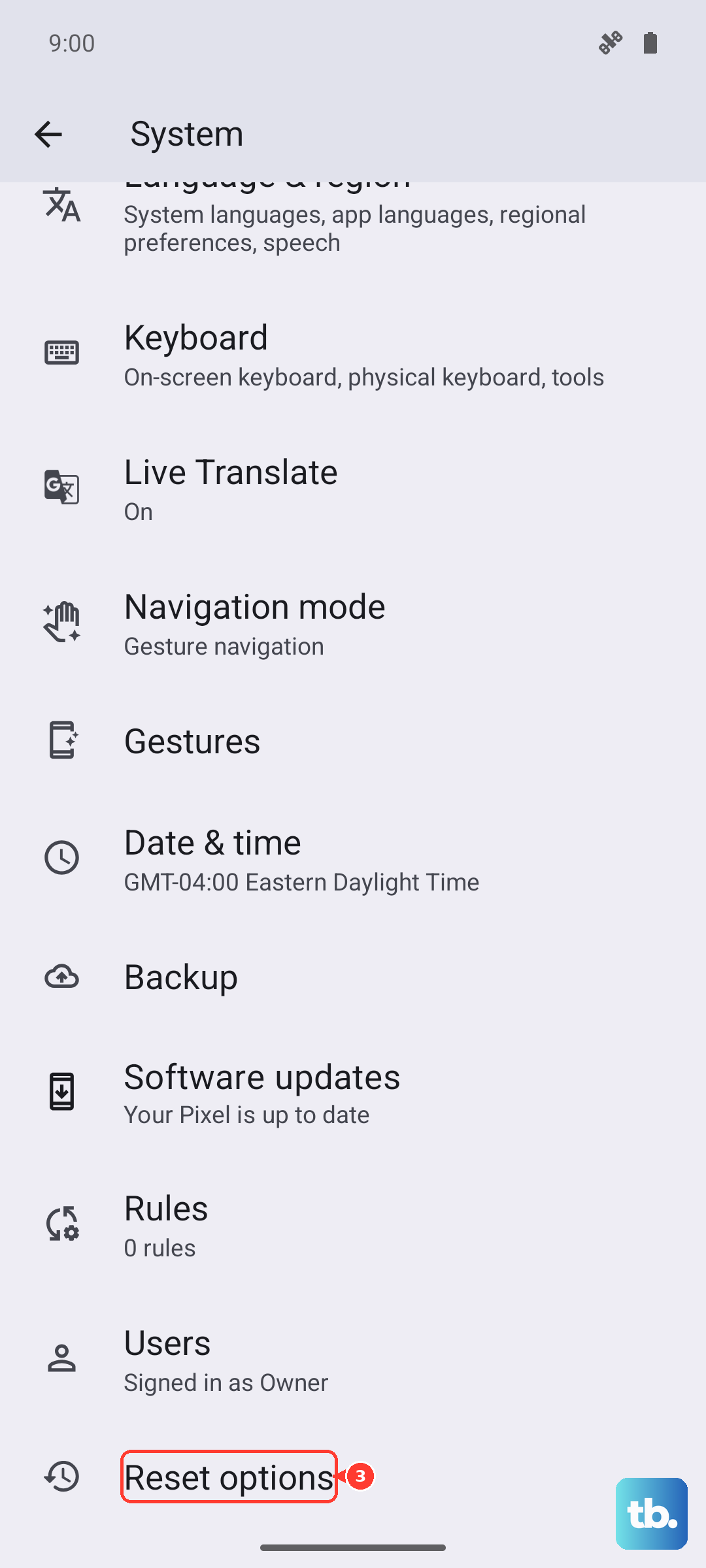
Navigate to Settings > System > Reset options. Then, select Reset Wi-Fi, mobile & Bluetooth and confirm. After your phone restarts, reconnect to your Wi-Fi network and try streaming again.
Consider a Factory Reset
If you've tried everything and video lag is still making your phone unusable, a factory reset is the final step. This will erase all data from your phone and return it to its original out-of-the-box state.
Before you do this, it's absolutely crucial to back up everything important, photos, contacts, messages, and app data. You can use Google Drive or transfer files to a computer. Once backed up, go to Settings > System > Reset options > Erase all data (factory reset).