
Seeing that "storage full" warning on your Infinix Note 40 Pro can really stop you in your tracks. You can't take new photos, update apps, or even download a simple file. The good news is that with a bit of cleaning, you can almost always free up several gigabytes of space. The process is a little different on Android and XOS, but it's straightforward once you know where to look.
Start With the Storage Manager
Open Settings > Storage on your phone. This screen gives you a complete breakdown of what's filling up your space. You'll see categories like Apps, Images, Videos, and Audio. Take a moment to let it fully calculate. This is your roadmap, and it will clearly show you the biggest space hogs, which are often apps, photos, and cached data.
Clear App Caches (The Quick Win)
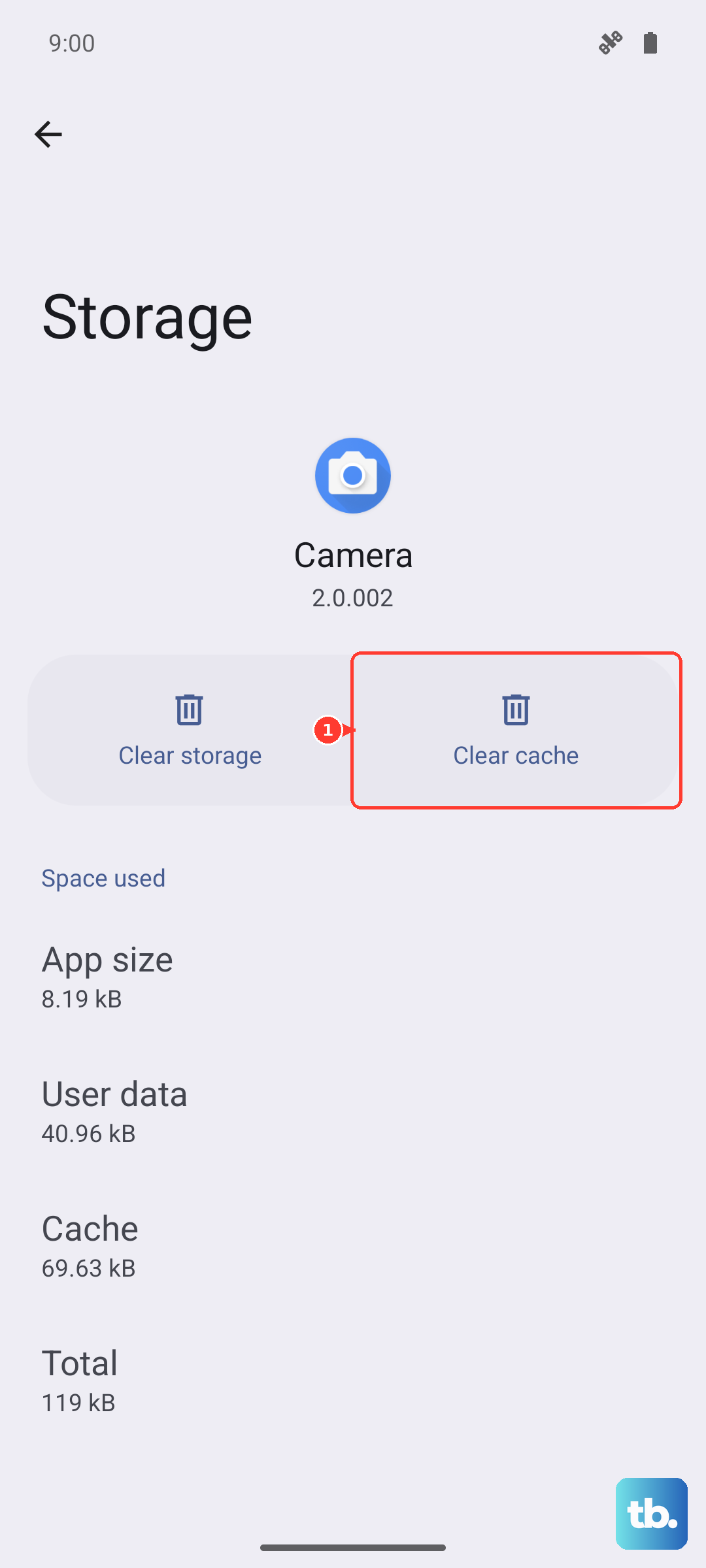
App caches are temporary files that help apps load faster but can balloon in size over time. In your Settings > Storage menu, tap on Apps. You'll see a list sorted by storage usage. Tap on any large app, like Facebook, Instagram, or TikTok. On its info page, tap Clear cache. This deletes temporary files without touching your login info or personal data. I'd start with your social media and browser apps, as they tend to accumulate cache the fastest.
Manage Your Photos and Videos
With that capable camera, it's easy to fill storage with photos and 4K videos. First, open your Gallery app and go through your recent shots. Delete any blurry photos, duplicate images, or old screenshots you don't need. Don't forget to then go into the Albums section and empty the Recently Deleted folder, as those files still take up space for 30 days. For a more permanent solution, consider backing your photos up to Google Photos and then using its "Free up space" tool to remove the local copies.
Uninstall or Disable Bloatware
This is a key step for Infinix phones. XOS comes with a number of pre-installed apps you may never use. Go to Settings > Apps > Manage apps. Scroll through the list and look for apps like Palm Store, XClub, or other Infinix services. If you can't uninstall them, you can often Disable them, which stops them from running and hides them from your app drawer. This won't free up a massive amount of space, but it helps clean up your system and stop background processes.
Clean Up Downloads and Offline Files
Open your Files or File Manager app and navigate to the Downloads folder. This is a common dumping ground for PDFs, APK files, images from browsers, and other items you saved once and forgot. Sort the files by size and delete anything you no longer need. Also, check your streaming apps. In Spotify, Netflix, or YouTube, go into each app's settings to review and delete any music, shows, or videos you downloaded for offline viewing.
Limit Ad Data and Smart Services
XOS includes promotional features that can download ad content and suggestions. To reduce this background activity, go to Settings > Smart Service. Here, you can toggle off options like Recommendations and Smart suggestions. Disabling these won't directly free up existing storage, but it prevents the system from downloading new promotional files and data in the future, keeping your storage cleaner.
Review and Trim Messaging Apps
Apps like WhatsApp, Telegram, and Facebook Messenger store every image, video, and file you've ever received. Open WhatsApp, for example, and go to Settings > Storage and data > Manage storage. You can review large conversations and bulk-delete media from within the app. Doing this for a few group chats can easily reclaim a gigabyte or more.
Check for System Updates
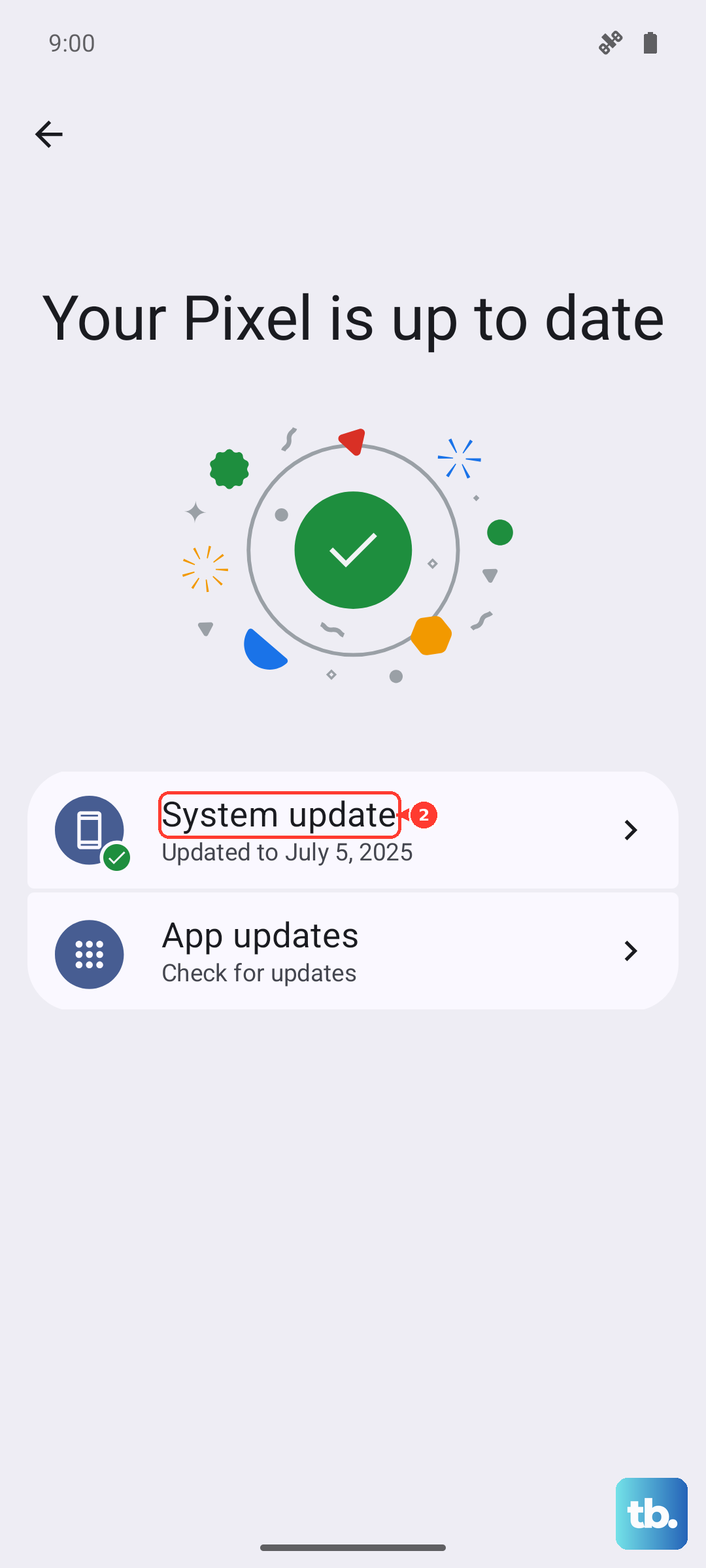
Sometimes, a software update includes optimizations for storage management. Go to Settings > System > System updates and tap Check for updates. If an update is available, installing it can resolve underlying bugs that might be causing incorrect storage reporting or cache issues. Make sure your phone is connected to Wi-Fi and has at least 30% battery before starting an update.
Use the Built-In Cleaner Tool
XOS includes a phone manager or cleaner app, often called Phone Master or something similar. Open this app and run its Junk Clean or Cleanup scan. It will quickly identify residual files, app cache, and temporary system logs you can safely delete with one tap. It's a good way to get a broad sweep of unnecessary files after you've done the more targeted cleaning steps.
Consider a Factory Reset (Last Resort)
If you're still critically low on space after all this and your phone is sluggish, a factory reset can be a fresh start. This will erase everything and return the phone to its out-of-the-box state. Before you do this, it is crucial to back up all your important photos, contacts, and files to Google Drive or a computer. To reset, go to Settings > System > Reset options > Erase all data (factory reset). After the reset, you can restore your backup and reinstall only the apps you truly need.