
When your Infinix Note 40 Pro goes silent, it can throw a wrench in your day. Whether you're missing calls, can't hear videos, or your music has stopped, the issue is usually a simple software setting or a minor glitch. I'd start with the basics first, as they fix the problem more often than not.
Start with a free online speaker test that plays left and right channels one at a time. Hearing both sides confirms the hardware, which makes the remaining steps much easier to pin down.
Check Your Volume and Sound Mode
First, press the volume up button on the side of your phone. If you see a volume slider on screen, you know the hardware buttons are working. Sometimes the phone can get stuck in silent or vibration mode without it being obvious.
For a more detailed check, go into Settings > Sound & vibration. Here, you can adjust the media, ringtone, and notification volumes individually. Make sure none of them are slid all the way down to zero.
Disconnect Bluetooth and Accessories
Your Note 40 Pro might be trying to send audio to a device that isn't there. Swipe down from the top of your screen to open the Quick Settings panel and look for the Bluetooth icon. If it's blue or highlighted, tap it to turn Bluetooth off completely.
Also, remove any headphones or USB-C audio adapters. The phone's software can sometimes get confused and keep audio routed to a port even after you've unplugged your gear.
Clean the Speaker Grilles
The Note 40 Pro has speaker grilles that can easily collect pocket lint and dust. Take a close look at the bottom edge of the phone and the earpiece at the top. Use a soft, dry toothbrush or a clean, dry paintbrush to gently sweep away any visible debris.
You can also use a can of compressed air, but hold it upright and use very short bursts from a few inches away. Never poke anything sharp like a pin or paperclip into the grilles, as you'll likely damage the speaker inside.
Restart Your Phone
A simple restart clears out temporary software bugs that can affect audio. Just hold down the power button until the power menu appears, then tap "Restart." Wait for the phone to fully boot back up and check your sound.
If the phone is completely unresponsive or the restart doesn't help, you can force a reboot. Press and hold the Power button and the Volume Down button together for about 10 seconds. Release when you see the Infinix logo, and let the phone start normally.
Check Do Not Disturb and App-Specific Settings
Open Settings > Sound & vibration and look for "Do Not Disturb." Make sure this feature is turned off. Also, within the same menu, look for an option like "Separate app sound" or "Sound assistant." These XOS features can sometimes mute audio for specific apps unexpectedly.
Don't forget to check the app itself. If you're only having sound issues in one app, like YouTube or Spotify, open that app's own settings. Look for any in-app volume controls or audio quality settings that might have been changed.
Boot Into Safe Mode
Safe mode temporarily disables all third-party apps you've downloaded. If your sound works perfectly in safe mode, you know a recently installed app is the culprit. To enter safe mode, press and hold the power button until the power off menu appears.
Then, tap and hold the "Power off" option on your screen. A prompt will ask if you want to reboot to safe mode. Tap "OK." You'll see "Safe mode" in the bottom corner of your screen. Test your audio here, then restart normally to exit.
Clear the Cache Partition
Corrupted system cache files can cause all sorts of odd behavior, including sound problems. This process doesn't delete any of your personal data. First, power your Note 40 Pro off completely.
Now, press and hold the Power button and the Volume Up button at the same time. Release them when you see the Infinix or Android recovery menu. Use the volume buttons to scroll to "Wipe cache partition" and press the power button to select it. Confirm, then select "Reboot system now."
Update Your Software
Infinix releases updates that often include bug fixes for issues just like this. Connect to Wi-Fi and go to Settings > System > System update. Tap "Check for updates." If an update is available, download and install it. Your phone will restart during this process.
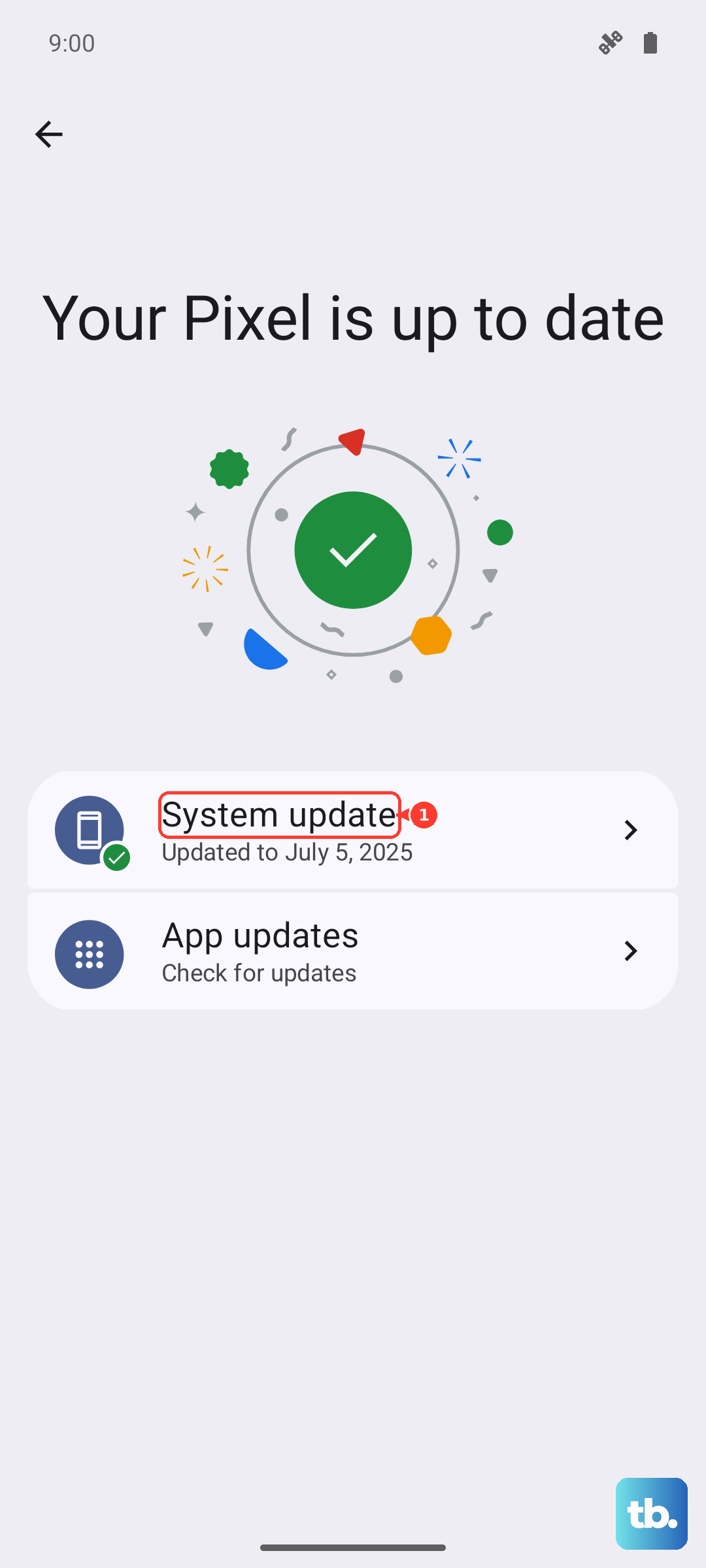
It's also a good idea to head to the Google Play Store, tap your profile icon, and select "Manage apps & device." Under the "Updates available" section, update all your apps. A buggy app update can sometimes interfere with system audio.
Reset All Settings
If you're still having trouble, this will reset all your system settings, like Wi-Fi passwords, Bluetooth pairings, and sound preferences, back to factory defaults without touching your photos, messages, or apps. Go to Settings > System > Reset options.
Tap "Reset all settings" and enter your PIN or password if prompted. Confirm the reset. Your phone will reboot. Afterward, you'll need to reconfigure your preferences, but it often clears up persistent software conflicts causing the sound to fail.