
Press and hold the Power button and Volume Down button together for at least 10 seconds. Keep holding until you feel the phone vibrate and see the Infinix logo appear. This force restart is the most reliable way to clear a temporary software glitch that's freezing the touchscreen.
Before trying the fixes, map the problem with a touch screen test in your browser. Dragging a finger across the grid reveals exactly which areas of the screen respond and which do not.
I'd start with this one every time. It works on most Infinix phones running XOS 14 and doesn't delete any of your data. If the screen is completely black and unresponsive, you might just feel the vibration without seeing anything.
Clean the Screen and Remove Any Protector
Turn the phone off first if you can. Then, wipe the screen down thoroughly with a clean, slightly damp microfiber cloth. Pay special attention to the edges where oil and dirt from your hands can build up and interfere with the touch sensors.
If you're using a cheap or old screen protector, peel it off and test the bare screen. Low-quality protectors, especially glass ones that are lifting at the edges, are a common culprit for touch issues on the Note 40 Pro.
Also, make sure your hands are completely dry. The phone's screen can struggle with wet or even slightly damp fingers, which is a known quirk with some touchscreen panels.
Check for Software Conflicts in Safe Mode
Boot your phone into Safe Mode to see if a recently downloaded app is causing the problem. First, press and hold the power button until the power menu appears. Then, tap and hold the "Power off" option on your screen.
You'll get a prompt to reboot into Safe Mode. Tap "OK." If the touchscreen works perfectly in Safe Mode, you've confirmed a third-party app is to blame. You'll need to uninstall apps you downloaded recently, one by one, to find the offender.
To exit Safe Mode, just restart your phone normally. This is a great diagnostic step that doesn't change any settings.
Update Your Phone's Software
Outdated software can have bugs that affect touchscreen responsiveness. Go to Settings > System > System update to check for any available updates.
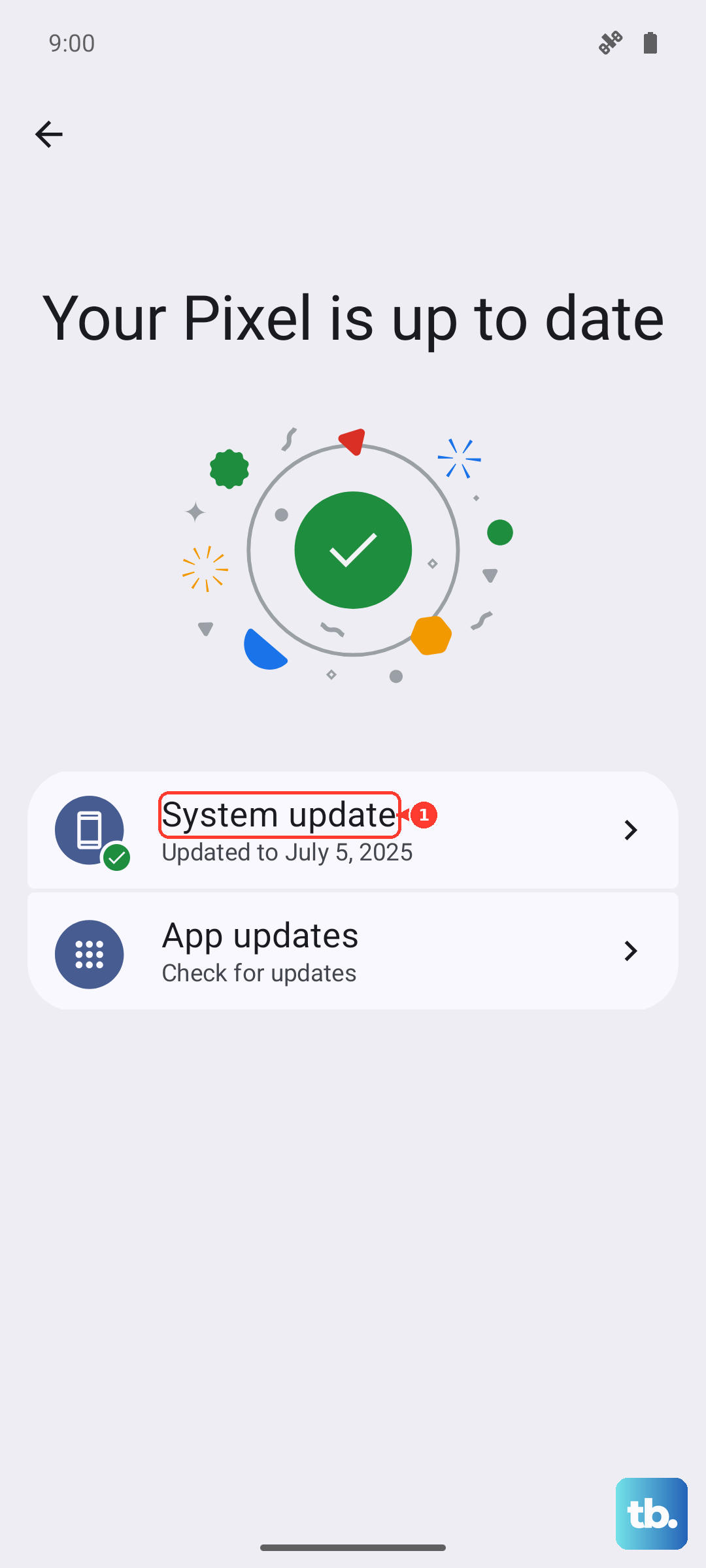
Make sure your phone is connected to Wi-Fi and has at least 50% battery before downloading. Infinix regularly releases updates for XOS that can include performance fixes for the MediaTek Dimensity 7020 chipset, which sometimes struggles under heavy load.
If an update is available, install it and restart your phone. I've seen updates resolve touchscreen lag, especially after the phone has been running hot from gaming or multitasking.
Calibrate the Touch Screen
While Android doesn't have a built-in calibration tool, you can use a hidden diagnostic menu. Open your phone's dialer and enter the code *#*#2664#*#*. This should launch a touchscreen test screen.
Follow the on-screen instructions to draw patterns or tap targets. This process can help recalibrate the touch sensors. If the diagnostic menu doesn't open with that code, try searching for "Diagnostics" in your Settings app, as Infinix sometimes moves it.
Completing the test can clear up minor calibration drift where taps feel like they're registering in the wrong spot.
Disable Glove Mode and Increase Touch Sensitivity
Some touchscreen issues are actually caused by features meant to help. Go to Settings > Additional settings > Accessibility and look for any options like "Glove mode" or "Touch sensitivity."
Try turning these off. While "Increase touch sensitivity" is useful for use with screen protectors, it can sometimes make the screen too sensitive and erratic. Toggle it off to see if the behavior improves.
Also, check Settings > Smart Service and disable any gesture shortcuts or "Smart panels" you aren't using. These XOS features can occasionally misinterpret swipes and cause lag.
Free Up RAM and Storage Space
The Infinix Note 40 Pro comes with a lot of pre-installed apps, and XOS can be aggressive with background processes. If your phone's memory is full, the entire system, including the touch response, can slow down.
Close all your recent apps by swiping them away from the recent apps menu. Then, consider clearing the cache for individual apps in Settings > Apps.
If your internal storage is nearly full, try moving photos and videos to an SD card or cloud service. A lack of free space can cause system-wide performance issues that manifest as a sluggish screen.
Perform a Factory Reset
This erases everything on your phone, so it's a last resort. First, back up all your important data to Google Drive or transfer it to a computer. Then, go to Settings > System > Reset options > Erase all data (factory reset).
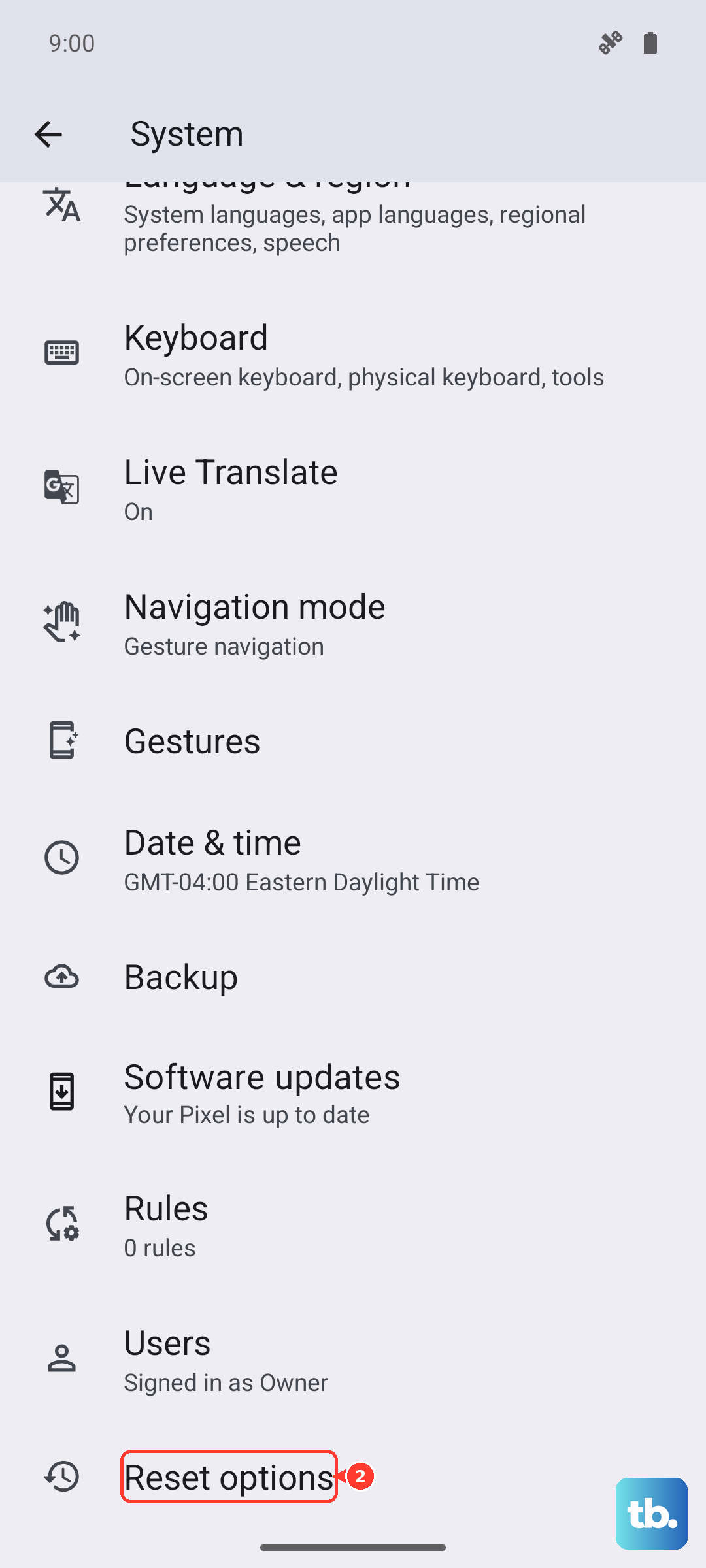
Follow the prompts to confirm. The phone will reboot and take several minutes to reset. This returns the software to its original out-of-the-box state, eliminating any deep-seated software corruption causing the touch problem.
After the reset, set up the phone as new without restoring a backup immediately to see if the screen works. If it does, you can then try restoring your data, but be cautious of bringing back a problematic app setting.