
Seeing "Not registered on network" on your Infinix Note 40 Pro is a frustrating roadblock. It means your phone can't connect to your carrier to make calls, send texts, or use mobile data. This error can pop up for a few reasons, from a simple software hiccup to a more stubborn SIM card issue.
The good news is you can almost always fix it yourself. I'd start with the quick fixes at the top of this list, as they solve the problem most of the time. Before you begin, it's a good idea to check your IMEI number by dialing *#06# in your phone app. If it shows a valid 15-digit number, the issue is likely with the connection, not the phone's identity.
Restart Your Infinix Note 40 Pro
Always try this first. A restart clears temporary glitches in the system and forces your phone to re-register with the nearest cell tower. Just hold the power button, tap restart, and wait for it to fully boot up. It's a simple step, but it works more often than you'd think.
Toggle Airplane Mode
This is like giving your cellular radio a quick nap. Swipe down from the top of your screen to open the Quick Settings panel and tap the Airplane Mode icon. Wait about 15 seconds, then tap it again to turn it off. Your phone will search for the network from scratch, which can resolve a stuck connection.
Reinsert Your SIM Card
A loose or dusty SIM card is a common culprit. Power off your Note 40 Pro first. Use the SIM ejector tool (it came in the box) to pop open the tray on the bottom edge. Carefully remove the SIM, give both the card and the slot a gentle blow to dislodge any dust, and firmly reseat it. Power the phone back on and check for service.
Check Your Mobile Account Status
Sometimes the problem isn't your phone at all. If your prepaid credit has run out or your postpaid bill is overdue, your carrier will suspend service. Try logging into your carrier's app from Wi-Fi, or give them a call from another phone to confirm your account is active and in good standing.
Reset Your Network Settings
This clears all your saved Wi-Fi networks, Bluetooth pairings, and cellular configurations. It's a clean slate for connectivity. On your Infinix, go to Settings > System > Reset options > Reset Wi-Fi, mobile & Bluetooth. Tap to confirm. Your phone will restart, and you'll need to reconnect to Wi-Fi and re-pair Bluetooth devices, but it often fixes persistent network errors.
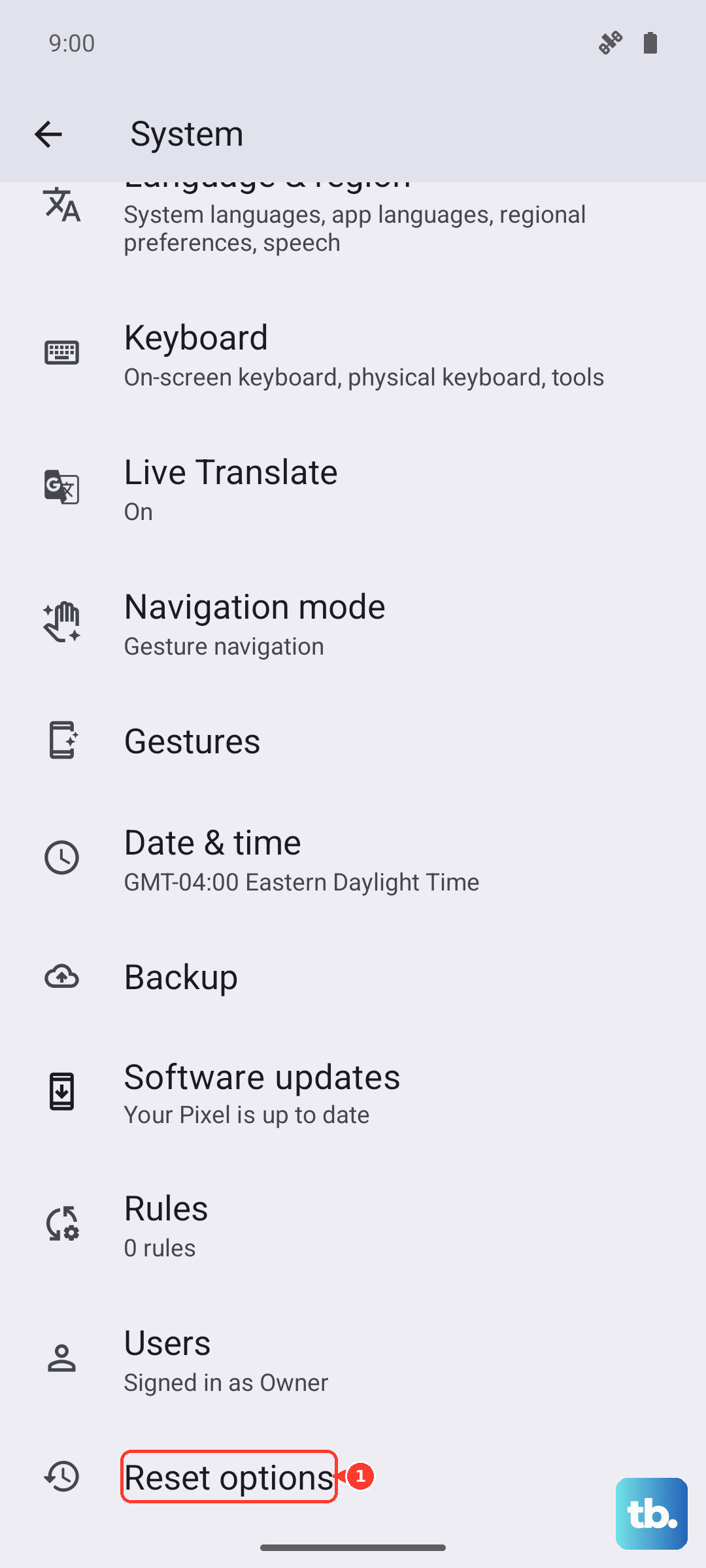
Manually Select a Network Operator
Your phone might be trying to latch onto a weak or unavailable network band automatically. You can force it to choose. Go to Settings > Network & internet > Mobile network > Advanced > Choose network. Let it search, then manually select your carrier from the list. If that doesn't work, try changing the preferred network type in the same menu from "5G" to "4G" or "3G" to see if it connects on a different band.
Update Your Phone's Software
Infinix releases updates that fix bugs, including ones related to network connectivity. Running outdated software can cause these exact issues. Connect to Wi-Fi and go to Settings > System > System update. Tap "Check for updates" and install anything available. The Dimensity 7020 chipset handles updates well, so this process should be smooth.
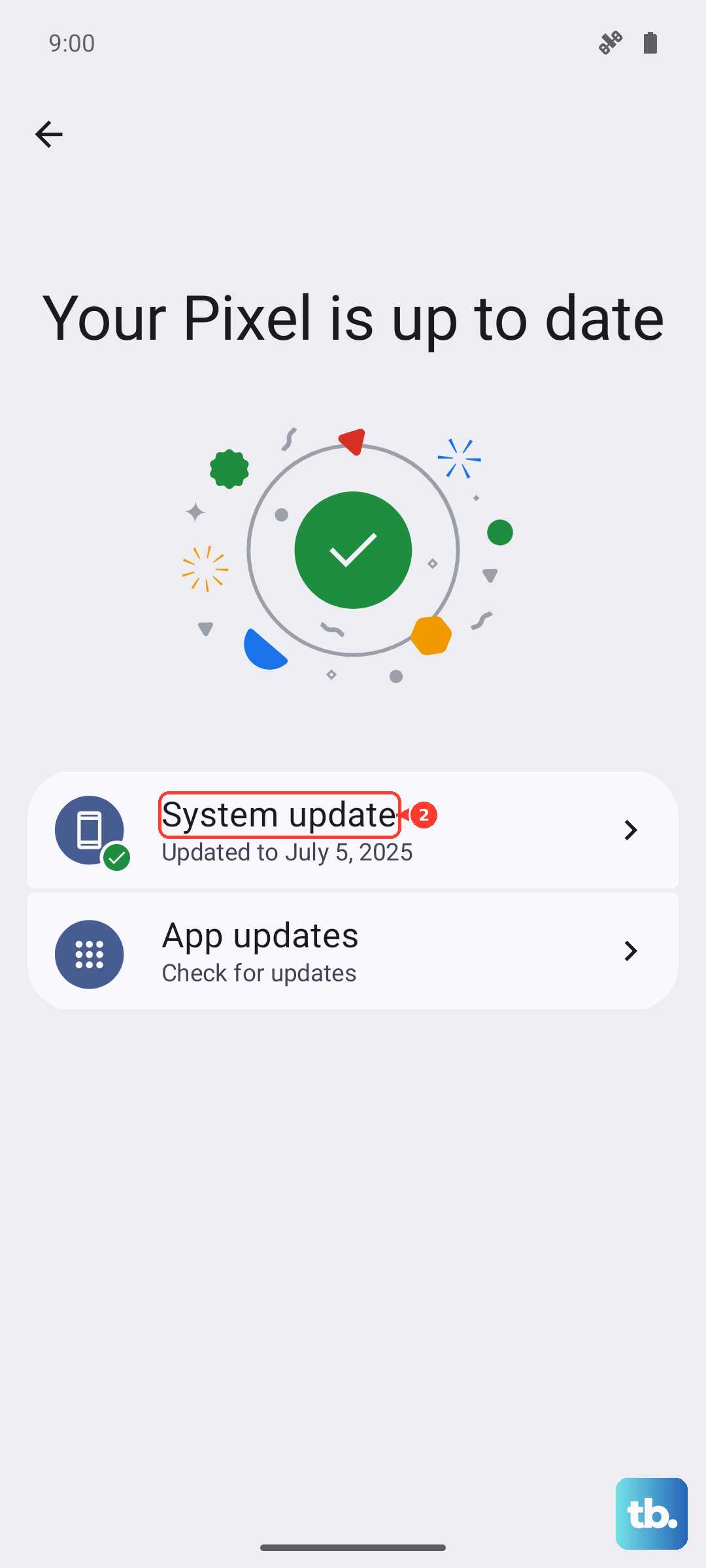
Clear the Phone Services Cache
The app that manages your calls has its own cache, which can get corrupted. Go to Settings > Apps > See all apps. Tap the three-dot menu, select "Show system," then find and tap "Phone Services." Go to Storage & cache > Clear cache. This doesn't delete any personal data, just temporary files. Restart your phone afterward.
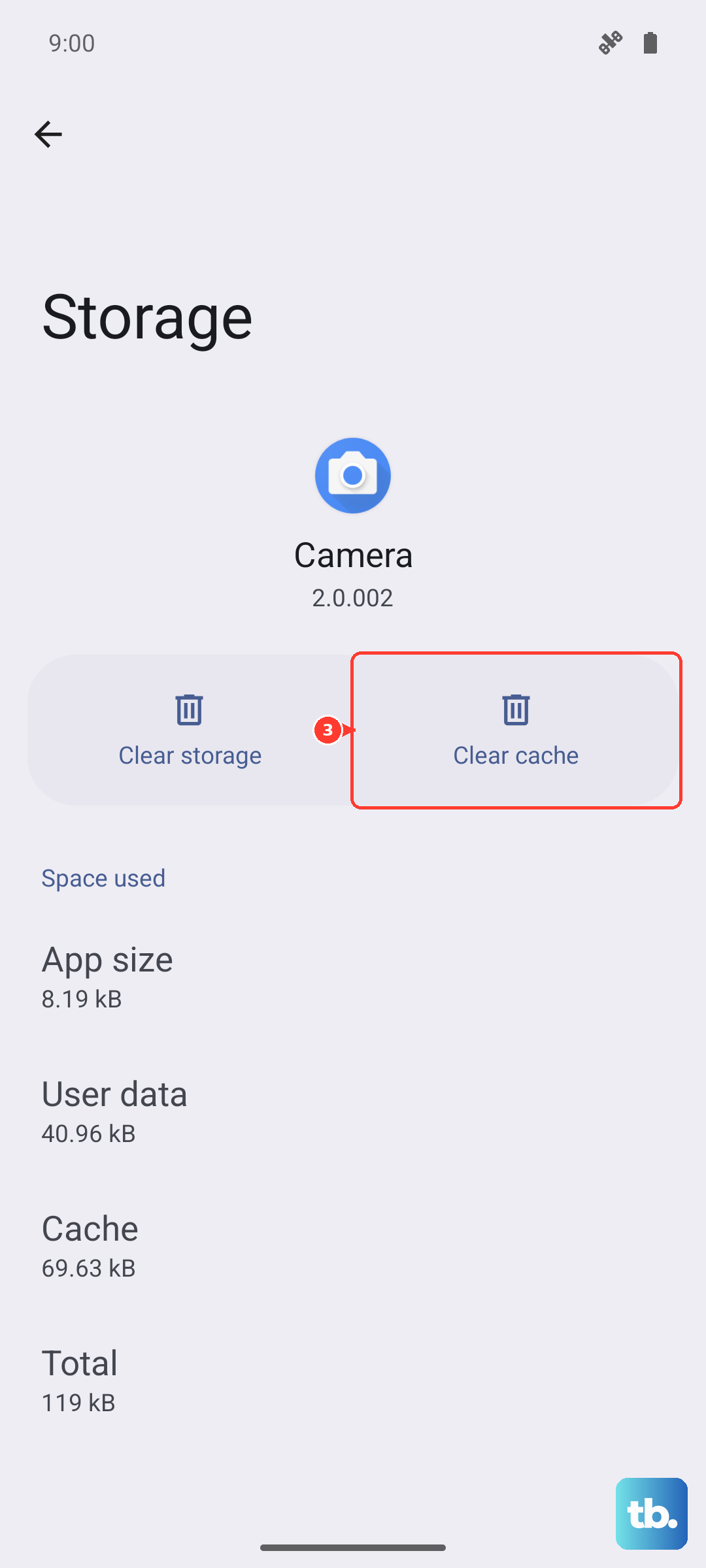
Try a Different SIM Card
This test tells you if the problem is with your SIM or the phone itself. Borrow a known-working SIM card from a friend (even from a different carrier) and put it in your Note 40 Pro. If it connects to a network, your original SIM card is likely damaged or faulty, and you need a replacement from your carrier. If the borrowed SIM also fails, the issue is with your phone.
Perform a Factory Reset
This is your last resort before considering a hardware problem. A factory reset wipes your phone back to its out-of-the-box state, removing any deep-seated software corruption. Back up everything important first. Then, go to Settings > System > Reset options > Erase all data (factory reset). After the reset, set up the phone as new without restoring a backup immediately to see if the network works.