
If your Infinix Note 40 Pro is suddenly saying "No SIM" or "SIM card not detected," you can't make calls or use mobile data. It's a common hiccup that usually has a simple fix, often related to the card itself or a minor software glitch in XOS 14.
Restart Your Phone and Check the Tray
I'd start with a simple restart. Press and hold the power button, then tap "Restart" on the screen. This clears temporary software bugs that can confuse the SIM reader. If that doesn't work, power the phone off completely.
Grab the SIM ejector tool that came in the box and pop out the tray. Take a close look at the SIM card's gold contacts. If you see any dust, lint, or a faint oily film, gently wipe them with a dry, soft cloth. Blow any debris out of the tray slot too.
Reinsert the SIM, making sure it's seated correctly in the tray and the tray clicks firmly back into the phone. Turn your Note 40 Pro back on and see if it recognizes the network.
Toggle Airplane Mode and Verify SIM Status
Swipe down from the top of your screen to open the Quick Settings panel. Tap the Airplane mode icon to turn it on, wait about ten seconds, then tap it again to turn it off. This forces your phone's modem to re-establish a fresh connection with the cellular network, which can often kick a stuck SIM back to life.
Next, double-check that the SIM is actually enabled in your settings. Go to Settings > Network & Internet > SIM cards. Here, you should see your SIM listed. Make sure the toggle next to it is switched on. You can also try turning "Mobile data" off and back on from this same menu.
Test the SIM in Another Device
This is the best way to figure out where the problem actually lies. If you have access to another unlocked phone, power it off, insert your Infinix's SIM card, and turn it back on. If the other phone also fails to detect the SIM, then the issue is with the card itself.
In that case, you'll need to contact your mobile carrier. They can check if the SIM is properly activated on their network and will usually provide a free replacement if it's faulty. If the SIM works perfectly in another phone, then the problem is specific to your Note 40 Pro.
Update Your Software and Reset Network Settings
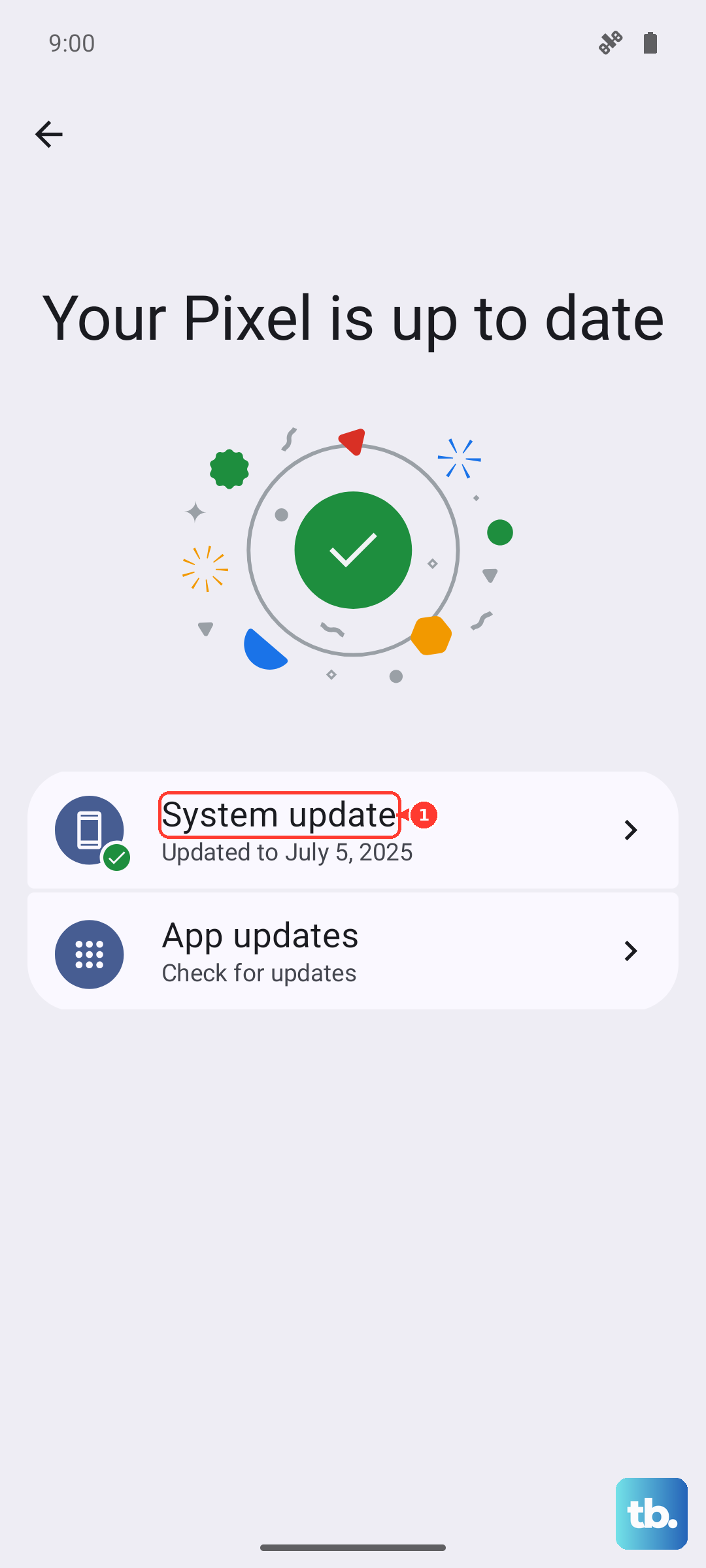
Software bugs in Android 14 or Infinix's XOS can sometimes cause connectivity issues. Go to Settings > System > System update and tap "Check for updates." Install any available updates, as they often contain fixes for modem and stability problems.
If you're still having trouble, try resetting your network settings. This will erase all saved Wi-Fi passwords, Bluetooth pairings, and cellular network preferences, but it won't touch your personal files or apps. Go to Settings > System > Reset options.
Tap "Reset Wi-Fi, mobile & Bluetooth" and confirm. Your phone will reboot. Afterward, you'll need to reconnect to Wi-Fi and re-pair Bluetooth devices, but it can clear out corrupted network configurations causing the SIM error.
Check and Reset Your APN Settings
Incorrect Access Point Name (APN) settings can prevent your phone from registering on your carrier's network properly, which might manifest as a SIM detection problem. To check, go to Settings > Network & Internet > SIM cards.
Tap on your active SIM, then select Access Point Names. If the settings look wrong or are blank, you need to enter the correct ones. Tap the plus (+) icon or the three-dot menu to add a new APN. You must get the exact details from your carrier's website or customer service.
If you're not sure, a safer first step is to reset them to default. Tap the three-dot menu in the APN screen and select "Reset to default." Your phone will often populate the basic settings automatically.
Perform a Force Restart
A standard restart is good, but a force restart (or soft reset) goes deeper. It can clear more stubborn system caches that might be interfering with the SIM module. For the Infinix Note 40 Pro, press and hold the Power button and the Volume Down button together.
Keep holding them for about 10 to 15 seconds. You'll see the screen go black and then the Infinix logo will appear as the phone boots up. Release the buttons once you see the logo. This is a completely safe procedure and is different from a factory reset.
Clear Cache for SIM Services
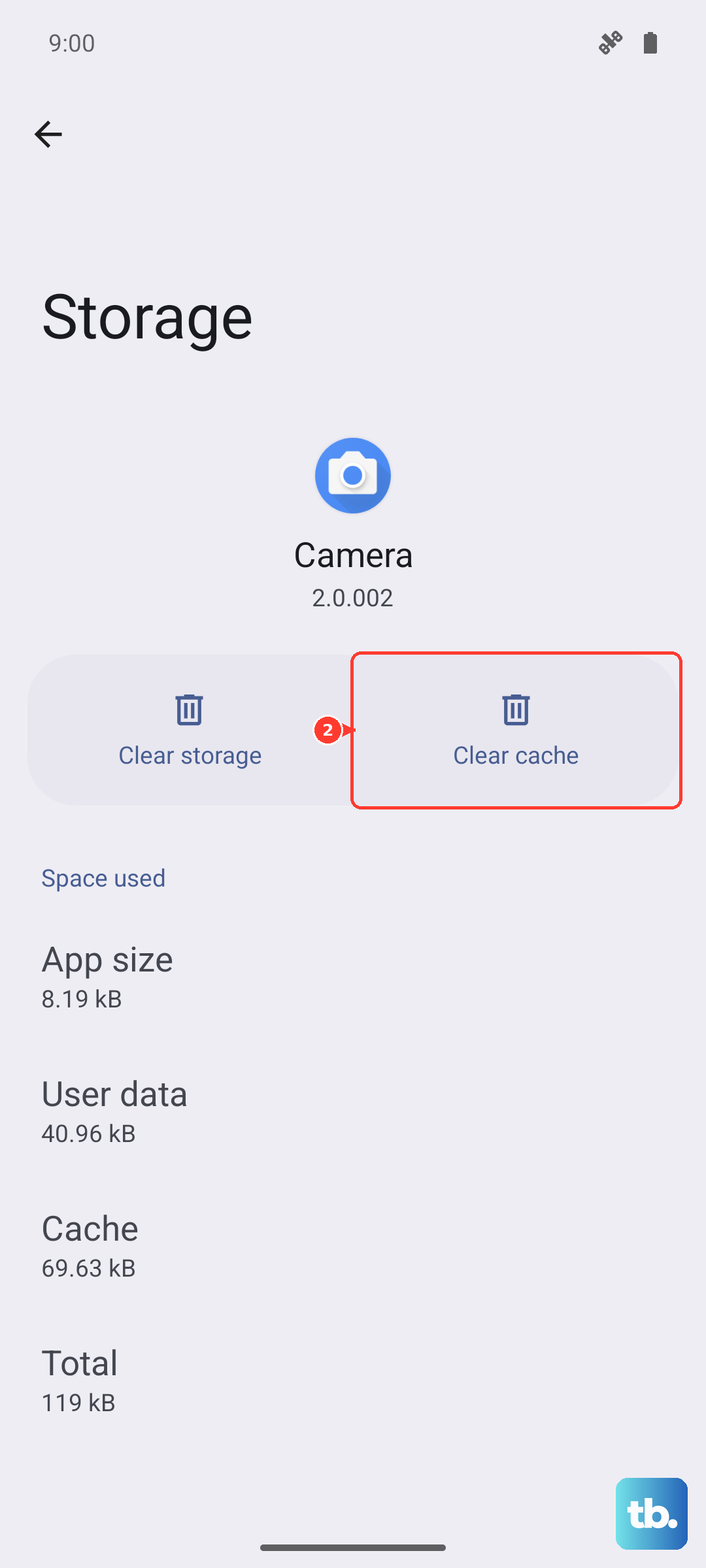
System apps that manage your SIM card can accumulate corrupted cache data. You can clear this cache without losing any important information. Head to Settings > Apps > See all apps.
Tap the three-dot menu in the top right and select "Show system." Now, look for apps like "SIM Toolkit," "SIM Contacts," or "Phone Services." Tap on one, select "Storage & cache," and then tap "Clear Cache." Do this for any SIM or telephony-related system apps you find.
Try Manual Network Selection
Letting your phone automatically choose a network is best, but sometimes the process gets stuck. You can manually select your carrier to force a connection. Go to Settings > Network & Internet > SIM cards and tap your SIM.
Look for "Network operators" or "Carrier" and tap it. The phone will search for all available networks in your area. Once the list populates, select your specific carrier's name from it. Wait a moment to see if the phone successfully registers.
Consider a Factory Reset
If every other step has failed and the SIM works in another phone, a deeper software issue might be the culprit. A factory reset will wipe your phone back to its original out-of-box state. This is a last resort because you must back up everything important first, photos, contacts, messages, and app data.
To back up, use Google Drive for your photos and settings, and check individual apps for their backup options. Once ready, go to Settings > System > Reset options > Erase all data (factory reset). Follow the prompts to complete the process.