
Seeing "No Service" or a missing signal bar on your Infinix Note 40 Pro is a real headache. It cuts you off from calls, texts, and mobile data right when you need them most. The good news is that most of the time, this is a software hiccup or a simple setting that's gotten out of whack.
I'd start with the basics, as they fix the issue more often than not. Let's get your connection back.
Restart Your Phone and Check Airplane Mode
First, give your Note 40 Pro a fresh start. A simple restart clears out temporary glitches in the system memory that can confuse the modem. Just hold the power button and tap restart.
While you're at it, swipe down from the top of the screen twice to open the full Quick Settings panel. Make sure the airplane icon isn't highlighted. If it is, tap it to turn Airplane Mode off. It's an easy thing to toggle by accident.
Reinsert Your SIM Card
A loose or dusty SIM card is a classic culprit. The Note 40 Pro uses a dual nano-SIM tray, usually on the bottom edge. Grab the included ejector tool or a small paperclip, pop out the tray, and carefully remove the SIM.
Give the gold contacts on the SIM card a gentle wipe with a soft, dry cloth. Blow any dust out of the SIM tray slot in the phone. Then, reseat the SIM firmly, making sure it's lying completely flat in its slot before you push the tray back in. Wait a minute for the phone to re-register on the network.
Toggle Mobile Data and Check Signal
Head into your settings to give the mobile data connection a nudge. Open Settings > Network & Internet > Mobile network. Tap the switch next to "Mobile data" to turn it off, wait a few seconds, and then turn it back on.
Also, take a quick look at your signal strength in the status bar. If you're in a basement, a thick-walled building, or a rural area, you might just be in a dead zone. Try moving near a window or stepping outside to see if the bars reappear.
Reset Your Network Settings
If the quick fixes didn't work, the next step is to reset all network-related settings. This will wipe saved Wi-Fi passwords, Bluetooth pairings, and cellular configurations, but it won't touch your photos, apps, or personal files.
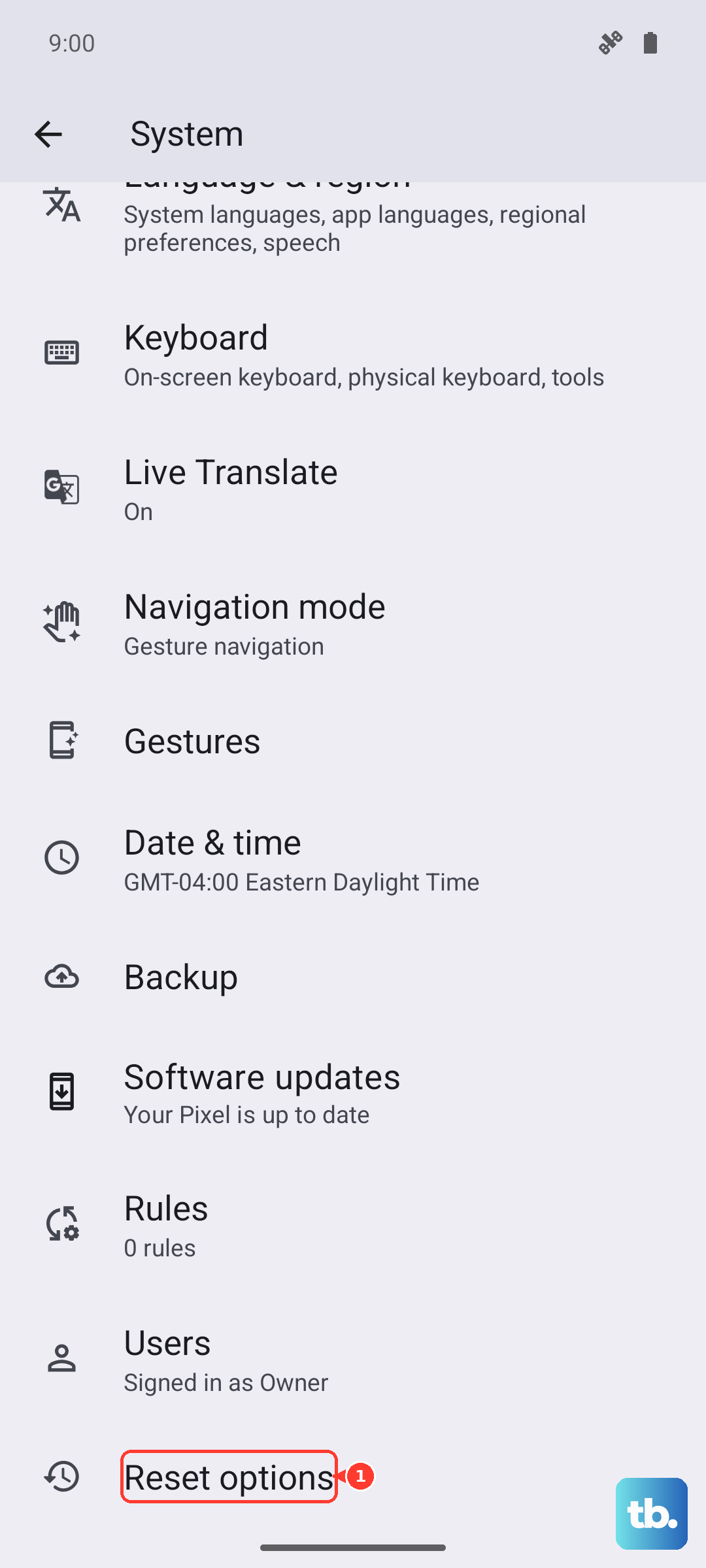
Go to Settings > System > Reset options. Here, tap on "Reset Wi-Fi, mobile & Bluetooth." Confirm the reset and let your phone reboot. After it comes back on, you'll need to reconnect to Wi-Fi and re-pair Bluetooth devices, but it often clears up persistent cellular issues.
Update Your Access Point Name (APN)
Your phone needs the correct APN settings, which are like a gateway address to your carrier's network. Sometimes these get corrupted or aren't set automatically. You'll find them under Settings > Network & Internet > Mobile network > Access Point Names.
If the settings look empty or wrong, the best move is to get the exact APN details from your carrier's website or customer service. You can create a new APN profile and enter the information they provide. Once saved, select it as your active APN.
Check Your Preferred Network Type
The Infinix Note 40 Pro supports various network generations, from 2G up to 5G. If it's stuck on a mode your area doesn't support well, it can lose signal. In the Mobile network settings menu, look for "Preferred network type" or a similar option.
For the most reliable connection, set it to "5G/4G/3G/2G (auto connect)" or simply "Automatic." This lets the phone freely switch to the strongest available signal. Avoid manually locking it to just "5G" if your coverage is spotty, as it might drop connection entirely instead of falling back to 4G.
Use the Phone Information Menu
Android has a hidden diagnostic menu that lets you interact directly with the phone's radio. On your dialer pad, type *#*#4636#*#*. This should open the "Testing" menu. Tap on "Phone information."
In this menu, you'll see a "Run Ping Test" button and a dropdown menu for "Set preferred network type." First, try running the ping test. Then, from the dropdown, select "NR/LTE/GSM/WCDMA" or a similar comprehensive option. You can also try tapping "Turn off radio" and then "Turn on radio" to force a reboot of the cellular modem.
Disable Any Active VPNs
If you use a VPN app for privacy, it could be interfering with your cellular data routing. Open your VPN app and disconnect from any active servers. Better yet, go to Settings > Network & Internet > VPN and remove the VPN profile temporarily to test.
Some of the pre-installed apps on XOS might also have background features that affect connectivity. It's worth checking your list of apps for anything unfamiliar that claims to boost network speed or security.
Update Your Phone's Software
Software updates from Infinix often include patches for connectivity bugs and improvements for the modem. Make sure you're running the latest version of XOS. Go to Settings > System > System update and tap "Check for updates."
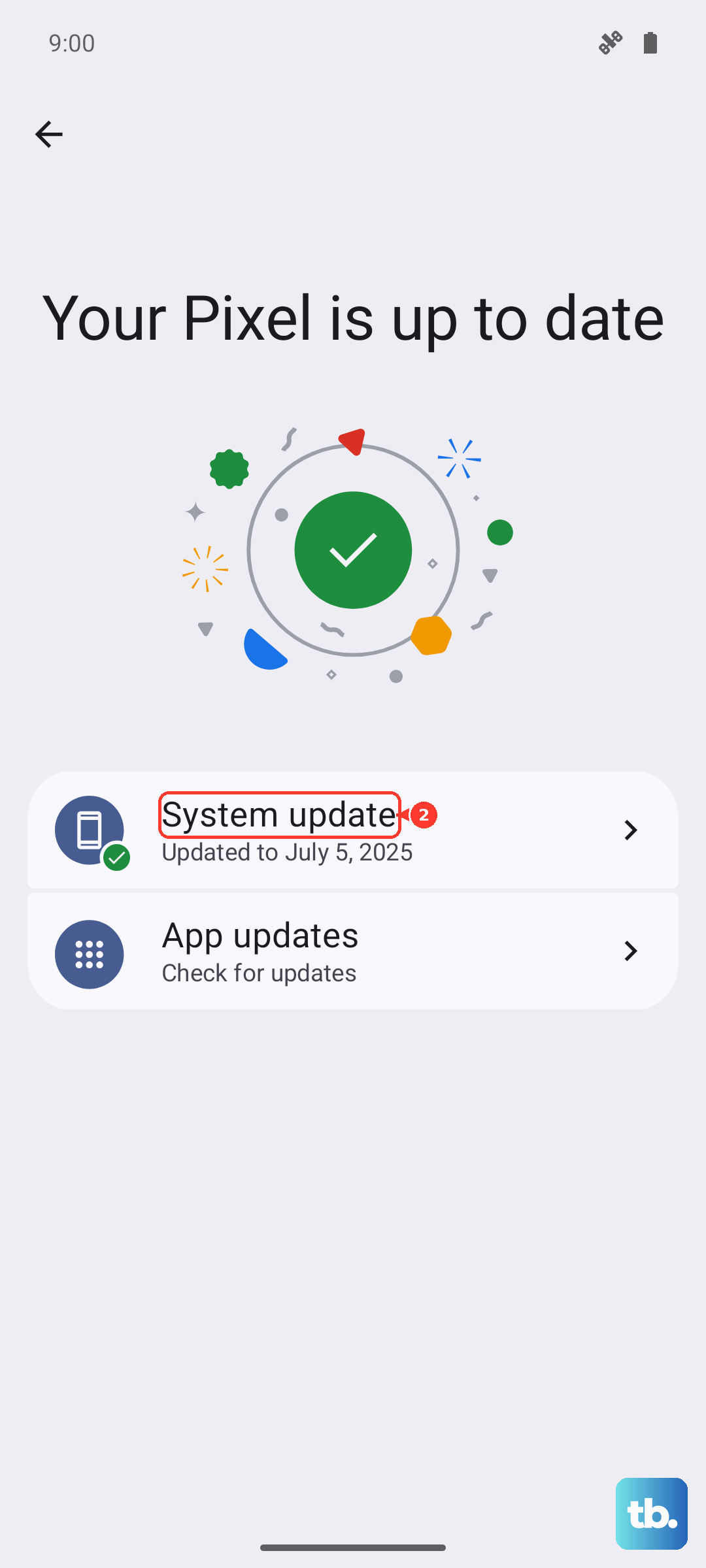
If an update is available, download and install it. It's a good idea to be on Wi-Fi for this and ensure your battery is above 50%. The update process will restart your phone, which is another chance to clear any lingering glitches.
Test Your SIM Card and Contact Your Carrier
At this point, it's wise to rule out problems with the SIM card itself or your carrier's service. If you have access to another unlocked phone, try putting your SIM card in it. If the other phone also shows no service, the issue is with the SIM or your account.
Contact your mobile carrier's customer support. They can check for any outages in your area, verify that your account is active and in good standing, and send you a replacement SIM card if yours is found to be faulty. A new SIM is often a quick fix for persistent registration problems.