
If your Infinix Note 40 Pro is refusing to send picture messages or group chats, it's a common headache that usually comes down to a few specific settings. The good news is you can almost always fix it yourself without needing a trip to the store. Let's start with the most likely culprit.
First, make absolutely sure your mobile data is switched on. MMS doesn't travel over Wi-Fi by default, it needs that cellular data connection. Swipe down from the top of your screen to open the Quick Settings panel and tap the mobile data icon to enable it. You should see the 4G or 5G symbol in your status bar.
If you have a strong signal but it's still not working, try toggling Airplane mode on and off. This forces your phone to re-register with the network. Just hold down the power button, tap the airplane icon, wait about 10 seconds, and then tap it again to turn it off.
Verify Your MMS App Settings
Open your messaging app, which is likely Google Messages or the XOS messaging app. Tap your profile picture or the three-dot menu in the top right and go to Settings. Look for a section called "Chat features," "Advanced," or "Multimedia messages."
Inside those settings, ensure "Auto-download MMS" or "Auto-retrieve" is turned on. There's also often a setting for maximum message size; if yours is set very low, larger photos might fail. I'd set it to the highest available option, usually 1MB or 2MB.
Clear the Messaging App's Cache
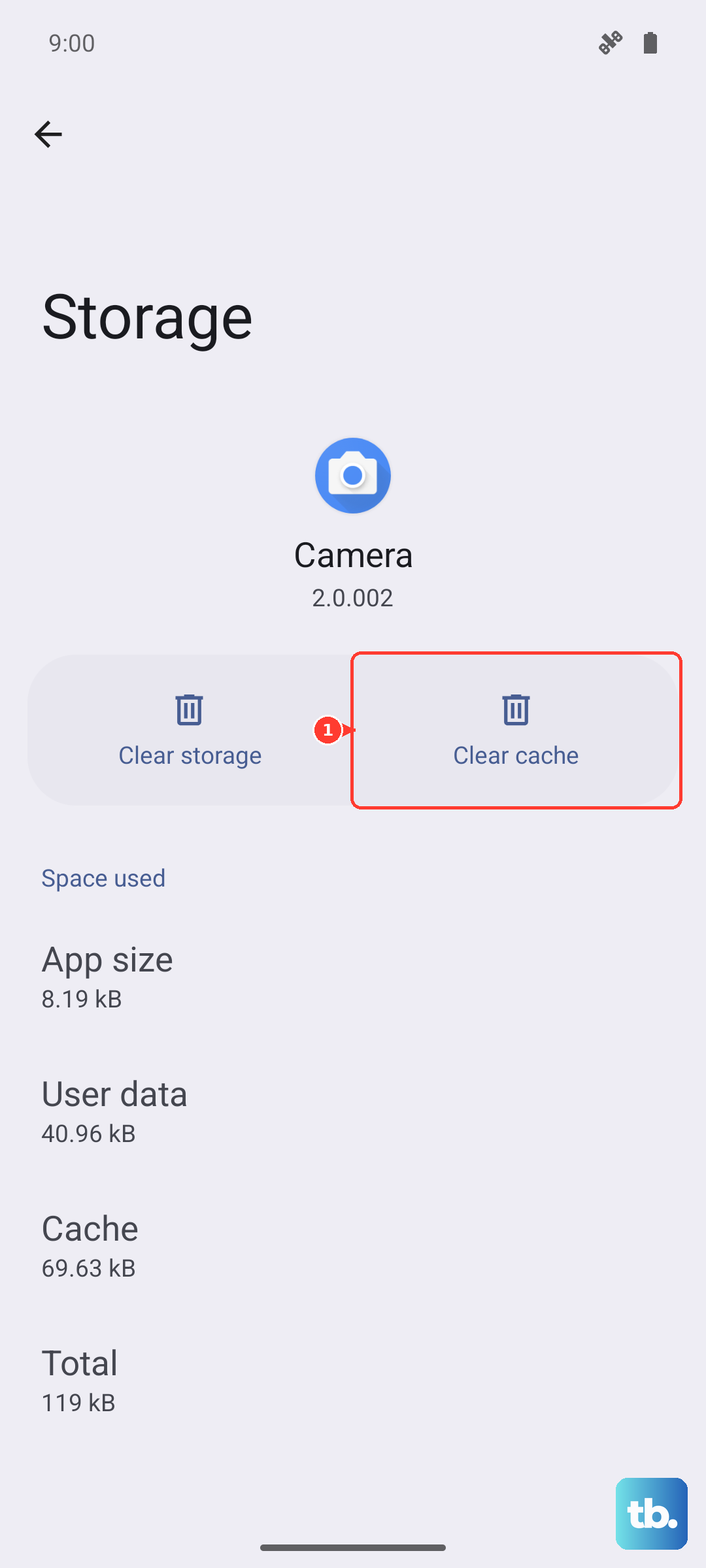
Corrupted temporary files can definitely block MMS from sending. Go to your phone's main Settings and tap on Apps. Find your messaging app in the list and tap on it. Select Storage & cache.
Tap Clear cache first. This won't delete any of your actual messages. If the problem persists, you can try Clear storage or Clear data, but be warned this will erase your entire message history, so only do this if you're okay with that loss.
Check and Update Your APN Settings
This is a very common fix. APN settings tell your phone exactly how to connect to your carrier's multimedia service. If they're wrong, MMS fails. Go to Settings > Network & internet > Mobile network > Access Point Names.
You should see a list of APNs. Tap the one that's currently selected (it will have a filled-in dot). Look for fields specifically labeled "MMSC," "MMS proxy," and "MMS port." If any of these are blank or look incorrect, you'll need the right info from your carrier.
You can usually find this by searching "[Your Carrier Name] APN settings 2024" or by contacting their customer support. Once you have the correct details, you can edit the existing APN or add a new one. After saving, restart your phone.
Perform a Force Restart
A simple reboot can clear out minor software glitches. For the Infinix Note 40 Pro, press and hold the Power button and the Volume Down button together for about 10 seconds. Keep holding until you feel a vibration and see the Infinix logo appear, then let go. This is more thorough than a standard restart.
Update Your Phone's Software
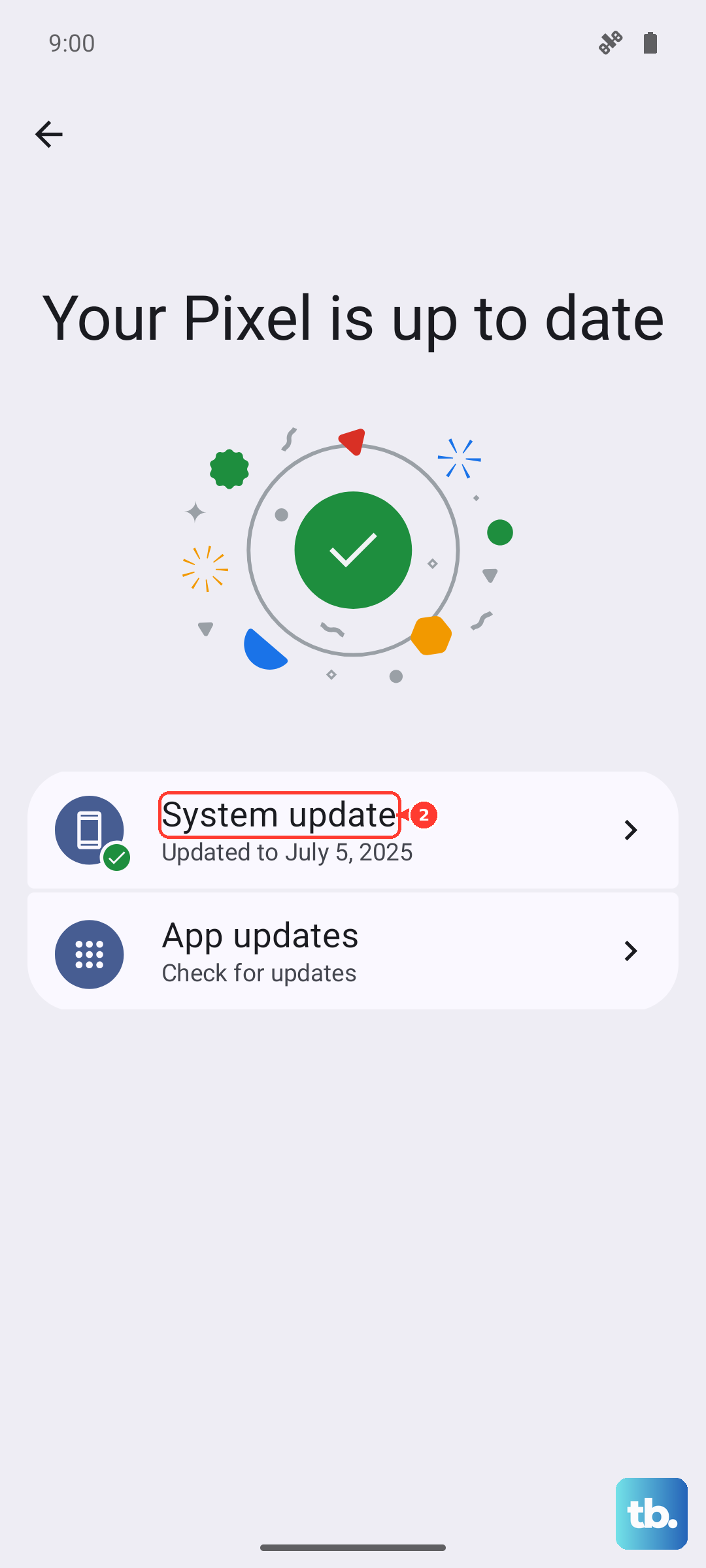
An outdated system can have bugs that affect messaging. Infinix releases updates through XOS. Go to Settings > System > System update. Tap "Check for updates." If one is available, download and install it over Wi-Fi. Your phone will restart, and it's worth testing MMS again after it boots up.
Reset Your Network Settings
This is a stronger step that resets all connectivity back to factory defaults. It will erase saved Wi-Fi networks, Bluetooth pairings, and mobile data settings (including APNs), but it won't touch your personal files. Go to Settings > System > Reset options.
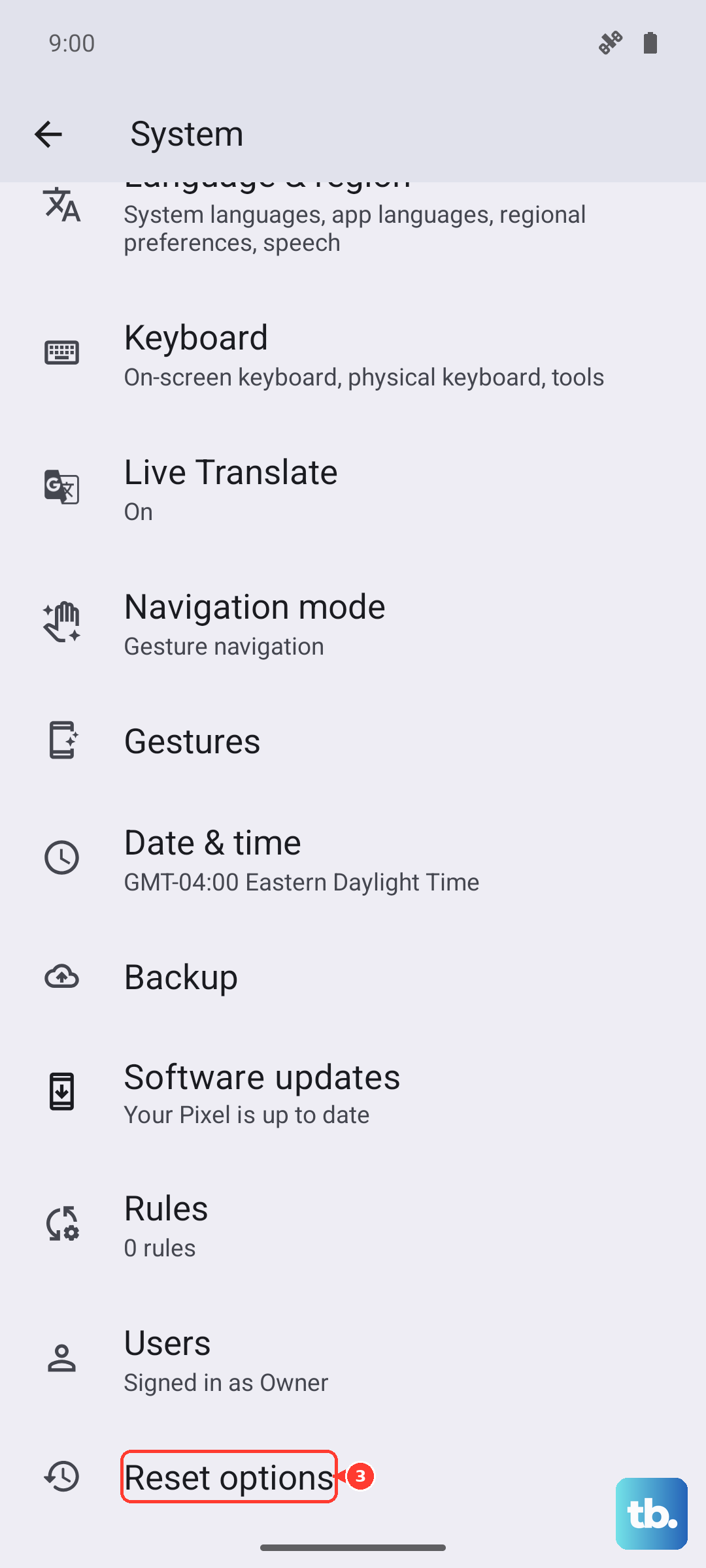
Tap Reset Wi-Fi, mobile & Bluetooth. Confirm the action and enter your PIN if prompted. Your phone will restart. Afterward, you'll need to reconnect to Wi-Fi and re-enter any custom APN settings, but this often resolves stubborn network-related MMS issues.
Ensure You Have Enough Storage Space
The Infinix Note 40 Pro needs a bit of free space to process and send multimedia messages. If your storage is critically low, it can fail. Go to Settings > Storage to see how much space is free.
Try to clear at least a few hundred megabytes. You can start by clearing old downloads or app caches. Also, check your messaging app for very old threads packed with videos and photos; deleting those can free up space and sometimes help the app function better.
Disable Any Battery Saver or Data Saver Modes
XOS's power-saving features can sometimes restrict background data, which MMS requires. Swipe down for Quick Settings and make sure any battery saver icon is turned off. Then, go to Settings > Network & internet > Data Saver.
Make sure Data Saver is switched off. If you need it on for other reasons, you can tap on it and add your messaging app to the "Unrestricted data" list, allowing it to use mobile data even when Data Saver is active.
Try a Different Messaging App
If you're using the default XOS messaging app, it might be worth testing with another app to see if the problem is app-specific. Google Messages is a great, reliable alternative available on the Play Store.
Download it, open the app, and it will usually ask to be set as your default. Send a picture message to a friend to test. If it works perfectly, you might want to stick with it. Some users find that Google's app handles MMS more consistently, especially across different carriers.