
When your Infinix Note 40 Pro can't download a picture or video someone sent you, it's usually a quick fix. MMS messages need a mobile data connection and the right settings on your phone to work.
Let's get those photos and videos downloading again. I'd start with the first couple of steps, as they solve the problem most of the time.
Restart Your Infinix Note 40 Pro
A simple restart clears out temporary glitches that can block MMS downloads. Just press and hold the Power button and Volume Down button together for about ten seconds.
Keep holding until you see the Infinix logo appear on the screen. This force restarts the phone and is often all you need.
Check Your Mobile Data and Signal
MMS doesn't download over Wi-Fi alone. You need an active mobile data connection. Swipe down from the top of your screen to open the Quick Settings panel and make sure the mobile data icon is turned on.
Also, check your signal bars. If you're in a spot with weak reception, try moving to a different area. A poor signal can prevent the multimedia file from coming through.
Close and Reopen Your Messages App
Sometimes the app itself just gets stuck. Swipe up from the bottom of your screen and hold to see your recent apps.
Find the Messages app and swipe it all the way up or off the screen to close it completely. Then, tap its icon again to reopen it and see if the MMS downloads.
Enable MMS Auto-Download in Your Messages App
Your phone might be set to ask for permission before downloading MMS to save data. To change this, open the Messages app that came with your phone.
Tap the three-dot menu in the top right and go to Settings. Look for an option like "Multimedia messages," "Advanced," or "Chat features." Inside that menu, make sure "Auto-download MMS" or "Auto-retrieve" is switched on.
Verify Your APN Settings
This is a common culprit. APN settings tell your phone how to connect to your carrier's multimedia messaging service. If they're wrong, MMS won't work.
Go to Settings > Network & internet > Mobile network > Access Point Names. You should see a list, with one selected (usually your carrier's name).
Tap on it to view the details. The most important fields for MMS are "MMSC," "MMS proxy," and "MMS port." If these are blank or look incorrect, you'll need the right info from your carrier's website or customer support.
Clear the Cache for Your Messaging Services
Corrupted temporary files can cause download failures. Head to Settings > Apps > See all apps.
First, find and tap on "Messages." Go to Storage & cache and tap Clear cache. This won't delete your texts.
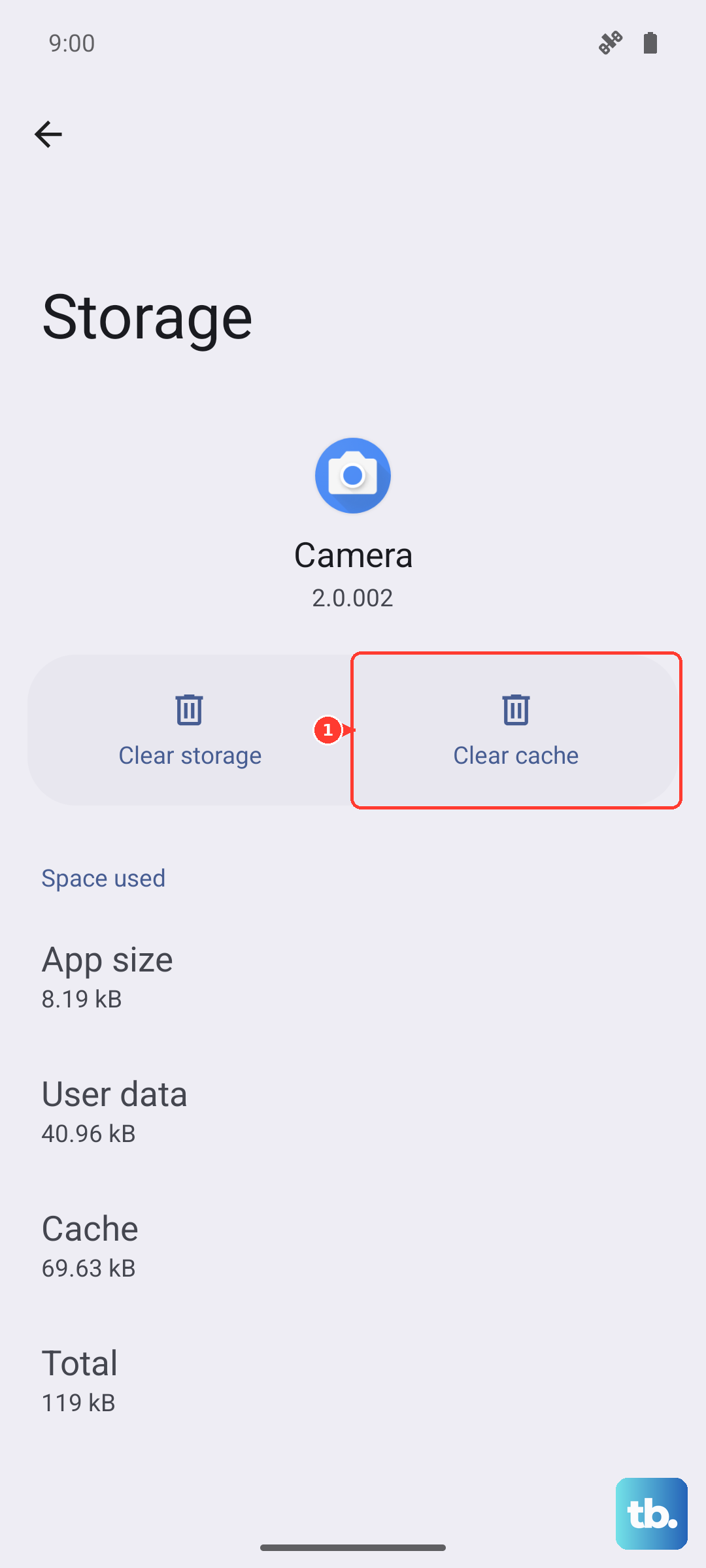
Next, while still in your apps list, tap the three-dot menu and select "Show system." Now search for "Carrier Services" or "MMS Service." If you find them, clear their cache as well using the same steps.
Check for a Software Update
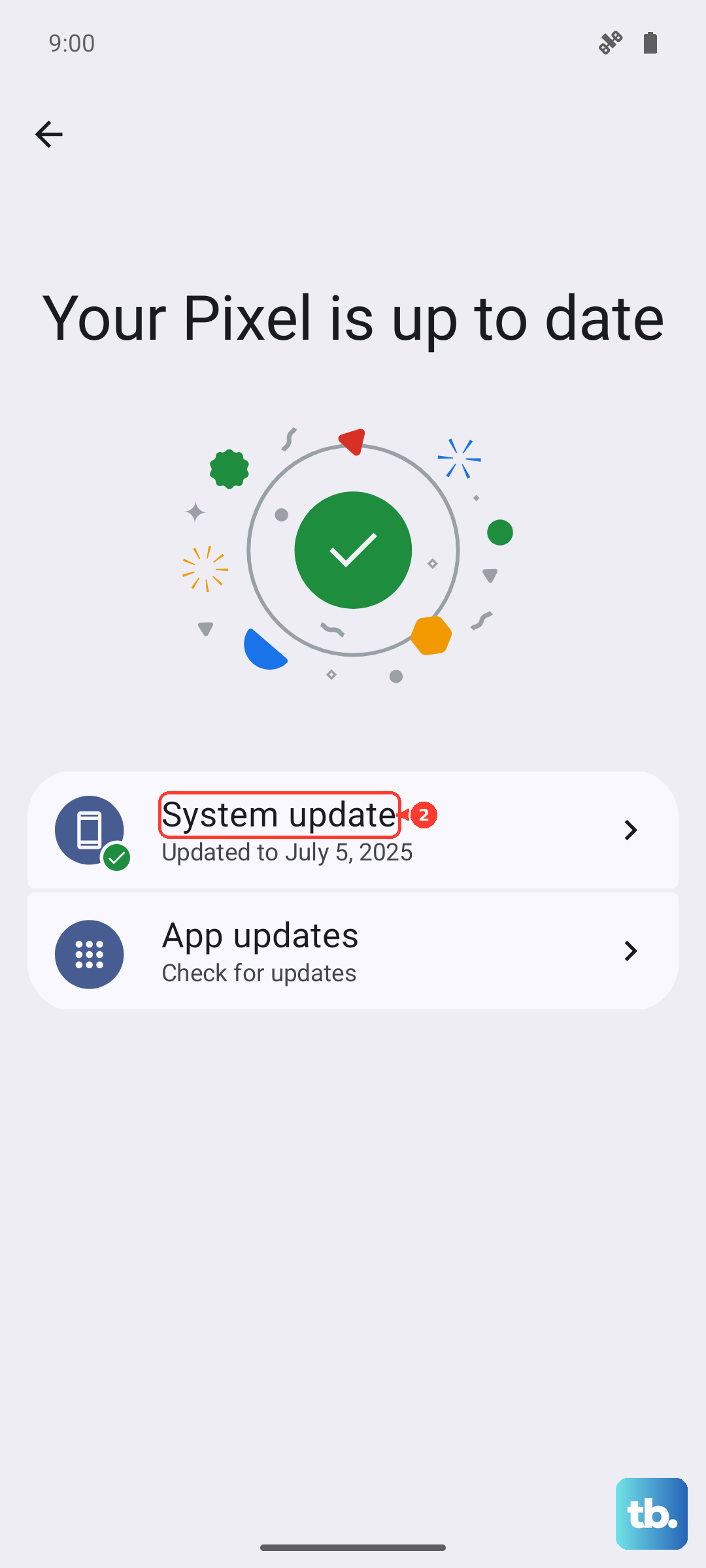
Your Infinix Note 40 Pro runs on Android 14 with XOS 14 on top. Sometimes, a bug in the system software can affect messaging.
Updating can patch these issues. Go to Settings > System > System update and tap "Check for updates." If one is available, install it.
Reset Your Network Settings
This will wipe all your network connections, including Wi-Fi passwords and Bluetooth pairings, and restore them to default. It often fixes persistent MMS problems.
To do this, navigate to Settings > System > Reset options. Tap on "Reset Wi-Fi, mobile & Bluetooth." Confirm the action, and your phone will reboot.
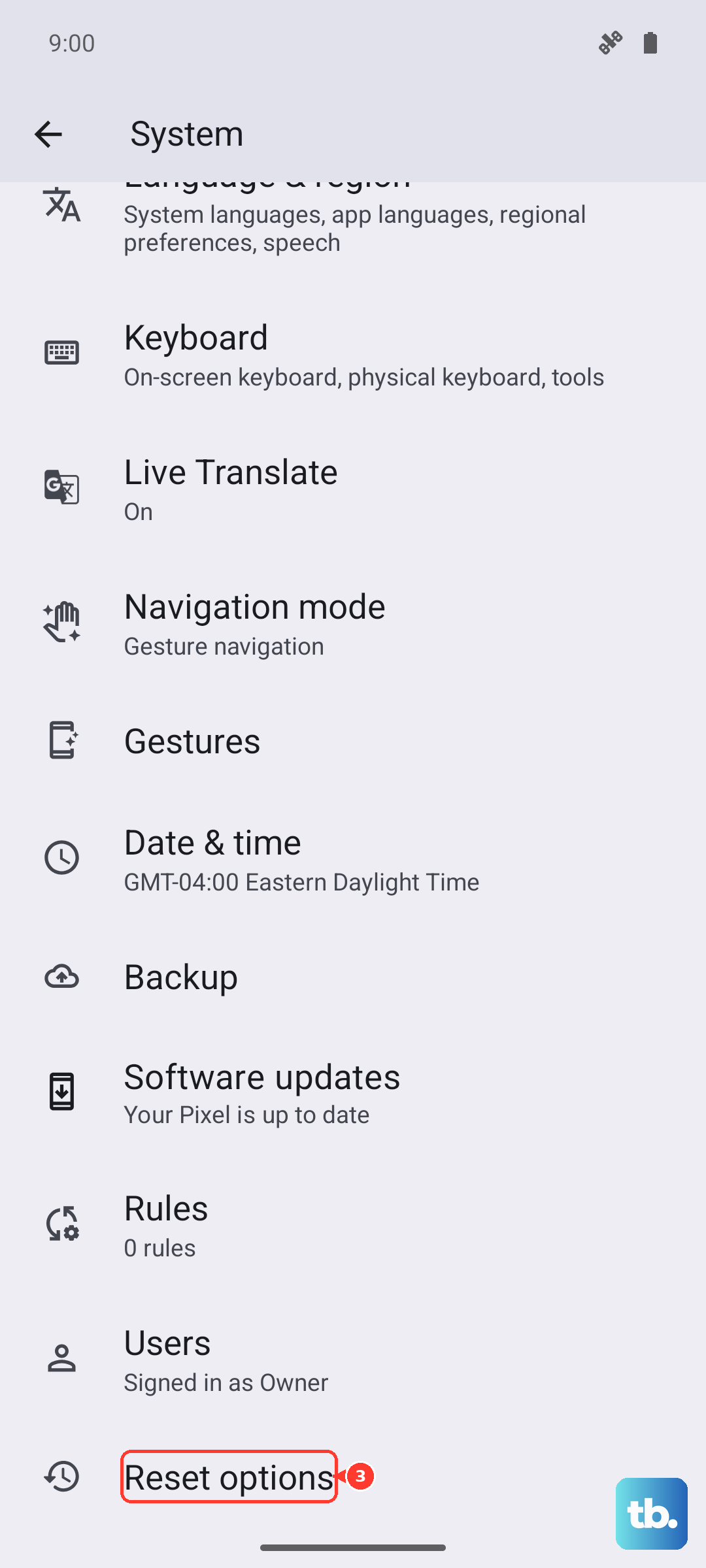
After it restarts, you'll need to reconnect to your Wi-Fi networks and re-pair Bluetooth devices, but your MMS configuration will be freshly set.
Try a Different Messaging App
The default messaging app on XOS can sometimes be finicky. As a test, download a popular alternative like Google Messages from the Play Store.
Set it as your default app when prompted, and ask someone to send you an MMS. If it downloads in the new app, the issue is with your stock messaging app.
Contact Your Mobile Carrier
If you've tried everything here, the problem might be on your carrier's end. There could be a service outage in your area, or your account might need provisioning for MMS.
Give them a call or use their online chat support. They can check your line and often send updated network settings directly to your phone, which can instantly resolve the issue.