
If your Infinix Note 40 Pro is starting to stutter, freeze, or feel sluggish, you're not alone. This phone packs great value, but its mid-range Dimensity 7020 chip can struggle under heavy loads, and the XOS software sometimes comes with extra baggage. The good news is you can almost always smooth things out with a few adjustments.
Lagging usually comes down to a few things: too many apps fighting for the processor's attention, storage getting too full, or background services (especially XOS's own) running wild. Let's start with the quickest fix you can try.
Force Restart Your Phone
When the screen is frozen or apps won't respond, a force restart is your first move. It clears the phone's temporary memory and stops any stuck processes. Just press and hold the Power button and the Volume Down button together for about 10 seconds.
Keep holding until you feel a vibration and see the Infinix logo appear on the screen. This is different from a normal restart and often solves temporary freezes instantly.
Close All Your Recent Apps
Having dozens of apps sitting in the background is a common culprit for lag on the Note 40 Pro. While Android manages memory well, too many heavy apps (like games or the camera) can still bog down the Dimensity 7020 chip.
Swipe up from the bottom of the screen and hold to enter the recent apps view. You'll see all your open apps. Swipe each one up and off the screen to close it. I'd make a habit of doing this once a day, especially after gaming.
Check and Free Up Storage Space
Android needs breathing room to operate smoothly. If your internal storage is over 85% full, you'll likely notice performance dips. Head to Settings > Storage to see a breakdown.
Look for "Large files" or apps taking up the most space. The camera on the Note 40 Pro can produce big photos and videos, so consider moving some to Google Photos or a microSD card if you have one installed. Uninstalling just one or two unused games can free up several gigabytes.
Disable XOS Ads and Smart Services
This is a big one specific to Infinix phones. XOS often includes promotional notifications and ads in places like the lock screen, notification shade, and app folders. These constantly running "Smart Services" drain resources.
Go to Settings > Smart Service (it might also be called XOS Helper or Special Features). Look for options like "Recommendations," "Lock screen magazine," or "Smart tips." Turn off every single one. This alone can make your phone feel noticeably snappier and less cluttered.
Update Your Apps and System Software
Outdated apps can have bugs that cause freezing, and system updates often include performance optimizations. Open the Google Play Store, tap your profile icon, and select "Manage apps & device." Tap "Updates available" to update everything.
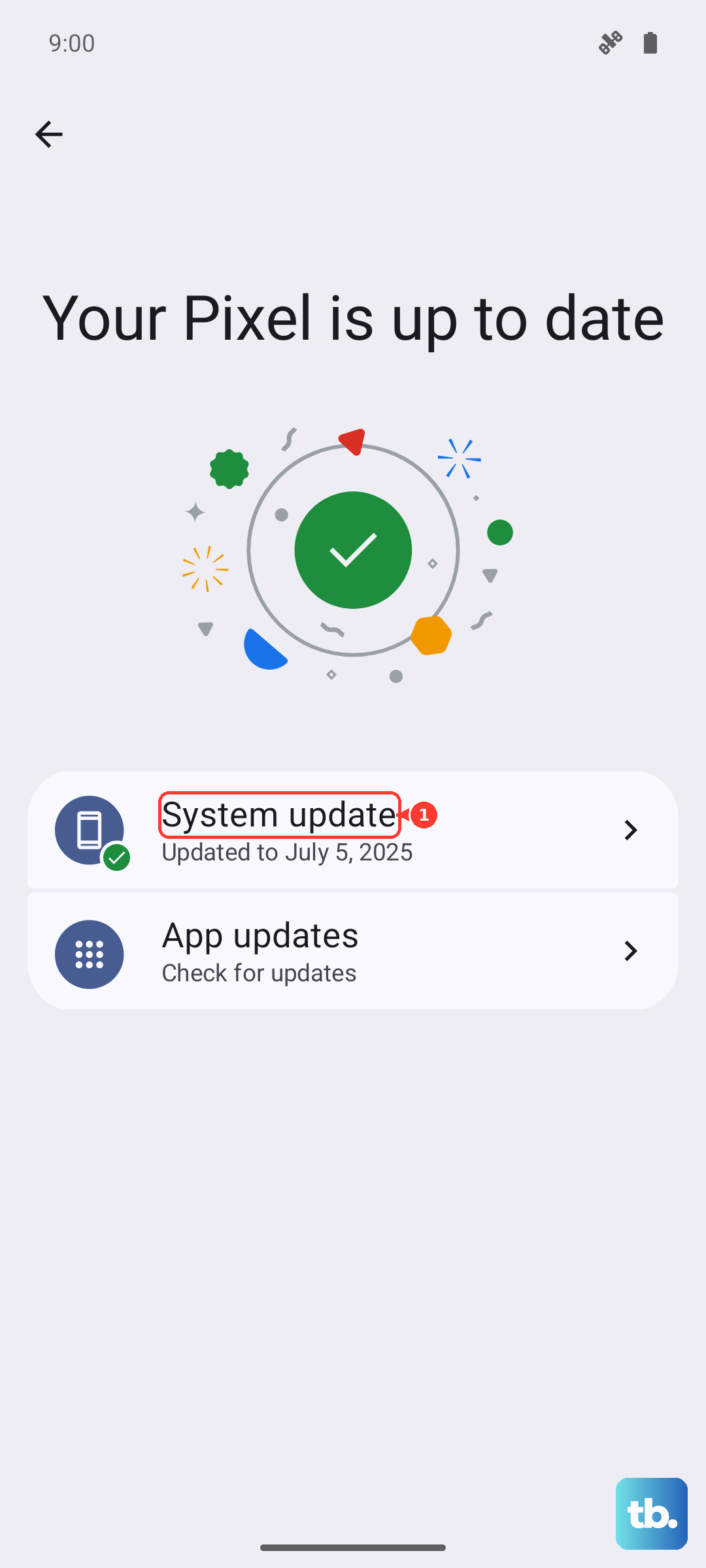
Next, check for an Android/XOS update. Go to Settings > About phone > System update. If an update is there, download it while connected to Wi-Fi. Keeping your 2024 phone updated is key for smooth operation.
Manage Background App Activity
Some apps are relentless about running in the background. You can restrict them. Go to Settings > Apps, select a power-hungry app (like Facebook or a heavy game), and tap "Battery."
Choose "Restricted" to prevent it from doing anything in the background. Be careful not to restrict apps you need for instant notifications, like your messaging app.
Reduce Animations and Visual Effects
Fancy transition animations look cool but use GPU power. You can speed them up. First, you need to enable Developer Options. Go to Settings > About phone and tap "Build number" seven times.
Now go back to Settings and enter "Developer options." Scroll to the "Drawing" section. Look for "Window animation scale," "Transition animation scale," and "Animator duration scale." Change each one from "1x" to ".5x". This makes menus and apps feel much faster to open and close.
Perform a Light Factory Reset (Reset All Settings)
If the lag persists after trying everything, a settings reset can work wonders without deleting your personal data. This will revert all your system settings (Wi-Fi passwords, Bluetooth pairings, ringtones, etc.) back to default, which can clear out any software glitches.
Go to Settings > System > Reset options. Tap "Reset all settings" and enter your PIN or password to confirm. After the phone reboots, you'll need to reconfigure your preferences, but your apps, photos, and messages will remain.
Be Mindful of Gaming and the Camera
The Dimensity 7020 is a capable chip, but it's not a flagship. Demanding games like Genshin Impact or Call of Duty: Mobile on high graphics settings will push it hard, causing frame drops and heat. Try lowering the in-game graphics settings for a smoother experience.
The camera app can also be slow to process HDR shots, especially in low light. This is normal. Be patient after taking a photo before switching apps, as the processing happens in the background.
Use the Included 70W Charger
This might seem unrelated, but a healthy battery supports consistent performance. The included 70W wired charger is incredibly fast. Using it regularly helps keep your battery in good shape compared to slow, random chargers.
Also, while the 20W wireless charging is a nice bonus for a phone at this price, it's much slower and generates more heat. For a quick top-up that's better for the battery, plug in with the wired charger.