
That "Unfortunately, the keyboard has stopped" message on your Infinix Note 40 Pro can really stop you in your tracks. It's a common Android hiccup, but with XOS 14 layered on top, there are a few specific paths to try. I'd start with the quick restart, as it often clears up temporary glitches right away.
Force Stop and Restart the Keyboard App
Head into your phone's settings and find the app manager. Go to Settings > Apps > Manage apps. You'll need to show system apps to find the default keyboard.
Tap the three-dot menu in the top right and select Show system. Now, scroll down and look for XOS Keyboard or Android Keyboard (AOSP). Tap on it, then hit Force stop to close it completely.
Exit the settings and try opening your keyboard again in a message app. If you're using something like Gboard from the Play Store, look for that specific app name instead of the system one.
Restart Your Infinix Note 40 Pro
This is the classic fix for a reason. A full reboot clears out the phone's working memory and can resolve conflicts that cause apps to crash. Just press and hold the power button until the menu appears, then tap Restart.
If the screen is unresponsive, you can force a restart. Press and hold the Power button and the Volume Down button together for about 10 seconds until you feel the phone vibrate and see the Infinix logo.
Clear the Keyboard's Cache and Data
Corrupted temporary files are a frequent culprit. Clearing the cache is safe and won't delete your personal data, but clearing the data will reset the keyboard to its default settings, so you'll lose any custom dictionaries or preferences.
Go back to Settings > Apps > Manage apps and find your keyboard app again. Tap on it, then select Storage usage. Tap Clear cache first and test the keyboard.
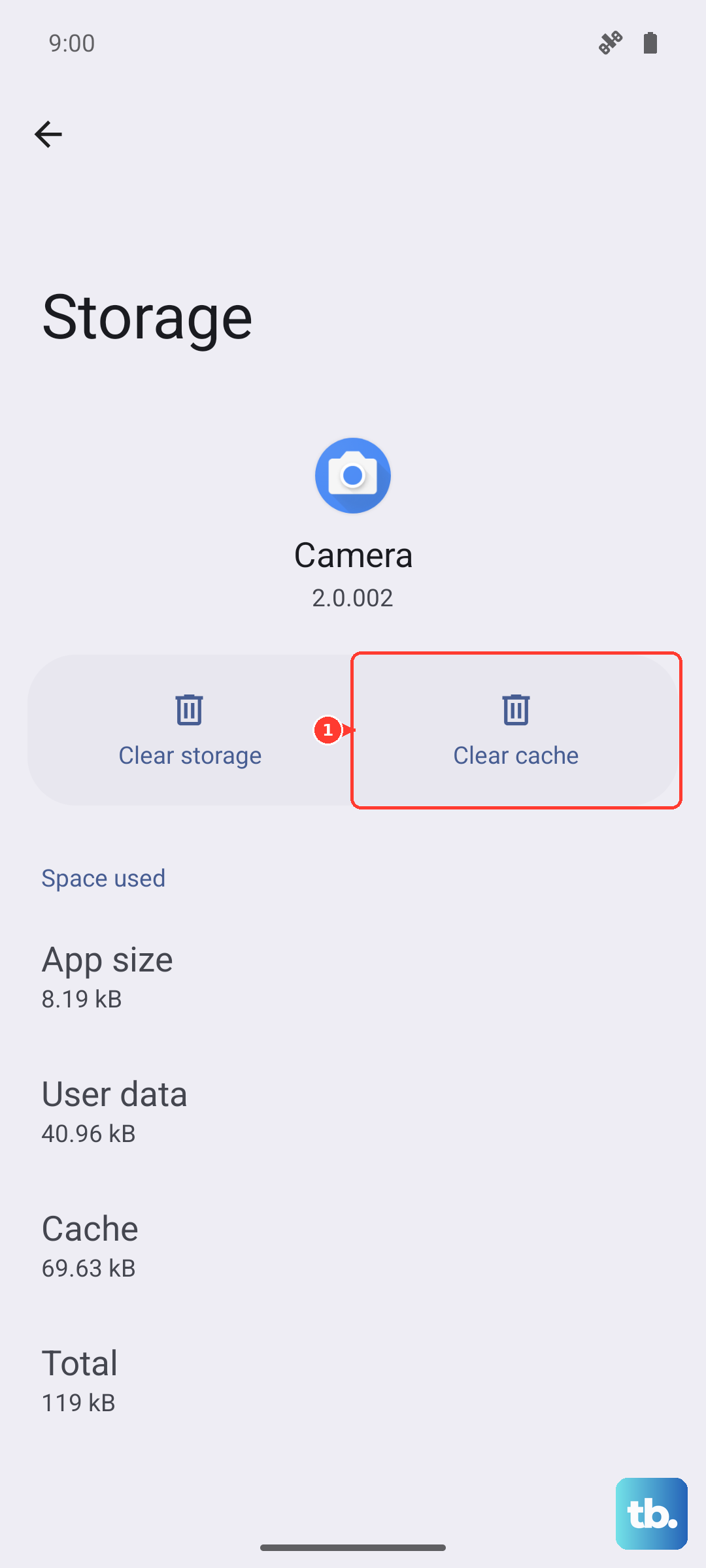
If it's still not working, go back and tap Clear data. Confirm the action, then restart your phone to let the app rebuild its files from scratch.
Update the Keyboard and System Apps
Outdated app versions can have bugs that newer updates fix. Open the Google Play Store, tap your profile icon, and go to Manage apps & device.
Under "Updates available," see if your keyboard app is listed. If you use the default XOS keyboard, updates might come through the system. Also check for updates to any related apps like "Dictionary" or "Text-to-Speech."
Check for a System Software Update
Since you're running Android 14 with XOS 14, a system update from Infinix could contain crucial bug fixes. Go to Settings > System > Software update.
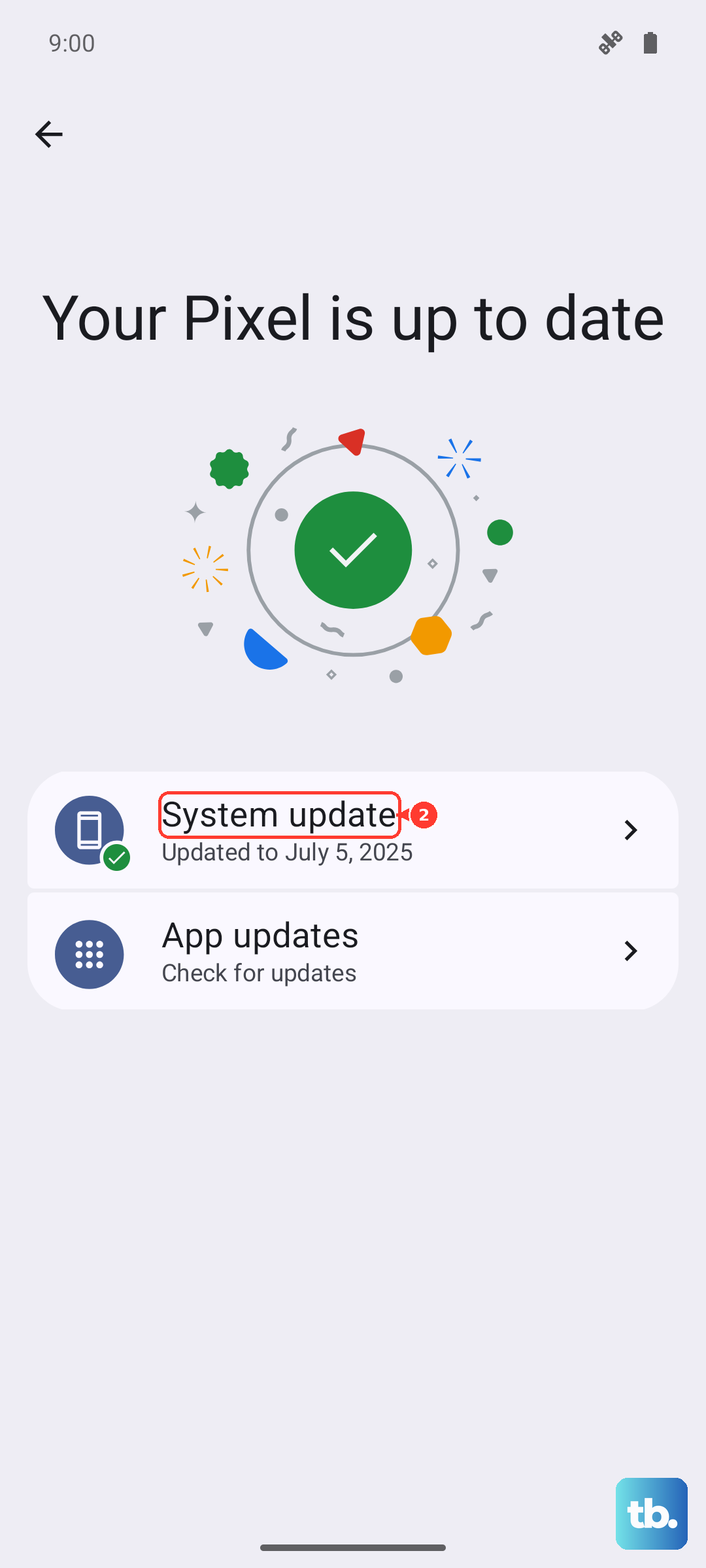
Tap Check for updates. If an update is available, I'd recommend connecting to Wi-Fi and plugging in your 70W charger first. The Dimensity 7020 chip handles updates fine, but having ample power ensures the process goes smoothly.
Boot Into Safe Mode
This is a great way to check if a recently downloaded third-party app is causing a conflict. Safe mode temporarily disables all apps you've installed from the Play Store.
Press and hold the power button until the power menu appears. Then, tap and hold the Power off option on your screen. A prompt will ask if you want to reboot to Safe Mode. Tap "OK" to confirm.
If your keyboard works perfectly in Safe Mode, you know a third-party app is to blame. Start by uninstalling apps you added around the time the problem began, especially any other keyboards, launchers, or system tools.
Reset All App Preferences
This is less drastic than a factory reset. It resets all your app permissions, default apps, and background restrictions back to factory settings without touching your personal data.
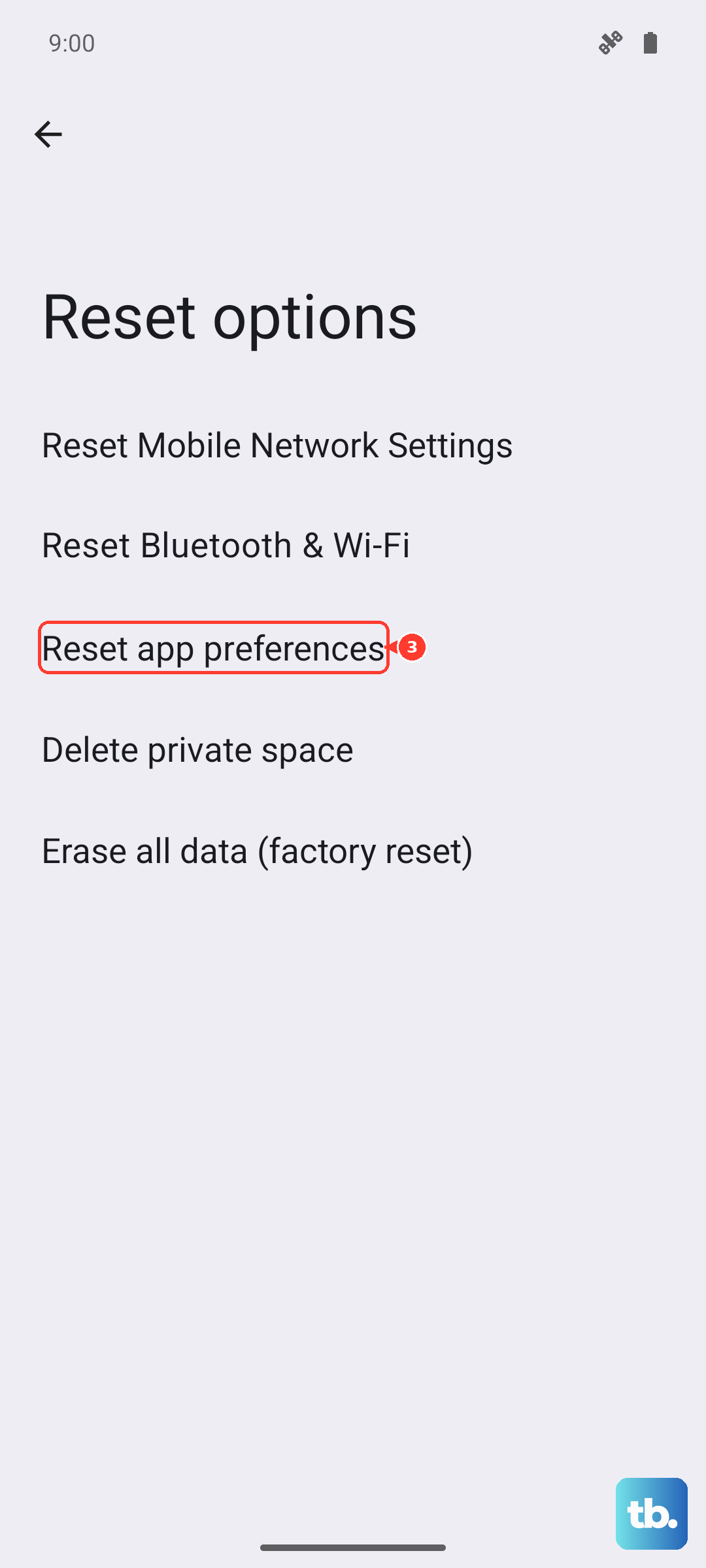
Navigate to Settings > System > Reset options. Tap on Reset app preferences and confirm. You'll need to re-grant permissions to apps afterward, but it can resolve conflicts where the keyboard's settings got mixed up.
Try a Different Keyboard App
As a workaround, installing a popular third-party keyboard from the Play Store can get you typing again immediately. Apps like Gboard (Google Keyboard) or SwiftKey are excellent alternatives.
Once installed, you'll need to enable it. Go to Settings > System > Languages & input > On-screen keyboard. Tap Manage on-screen keyboards and toggle on your new keyboard, then set it as the default.
Check for XOS-Specific Interference
Infinix's XOS can sometimes be overzealous with battery saving or memory management, which might force-close the keyboard. Go to Settings and search for "Battery optimization" or "Power saving".
Find your keyboard app in the list and set it to "Don't optimize" or "No restrictions". Also, it's worth checking the Smart Service settings for ads, as aggressive background processes there can sometimes cause instability. You can manage these in Settings > Smart Service.