
When your Infinix Note 40 Pro starts restarting on its own, it's a jarring experience that can interrupt everything you're doing. This is often a software hiccup, but with the Note 40 Pro's specific hardware and XOS software, there are a few common culprits to check first.
Before you begin any of the steps below, it's a good idea to make sure your photos and important files are backed up. You can use Google Drive or another cloud service. This protects your data just in case you need to perform a factory reset later.
Perform a Force Restart
A force restart is the quickest way to clear out a temporary software glitch that's causing the random reboots. For the Infinix Note 40 Pro, the method is straightforward. Simply press and hold the Power button and the Volume Down button together for about 10 to 15 seconds.
Keep holding until you see the Infinix or XOS logo appear on the screen, then you can let go. This forces the phone to shut down and boot up fresh, which often resolves minor instability.
Check for Problematic Apps
Third-party apps are a frequent cause of restart issues on any Android phone. Start by checking if the problem happens right after you open a specific app, like a game or social media app. If it does, that app is likely the culprit.
You can boot into Safe Mode to confirm. Press and hold the power button until the power menu appears, then long-press the "Power off" option. Tap "OK" to reboot into Safe Mode. If the phone is stable in Safe Mode, a downloaded app is causing the trouble.
Uninstall any recently installed apps one by one to find the offender. For the Note 40 Pro, pay extra attention to graphically intense games, as the Dimensity 7020 chip can sometimes struggle and cause system instability with poorly optimized titles.
Update Your Apps and System Software
Outdated software is a classic source of bugs that lead to crashes and restarts. First, update all your apps through the Google Play Store. Open the Play Store, tap your profile icon, and go to Manage apps & device > Updates available.
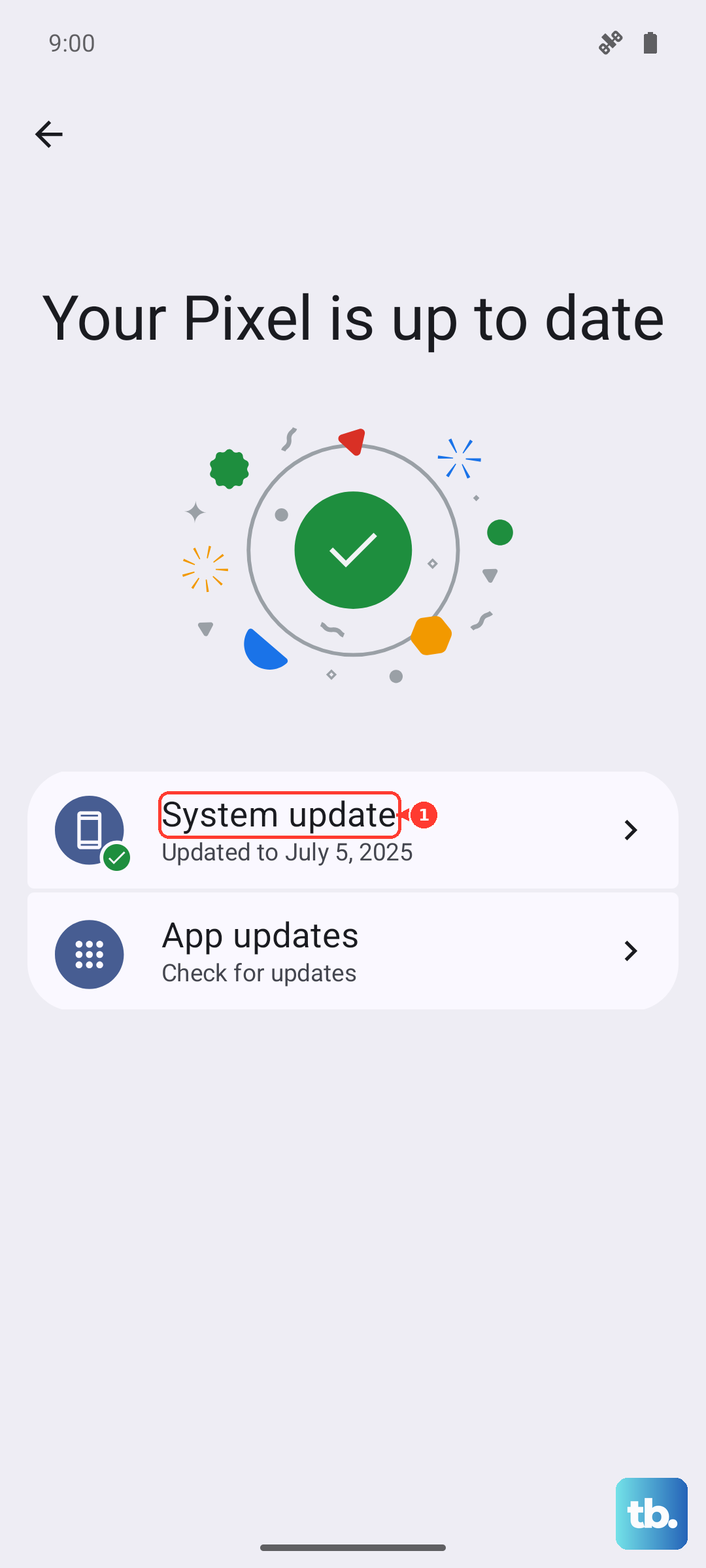
More importantly, check for a system update. Infinix regularly releases updates for XOS that fix known bugs. Go to Settings > System > System update and tap "Check for updates." If an update is available, install it while your phone is connected to Wi-Fi and has a good charge.
Free Up Storage Space
When your phone's storage is nearly full, the system doesn't have enough room to operate smoothly, which can trigger random restarts. Go to Settings > Storage to see how much space you have left.
If you're below 10% free space, start cleaning up. The storage menu will often give you suggestions. You can clear app caches, delete old downloads, and offload photos and videos to Google Photos. I've seen this simple fix resolve restart loops on many phones.
Disable XOS Smart Services and Ads
This is a specific tip for Infinix phones. The XOS software can include promotional content and background services that sometimes interfere with system stability. To turn these off, head to Settings and look for an option called Smart Service.
Inside, you'll find toggles for things like "Recommendations" and "Smart tips." Disable these options. This reduces background activity from the system itself, which can eliminate a source of crashes that lead to restarts.
Reset All Settings
If the problem persists, you can reset your phone's settings back to default without deleting your personal data. This will wipe your Wi-Fi passwords, Bluetooth pairings, and custom display settings, but your apps and files stay put.
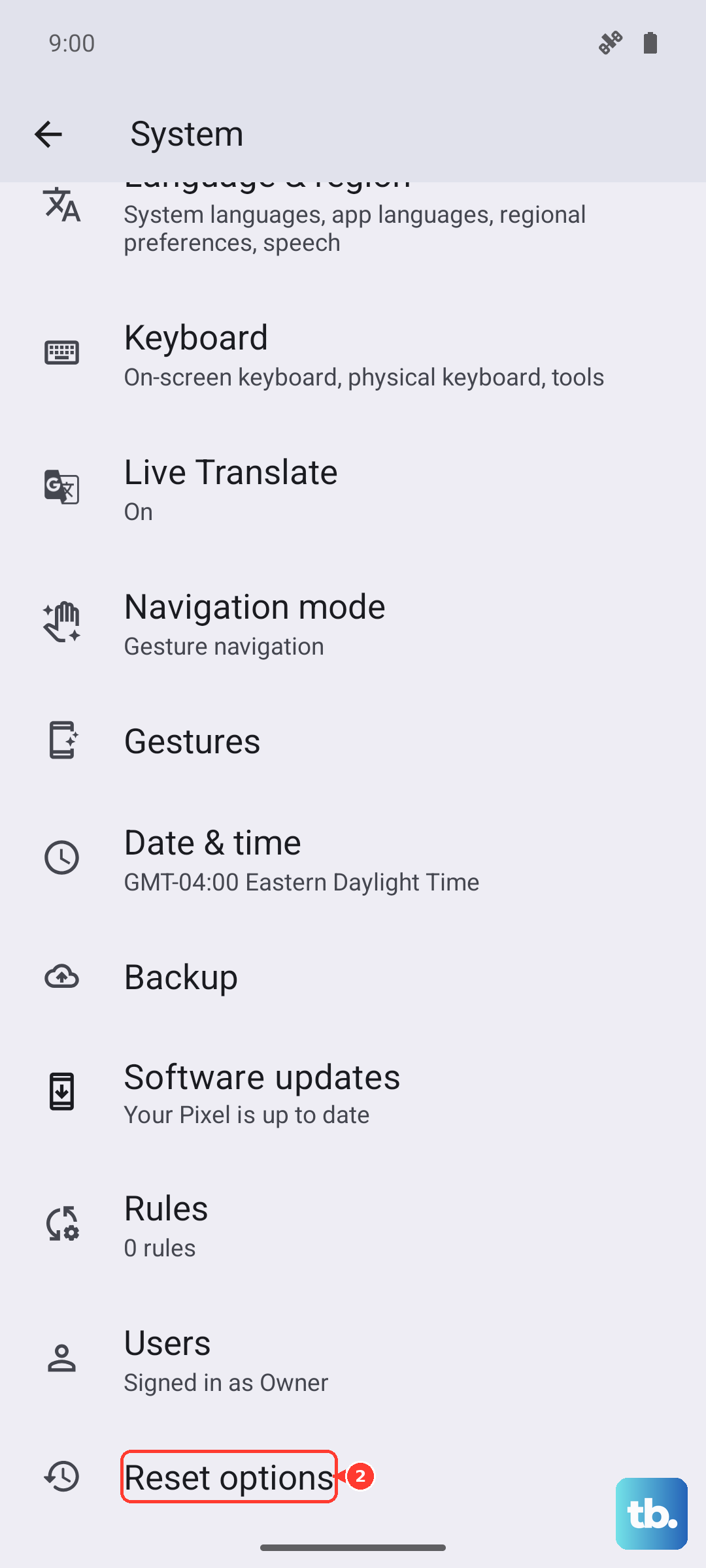
Navigate to Settings > System > Reset options. Here, select Reset all settings. Enter your PIN or password if prompted, and confirm. After the phone reboots, you'll need to reconfigure your preferences, but it often clears up deep-seated configuration conflicts.
Check for Overheating
The Infinix Note 40 Pro can get warm during fast charging or extended gaming sessions. If the phone gets too hot, it will protect itself by shutting down or restarting. Feel the back of the phone, especially near the camera module.
If it's very hot, stop using it, remove the case, and let it cool down. Avoid using the 70W wired charger or the 20W wireless charger while playing heavy games, as this combination can push the temperature up quickly.
Inspect Your SIM Card and Storage Card
A loose or faulty SIM card can surprisingly cause system instability. Use the SIM eject tool that came with your phone to pop out the tray. Carefully remove the SIM card, give the gold contacts a gentle wipe with a soft cloth, and reinsert it firmly.
If you're using a microSD card for extra storage, try removing it and using the phone for a while. A corrupted or failing storage card can cause the Android system to crash, leading to random reboots.
Perform a Factory Reset
If you've tried everything else and the random restarts continue, a factory reset is the final software step. Remember, this will erase all data from your phone, so ensure your backup is complete first.
Go to Settings > System > Reset options > Erase all data (factory reset). You may need to enter your PIN and confirm your Google account password. After the reset, set up the phone as new without restoring a backup immediately to see if the problem is gone.