
When your headphones stop working with your Infinix Note 40 Pro, it can be a real buzzkill for music, calls, and videos. The issue might be with wired headphones plugged into the USB-C port or with your Bluetooth earbuds not connecting properly. The good news is, most headphone problems on this phone have a simple fix.
A browser based online headphone test makes this easy to confirm. If both sides play test tones correctly there, the headphones are fine and the problem is in the device or app.
Restart Your Infinix Note 40 Pro
This is the quickest fix for a lot of weird audio glitches. Press and hold the Power button and the Volume Down button together for about 10 seconds. Keep holding until you see the Infinix logo appear on the screen, then let go. This force restart clears out any temporary software bugs that might be messing with your audio.
Check the Physical Connection and Volume
If you're using wired headphones, make sure the USB-C plug is pushed all the way into the port. A loose connection is a common culprit. Then, press the volume up button on the side of your phone to ensure the media volume isn't turned all the way down. You can also check the on-screen volume slider when you press the buttons.
Clean the USB-C Port
Lint and pocket debris love to get packed into the charging and headphone port. If there's gunk in there, your wired headphones won't make a proper connection. I'd start by turning the phone off. Then, use a dry wooden toothpick or a soft-bristled brush to gently scrape out any visible dirt. Avoid using metal, as it can damage the delicate pins inside.
Forget and Re-Pair Your Bluetooth Headphones
For wireless issues, a fresh pairing often does the trick. Go to Settings > Bluetooth. Find your headphones in the "Paired devices" list and tap the gear icon next to them. Tap Forget to remove them. Then, put your headphones into pairing mode and select them from the "Available devices" list on your phone to reconnect from scratch.
Toggle Bluetooth Off and On
Sometimes the Bluetooth radio just needs a quick refresh. Swipe down from the top of your screen to open the Quick Settings panel and tap the Bluetooth icon to turn it off. Wait about 10 seconds, then tap it again to turn it back on. This can resolve minor connection or audio playback hiccups instantly.
Check the Audio Output in Your App
Some media apps, like YouTube or Spotify, have their own audio output settings. If sound is playing from your phone's speaker, open the app you're using and look for a speaker or cast icon. Tap it and make sure your headphones or earbuds are selected as the output device, not the phone speaker.
Disable Absolute Volume in Developer Options
If the volume on your Bluetooth headphones is too low or seems locked, this setting can help. First, enable Developer Options by going to Settings > About Phone and tapping "Software Version" 7 times. Then, go back to Settings, enter Developer Options, and scroll to find "Disable absolute volume." Toggle it on. This separates your phone's volume from your headphone's volume controls.
Check for Software Updates
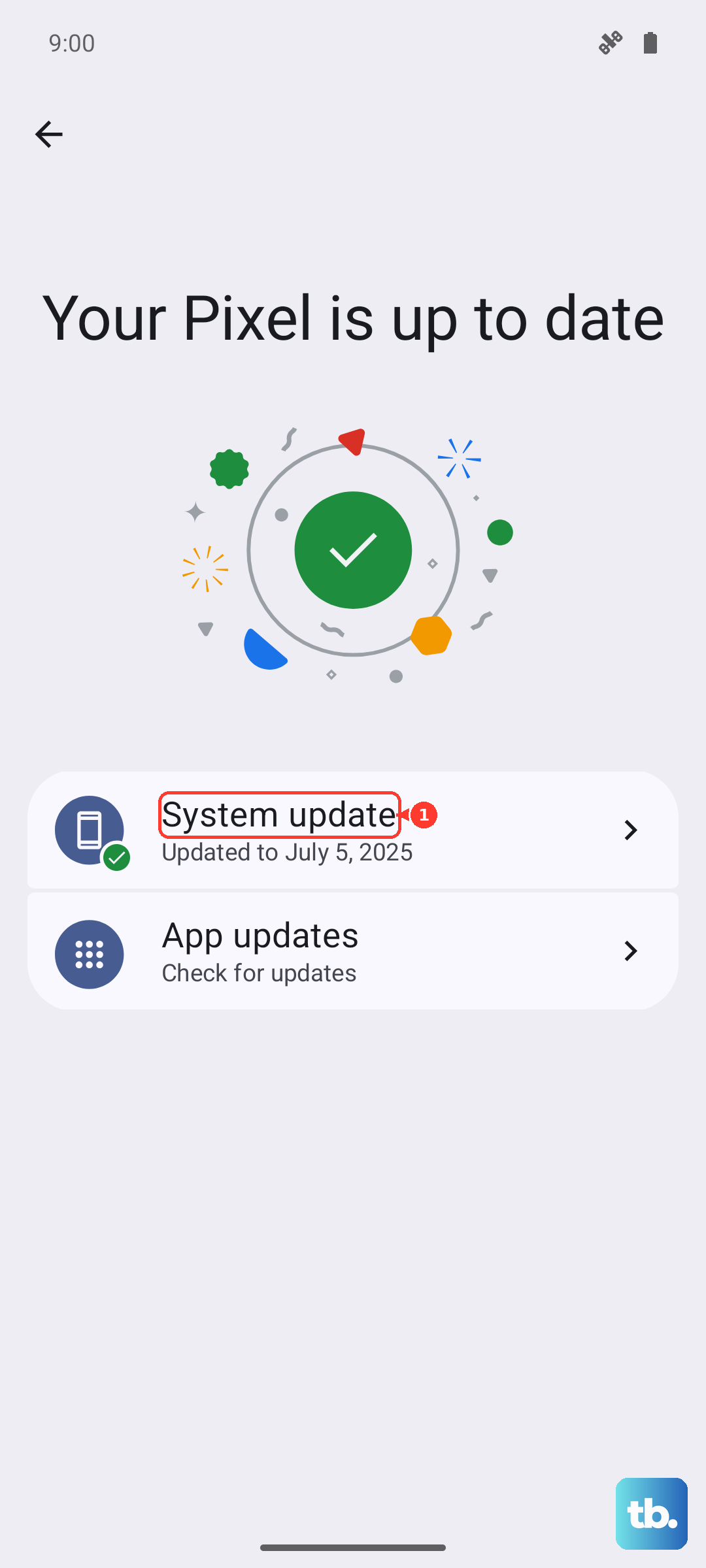
Infinix releases updates through XOS that can fix bugs, including audio and Bluetooth problems. Go to Settings > System > System updates and tap "Check for updates." If an update is available, install it. It's a good idea to be on the latest software, as it often includes stability improvements for the Dimensity 7020 chipset.
Reset All Network Settings
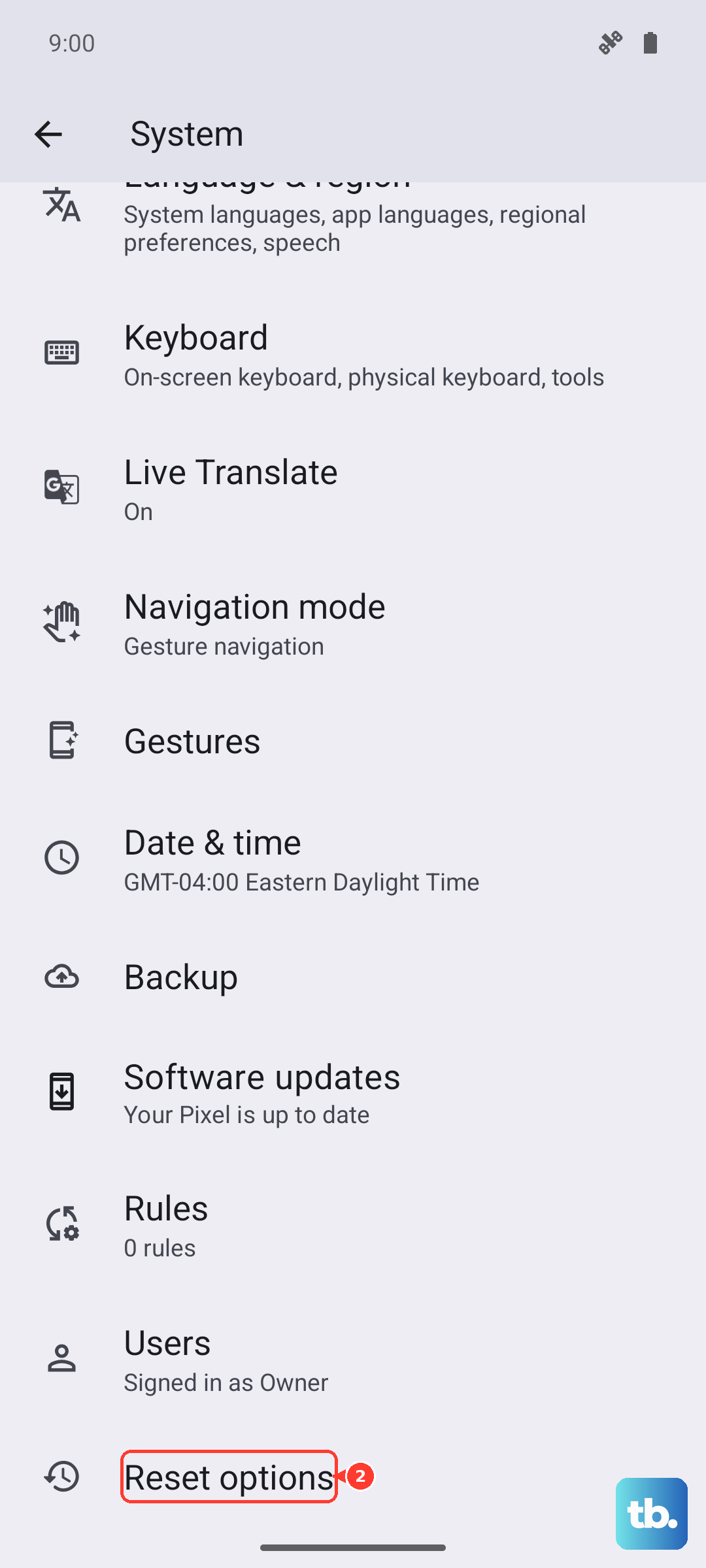
This is a stronger step that resets Wi-Fi, mobile data, and Bluetooth. Go to Settings > System > Reset options. Tap Reset Wi-Fi, mobile & Bluetooth. Confirm the action. Your phone will restart, and you'll need to re-pair all your Bluetooth devices and reconnect to Wi-Fi networks, but it can clear deep-seated connection issues.
Test with Another Pair of Headphones
To rule out a problem with your specific headphones, try a different pair. Plug in another set of wired USB-C headphones or try pairing a different Bluetooth device. If the second pair works perfectly, then the issue is likely with your original headphones. If neither works, the problem is with the phone's settings or hardware.