
If your Infinix Note 40 Pro is plugged in but charging at a snail's pace, it's missing out on its main feature. This phone is built for speed, with a 70W wired charger in the box and even 20W wireless charging, which is rare for a phone in this price range. When it's working right, you should see a significant charge in just minutes.
Start with the Right Charger and Cable
This is the most common culprit. The Infinix Note 40 Pro's 70W fast charging only works with the specific charger and cable that came in the box. That charger uses a proprietary protocol. If you're using a different USB-C charger, even a powerful 65W laptop charger, it will default to a much slower speed.
Always use the included 70W adapter and the thick USB-C cable it came with for the fastest possible charge. I'd start by checking this, as swapping to a generic charger is an easy mistake to make.
Check for Overheating
The phone's processor will throttle charging speed to protect the battery if it gets too hot. This can happen if you're gaming, using the camera for a long time, or charging in direct sunlight. The Dimensity 7020 chip can get warm under load, which directly impacts charging.
If the phone feels warm to the touch, take it off the charger for a few minutes to cool down. For the fastest charge, place it on a cool, hard surface like a table, not on a bed or sofa.
Don't Use the Phone While It's Charging
This ties directly into heat. Demanding tasks like playing heavy games or recording video generate significant heat. When the system detects this, it will intentionally slow down the charging rate to manage the temperature.
For a true 70W fast charge, just let the phone sit. If you need to use it, stick to lighter tasks like browsing or messaging to keep the speed up.
Clean the USB-C Port
Pocket lint and dust can get packed into the charging port over time. This creates a poor connection that can prevent the phone and charger from negotiating the full fast charging protocol, limiting you to basic slow charging.
Power the phone off first. Then, use a wooden toothpick or a soft-bristled brush to gently scrape around the center pin inside the port. Be very careful not to damage the pins. A can of compressed air can also help blow debris out.
Try a Force Restart
A minor software glitch in XOS can sometimes mess with the charging controller. A force restart clears the phone's temporary memory and can resolve this. Press and hold the Power button and the Volume Down button together for about 10 seconds.
Keep holding until you see the Infinix logo appear on the screen, then release. This is different from a normal restart and often fixes odd system behaviors.
Remove Your Phone Case
Thick or poorly ventilated cases act like a blanket, trapping the heat generated during fast charging. This triggers the phone's thermal protection even faster. This is especially important if you're using the wireless charging feature, as that generates more heat by nature.
Take the case off while you're fast charging, particularly if you're in a hurry. It allows for better heat dissipation and can keep the charging speed at its peak.
Check Your Wireless Charger
If you're having issues with wireless charging, remember the Note 40 Pro supports standard Qi wireless charging up to 20W. However, to hit that 20W, you need a wireless charger that explicitly supports the same fast wireless standard (often called Qi Extended Power Profile).
A basic 5W or 10W Qi pad will work, but slowly. Also, ensure the phone is centered correctly on the charging coil. The back has a glass panel, which is ideal for wireless charging.
Update Your Software
Infinix can release updates that optimize charging behavior or fix bugs related to power management. Go to Settings > System > System update to check for any available downloads.
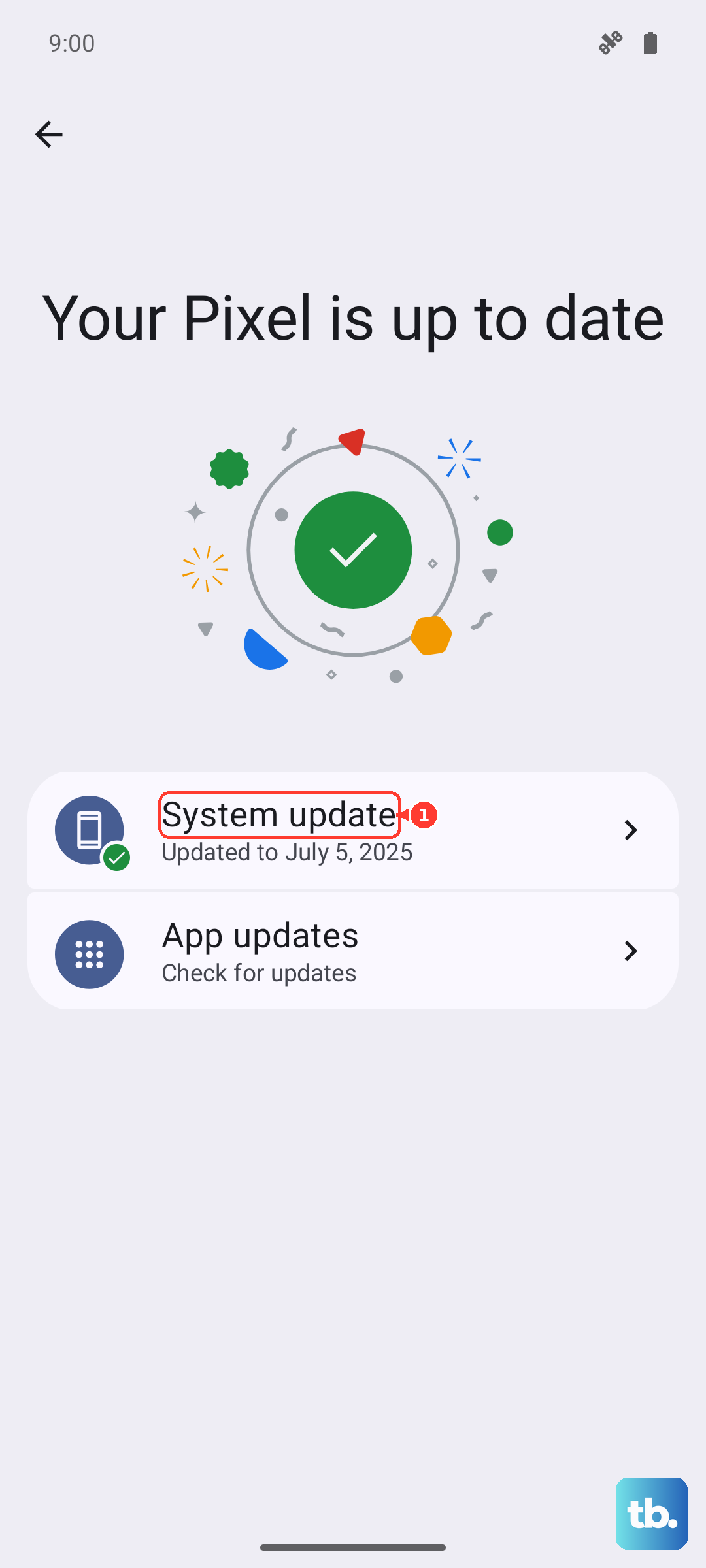
Running the latest version of Android 14 and XOS 14 ensures the phone's charging algorithms are current. This is a simple step that's often overlooked.
Inspect Your Cable and Adapter
Cables wear out, especially at the connectors where they bend. The included cable is sturdy, but damage can happen. Look for any fraying, kinks, or a loose connection when plugged in.
If you have access to another high-wattage USB-C charger and cable (like from a laptop), try it. While it won't hit 70W, if it charges faster than your current setup, it points to a problem with your original Infinix gear.
Review XOS Settings and Background Apps
XOS comes with a fair amount of pre-installed apps and services that can run in the background. Some of these might be using resources and generating heat even while charging. You can also disable some of the system ads.
Head to Settings > Smart Service to toggle off personalized recommendations and ads. For a more aggressive approach, go through your recently installed apps and see if any are known battery hogs.