
If your Infinix Note 40 Pro's camera is acting up, start with a simple restart. Press and hold the Power button until the shutdown menu appears, then tap Restart. I've seen this fix work for most temporary glitches that cause the camera app to freeze or produce blurry photos.
Key Points
- Fix Blurry or Out-of-Focus Photos: First, clean the camera lenses with a microfiber cloth.
- Resolve Camera App Crashes and Freezes: Clear the camera app's cache and data.
- Fix Slow Camera Processing and Lag: Close other apps running in the background.
- Address Dark or Grainy Photos in Low Light: Use the dedicated Night Mode for better results.
- Fix Video Recording Issues: Ensure you have enough storage space available.
- Restore Missing Camera Modes or Features: Check for app and system updates.
Give the phone a moment to fully reboot, then try opening the camera again. Sometimes the camera's image signal processor just needs a fresh start.
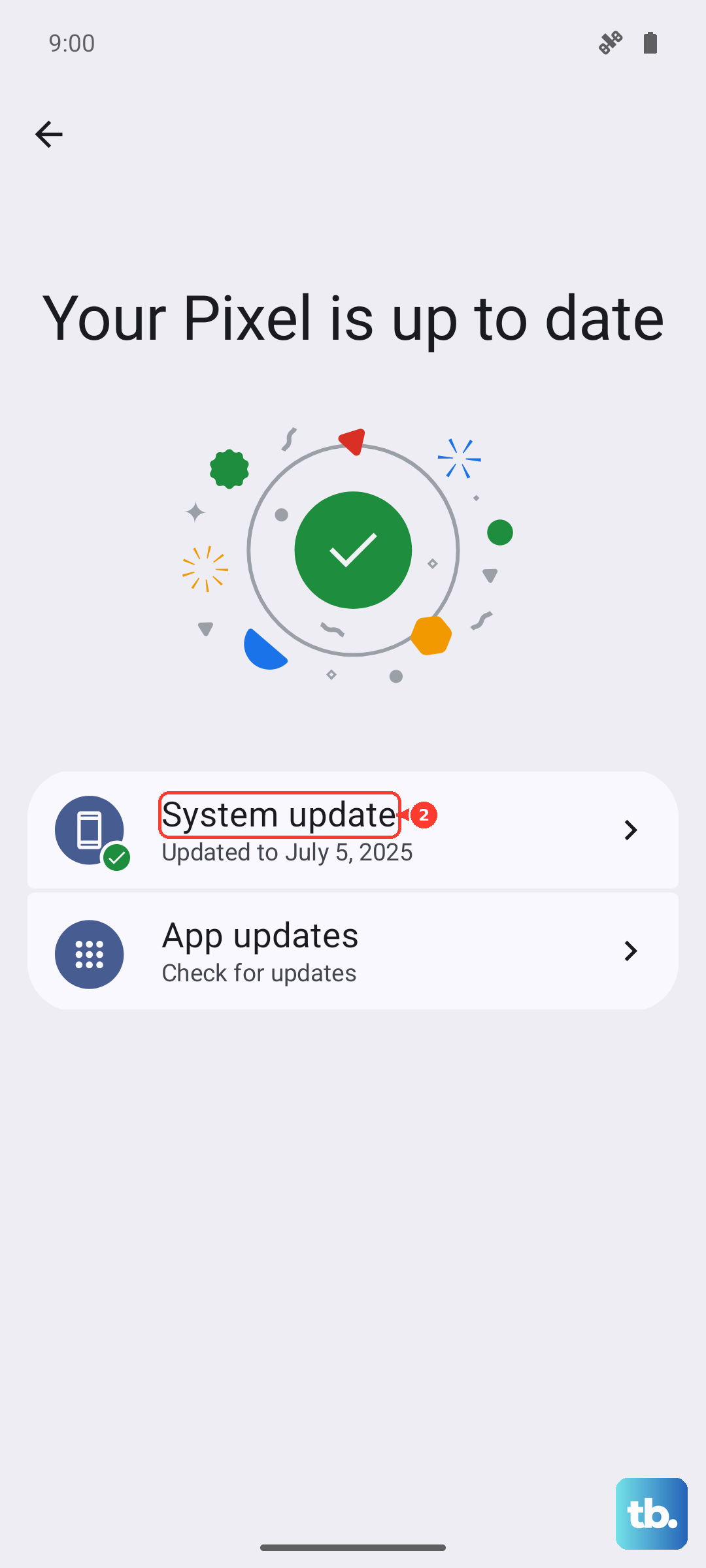
If the camera started acting strange after a recent software update, check for another one. Open Settings > System > Software update and tap Download and install. The Dimensity 7020 chipset can sometimes struggle with new camera processing algorithms, and Infinix often releases patches to improve performance.
Fix Blurry or Out-of-Focus Photos
First, clean the camera lenses with a microfiber cloth. The Note 40 Pro has multiple lenses, and a single fingerprint on the main sensor can ruin every shot. Pay special attention to the large primary lens and the smaller ones around it.
If photos are still blurry, tap on the screen where you want the camera to focus. The autofocus on this phone can be a bit hesitant, especially in medium light. A manual tap usually locks it in place. Also, make sure the protective case isn't covering any part of the lens array.
For persistent focus issues, try switching between the different camera modes. Sometimes the 2x zoom or ultra-wide lens focuses better than the main sensor. If one lens works and another doesn't, it's more likely a software bug than a hardware problem.
Resolve Camera App Crashes and Freezes
Clear the camera app's cache and data. Go to Settings > Apps > Manage apps. Find and tap on "Camera", then go to Storage > Clear cache. If the crashes continue, tap Clear data next. This resets the app to its default settings, so you'll lose any custom modes or settings you've saved.
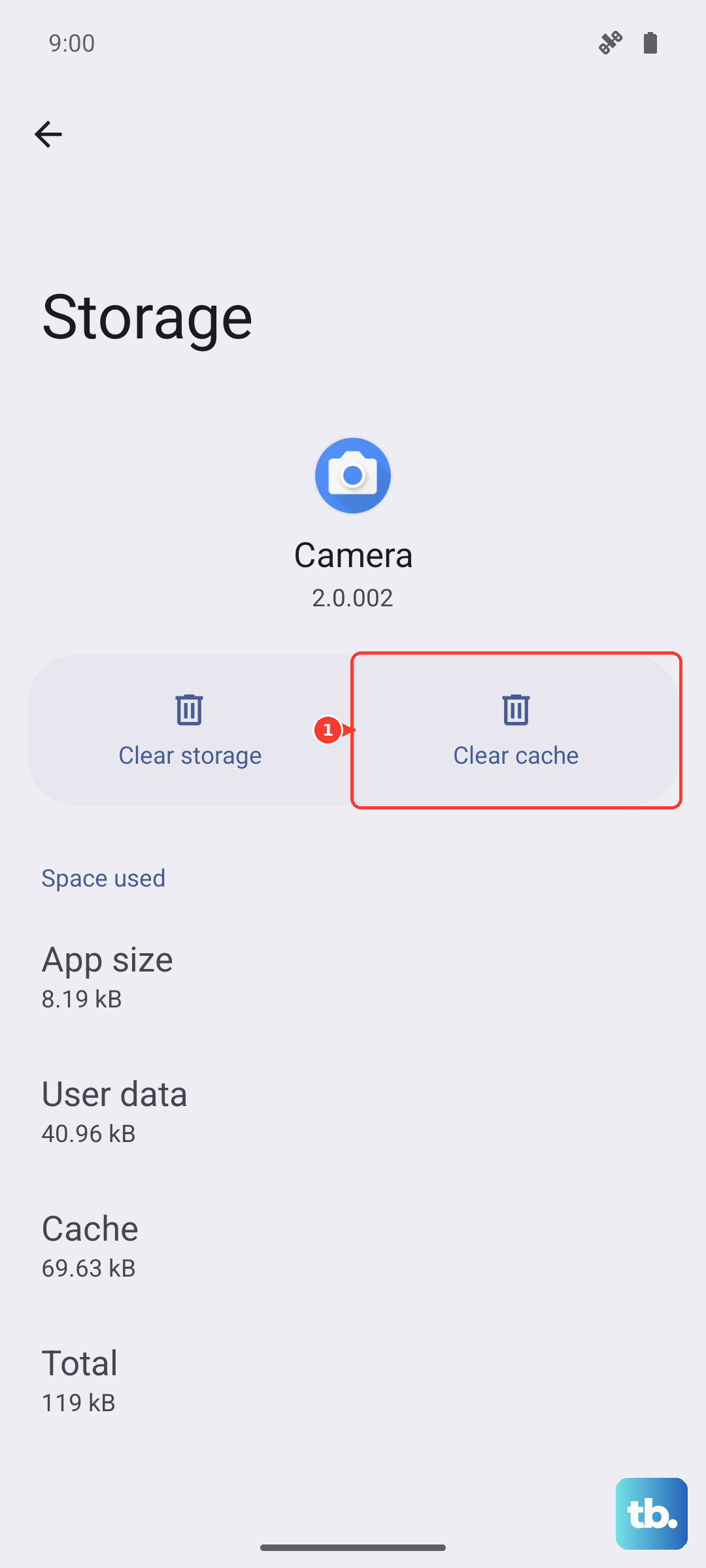
After clearing the data, restart your phone. This ensures any corrupted temporary files are completely wiped. When you open the camera again, it will be like using it for the first time.
If the app still crashes, boot your Infinix Note 40 Pro into Safe Mode. Press and hold the power button, then tap and hold the "Power off" option on your screen until you see the Safe Mode prompt. If the camera works fine in Safe Mode, a third-party app you installed is likely causing a conflict.
Fix Slow Camera Processing and Lag
Close other apps running in the background. The Dimensity 7020 is a capable mid-range chip, but it can get bogged down. Swipe up from the bottom and hold to see your recent apps, then swipe them all away before opening the camera.
Make sure you're not shooting in a demanding mode if you just need a quick photo. The "AI Cam" or high-resolution 108MP mode takes much longer to process than the standard Photo mode. Stick to the basic mode for everyday snaps to avoid lag.
Check your phone's storage. If it's nearly full, the camera has nowhere to write the image data quickly. Try freeing up a few gigabytes by deleting old videos or unused apps. You can also change the save location to an SD card if you have one inserted, which can sometimes help.
Address Dark or Grainy Photos in Low Light
Use the dedicated Night Mode. Don't just rely on the auto mode in the dark. Tap on "More" in the camera app and select Night Mode. Hold the phone very steady for the few seconds it takes to capture the image. The processing will take a moment, but the result is usually far brighter and less noisy.
Avoid using the digital zoom in low light. Zooming in amplifies grain and makes the sensor struggle even more. If you need a closer shot, physically move closer to your subject instead.
You can also try adjusting the exposure manually. Tap to focus on your subject, then slide the little sun icon that appears up or down to make the image brighter or darker before you take the shot. Sometimes the auto-exposure gets it wrong.
Fix Video Recording Issues
Ensure you have enough storage space available. Recording video, especially at 4K or 60fps, consumes storage very quickly. The camera app may freeze or fail to start recording if space is critically low.
If video is choppy or stutters, lower the recording quality. Go into the camera's video settings and switch from 4K to 1080p, or from 60fps to 30fps. The phone's processor and storage write speed may not be able to keep up with the highest settings, especially if it's getting warm.
Check for a firmware update specifically for the camera. Infinix sometimes releases updates through the system updater or even through a separate "XClub" or device care app. These can include optimizations for video stabilization and encoding.
Restore Missing Camera Modes or Features
Check for app and system updates. Open the Google Play Store, tap your profile icon, and go to Manage apps & device > Updates available. See if there's an update for the "Camera" or "XOS Camera" app. Infinix can enable or tweak features through these app updates.
Sometimes an update can accidentally hide a mode. Swipe through all the mode icons at the bottom of the viewfinder. You might find that modes like "Pro", "Portrait", or "Slow Motion" have been moved. You can often edit this carousel by tapping an edit (pencil) icon to add or remove modes.
If a specific feature like the macro lens or ultrawide angle isn't working, try toggling the "AI Cam" setting off. The AI scene detection can sometimes incorrectly choose the wrong lens or settings. Turning it off gives you manual control to select the correct lens for your shot.