
If your Infinix Note 40 Pro's battery is draining faster than it should, you're not alone. The combination of the MediaTek Dimensity 7020 chip and XOS software can sometimes lead to unexpected power drain, especially if you've been pushing the phone with heavy games or have a lot of background activity. The good news is there are several effective tweaks you can make to get your battery life back on track.
Check What's Draining Your Battery
Before you start changing settings, it's smart to see exactly what's using your power. Head into Settings > Battery. Here, you'll find a breakdown of battery usage by app over the last 24 hours or the full charge cycle.
Look for any apps showing an unusually high percentage, especially ones you don't use often. This is the quickest way to spot a rogue app. I'd start with this check, as it often points you directly to the problem.
Manage XOS and Background Services
Infinix's XOS is known for including various smart services and promotional features that can run in the background. A key step is to disable these ads. Go to Settings > Smart Service (the name might vary slightly) and turn off options for recommendations, ads, or promotional content.
Next, limit background activity for apps that don't need it. Go to Settings > Apps > Manage apps. Select any app that's showing high battery use and tap Battery saver. You can usually set it to "Restrict background activity" to prevent it from running when you're not using it.
Optimize Display and Performance Settings
The large, bright display is a major battery consumer. Reducing the screen brightness even a little can make a big difference. Also, shorten the screen timeout. Go to Settings > Display and set the "Sleep" or "Screen timeout" to 30 seconds or 1 minute.
Enable Dark Mode whenever possible. Since the Note 40 Pro has an AMOLED display, black pixels are turned off completely, saving power. You can find it in Settings > Display > Dark mode. Also, consider reducing animation scale in the developer options for a snappier feel and slightly less GPU load.
Control Connectivity Features
Turn off Wi-Fi, Bluetooth, and GPS when you aren't actively using them. Constantly searching for networks and signals is a common drain. For GPS, you can go a step further by setting app location permissions to "Only while using the app" instead of "Always."
You can find these settings under Settings > Location for GPS, and in the quick settings panel for Wi-Fi and Bluetooth. It's a simple habit that adds up over a full day.
Update Your Software and Apps
Software updates often include optimizations and bug fixes that improve battery efficiency. Check for a system update by going to Settings > System > System updates.
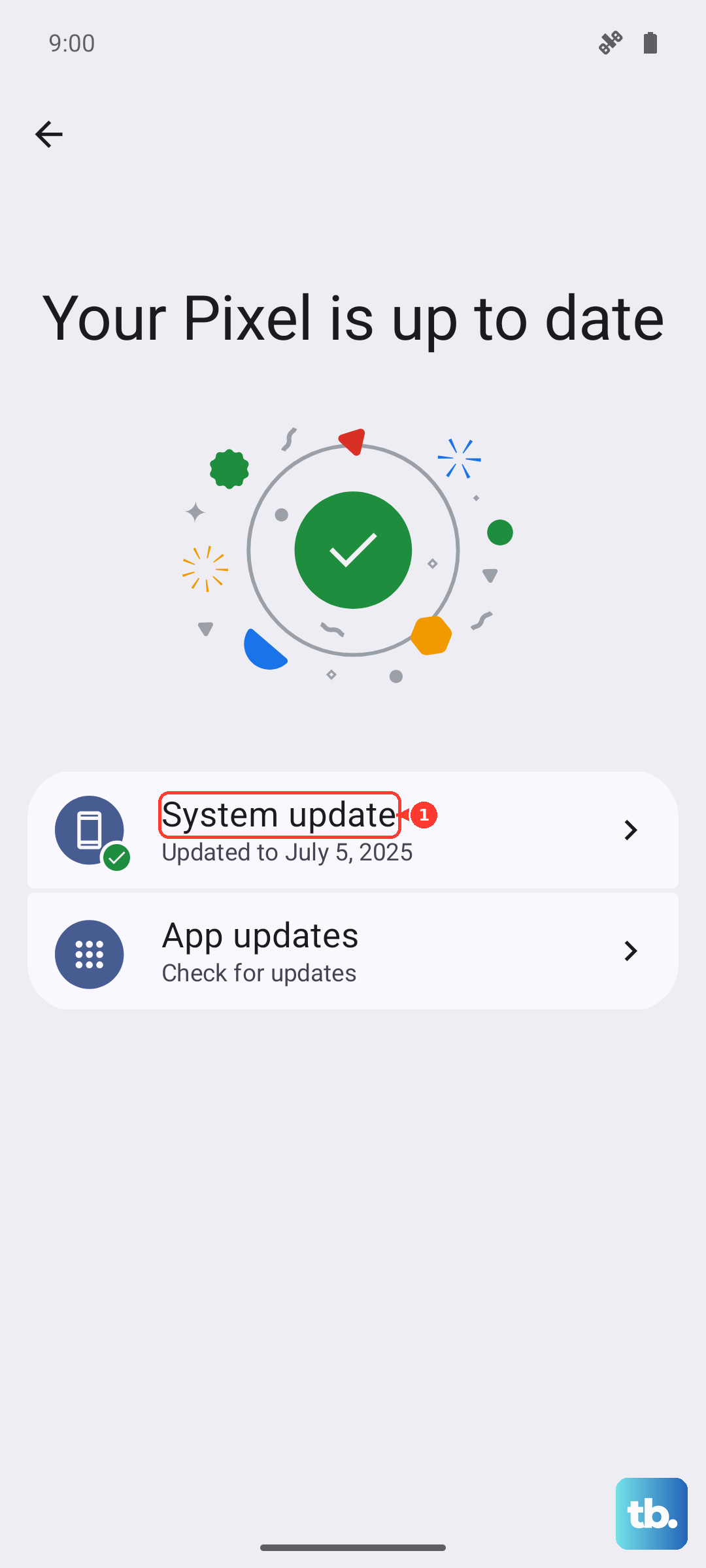
Similarly, make sure all your apps are updated through the Google Play Store. Developers frequently release updates that fix battery-draining bugs. Outdated apps can sometimes misbehave and use more power than they should.
Use the Built-in Battery Saver Modes
The Infinix Note 40 Pro has effective power-saving tools. The standard Battery Saver mode (found in Settings > Battery) restricts background data and reduces performance to extend life. You can turn it on manually or set it to activate automatically at 15% or 20%.
For even more savings, there's often an Ultra Power Saving Mode. This strips the interface down to just calls, messages, and a few essential apps, which can give you hours of extra life from a tiny amount of charge. It's perfect for emergencies.
Review and Remove Problematic Apps
If your battery check revealed a specific app as the culprit, try force-stopping it first. Go to Settings > Apps, select the app, and tap "Force stop." If the problem returns, check if the app has an update, or consider uninstalling it temporarily to see if your battery life improves.
Also, take a moment to uninstall any apps you genuinely don't use. Pre-installed bloatware can sometimes run processes in the background. You may not be able to remove all of them, but you can usually disable them from the same app management menu.
Adjust Sync and Notification Settings
Apps that constantly sync data, like email and social media, can be hungry. Instead of "Push" notifications for email, set your accounts to "Fetch" data every 30 or 60 minutes. You can adjust this in your email app's settings or in the system accounts settings.
Similarly, go through your notification settings and disable them for apps where alerts aren't critical. Every time an app wakes the screen to show a notification, it uses a bit of power.
Try a Safe Mode Check
If the drain is sudden and severe, booting into Safe Mode can tell you if a third-party app is to blame. To do this, press and hold the power button until the power menu appears, then long-press the "Power off" option. Tap "OK" to reboot into Safe Mode.
In Safe Mode, all downloaded apps are disabled. If your battery drain stops, you know a recently installed app is causing the issue. You can then reboot normally and start uninstalling recent apps one by one to find the offender.
Perform a Soft Reset
A simple reboot can clear out temporary glitches that might be causing a process to use excessive CPU. Just press and hold the power button, then tap "Restart." If the phone is unresponsive, you can force a restart by pressing and holding the Power button and the Volume Down button together for about 10 seconds until the Infinix logo appears.
Consider a Factory Reset (Last Resort)
If nothing else works and the battery drain is making the phone unusable, a factory reset is the final step. This will erase all your data, so you must back up everything important first. Once backed up, go to Settings > System > Reset options > Erase all data (factory reset).
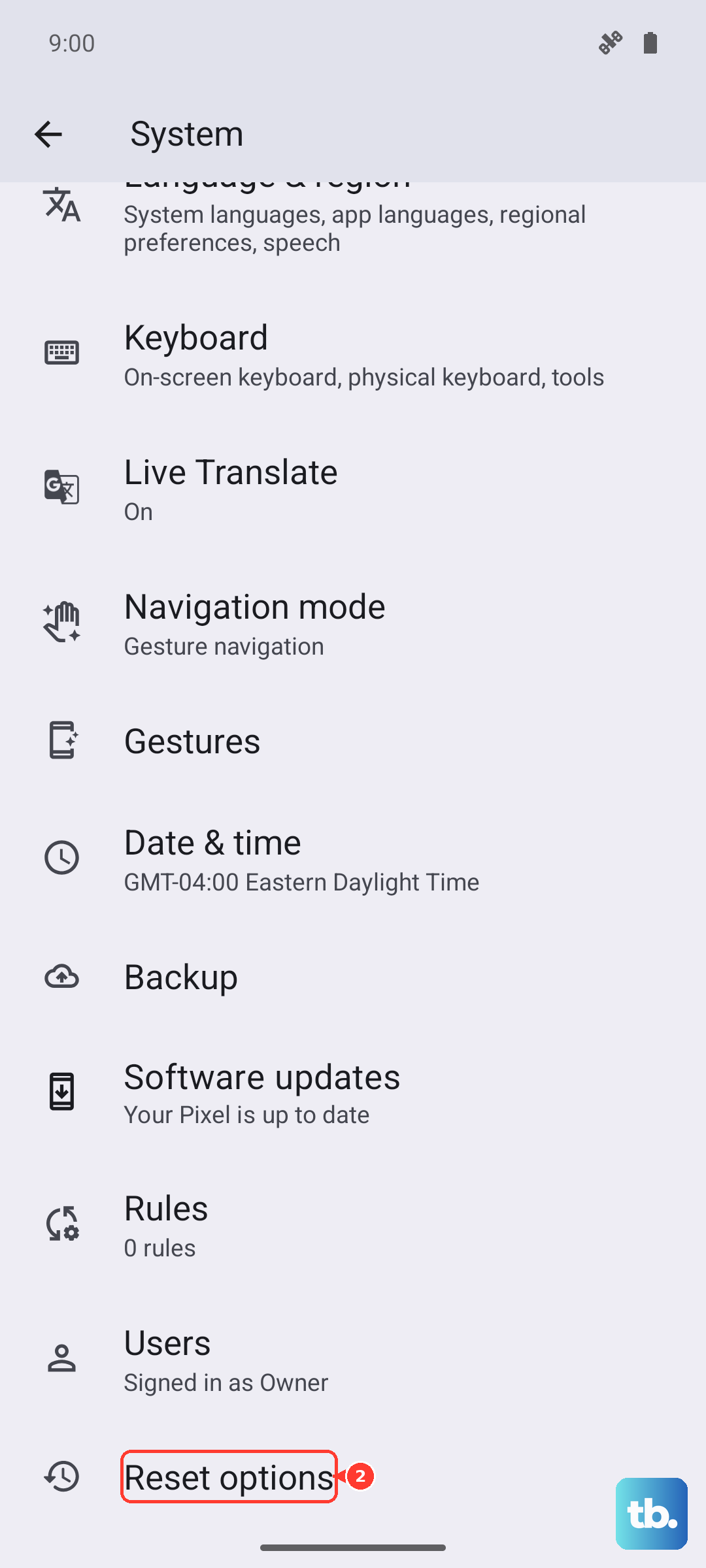
After the reset, set up the phone as new without restoring a backup immediately. Test the battery life for a day. If it's fixed, the problem was software-related. You can then carefully restore your data, being mindful of which apps you reinstall.