Is your Infinix Note 40 Pro stuck in one orientation and refusing to flip when you turn it sideways? It's a common hiccup where the auto-rotate feature just stops responding. The good news is it's usually a quick software setting, not a broken phone.
Let's start with the most likely fix. Pull down your notification shade and look for the auto-rotate icon. On XOS, it often looks like a phone with arrows circling it. If it's grayed out or says "Portrait," just tap it once to enable auto-rotate. The icon should light up or change color.
Check for App-Specific Rotation Locks
Some apps, especially video players or games, have their own rotation settings that override the system. If rotation works in your gallery but not in YouTube, the app itself is likely locking the orientation. Check within the app's settings menu for a rotation or full-screen toggle.
I've also seen third-party apps, particularly those that control screen brightness or color, interfere with the sensors. If the problem started after installing a new app, try uninstalling it to see if that's the culprit.
Give Your Phone a Fresh Start
A simple restart can clear out temporary glitches that confuse the accelerometer. Just hold down the power button, tap "Restart" from the menu, and wait for your Infinix Note 40 Pro to reboot. This takes about a minute and doesn't affect any of your data.
If a standard restart doesn't do the trick, try a force restart. This is a bit more thorough. Press and hold the Power button and the Volume Down button together for about 10 to 15 seconds. Keep holding until you see the Infinix logo appear, then let go. Your phone will boot up fresh.
Update Your Software
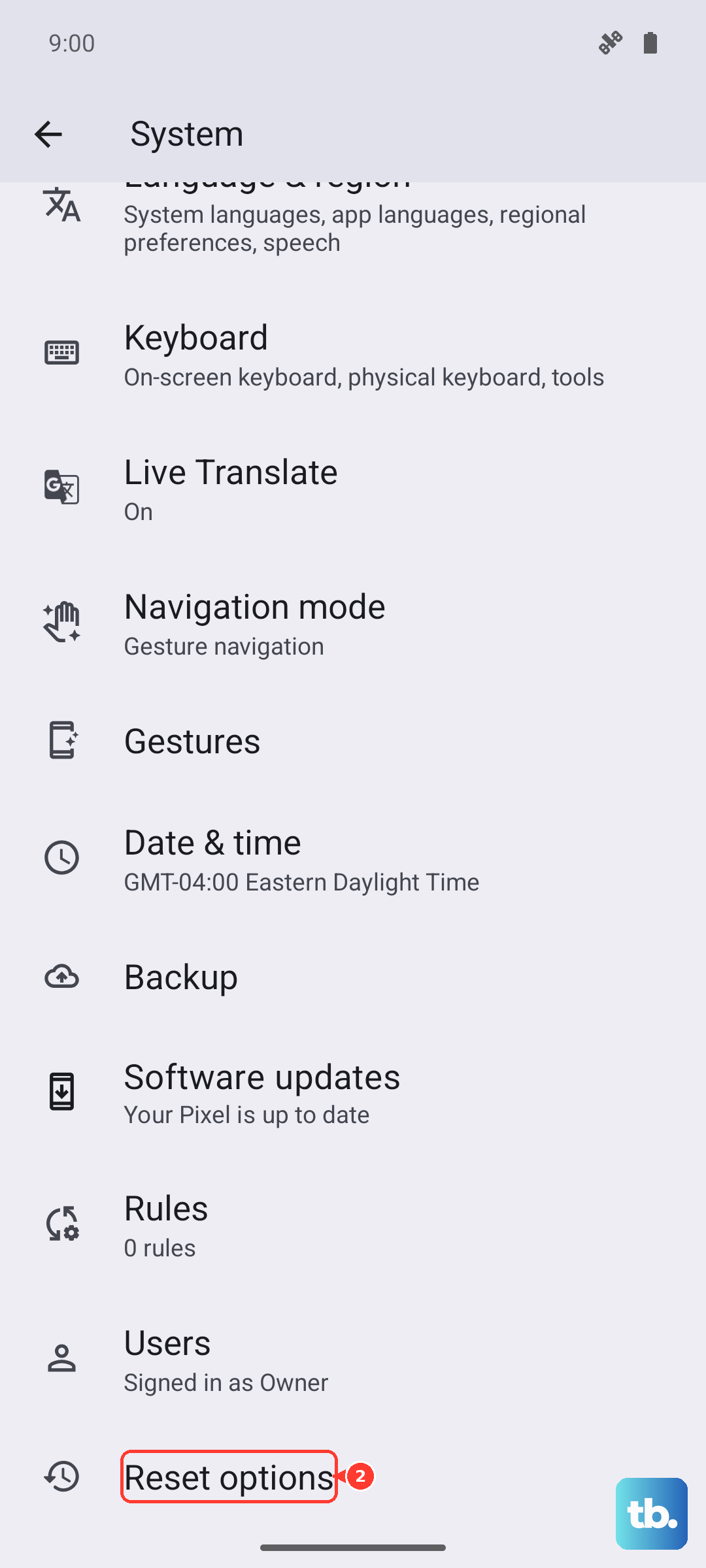
Bugs in XOS or Android can sometimes cause sensor issues. Infinix regularly releases updates that fix these kinds of problems. To check, go to Settings > System > System update.
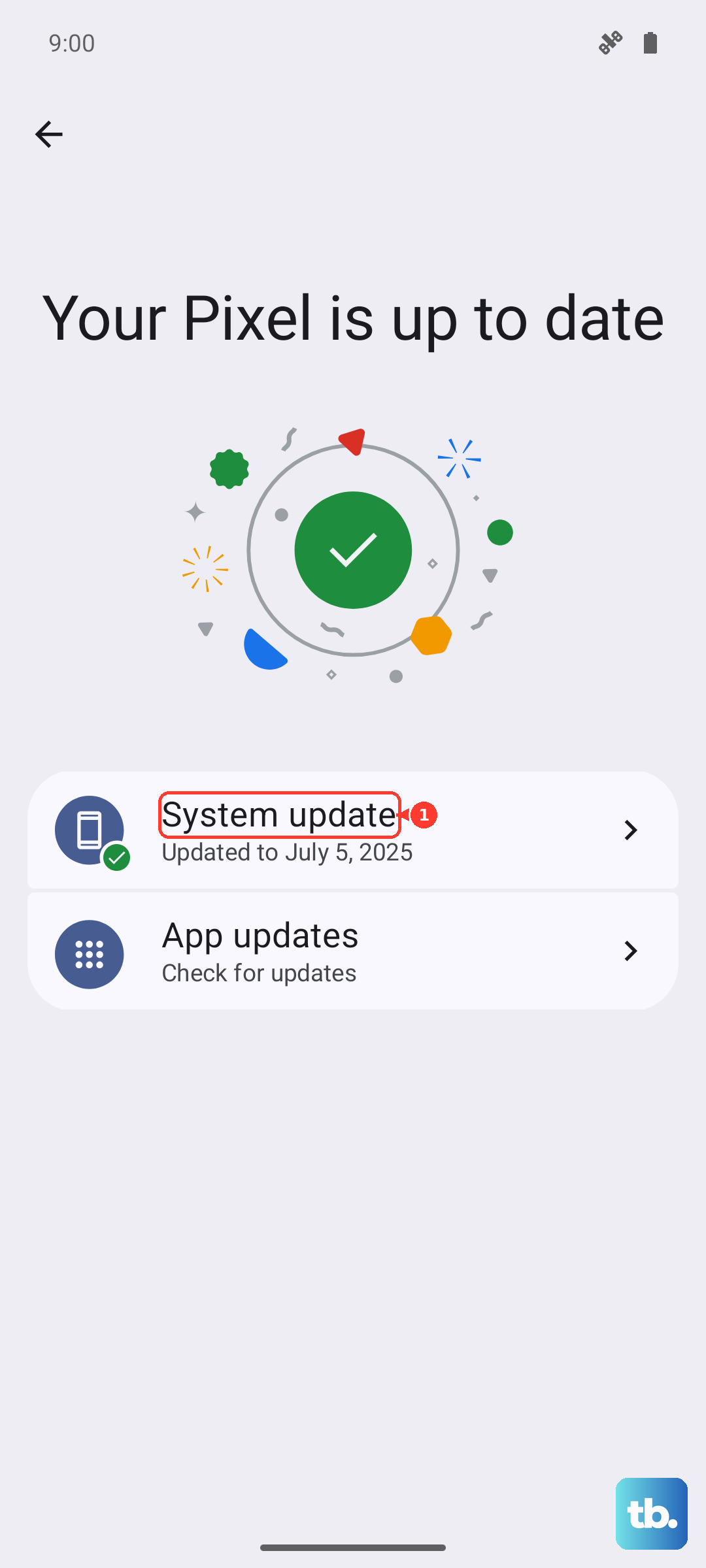
Tap "Check for updates." If one is available, download and install it. Make sure your phone is connected to Wi-Fi and has at least a 50% charge before starting the update. This can resolve a lot of quirky behavior, not just rotation problems.
Test the Sensors Directly
Your Infinix Note 40 Pro has a built-in diagnostic tool to check if the gyroscope and accelerometer (the sensors responsible for rotation) are working. Open your Phone dialer and type in *#*#64663#*#*. This should launch the engineering test mode.
Look for tests related to the accelerometer, gyroscope, or "G-Sensor." Run the test and follow the on-screen instructions, which usually involve tilting the phone. If the test fails or the values don't change when you move the phone, it points to a deeper sensor issue.
Clear the System Cache
Corrupted temporary system files can cause all sorts of odd behavior. Clearing the cache partition is a safe way to clean these out without touching your personal data. First, power off your phone completely.
Now, press and hold the Power button and Volume Up button together. Release the Power button when you feel a vibration, but keep holding Volume Up until you see the recovery menu. Use the volume buttons to navigate to "Wipe cache partition" and select it with the power button. Confirm, then select "Reboot system now."
Review Accessibility and Smart Features
Certain accessibility settings can lock the screen orientation. Go to Settings > Accessibility and look for any options like "Auto-rotate screen" or "Screen rotation" that might be disabled. Also, check under Settings > Smart & convenience (or similar) for any gesture controls that might be interfering.
Since the Infinix Note 40 Pro's XOS can have significant bloatware, it's worth checking the Smart Service section in Settings. Some of these "smart" features can conflict with basic system operations. You can try disabling non-essential ones temporarily as a test.
Consider a Factory Reset
This is your last resort before looking at hardware. A factory reset will wipe all your data and apps, returning the phone to its out-of-the-box state. If a software bug is causing the problem, this will eliminate it.
Important: Back up everything you want to keep, photos, contacts, messages, to Google Drive or your computer first. To reset, go to Settings > System > Reset options > Erase all data (factory reset). Follow the prompts. If rotation still doesn't work after this, the issue is likely physical.