When your Infinix Note 40 Pro won't install apps, it can feel like you're locked out of your phone's main purpose. Apps are how you customize and use your device, so a download failure is a real roadblock. The good news is that most of these issues are temporary glitches with straightforward fixes.
Let's go through the most effective solutions to get your app downloads working again on your Note 40 Pro.
Check Your Connection and Restart
First, make sure your internet is actually working. Pull down the notification shade and check that your Wi-Fi or mobile data icon is active and has a strong signal. Sometimes, just toggling Airplane mode on and off can refresh the connection.
If your connection seems fine, try a simple restart. Press and hold the power button, then tap 'Restart'. This clears out minor software hiccups that can stall the Play Store. I'd start with this one, as it often resolves the issue right away.
Verify Date, Time, and Storage
Google's servers are picky about your phone's clock. If the date or time is wrong, downloads can fail silently. Go to Settings > Additional settings > Date & time and make sure 'Automatic date & time' is switched on.
Also, quickly check your storage. The Note 40 Pro has plenty of space, but if you've filled it up with photos or videos, there might not be room for new apps. Head to Settings > Storage to see how much free space you have left.
Clear the Google Play Store Cache
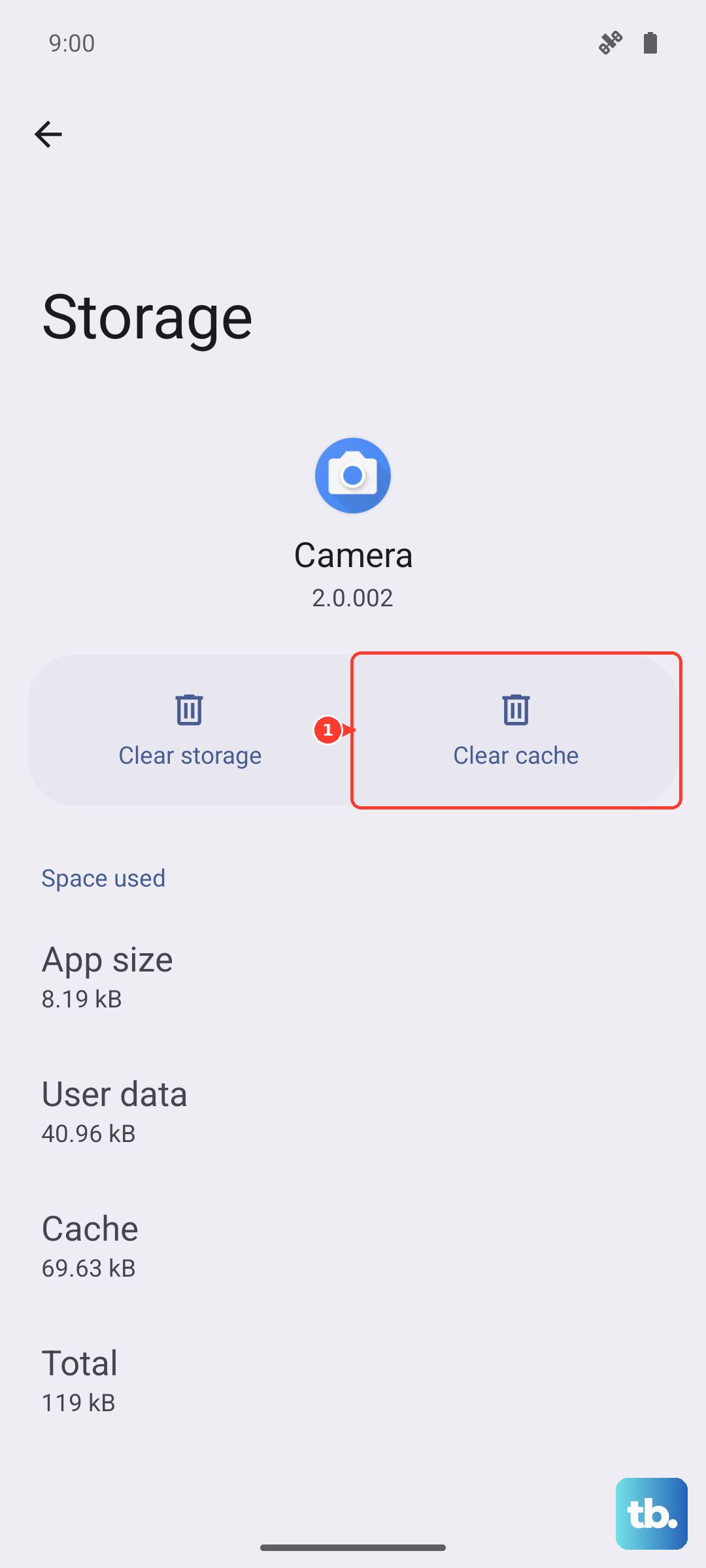
Corrupted temporary files in the Play Store are a very common culprit. Clearing this cache is a safe first step that doesn't delete any of your data or apps.
Open Settings > Apps > Manage apps. Find and tap on 'Google Play Store'. Go into Storage usage and tap 'Clear cache'. After doing this, open the Play Store again and try your download.
Clear Data for Play Store and Services
If the cache clear didn't help, the next step is to clear the app data for the Play Store. This resets the app to a fresh state. Go back to the Play Store's storage settings and tap 'Clear data'. Confirm the action. You'll need to sign back into the Play Store, but your account will remain on the phone.
You should do the same for Google Play Services, which handles the background communication for downloads. Find 'Google Play Services' in your app list, go to its storage, and tap 'Manage storage'. Then, tap 'Clear all data'. This step often kicks stubborn download processes back into gear.
Check for System App Updates
Outdated system components can cause conflicts. Your Infinix Note 40 Pro runs on Android 14 with XOS 14 on top, and Infinix periodically releases updates that can fix these kinds of bugs.
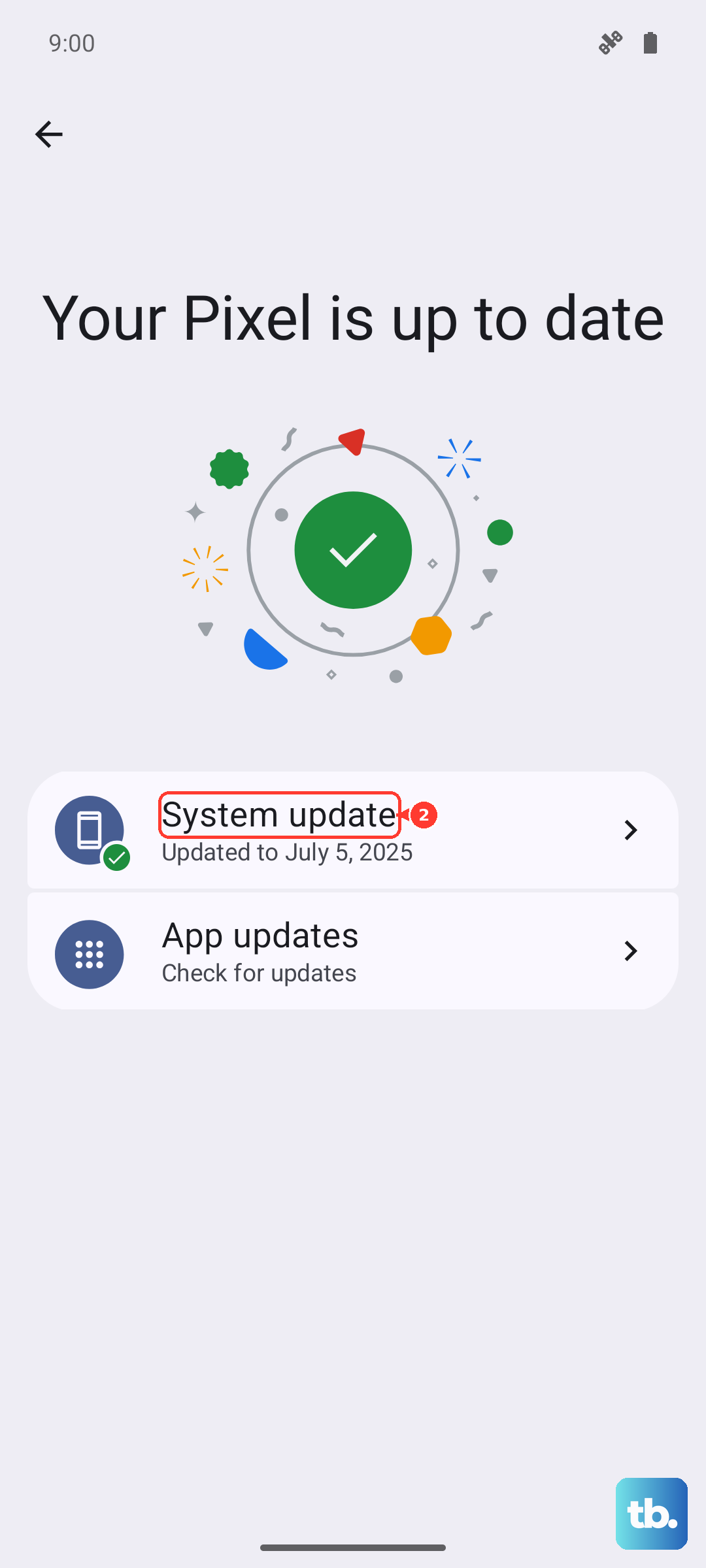
Go to Settings > System > System updates and tap 'Check for updates'. If an update is available, install it. Your phone will restart, and it's a good idea to try your app download again afterward.
Review Your Google Account Sync
Sometimes the sync between your phone and Google gets stuck. You can give it a manual refresh. Navigate to Settings > Accounts & sync and select your Google account.
Tap 'Account sync' and look for any services that show an error or seem stuck. You can tap the three-dot menu and select 'Sync now' to force a refresh. Alternatively, turning sync off and back on can also help.
Examine Download Manager and Permissions
The Download Manager is a system app that handles all downloads. It needs to be enabled and have the right permissions. Go to Settings > Apps > Manage apps, tap the three-dot menu, and select 'Show system'.
Find 'Download Manager' in the list. If it's disabled, tap 'Enable'. Then, go into its permissions and ensure it has access to storage. Also, check that Google Play Services has all its necessary permissions enabled in the same way.
Try a Different Network
Your current Wi-Fi network might be blocking the specific ports the Play Store uses. This is common on public or workplace networks. A quick test is to turn off Wi-Fi and try downloading the app using your mobile data instead.
If the download works on mobile data, you know the issue is with the Wi-Fi network. You can try forgetting the network in your Wi-Fi settings and reconnecting, or simply use a different Wi-Fi source.
Remove and Re-add Your Google Account
This is a more thorough step that can resolve account-specific glitches. Go to Settings > Accounts & sync, select your Google account, and tap 'Remove account'. Confirm you want to remove it.
Don't worry, this doesn't delete your Google account itself. After removal, go back and tap 'Add account' to log back in with the same credentials. This process can clear up persistent authentication errors that block downloads.
Consider a Factory Reset
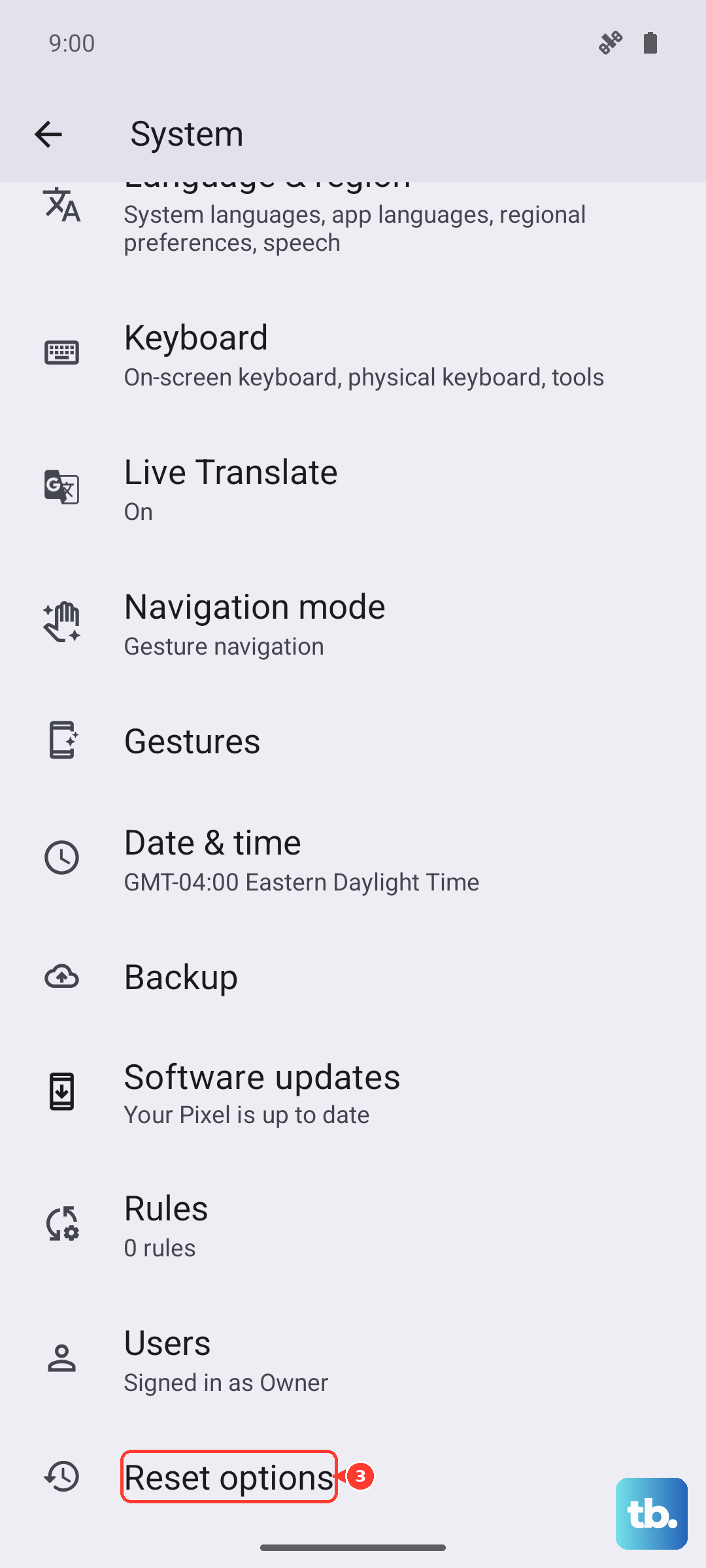
If you've tried everything else and apps still won't install, a factory reset is the final option. This will erase all data, apps, and settings from your Infinix Note 40 Pro, returning it to how it was out of the box.
Crucially, back up everything important first. Use Google's backup for your settings and app data, and manually save photos and files to a computer or cloud service. To reset, go to Settings > System > Reset options > Erase all data (factory reset). After the phone restarts, set it up as new and test the Play Store immediately.