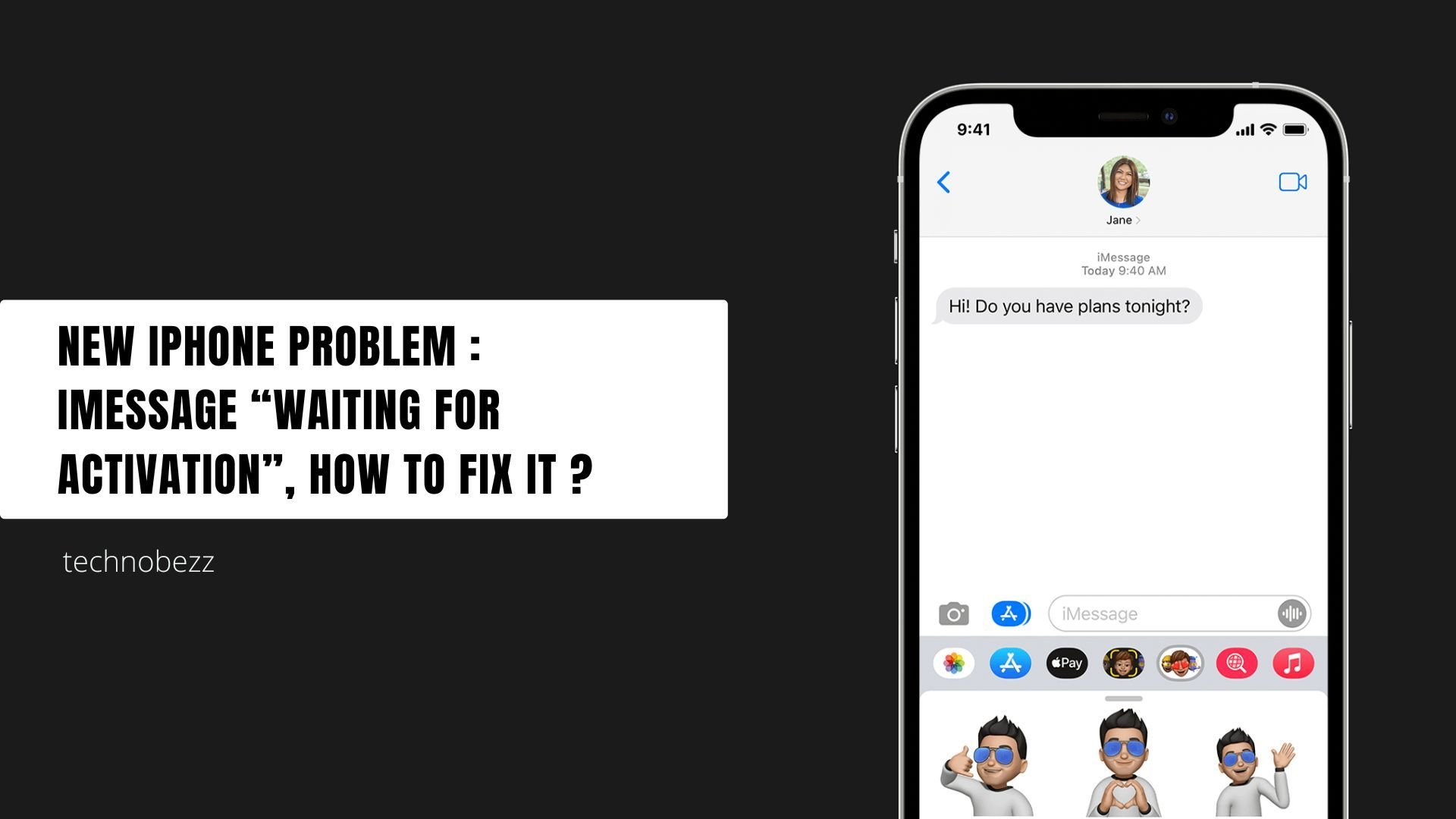
The "Waiting for Activation" message means your iPhone has not yet finished setting up iMessage with your phone number or Apple Account. Activation usually completes within minutes, but Apple notes it can take up to 24 hours for your carrier to verify your number. When it stays stuck longer than that, the fixes below will almost always get it moving.
iMessage activation depends on three things working together: a live internet connection, the ability to send a regular SMS text, and correct account details. Confirm you can send a normal green-bubble text first, because your iPhone uses SMS to verify your number with Apple. If basic texting fails, fix that before anything else.
Read more - How To Fix No Service On iPhone
Confirm Your Connection and SMS
iMessage cannot activate without a working network. Make sure you are on strong Wi-Fi or cellular data, then open Messages and send a standard SMS to confirm texting works.
If a prompt appears warning that your network provider may charge for the SMS used to activate iMessage and FaceTime, tap Turn On. Declining this stops activation completely, which is one of the most common reasons it never finishes.
Check Your Phone Number
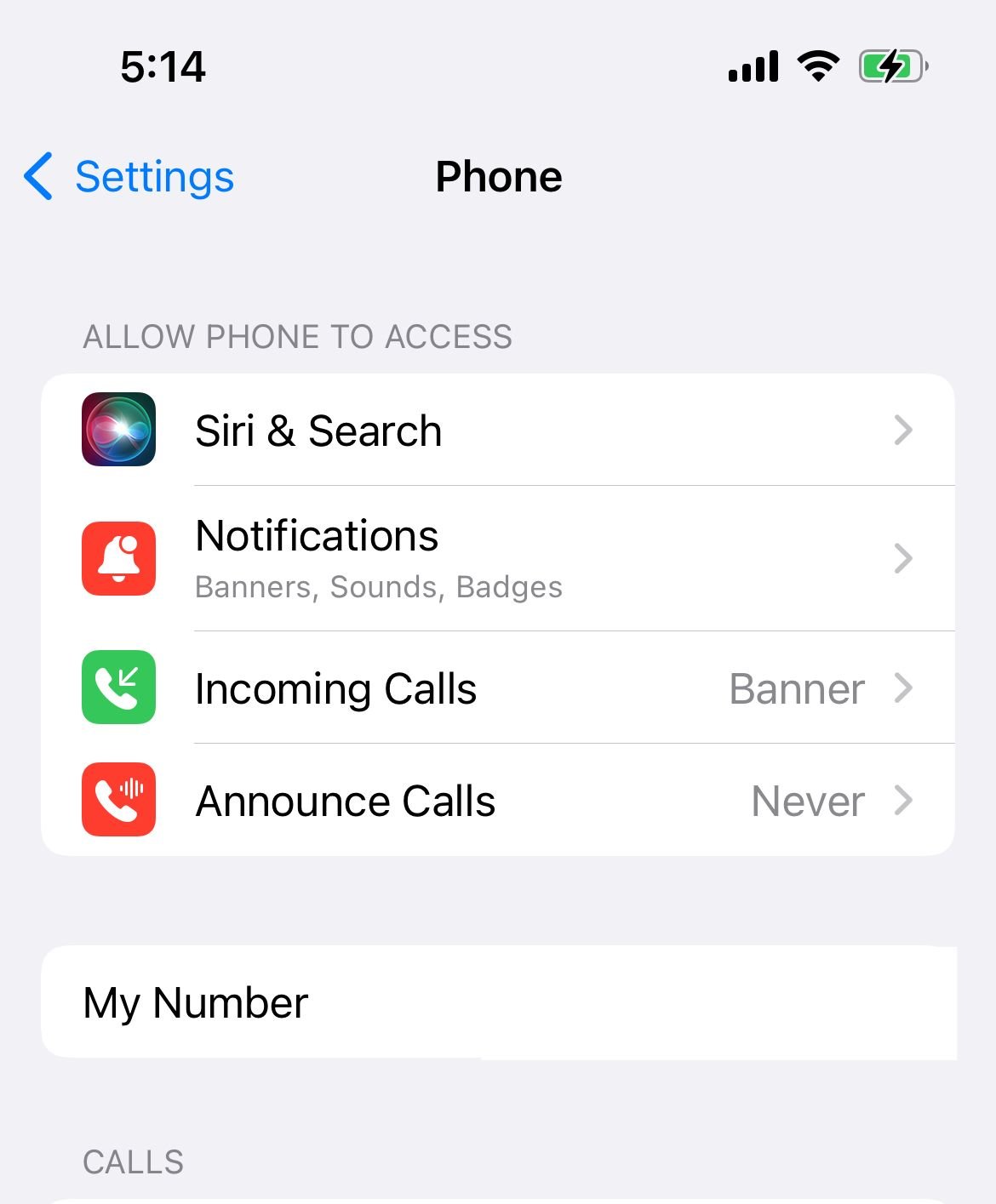
Your iPhone needs to know its own number to register it with iMessage. A blank or wrong number here blocks activation outright.
Go to
Settings > Phone
and look at the My Number field. If it is missing or incorrect, tap it and enter the correct number with the right country code.
Verify Date and Time Settings
Apple lists an out-of-sync clock as a direct cause of activation failures, because the device timestamp must match Apple's servers. The fix takes seconds.
Open
Settings > General > Date & Time
and turn on
Set Automatically. Confirm the time zone is correct. If it looks wrong, toggle Set Automatically off and back on so the device re-fetches the right zone.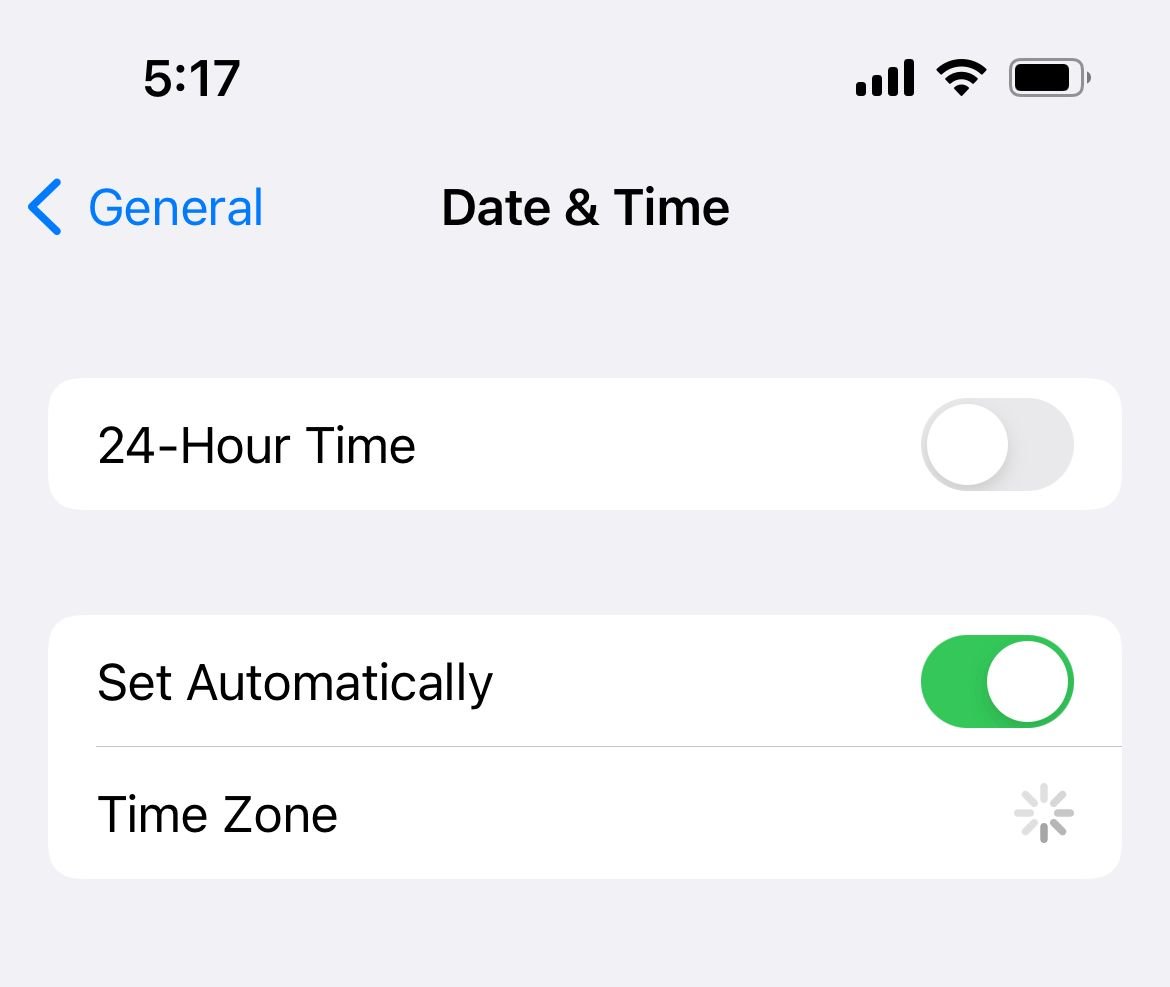
Toggle Airplane Mode
A quick network reset often clears a stalled activation handshake without any deeper changes.
Open the Control Center or Settings, turn on Airplane Mode, wait about 30 seconds, then turn it off. Give iMessage a few minutes to reconnect and try again.
Restart iMessage and Your iPhone
Turning the service off and restarting the phone clears the temporary glitches that cause most activation hangs.
Go to
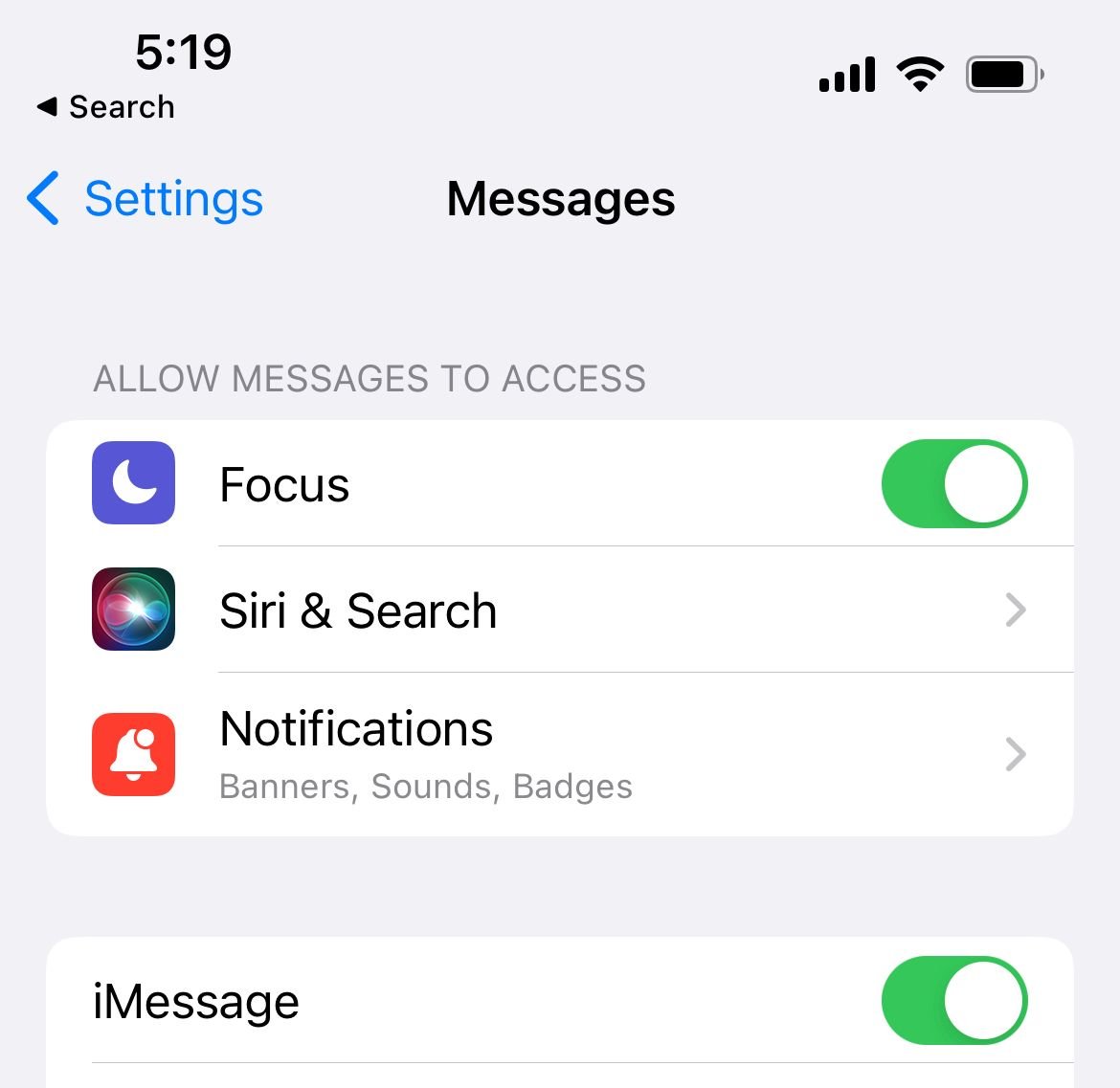
Settings > Apps > Messages
and turn off iMessage. Restart your iPhone using the power and volume buttons, then return to the same screen and turn iMessage back on.
Fix the iOS 26 Inactive SIM Problem
This is the newest cause and a frequent one after upgrading. On iOS 26, if your iPhone holds an inactive SIM with the same phone number as your active SIM, iMessage can get stuck and your texts may arrive as green SMS or RCS bubbles or send from your email instead of your number.
Updating to iOS 26.1 or later fixes it without removing any SIM. To fix it manually, open
Settings > Cellular
, find the duplicate or inactive number, then remove a physical SIM or tap
Delete eSIM for an inactive eSIM.After removing the inactive SIM, go to
Settings > Apps > Messages > Send & Receive
and tap your phone number to activate iMessage on it.
Refresh Send and Receive Settings
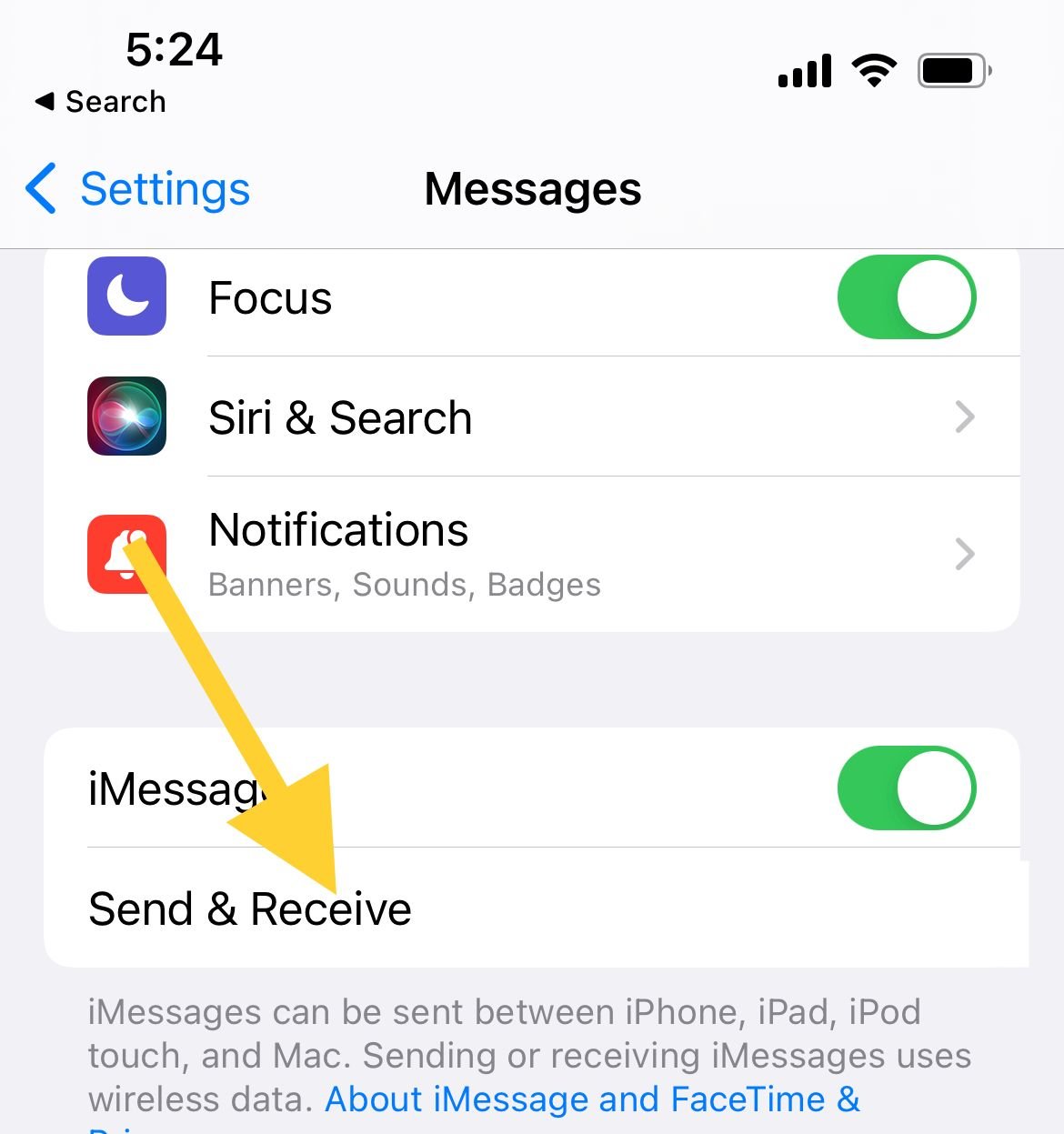
This screen controls which number and email addresses iMessage uses. A deselected address can leave activation incomplete.
Go to
Settings > Apps > Messages > Send & Receive
and make sure your phone number and Apple Account email are checked. If activation is failing on your number, selecting your verified email here lets iMessage activate while the number catches up.
Sign Out and Back Into Your Apple Account
Re-authenticating your account forces iMessage to rebuild its connection to Apple's servers, which clears credential errors that block activation.
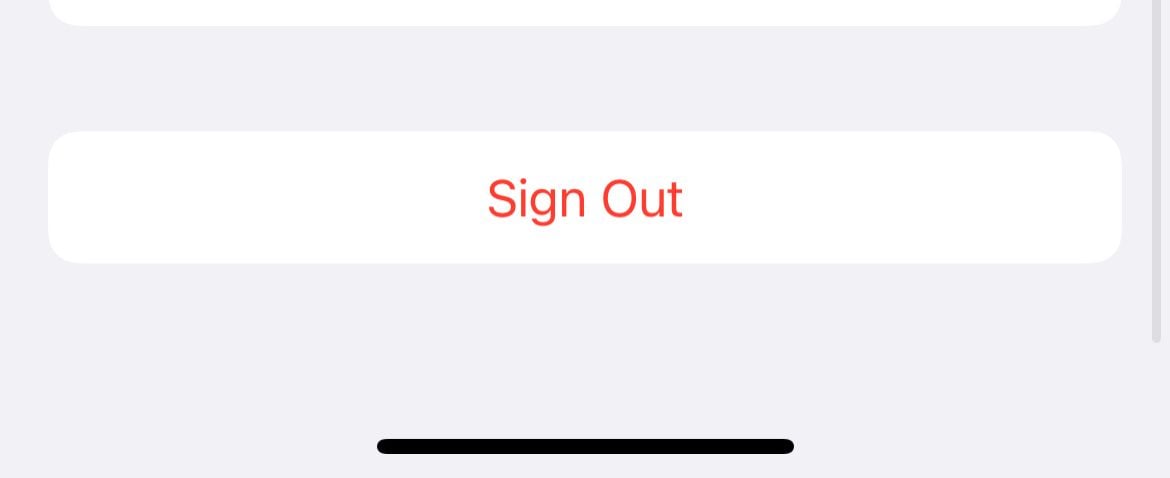
Open Settings, tap your name at the top, scroll down and tap Sign Out. Restart your iPhone, then sign back in with the same Apple Account and password.
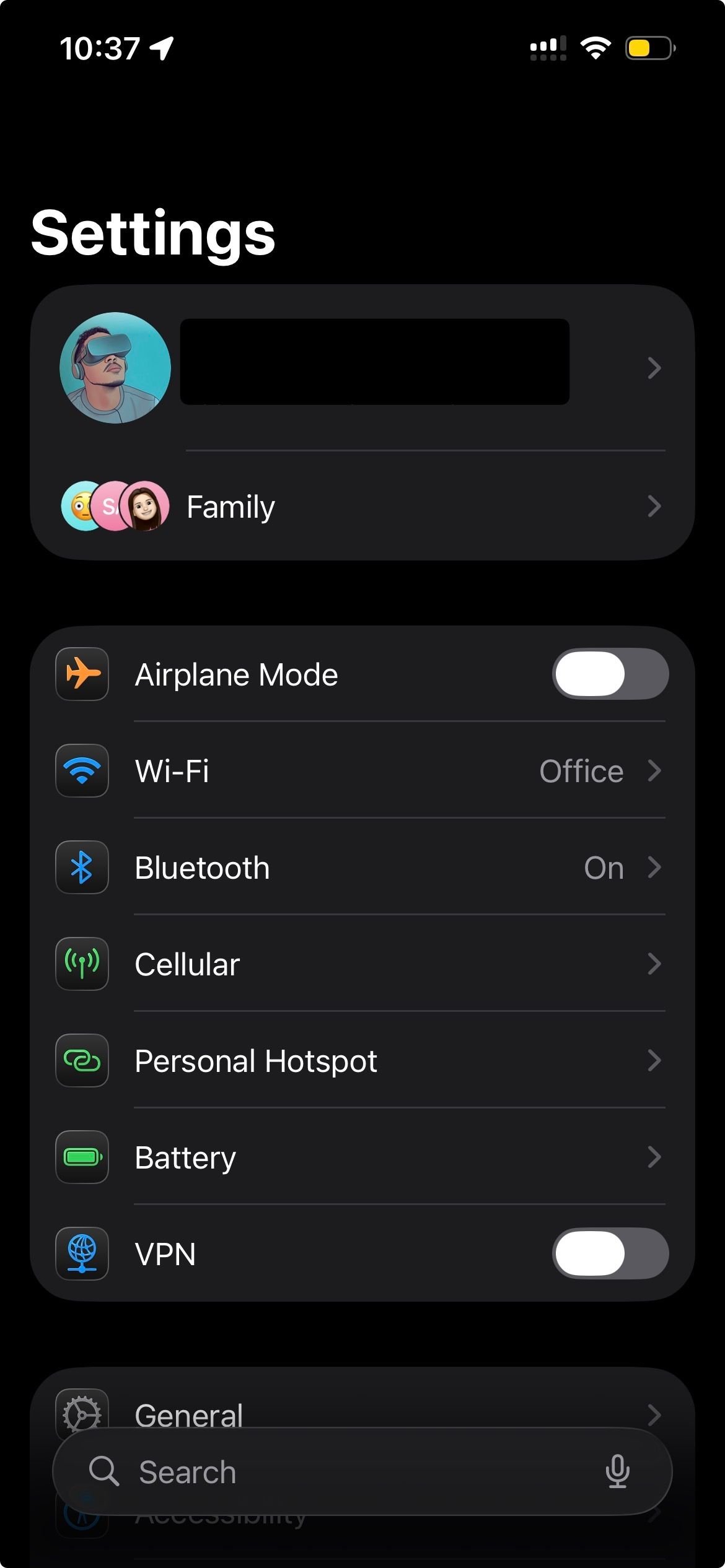
Once you are signed back in, return to Messages and confirm iMessage is on. Activation often completes within a few minutes of the fresh sign-in.
Reactivate iMessage Online
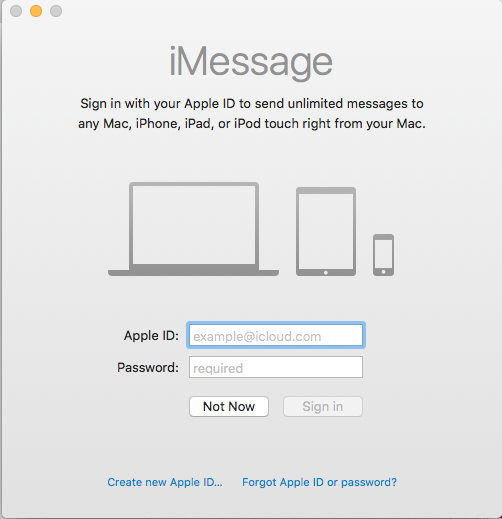
If activation keeps failing on the iPhone itself, Apple provides a web tool that can complete it from a browser using your Apple Account.
On a Mac or computer, visit apple.co/IMFT-mac, choose Get Started, sign in to your Apple Account, and enter the phone number you want activated.
Verify Your Apple Account Email
If iMessage cannot use your phone number, an unverified email address can leave it half-activated. Confirming your account emails fixes that.
Sign in to your Apple Account and review every email address on file. Update anything wrong, then send a fresh verification to any address marked unverified and confirm it from your inbox.
Check Your Other Apple Devices
Mismatched accounts across devices can interfere with activation, so keep your whole Apple ecosystem on one Apple Account.
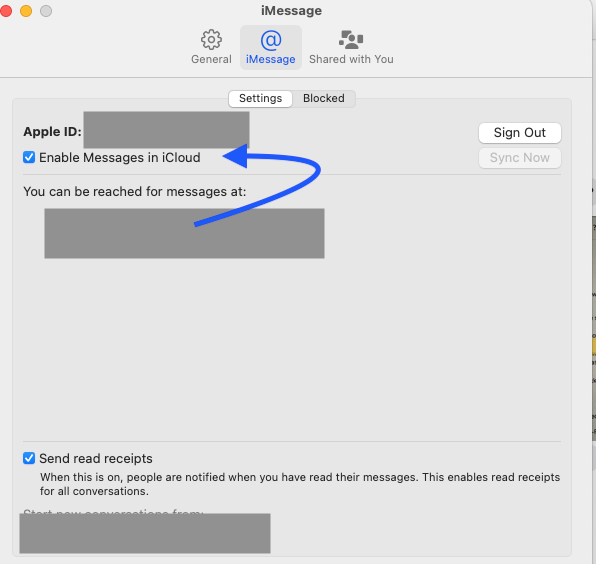
On a Mac, open Messages, then Settings, then the iMessage tab, and confirm it uses the same Apple Account and that the account is enabled.
On an iPad, open
Settings > Apps > Messages > Send & Receive
and confirm the same Apple Account is signed in.
Reset Network Settings
When the underlying network configuration is corrupt, a reset gives iMessage a clean connection to work with. This wipes saved Wi-Fi passwords, so have them ready.
Go to
Settings > General > Transfer or Reset iPhone > Reset
, tap
Reset Network Settings, and enter your passcode. Reconnect to Wi-Fi afterward and retry activation.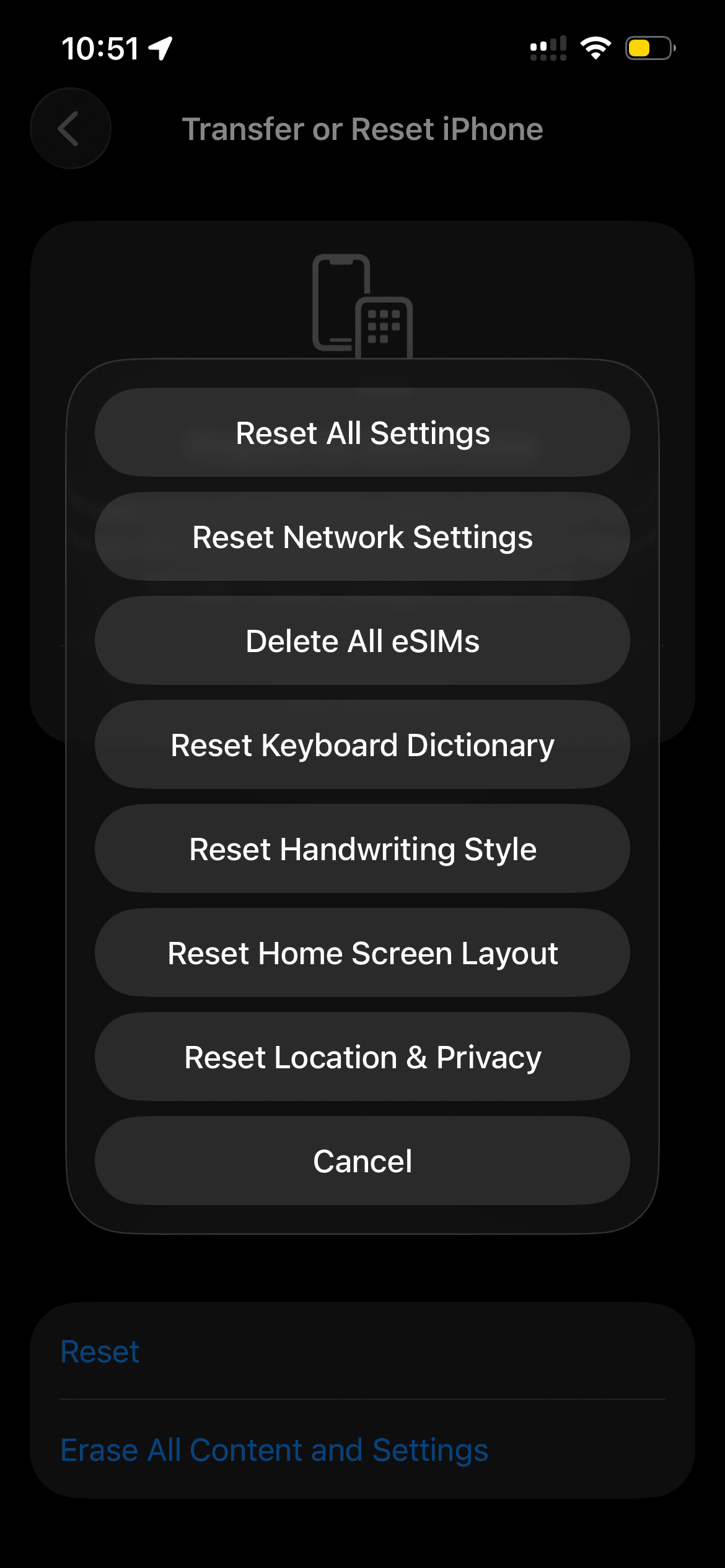
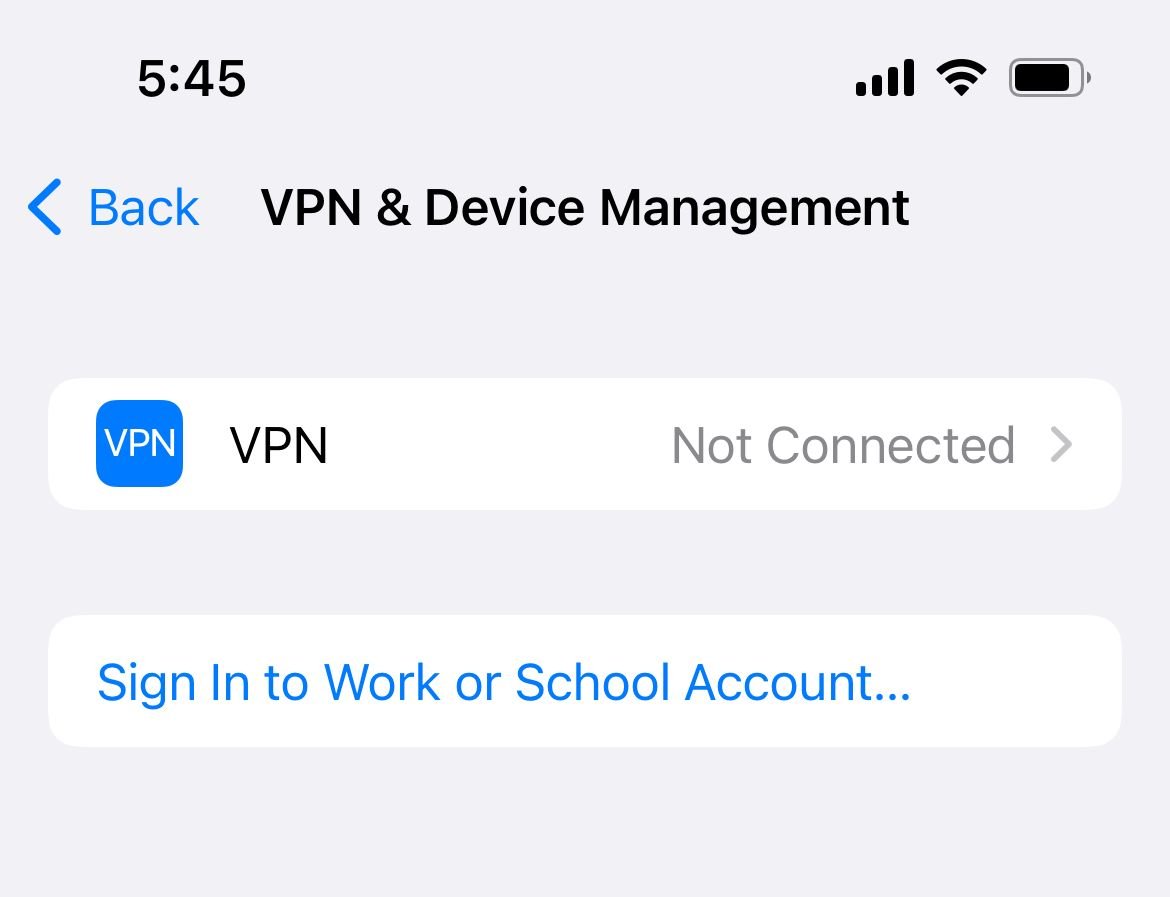
Disable Your VPN
A VPN or a leftover configuration profile can block the network ports iMessage uses to reach Apple, which stalls activation.
Turn off any active VPN, then check
Settings > General > VPN & Device Management
for installed profiles and remove ones you no longer need. Try activating again with the VPN off.
Reinsert Your SIM Card
A loose physical SIM can break the carrier connection that activation relies on. Reseating it restores a clean read.
Turn off iMessage in
Settings > Apps > Messages
, power down the iPhone, remove and reinsert the SIM tray, then turn the phone back on and enable iMessage again.
Update Your iOS Software
Activation bugs are frequently patched in iOS updates, and the iOS 26 SIM issue specifically is fixed in 26.1 and later.
Connect to power and Wi-Fi, then go to
Settings > General > Software Update
and install anything available. Restart if prompted and retry iMessage.
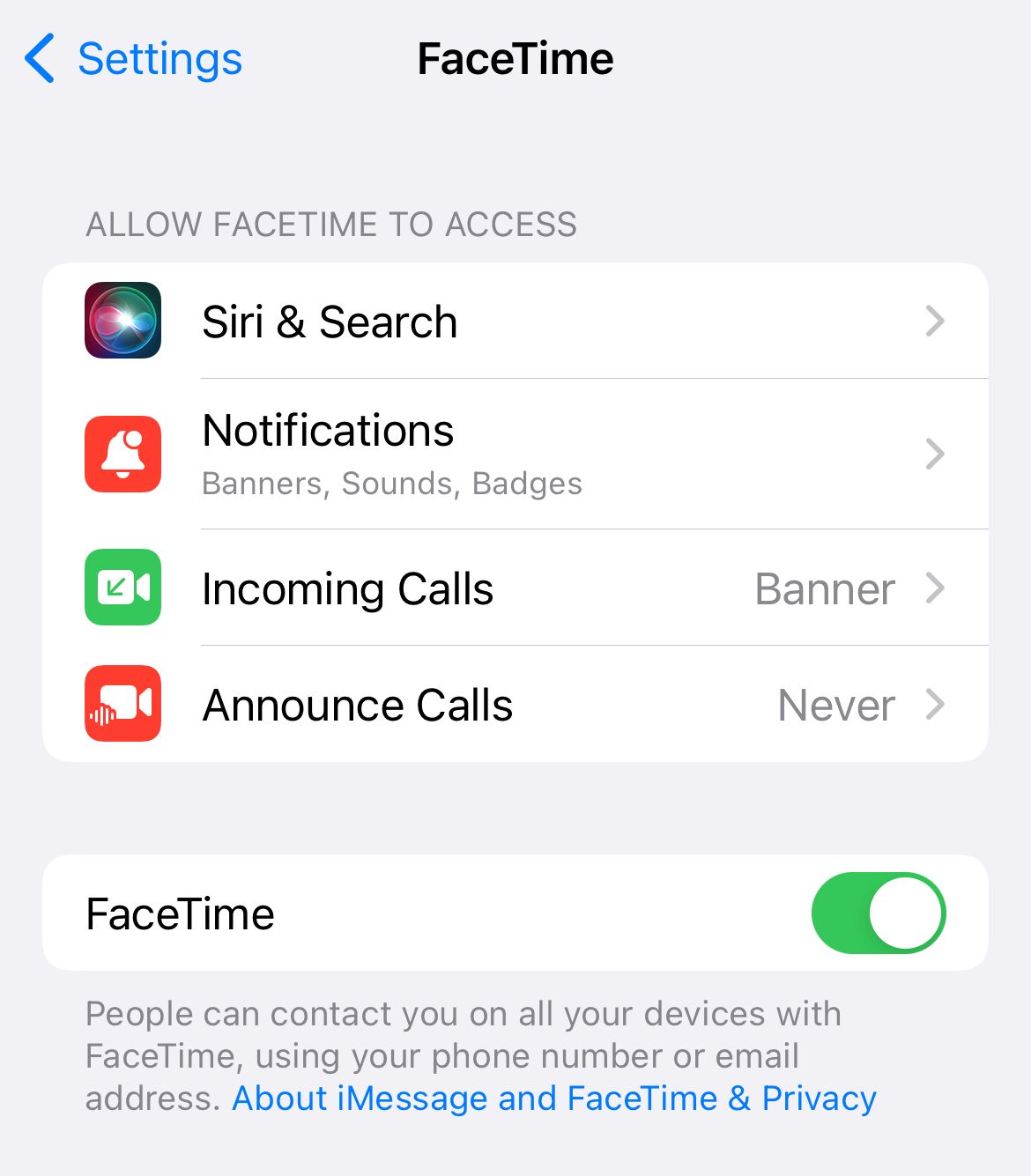
Toggle iMessage and FaceTime Together
The two services share Apple's activation system, so turning both off and on at once can clear a shared error that toggling iMessage alone misses.
Turn off iMessage in
Settings > Apps > Messages
, then turn off FaceTime in
Settings > Apps > FaceTime
. Wait about 30 seconds and turn both back on.
Check Apple Server Status
Sometimes the problem is on Apple's side and no device fix will help until the service is restored.
Visit Apple's System Status page and look for iMessage. If it shows an outage, wait for Apple to resolve it before troubleshooting further.
Reset Location and Privacy
In rare cases a stuck location or privacy setting interferes with activation. Resetting it returns these permissions to default without deleting your data.
Go to
Settings > General > Transfer or Reset iPhone > Reset
, tap
Reset Location & Privacy, and enter your passcode. Re-grant app permissions afterward.Fix Activation While Roaming
Because activation needs an SMS to your carrier, traveling abroad can break it if international texting is not supported.
Confirm roaming is enabled, connect to Wi-Fi when possible, and ask your carrier whether your plan can send the international SMS messages iMessage activation requires. Using your verified email instead of your number can let iMessage work until the number activates.
Erase and Set Up as New
This is a last resort for activation that survives every other fix. Back up your iPhone first, because it wipes the device completely.
Go to
Settings > General > Transfer or Reset iPhone > Erase All Content and Settings
, enter your passcode, then restore from your backup or set up fresh and enable iMessage during setup.
Contact Your Carrier or Apple
If activation still fails after 24 hours and every step above, the block is usually account or carrier side.
Ask your carrier to confirm your number is provisioned correctly and that SMS works on your line. If that checks out, contact Apple Support for account-level help.
Frequently Asked Questions
How long should iMessage activation take
It usually completes within a few minutes, but Apple says it can take up to 24 hours for your carrier to verify your phone number. Wait the full 24 hours after trying the fixes before assuming it is broken.
Why does iMessage say Waiting for Activation after an iOS 26 update
On iOS 26 an inactive SIM sharing the same number as your active SIM can stall activation. Update to iOS 26.1 or later, or remove the inactive physical SIM or delete the inactive eSIM, then re-enable iMessage.
Why do I need to allow SMS charges to activate iMessage
Your iPhone sends an SMS to verify your number with Apple. If you decline the charge prompt, activation cannot complete, so tap Turn On when it appears.
Can I activate iMessage without a phone number
Yes. In Settings > Apps > Messages > Send & Receive you can select your verified Apple Account email, which lets iMessage activate over Wi-Fi using your email address.
Does resetting network settings delete my data
No. It only clears saved Wi-Fi passwords, Bluetooth pairings, VPN and cellular preferences. Your photos, apps, and messages stay intact, but you will need to rejoin Wi-Fi networks.
What if iMessage activation fails on Wi-Fi only
Switch to cellular data and confirm you can send a normal text, since the activation SMS must go through your carrier. If only Wi-Fi is available, contact your carrier about international or SMS support.
First published October 16, 2025. Last updated June 4, 2026.