
A new iMac M4 should feel incredibly fast, so when it starts to lag or feel sluggish, it's especially noticeable. This can show up as apps taking too long to open, animations stuttering, or the system just feeling unresponsive. The good news is, with Apple Silicon, most slowdowns are caused by software rather than aging hardware.
Restart Your iMac
Even with the efficiency of the M4 chip, a simple restart is the best first step. If you've been using your iMac for weeks without a full shutdown, background processes and memory can get cluttered. Click the Apple menu in the top-left corner and select Restart. This gives the system a clean slate.
For a more forceful restart, you can use the physical power button. It's located on the back of the display. Press and hold it for about 10 seconds until the screen goes black, then release and press it again to turn your iMac back on.
Check for macOS Updates
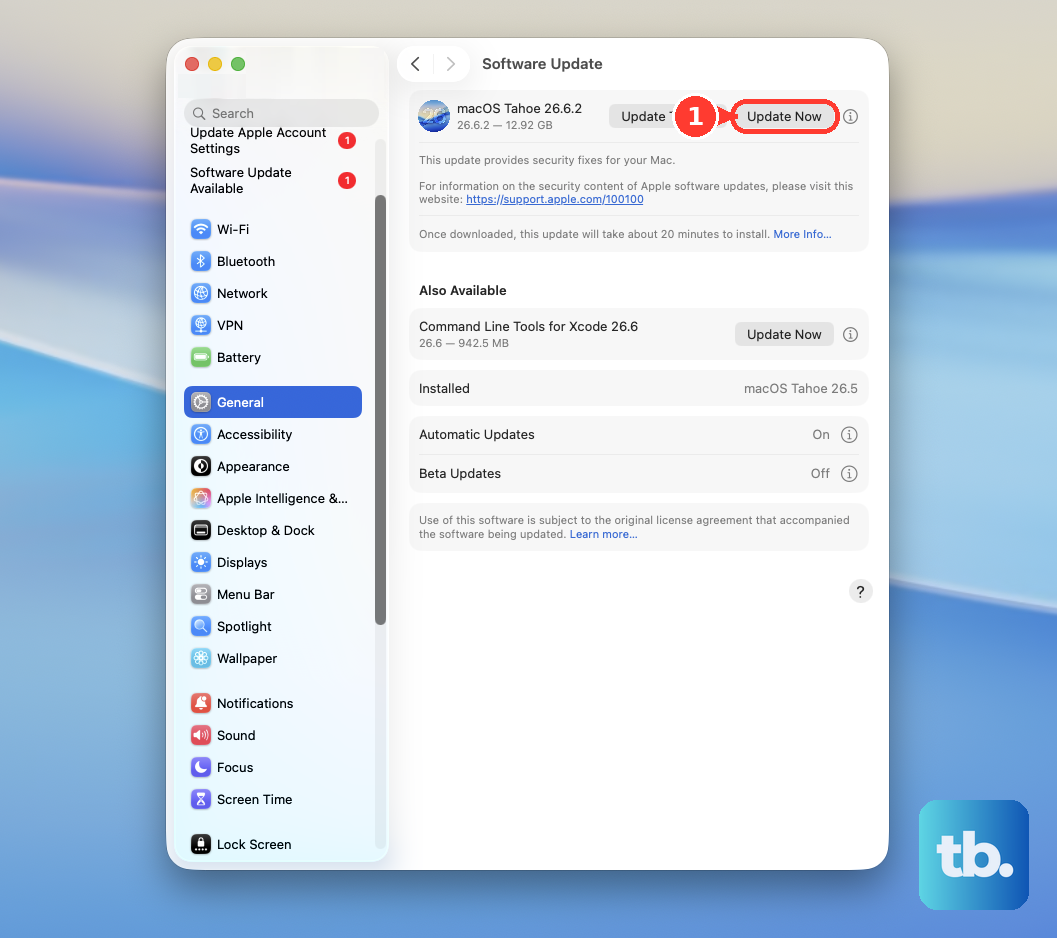
Apple frequently releases updates that include performance improvements and bug fixes. Go to System Settings > General > Software Update. Make sure you're running the latest version of macOS 26 Tahoe. I'd start with this, as a pending update can sometimes cause background tasks that slow things down.
Free Up Storage Space
Your iMac M4 needs breathing room on its internal storage to run optimally. Click the Apple menu > About This Mac > More Info > Storage Settings. Aim to keep at least 15-20% of your drive free.
macOS can help manage this. Enable Optimize Mac Storage to automatically offload files you don't often use to iCloud. Also, take a few minutes to clear out your Downloads folder and empty the Trash.
Manage Startup and Login Items
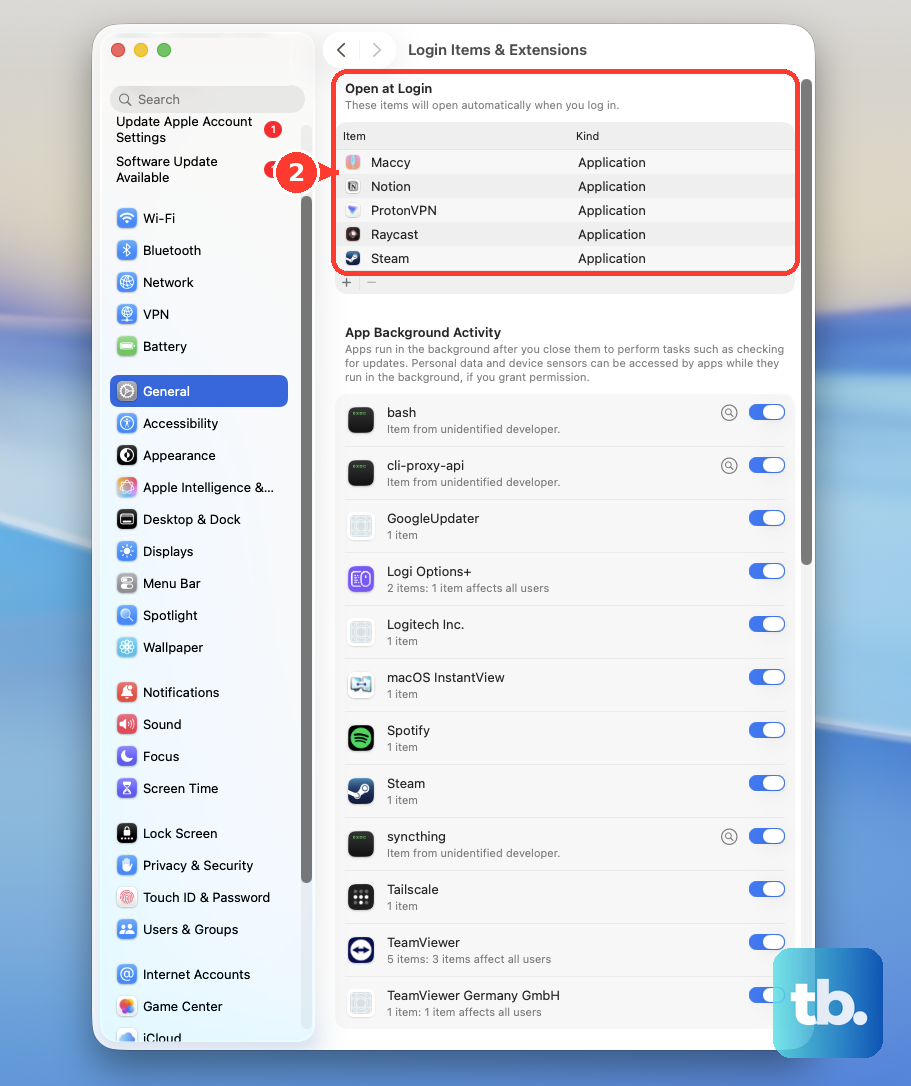
Apps that launch automatically when you log in can slow down your boot time and consume resources in the background. Go to System Settings > General > Login Items & Extensions. Review the list and remove any applications you don't need immediately upon startup by selecting them and clicking the minus (-) button.
Use Activity Monitor to Find Culprits
If the slowdown feels specific, like one app is freezing, open Activity Monitor. You can find it in your Applications folder under Utilities, or just search for it with Spotlight (Command + Space). Click the CPU or Memory tab and sort the list by the percentage used.
Look for any single process using an unusually high amount of resources. If you find a misbehaving app, you can select it and click the stop button (octagon with an X) in the toolbar to force quit it. This won't harm your system.
Reduce Visual Effects
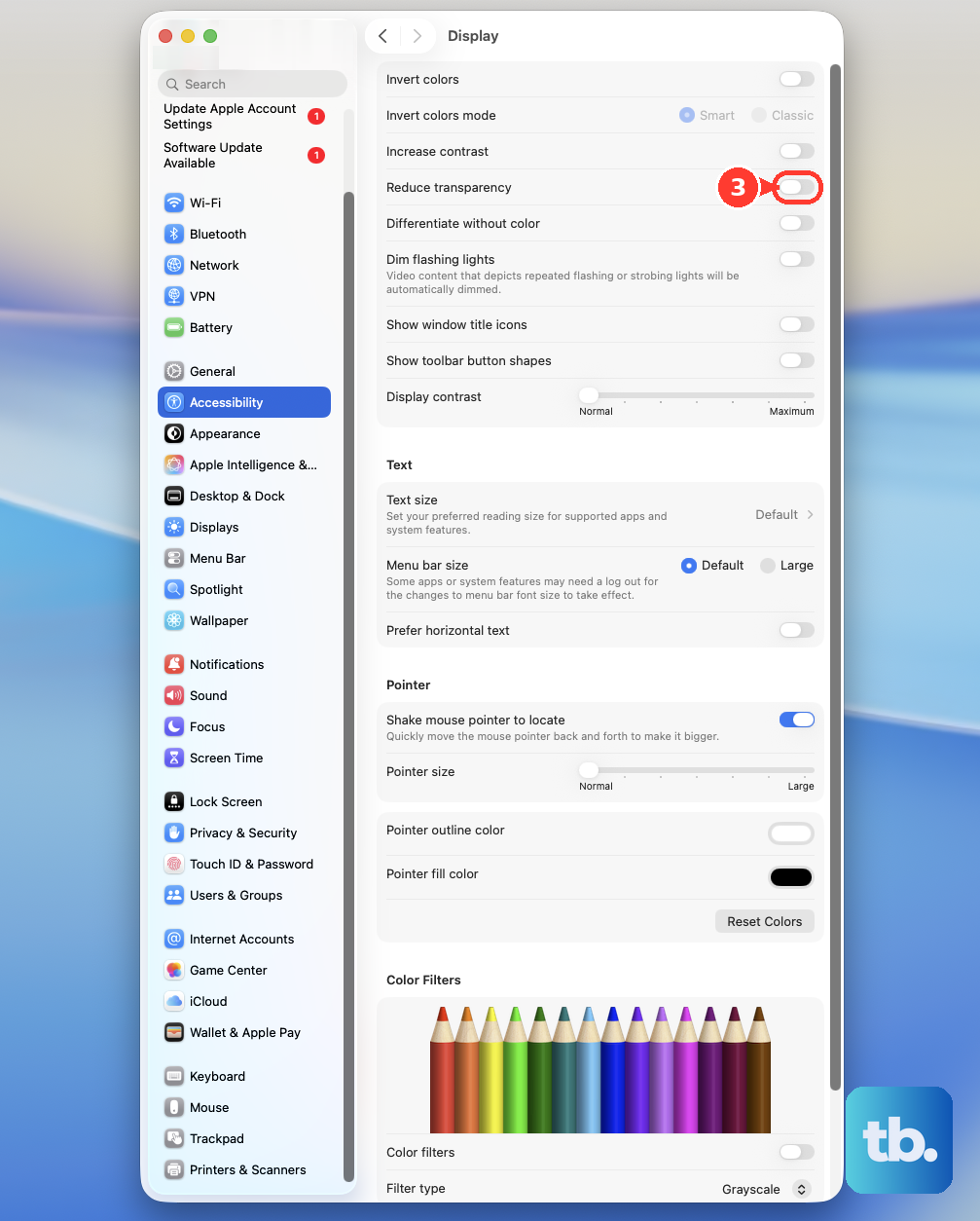
The beautiful transparency and animation effects in macOS use GPU resources. While the M4 GPU is powerful, reducing these effects can free up resources for other tasks and make the interface feel snappier. Go to System Settings > Accessibility > Display.
Turn on both Reduce motion and Reduce transparency. This disables parallax effects and makes menus and windows solid, which can provide a noticeable responsiveness boost.
Check Spotlight Indexing
After a major software update or when you add a new external drive, Spotlight will re-index your files. This process, handled by "mdworker" processes, can temporarily slow down your Mac. You can see if this is happening in Activity Monitor.
If indexing is in progress, it's best to let it finish. You can speed it up by connecting to power and leaving your iMac awake. To prevent it from indexing certain locations, go to System Settings > Spotlight > Privacy and drag folders you don't want indexed into the list.
Manage Browser Tabs and Extensions
Having dozens of tabs open in Safari or Chrome consumes a significant amount of RAM. Each tab is essentially a separate process. Try to keep only your active tabs open, or use tab groups or bookmarking for things you want to save for later.
Also, check your browser extensions. A poorly coded extension can cause major slowdowns. Try disabling them one by one to see if performance improves.
Consider Your Workflow and Peripherals
The iMac M4 has four USB-C ports. If you're connecting multiple high-bandwidth devices, like external drives, displays, and hubs, simultaneously, it can create contention. Try disconnecting non-essential peripherals to see if performance recovers.
If you're using an external display, ensure you're using a high-quality cable that supports the required bandwidth. A faulty or low-spec cable can cause the system to work harder than necessary.
Run Apple Diagnostics
If you've tried all the software fixes and the lag persists, it's worth checking for potential hardware issues. Shut down your iMac completely. Press and hold the power button on the back as you turn it on, and keep holding until you see the startup options window.
From there, you can select to run Apple Diagnostics. This built-in tool will check your Mac's components for problems and provide a report if anything is found.