
When your iMac M4 goes silent, it can be a real puzzle. The sound might cut out from the built-in speakers, or maybe your external audio gear isn't working. Let's run through the fixes, starting with the most common one.
First, check the physical volume buttons on your keyboard. Press the volume up key a few times. Look at the sound icon in your menu bar. If you see a little slash through the speaker icon, your system is muted. Just click the icon and drag the slider up.
Select the Correct Audio Output
Head to System Settings > Sound > Output. You'll see a list of all available audio devices. Make sure "iMac Speakers" is selected. If you recently unplugged a monitor or headphones, the system might still be trying to send sound to that device.
This is a frequent culprit, especially with the iMac M4's USB-C ports. If you have a display connected via USB-C, macOS might default its audio to that display's speakers, even if they don't exist.
Restart Your iMac
Click the Apple menu in the top-left corner and choose Restart. This simple step reloads the entire audio system and clears out any temporary software bugs. I've found this fixes audio issues after sleep about 90% of the time.
Since the iMac M4 doesn't have a battery and is always on power, a full restart is a clean way to reset its state. Give it a moment to fully shut down and boot back up.
Reset the Core Audio Process
If a full restart seems like overkill, you can just restart the audio engine. Open the Terminal app from your Utilities folder. Type the command sudo killall coreaudiod and press Return.
You'll be prompted for your administrator password. Type it (you won't see characters as you type) and press Return again. The sound should cut out for a second and then come back, hopefully working correctly.
Check for App-Specific Audio Settings
Sometimes the problem isn't system-wide. The app you're using might be the issue. Check the volume slider within apps like Safari, Music, or Zoom. Also, some video conferencing apps let you choose a different output device just for that call.
You can also look in System Settings > Sound. Scroll down and check the "Alert sound" output. It's set separately and sometimes gets switched to a non-existent device.
Inspect Your Connected Devices
With only four USB-C ports, what you have plugged in matters. Unplug any non-essential devices, especially hubs, external drives, or displays. Try playing audio with just your keyboard and mouse connected.
If you're using a USB-C to HDMI or DisplayPort cable for an external monitor, remember that cable carries audio by default. Your iMac might be routing all sound through it, even to a monitor with no speakers.
Run Apple Diagnostics
This is a good way to check for hardware issues. Shut down your iMac completely. Now, press and hold the power button on the back of the display. Keep holding it until you see the startup options window.
Press and hold Command (⌘) + D on your keyboard. This will boot into Diagnostics. Follow the on-screen instructions. If it finds an issue, it will give you a reference code you can look up.
Update macOS to the Latest Version
Audio problems are often fixed in software updates. Go to System Settings > General > Software Update. Install any available updates for macOS 26 Tahoe.
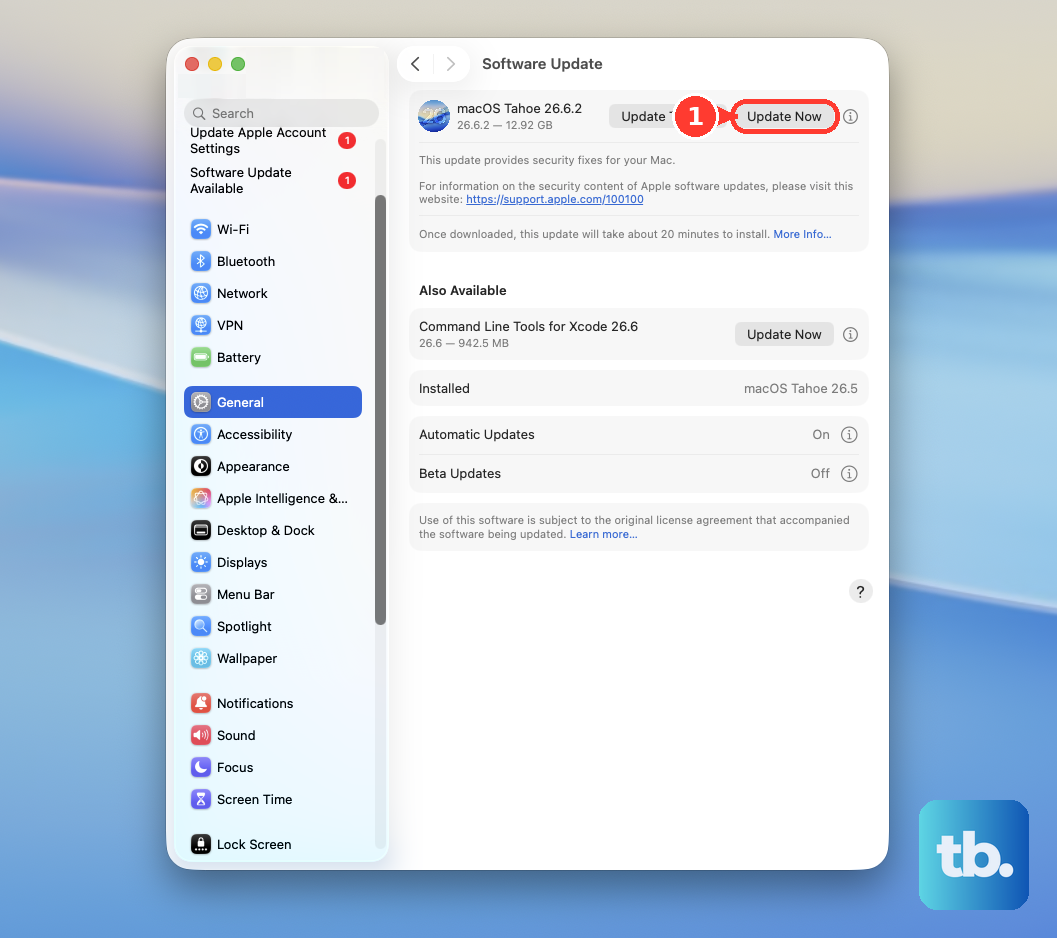
Apple frequently releases patches that address driver compatibility and system performance. Making sure you're on the latest build is one of the best preventative steps you can take.
Check Sound Settings in Safe Mode
Booting in Safe Mode loads only the essential parts of macOS. This can tell you if a third-party app or driver is causing the conflict. To enter Safe Mode, shut down your iMac.
Press the power button, then immediately press and hold the Shift key. Release the key when you see the login window. Try playing audio here. If it works, you know the issue is with something you installed.
Create a New User Account to Test
If audio works in Safe Mode, the next step is to see if it's your user profile. Go to System Settings > Users & Groups. Click the "+" to add a new Administrator account.
Log out of your main account and into the new one. Test the sound there. If it works perfectly, the problem is with a setting or file in your original user's library folder.