
When Bluetooth stops working on your iMac M4, your wireless keyboard, mouse, AirPods, and speakers all lose connection. Whether Bluetooth won't turn on, devices won't pair, or connections keep dropping, here's how to fix it.
Toggle Bluetooth Off and On
Click the Bluetooth icon in the menu bar and toggle it off. Wait 10 seconds, then turn it back on. If the menu bar icon isn't visible, go to System Settings > Bluetooth to find the toggle there.
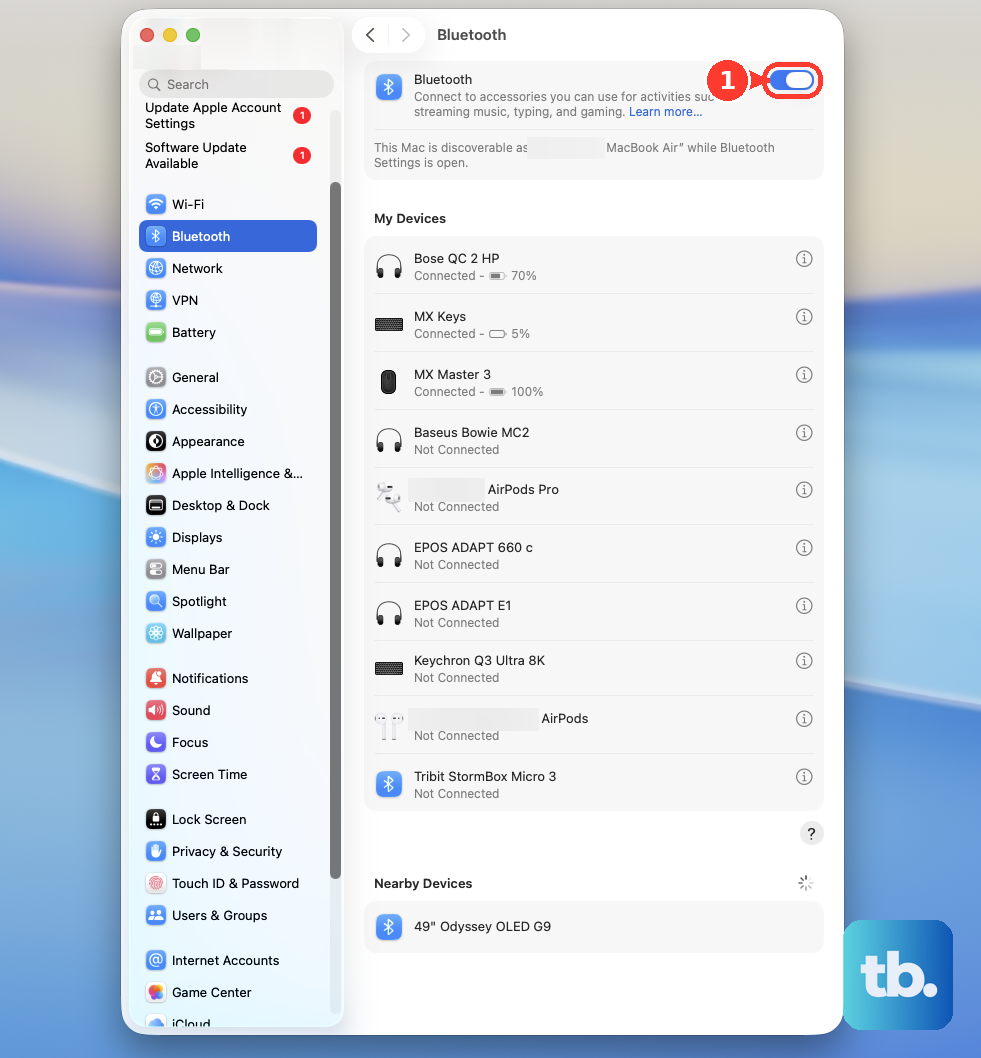
This simple reset can clear a temporary software glitch. It's the first thing I'd try, as it only takes a moment.
Restart Your iMac M4
Click the Apple menu > Restart. A full restart reloads the entire Bluetooth stack and clears any corrupted connection states that might be lingering in memory.
Since the iMac M4 has no battery and is always connected to power, a restart is a clean way to refresh all system processes. This is often the most effective quick fix.
Remove and Re-Pair the Device
Go to System Settings > Bluetooth. Hover over the problematic device in your list and click the Info button (it looks like an "i"). Select Forget This Device and confirm.
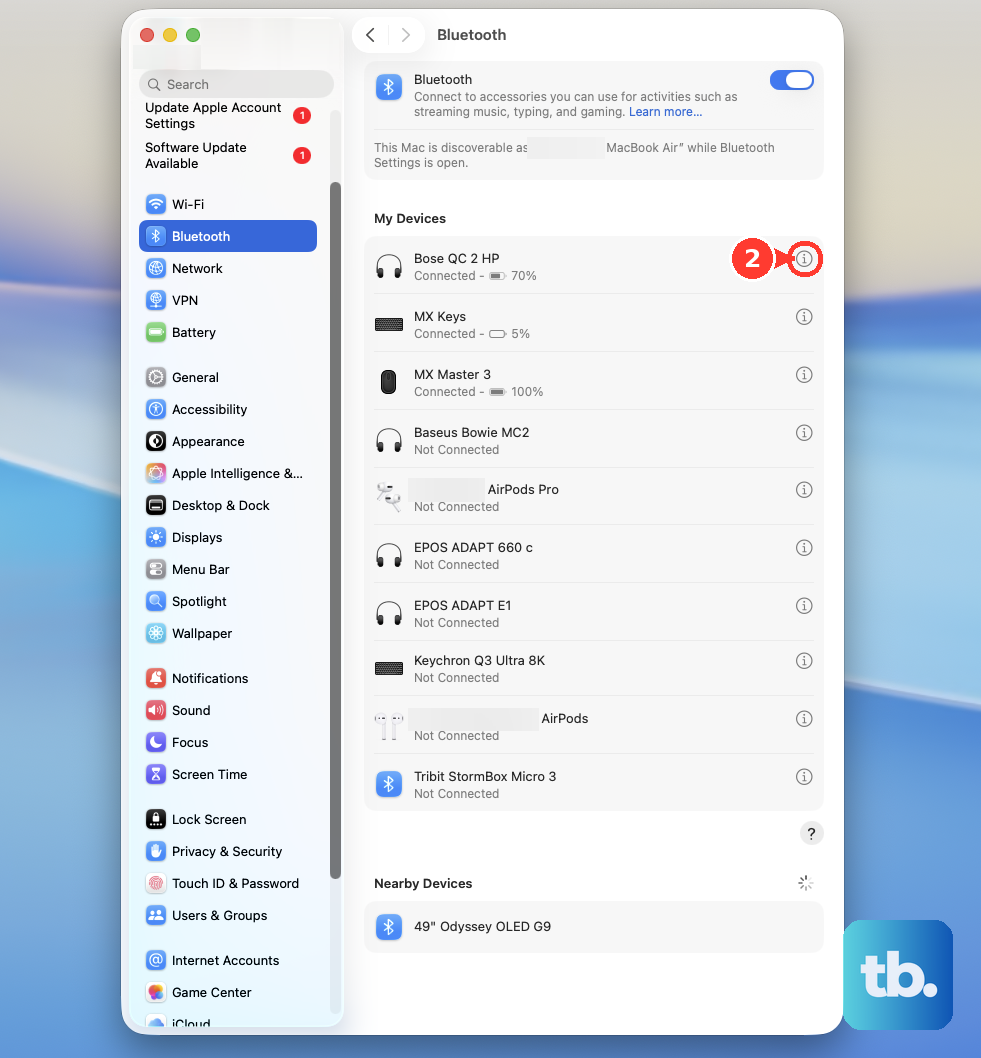
Now, put your accessory back into its pairing mode. On the iMac, click the Connect button next to the device's name in the Bluetooth settings list. Corrupted pairing profiles are a very common cause of persistent Bluetooth problems.
Reset the Bluetooth Module
Hold down the Shift and Option keys on your keyboard, then click the Bluetooth icon in the menu bar. A new debug menu will appear.
From this menu, select Reset the Bluetooth module. This performs a deep, low-level reset of the Bluetooth hardware without deleting your paired devices. Your iMac will restart automatically after this action.
Delete Bluetooth Preference Files
Open a new Finder window and press Command + Shift + G. Type /Library/Preferences/ into the box that appears and press Go.
In this folder, look for the file named com.apple.Bluetooth.plist. Drag this file to your Trash. You will need to enter your administrator password. After moving it, restart your iMac.
macOS will generate a brand new, clean preference file upon reboot. Be aware, you will need to re-pair all of your Bluetooth devices after this step.
Check for Wireless Interference
USB 3.0 devices and hubs can emit radio frequency interference that disrupts the 2.4GHz band Bluetooth uses. Try disconnecting any USB-C hubs or external drives temporarily to see if your connection improves.
Also, consider other potential sources of interference. These include Wi-Fi routers, cordless phones, microwave ovens, and even other Bluetooth devices placed very close to your iMac or the accessory you're trying to connect.
Update macOS
Go to System Settings > General > Software Update. Apple regularly releases updates that include fixes for connectivity and hardware drivers.
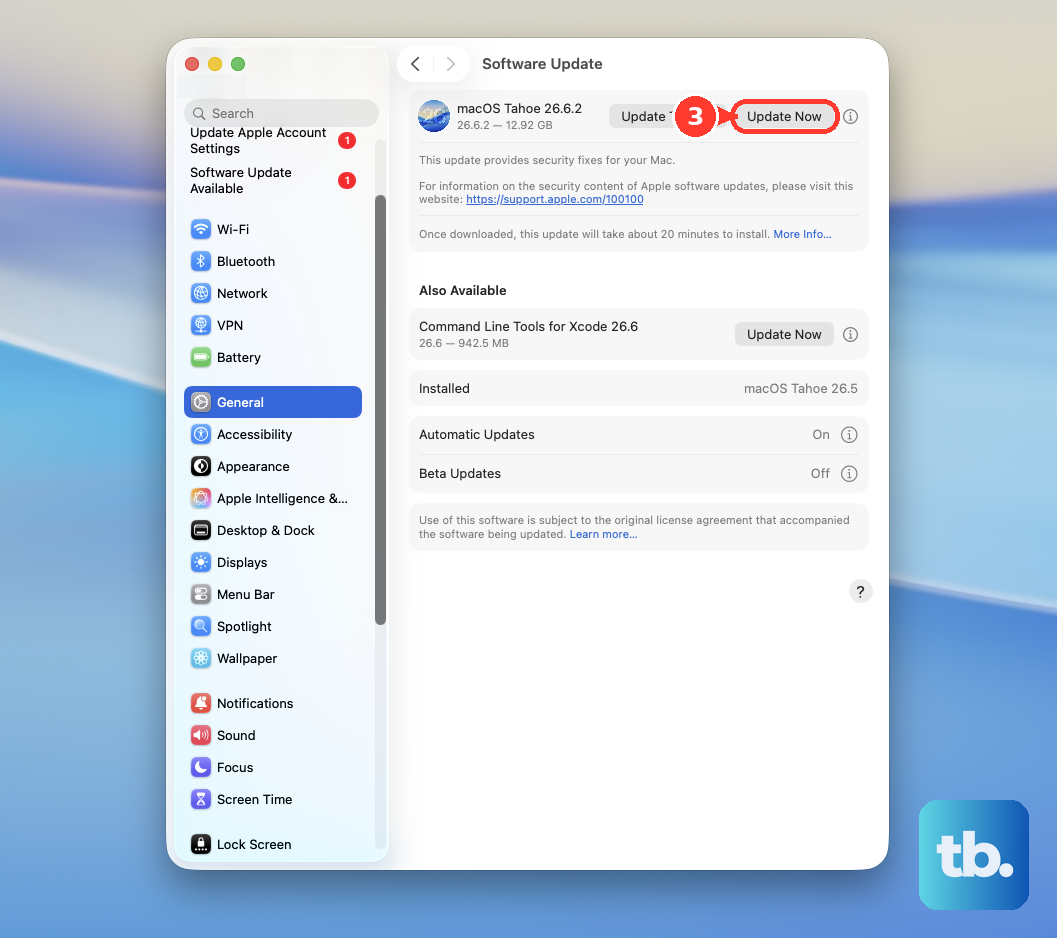
Since you're running macOS 26 Tahoe on an M4 chip, it's crucial to install any available updates. They often contain Bluetooth firmware patches specific to Apple Silicon architecture that can resolve pairing and stability issues.
Check Your Accessory's Battery
While the iMac M4 is plugged in, your wireless accessories are not. A low battery in a mouse, keyboard, or headset is a frequent culprit behind connection drops and failed pairing attempts.
You can check the battery level for many supported accessories right in System Settings > Bluetooth, where it's displayed next to the device name. If it's low, charge or replace the batteries.
Boot Into Safe Mode
Shut down your iMac M4 completely. To turn it on and enter Safe Mode, press and hold the physical power button on the back of the display until you see "Loading startup options" appear on screen.
Select your main drive, then press and hold the Shift key on your keyboard. Click Continue in Safe Mode. If your Bluetooth works perfectly in this mode, the issue is likely caused by a third-party login item, app, or system extension loading during a normal boot.