
If videos on your Huawei Pura 70 Pro are stuttering, freezing, or buffering, it can ruin the experience of watching anything. This is a common issue that pops up for a few specific reasons on this phone, but the good news is you can usually fix it yourself without too much hassle.
A browser based Hz test shows the real Hz your display is delivering right now. Many stutter complaints turn out to be a monitor silently running at 60 Hz.
Quick Fix First
Before anything else, give your phone a quick restart. Press and hold the power button for about 10 seconds until you feel a vibration and see the Huawei logo appear. This clears out any temporary software glitches that might be interfering with video playback and is the fastest thing to try.
Check Your Internet Connection for Streaming
If you're streaming from YouTube, Netflix, or another service, a weak connection is the most likely culprit. The Pura 70 Pro's limited 5G support in some regions can sometimes contribute to this. Try switching between Wi-Fi and your mobile data to see if the stuttering stops. If you're on Wi-Fi, you might try moving closer to your router or restarting the router itself.
Free Up Storage Space
Your phone needs free space to operate smoothly, including for caching video data. Go to Settings > Storage to see how much space you have left. If you're below 5-10GB free, it's time for a cleanup. Uninstall apps you don't use, clear app caches (especially for your video apps), and move photos and videos to a computer or cloud service.
Update Your Software and Apps
Outdated software can cause compatibility issues with video files and streaming codecs. Head to Settings > System & updates > Software update to check for an EMUI/HarmonyOS update. Also, make sure your video apps are up to date. Since you don't have Google Play Services, you'll need to check for updates within the Huawei AppGallery or whatever third-party app store you used to install them.
Close Background Apps and Processes
The Kirin 9010 chip is capable, but having too many apps running in the background can still eat up resources needed for smooth video playback. Swipe up from the bottom and hold to enter the recent apps view, then swipe each app window up to close it. I'd also recommend checking Settings > Battery > App launch to manage which apps are allowed to run in the background automatically.
Try a Different Video Player App
Sometimes the issue is with the specific app you're using. If the stuttering happens in one app but not another, you've found your problem. App compatibility can be a known issue without Google services. Try playing the same video in Huawei's native Gallery app or a different player from the AppGallery, like VLC, which is excellent at handling various file formats.
Check the Video File Itself
If the stuttering only happens with one specific video file you downloaded or transferred, the file might be corrupted or in an unusual format. Try playing a different video from a different source to see if the problem is widespread or isolated. The Pura 70 Pro should handle common formats like MP4 and MKV without issue, but very high-bitrate 8K files could potentially cause hiccups.
Reset App Preferences
This is a useful step that resets all your app permissions, default apps, and background restrictions without deleting any personal data. It can fix odd app behavior. Go to Settings > Apps > App management, tap the three-dot menu in the top right, and select Reset app preferences. You'll need to re-grant permissions to apps afterward, but it often clears up software conflicts.
Clear the Cache for the Problem App
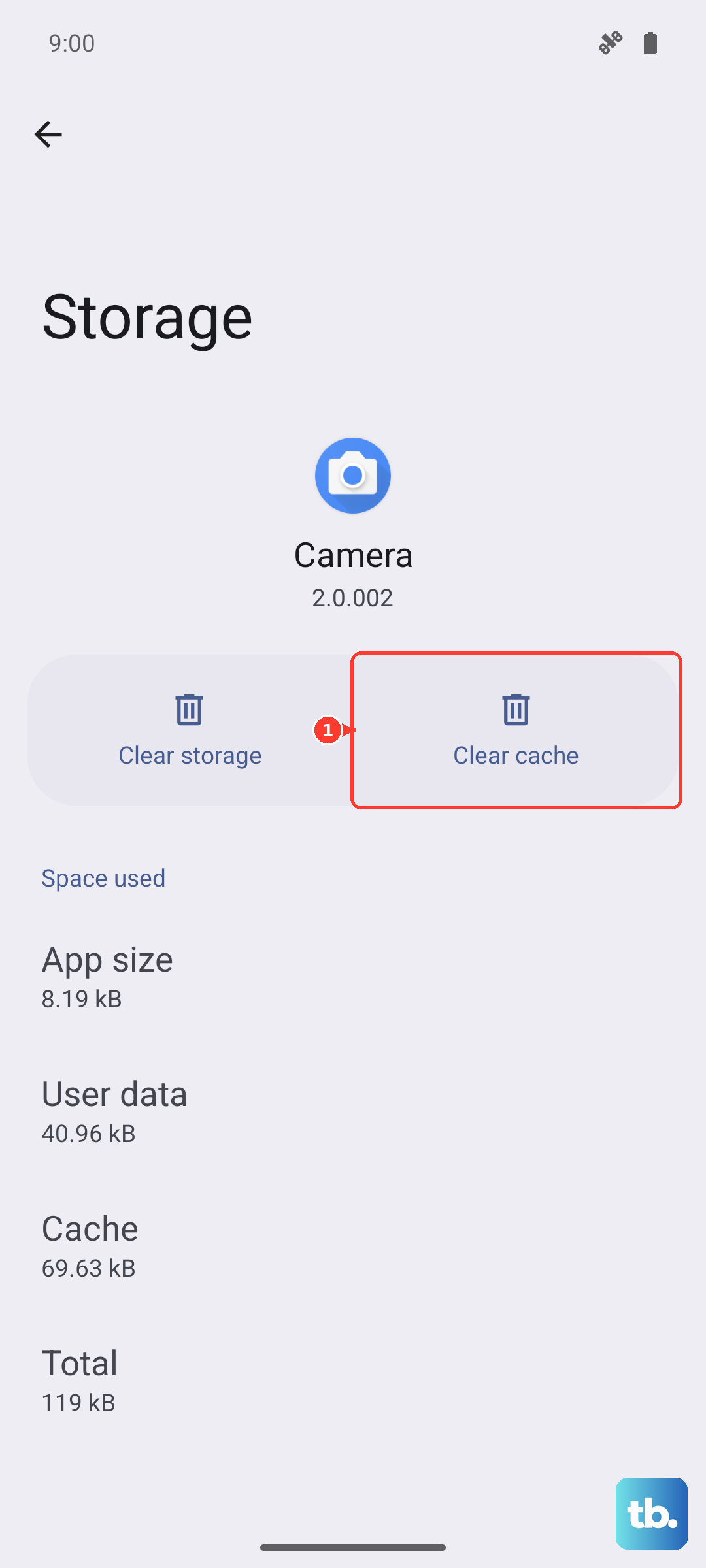
If a specific app like YouTube or Netflix is stuttering, clearing its cached data can help. Go to Settings > Apps > App management, find the app in the list, and tap on it. Select Storage and then tap Clear cache. Don't select "Clear data" unless you're okay with signing back into the app, as that will delete your login information and settings.
Perform a Factory Reset (Last Resort)
If you've tried everything else and the video stuttering persists across all apps, a factory reset is the final step. This will erase everything on your phone, so it's absolutely critical to back up your photos, videos, contacts, and important files first using Huawei's backup tool or by manually copying them to a computer. Once backed up, go to Settings > System & updates > Reset > Factory data reset and follow the prompts.