
Slow internet on your Huawei Pura 70 Pro can really put a damper on streaming, browsing, or using apps from the AppGallery. The good news is that a few specific tweaks to your EMUI settings can often get things moving again.
Since your phone runs on HarmonyOS-based EMUI 14.2 and doesn't have Google Play Services, some of the fixes are a bit different than on other Android phones. I'll walk you through the steps that work for your specific device.
Start With a Network Reset
This is often the quickest fix for persistent connection problems. It clears all your saved WiFi networks, Bluetooth pairings, and mobile data settings, so you'll need to reconnect to your WiFi afterward.
On your Pura 70 Pro, go to Settings > System & updates > Reset. Tap on Reset network settings and confirm. Your phone will restart, and you can then reconnect to your network to see if speeds have improved.
Check Your Mobile Data Mode
Your phone might be stuck on a slower network type. You can manually select a faster one, but be aware that 5G support can be limited in some regions on Huawei devices.
Go to Settings > Mobile network > Mobile data. Tap on Network mode. For the fastest speeds, select 5G/4G/3G/2G auto. If 5G is unstable in your area, choosing 4G/3G/2G auto can sometimes provide a more consistent connection.
Clear the Browser Cache
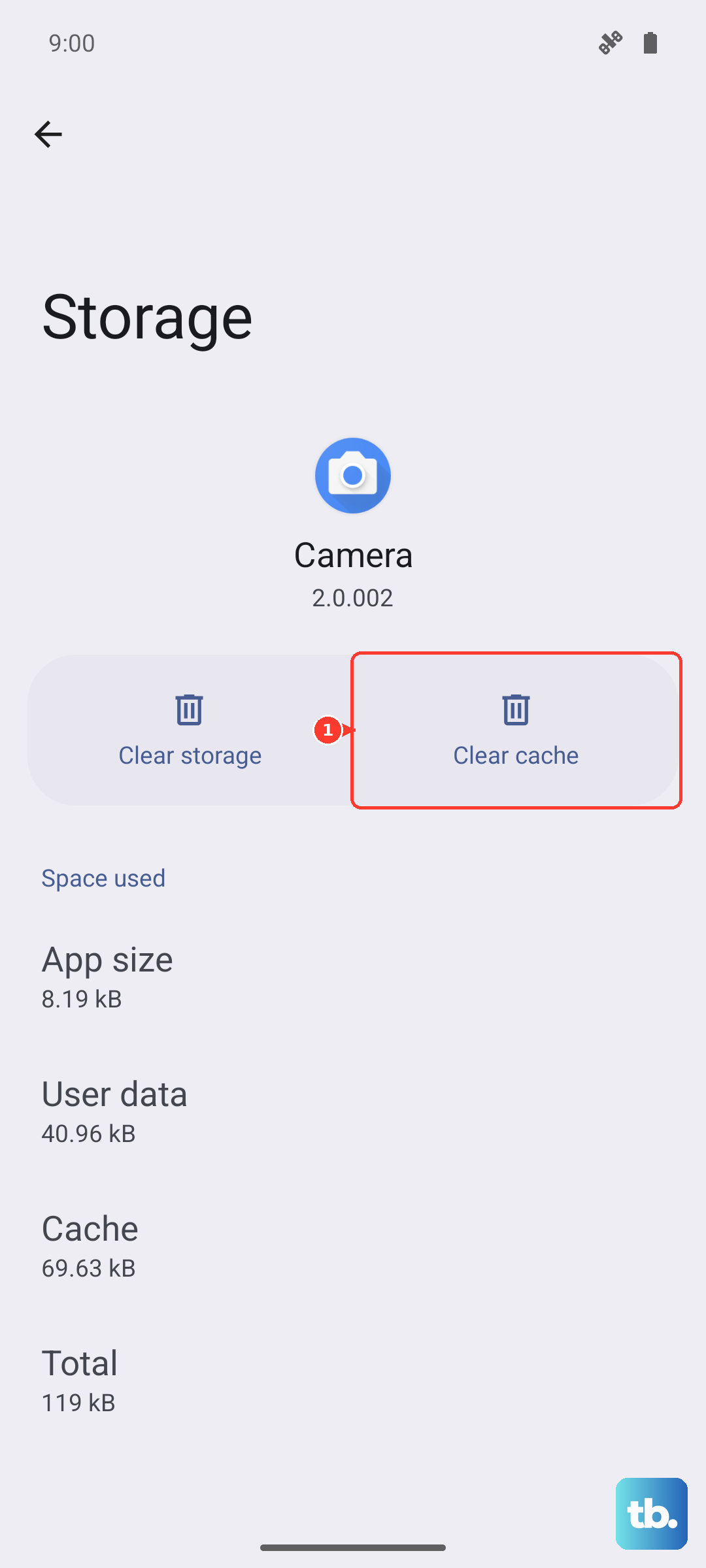
Over time, your browser stores temporary files that can slow things down. If you use Huawei's built-in browser or have installed another from the AppGallery, clearing this data can help.
Open your browser's settings menu. Look for an option like Privacy & security or Clear browsing data. Select to clear the cache and cookies. You usually won't lose saved passwords by doing this, but it's a good idea to check what you're deleting before confirming.
Manage Background Data for Apps
Apps running in the background can consume data and slow down your active connection. EMUI gives you good control over this.
Head to Settings > Apps. Select any app that might be using data in the background, like a third-party app store or a streaming service. Tap on Mobile data and toggle off Allow background data usage. Do this for apps you don't need constant updates from.
Disable Any VPN Services
If you've sideloaded or installed a VPN app to work around service limitations, it could be the source of the slowdown. VPNs route your traffic through another server, which often reduces speed.
Open the VPN app you're using and disconnect from it. For a more thorough check, go to Settings > More connections > VPN to see if any VPN profiles are active and remove them if necessary.
Perform a Force Restart
A simple reboot can clear temporary software glitches affecting the modem or network stack. If your phone is unresponsive, use the Pura 70 Pro's specific method.
Just press and hold the Power button for about 10 seconds. Keep holding it until you see the Huawei logo appear on the screen, then release. This forces a clean restart without deleting any of your data.
Update Your Phone Software
Huawei releases updates for EMUI that can include connectivity improvements and bug fixes. It's worth checking for one.
Go to Settings > System & updates > Software update. Tap on Check for updates. If an update is available, make sure you're connected to WiFi and have your phone plugged into its 100W SuperCharge charger before installing it.
Check for App Conflicts
Since you might be using apps from the AppGallery or sideloaded APKs, a poorly optimized app could be causing issues. Try using your browser in safe mode to rule this out.
Press and hold the power button until the power off menu appears. Then, tap and hold the Restart option on your screen. Your phone will ask if you want to reboot into Safe Mode. Confirm it. In Safe Mode, test your internet speed. If it's faster, a recently installed third-party app is likely the culprit.
Verify Your Date and Time Settings
Incorrect time settings can sometimes interfere with secure internet connections, causing timeouts and slow loading. This is an easy thing to check and fix.
Open Settings and go to System & updates > Date & time. Make sure the switches for Automatic date & time and Automatic time zone are both turned on. This lets your phone sync correctly with network time.