
If your Huawei Pura 70 Pro is getting uncomfortably warm, it's usually a sign that something is pushing the Kirin 9010 chip harder than the cooling system can handle. This can happen during gaming, video recording, or even with certain apps running in the background. The good news is, you can almost always cool it down with a few simple adjustments.
Let's start with the quickest fix. If your phone feels hot right now, take it out of its case. Many cases, especially thick or poorly ventilated ones, trap heat against the phone's body. Just removing it can allow several degrees of heat to dissipate almost immediately. Also, stop any fast charging. Unplug it from the 100W SuperCharge brick or the 80W wireless charger. Standard charging generates less heat and lets the phone cool down.
Check for Problematic Apps
Since the Pura 70 Pro runs EMUI 14.2 without Google Play Services, some apps installed from third-party stores or via sideloading might not be fully optimized. These can cause excessive background activity. Swipe down from the top of the screen to open the Control Panel and tap the battery icon to see which apps are currently using the most power. If you spot one that shouldn't be running, force stop it.
To manage apps more thoroughly, go to Settings > Battery > App launch. Here, you can restrict background activity for specific apps. I'd recommend setting social media, news, and lesser-known utility apps to "Manage manually" and disabling "Run in background." This prevents them from waking the processor when you're not using them.
Adjust Your Display and Performance Settings
The stunning display on the Pura 70 Pro is a major battery and heat contributor. Lowering the screen brightness is one of the most effective ways to reduce heat. Also, consider reducing the screen timeout to 30 seconds or 1 minute so it turns off faster when not in use.
For a more direct impact on heat, switch to a balanced performance mode. Go to Settings > Battery and tap on Performance mode. Select "Mid" or "Power saving" instead of "High Performance." The Kirin 9010 is plenty capable for daily tasks in a mid mode, and this significantly cuts down on heat generation during general use.
Manage Your Connectivity
Radio signals generate heat. If you're in an area with weak 5G or cellular signal, your phone's modem works harder to maintain a connection, which warms up the device. Try switching to 4G/LTE only. Go to Settings > Mobile network > Mobile data and disable "Enable 5G."
Similarly, turn off features you aren't actively using. Bluetooth, GPS (Location services), and NFC can all be toggled off from the Control Panel. If you're connected to Wi-Fi, you can often also turn off mobile data to reduce the radio load. Doing this while you're stationary, like at home or the office, can keep the phone noticeably cooler.
Update Your Software and Apps
Huawei releases EMUI updates that often include optimizations for thermal management and battery efficiency. Check for a system update by going to Settings > System & updates > Software update. Install any available updates.
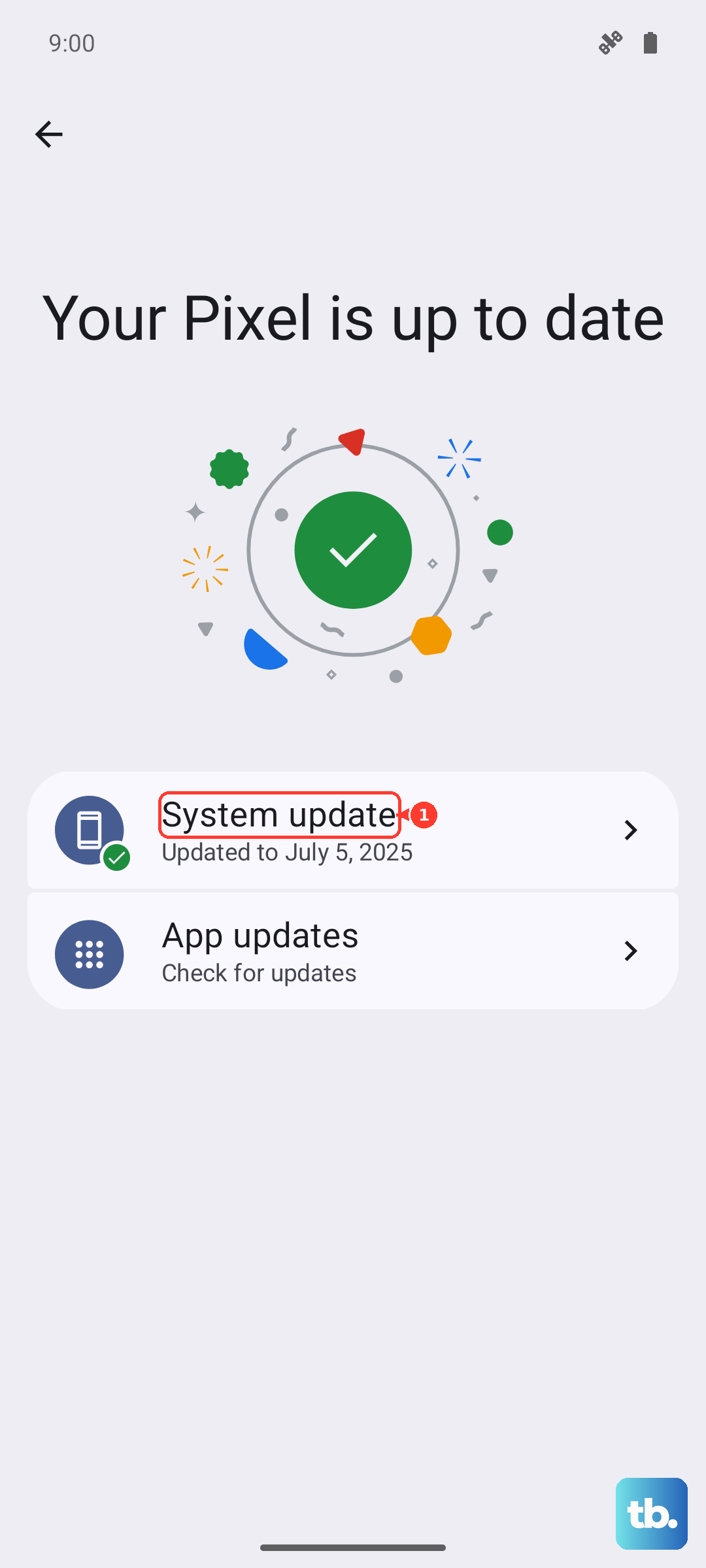
Also, update your apps through the Huawei AppGallery. Developers release patches that can fix bugs causing abnormal CPU usage. For apps you've installed from other sources, you'll need to check for updates within those apps or their original stores. Keeping everything current closes loopholes that lead to overheating.
Be Mindful of Your Charging Habits
The Pura 70 Pro's 100W wired and 80W wireless charging is incredibly fast, but that speed produces heat. It's normal for the phone to get warm during a SuperCharge session. However, avoid using the phone intensively while it's fast charging. Playing a game or recording 4K video while plugged into the 100W charger is a surefire way to overheat it.
If the phone is consistently hot when charging, try using a lower-wattage charger. Any standard USB-C charger will work more slowly and generate less heat. Also, make sure you're using the official Huawei SuperCharge cable and charger for the fastest speeds, as third-party accessories might not manage heat as effectively.
Give It a Fresh Start
Sometimes, a software glitch can cause a process to hang and continuously use CPU resources. A simple restart can clear this out. If the phone is unresponsive or too hot to navigate menus, perform a force restart. Just press and hold the Power button for about 10 seconds until you see the Huawei logo appear on the screen.
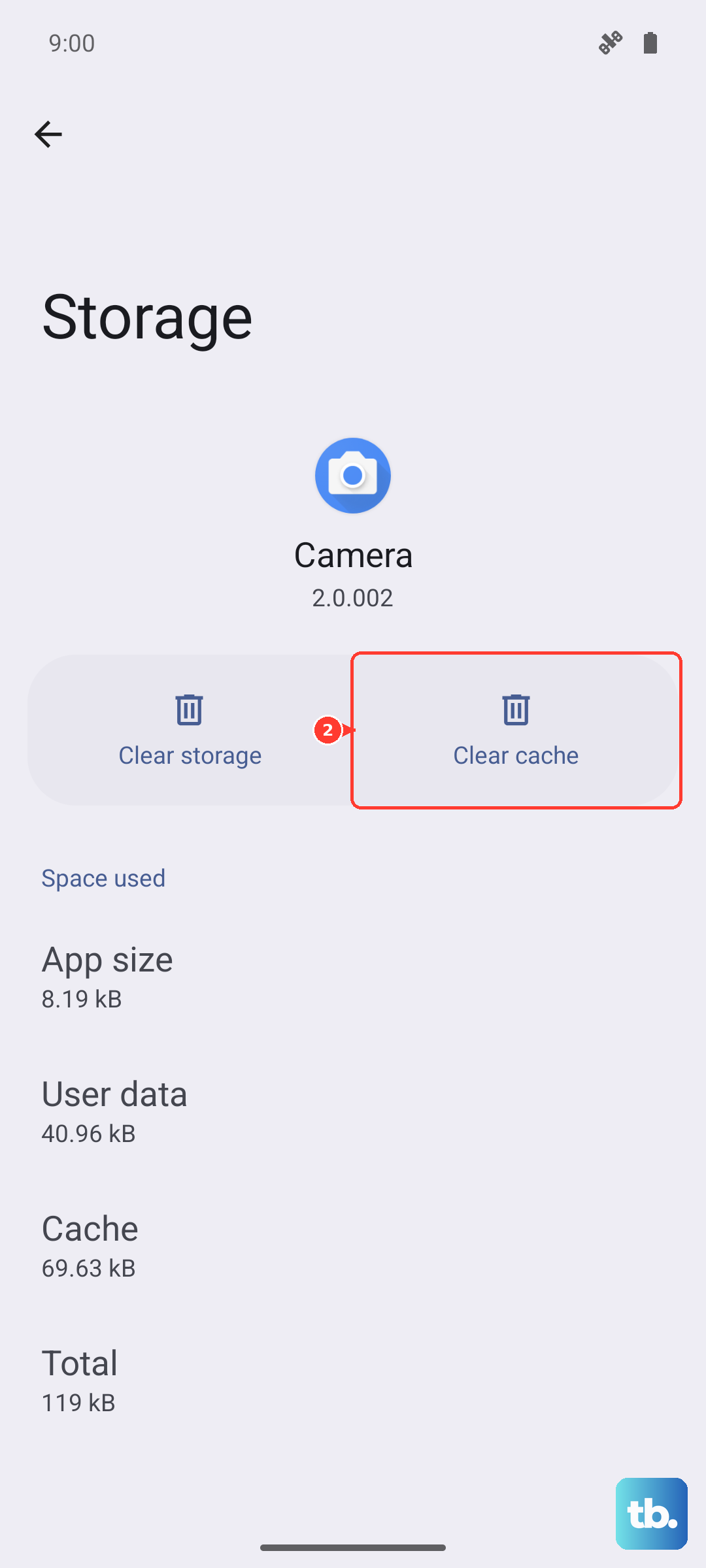
For a more thorough clean-up, clear the cached data for all apps. Go to Settings > Storage and tap on "Clean up." This removes temporary files that can sometimes cause background processes to misbehave and generate excess heat.
Consider Your Environment and Case
Never leave your phone in direct sunlight, like on a car dashboard or by a sunny window. Ambient heat dramatically increases the phone's internal temperature. Similarly, avoid intensive tasks when the phone is already in a warm environment.
As mentioned, the case is critical. If you need a case for protection, look for one designed with ventilation in mind, perhaps with a slimmer profile or made of a more thermally conductive material like certain polycarbonates. Taking the phone out of its case during long gaming or video calls can make a big difference.
If you've tried all these steps and the Pura 70 Pro still overheats during normal use, it could point to a hardware issue. The thermal paste between the processor and the cooling system might be inadequate, or there could be a fault with a sensor. In my experience, this is rare, but if the problem is persistent, contacting Huawei support for diagnostics would be the next step.