
Seeing a "Not registered on network" error on your Huawei Pura 70 Pro is frustrating. It means your phone can't connect to your carrier, so calls, texts, and mobile data won't work. This can happen for a few different reasons, from a simple software hiccup to a more complex issue with your SIM or network settings.
Before we get into the steps, let's check one quick thing. Open your phone dialer and type *#06#. This shows your IMEI number. If it displays "null," "unknown," or a string of zeros, that's a specific problem we'll address. If you see a proper 15-digit number, the issue is likely with the connection itself, and the fixes below should help.
Start With a Force Restart
This is often the quickest fix. A force restart clears temporary glitches in the system that can interfere with the cellular radio. On the Pura 70 Pro, press and hold the Power button for about 10 seconds. Keep holding it until you feel a vibration and see the Huawei logo appear on the screen.
Wait for the phone to boot up completely. Once it's back on, check if you have signal bars. I've seen this resolve the issue immediately for many people, especially if the error popped up suddenly after installing an app from the AppGallery.
Toggle Airplane Mode
This trick forces your phone to disconnect from and then reconnect to all wireless networks. Swipe down from the top of your screen to open the Quick Settings panel. Look for the airplane icon and tap it to turn Airplane Mode on.
Wait for about 15 seconds, then tap the icon again to turn it off. Your phone will now attempt to re-register with the nearest cell tower. It's a faster alternative to a restart and works more often than you'd think.
Reseat Your SIM Card
A SIM card that's come slightly loose in its tray can cause this exact error. First, power off your Pura 70 Pro completely. Use the SIM eject tool (the small pin that came in the box) to pop open the SIM tray on the bottom edge of the phone.
Carefully remove the SIM card. Give both the gold contacts on the SIM and the inside of the tray slot a gentle wipe with a soft, dry cloth. Any dust or pocket lint can break the connection. Reinsert the SIM, making sure it's seated firmly, push the tray back in, and power the phone on.
Check Your Account and Coverage
Sometimes the problem isn't your phone at all. If you have a prepaid plan, make sure it hasn't expired. For postpaid accounts, confirm there are no unpaid bills that led to a service suspension. You can usually check this through your carrier's website or app.
Also, the Pura 70 Pro has some known limitations with 5G support in certain regions. If you're in an area with spotty 5G, your phone might struggle to register. Try forcing it to use 4G/LTE instead, which we'll cover in a moment.
Reset the Network Settings
This is a more thorough step that clears all your saved network configurations. It will delete your Wi-Fi passwords, Bluetooth pairings, and cellular network settings, but not your personal data. To do this on EMUI 14.2, go to Settings > System & updates > Reset > Reset network settings.
Tap to confirm. Your phone will restart. After it boots, you'll need to reconnect to Wi-Fi and re-pair Bluetooth devices, but this gives the cellular modem a completely fresh start. It often fixes persistent registration errors.
Manually Select Your Network
Your phone might be trying to automatically connect to a network that's having issues. You can tell it to search for all available networks and pick one manually. Go to Settings > Mobile network > Network operators.
Tap Search networks. After the scan finishes, a list will appear. Select your carrier's name from the list. If your carrier isn't listed, that points to a bigger coverage or account problem.
Change the Preferred Network Type
As mentioned, forcing your phone off 5G can help. Go to Settings > Mobile network > SIM 1 (or your active SIM) > Preferred network type. The options here might vary, but look for one that says "4G/3G/2G auto" or just "4G/3G auto."
Select that option. This prevents the phone from trying to latch onto a 5G signal, which can sometimes be unstable. If your phone registers on 4G, you'll know the issue is related to 5G connectivity in your area.
Update Your Phone's Software
Huawei releases updates through EMUI that can fix bugs affecting network connectivity. It's always worth checking. Go to Settings > System & updates > Software update.
Tap Check for updates. If an update is available, make sure your phone is connected to Wi-Fi and has a good charge (use that included 100W SuperCharge plug for a quick top-up). Install the update and let your phone restart to see if it resolves the network problem.
Clear the Phone Services Cache
The app that manages your calls has a cache that can become corrupted. Go to Settings > Apps > Apps. Tap the three-dot menu in the top right and select Show system processes.
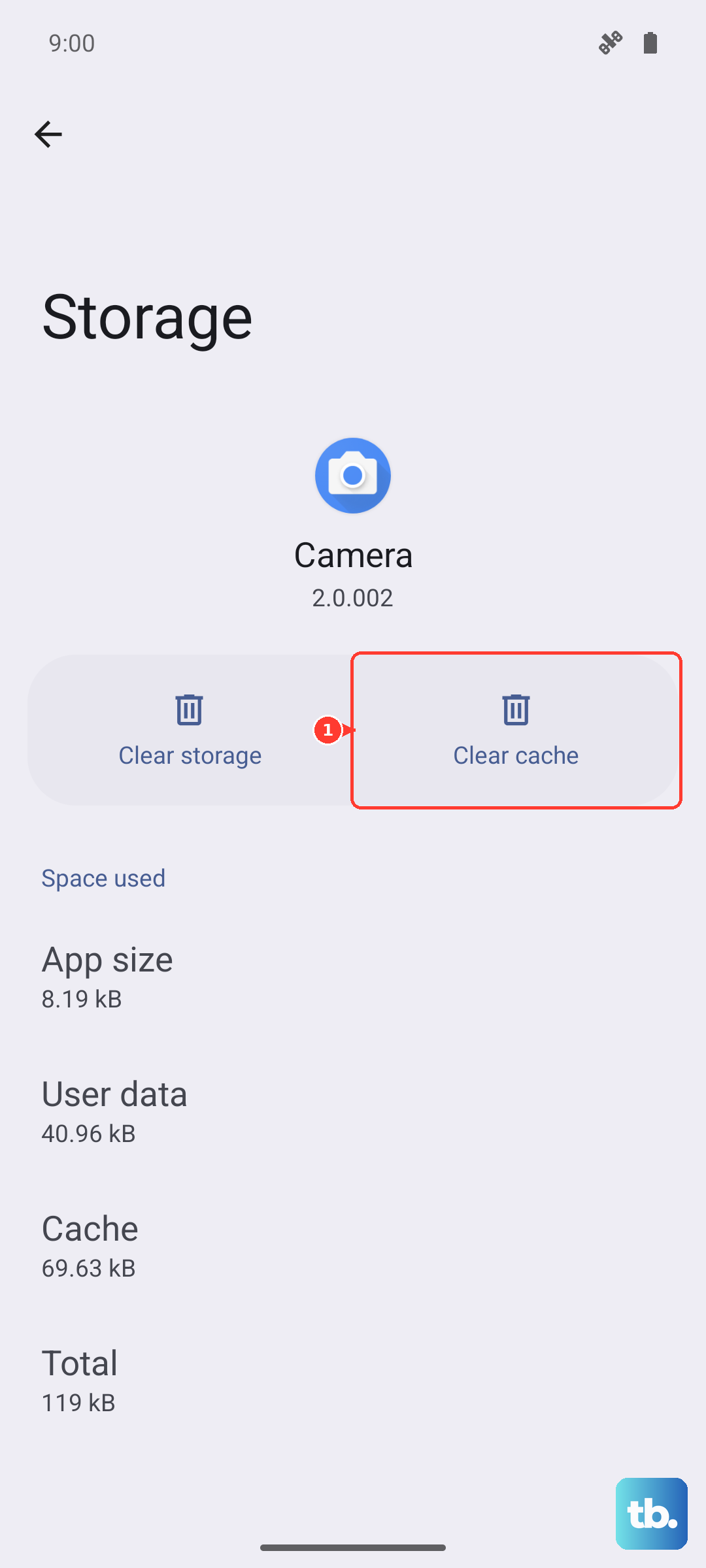
Scroll down and find Phone Services. Tap on it, then go to Storage > Clear cache. This doesn't delete any of your contacts or call logs. After clearing it, restart your phone to allow the cache to rebuild from scratch.
Test With a Different SIM Card
This step helps pinpoint whether the issue is with your SIM or the phone itself. If you can, borrow a working SIM card from a friend or family member (ideally on the same network). Insert it into your Pura 70 Pro.
If the borrowed SIM card connects to the network without any "not registered" errors, then your original SIM card is likely faulty or damaged. You'll need to contact your carrier to get a replacement SIM. If the borrowed SIM also fails, the problem is with your phone.
Perform a Factory Reset
This is your last resort before looking at hardware. A factory reset will erase all data on your phone, so it's crucial to back up everything important first. Use Huawei's built-in backup tool or manually transfer files to a computer.
Once backed up, go to Settings > System & updates > Reset > Factory data reset. Follow the prompts to erase everything. After the reset, set up the phone as new without restoring a backup immediately. Just insert your SIM and see if it registers on the network. If the error is still there after a clean reset, the issue is likely a hardware fault with the phone's cellular antenna or modem.