
That "No SIM card detected" message on your Huawei Pura 70 Pro can stop you in your tracks. It's a common hiccup, but the good news is you can usually fix it yourself with a few simple steps. Let's get your phone back on the network.
First, try the most straightforward fix. Pull down the notification panel from the top of your screen and tap the Airplane mode icon to turn it on. Wait about ten seconds, then tap it again to turn it off. This forces your phone's radio to reconnect to the network and often clears up temporary glitches.
Restart Your Huawei Pura 70 Pro
If Airplane mode didn't do the trick, a full restart is your next best move. Press and hold the Power button until the power menu appears, then tap "Restart." If your phone is completely unresponsive, you can perform a force restart by holding the Power button down for a solid 10 seconds or more until you see the Huawei logo.
This clears out any temporary software bugs that might be interfering with the SIM card reader. It's a simple step, but I've seen it resolve detection issues more times than I can count.
Inspect and Clean the Physical SIM Card
Now, let's check the hardware. Power your Pura 70 Pro off completely. Use the SIM ejector tool that came in the box to pop out the SIM tray. Carefully remove the SIM card and take a close look at the gold contacts.
You're looking for any visible scratches, dirt, or corrosion. Gently wipe the contacts with a clean, dry microfiber cloth. While you have the tray out, use a can of compressed air to blow out any dust or lint from the slot itself. Reinsert the SIM card, making sure it's seated correctly in the tray, and power your phone back on.
Verify SIM Card Status in Settings
Sometimes the software thinks the SIM is disabled. Open the Settings app and go to Mobile Network. Here, you should see your SIM card listed. Make sure the toggle switch next to it is turned on.
You can also tap on the SIM card entry to access more settings. Ensure that "Enable 4G" or "Enable 5G" is selected, depending on what your carrier and region support. The Pura 70 Pro's Kirin 9010 chip and regional firmware can sometimes affect 5G availability, so don't be alarmed if you only see 4G options.
Update Your EMUI Software
Software bugs are a common culprit. Huawei regularly releases updates for EMUI 14.2 that include stability fixes. To check, go to Settings, then scroll down and tap on System & updates.
Select Software update and tap "Check for updates." If an update is available, download and install it. Your phone will restart during this process. It's a good idea to connect to Wi-Fi first, as these updates can be large.
Reset Your Network Settings
This is a more thorough step that resets all your network connections back to factory defaults. It won't delete your personal photos or apps, but you will need to re-enter Wi-Fi passwords and re-pair Bluetooth devices.
To do this, navigate to Settings > System & updates > Reset. Tap on Reset network settings and confirm your choice. After the phone reboots, check if your SIM is detected. This often clears up persistent network configuration errors.
Check and Reset APN Settings
Incorrect Access Point Name (APN) settings can prevent your phone from registering on your carrier's network properly. Go to Settings > Mobile Network > Access Point Names (APN).
You should see a list of APNs. Tap the three-dot menu in the top right corner and select "Reset to default." This will load the standard APN settings for the SIM card you have inserted. If your carrier requires specific settings, you may need to enter them manually here.
Try Manual Network Selection
Let your phone search for available networks itself. Go back to Settings > Mobile Network. Tap on Network operators and then select "Search now."
After a moment, a list of available networks in your area will appear. Find your carrier's name in the list and select it. This bypasses the automatic selection process, which can sometimes get stuck, especially if you're in an area with spotty coverage.
Clear the Cache for Phone Services
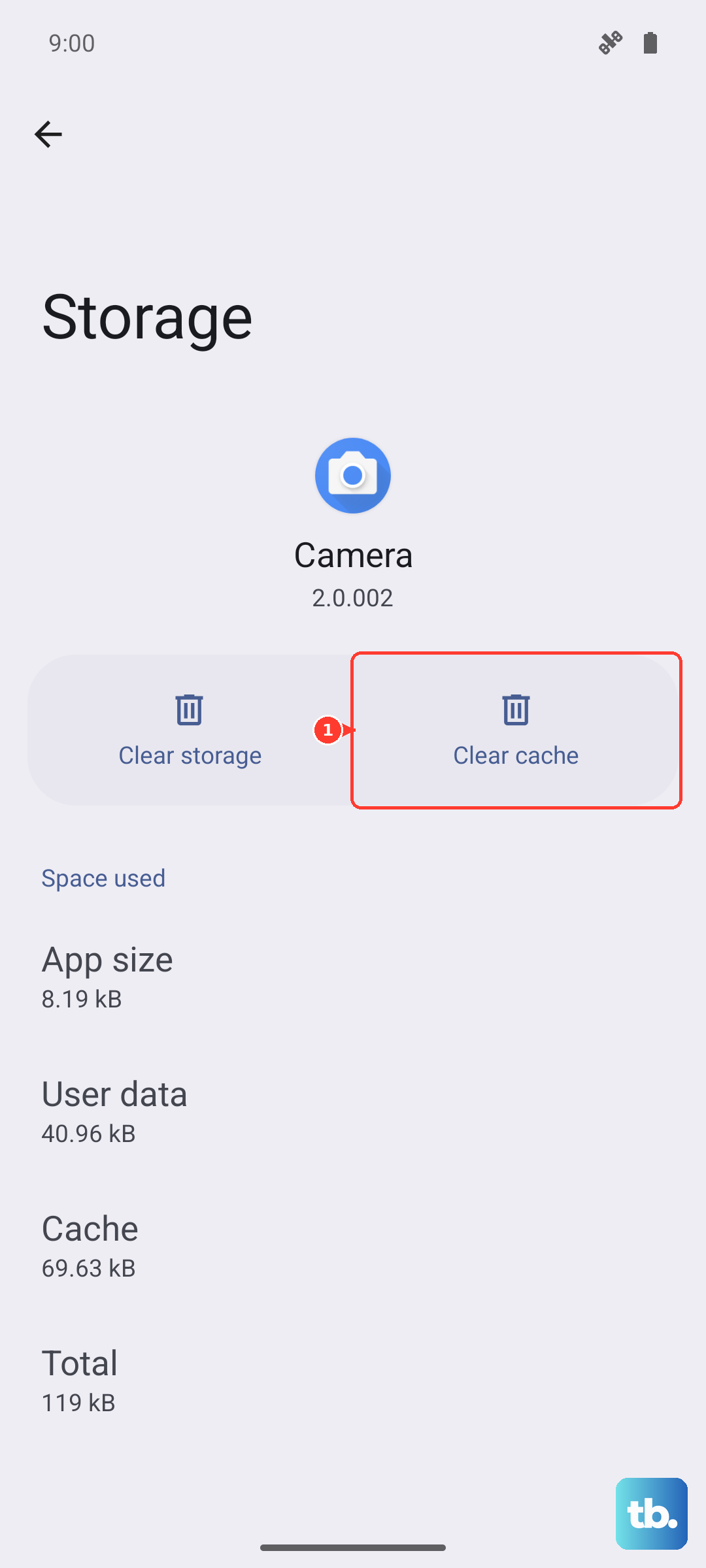
Cached data for system services can become corrupted. Go to Settings > Apps > Apps. Tap the four-dot menu icon and select "Show system apps." Now, scroll through the list or use the search bar to find an app called "Phone Services."
Tap on it, then select Storage & cache. Tap "Clear cache." Do not tap "Clear data" or "Manage data," as this could delete your call history. This cleans up temporary files without affecting your personal information.
Consider a Factory Reset
If you've tried everything else and the SIM is still not detected, a software conflict might be the root cause. A factory reset will wipe your phone back to its original out-of-the-box state.
This is a last resort. Before you proceed, make absolutely sure you have backed up all your important data. You can use Huawei's built-in backup to your computer or cloud storage. To perform the reset, go to Settings > System & updates > Reset > Factory data reset. Follow the on-screen prompts. After the reset is complete, set up your phone as new and test the SIM card before restoring your backup.