
Seeing that "MMS sending failed" error on your Huawei Pura 70 Pro can be incredibly annoying, especially when you're trying to share a photo or video. Since this phone runs EMUI 14.2 without Google Play Services, a few of the usual fixes need a slight adjustment. Let's get your multimedia messages working again.
Start With a Quick Restart
Before diving into settings, give your phone a fresh start. Press and hold the Power button for about 10 seconds until you see the Huawei logo appear and the phone restarts. This clears out any temporary software glitches that might be blocking the MMS service.
Verify Your Mobile Data is On and Strong
MMS doesn't send over Wi-Fi; it requires an active mobile data connection. Swipe down from the top of your screen to open the Quick Settings panel and make sure the mobile data icon is lit up. Also, check your signal bars. A weak signal, which can sometimes be related to the Pura 70 Pro's regional 5G support, will prevent the message from going through.
If you're connected to Wi-Fi, try turning it off temporarily to force the message to use your cellular data. Some Wi-Fi networks can interfere with MMS traffic.
Check the MMS Settings in Your Messages App
Open the Huawei Messages app and tap the three-dot menu in the top right, then go to Settings. Look for an option labeled Multimedia messages or Advanced.
Inside, ensure that "Auto-download MMS" is enabled. If you see a setting for maximum message size, try increasing it, as some carriers have limits. These settings control how your phone handles the MMS data.
Review and Correct Your APN Settings
This is one of the most common culprits. The Access Point Name (APN) tells your phone exactly how to connect to your carrier's network for data and MMS. An incorrect setting here will stop MMS in its tracks.
Go to Settings > Mobile network > Mobile data > Access Point Names (APN). Select the APN profile for your current carrier. You need to verify the details are correct, particularly the fields for MMSC (the Multimedia Messaging Service Center address), MMS proxy, and MMS port.
I'd recommend contacting your carrier's support directly or visiting their website to get the exact, up-to-date APN settings for the Huawei Pura 70 Pro. Enter them carefully, save the profile, and restart your phone.
Clear the Cache for the Messages App
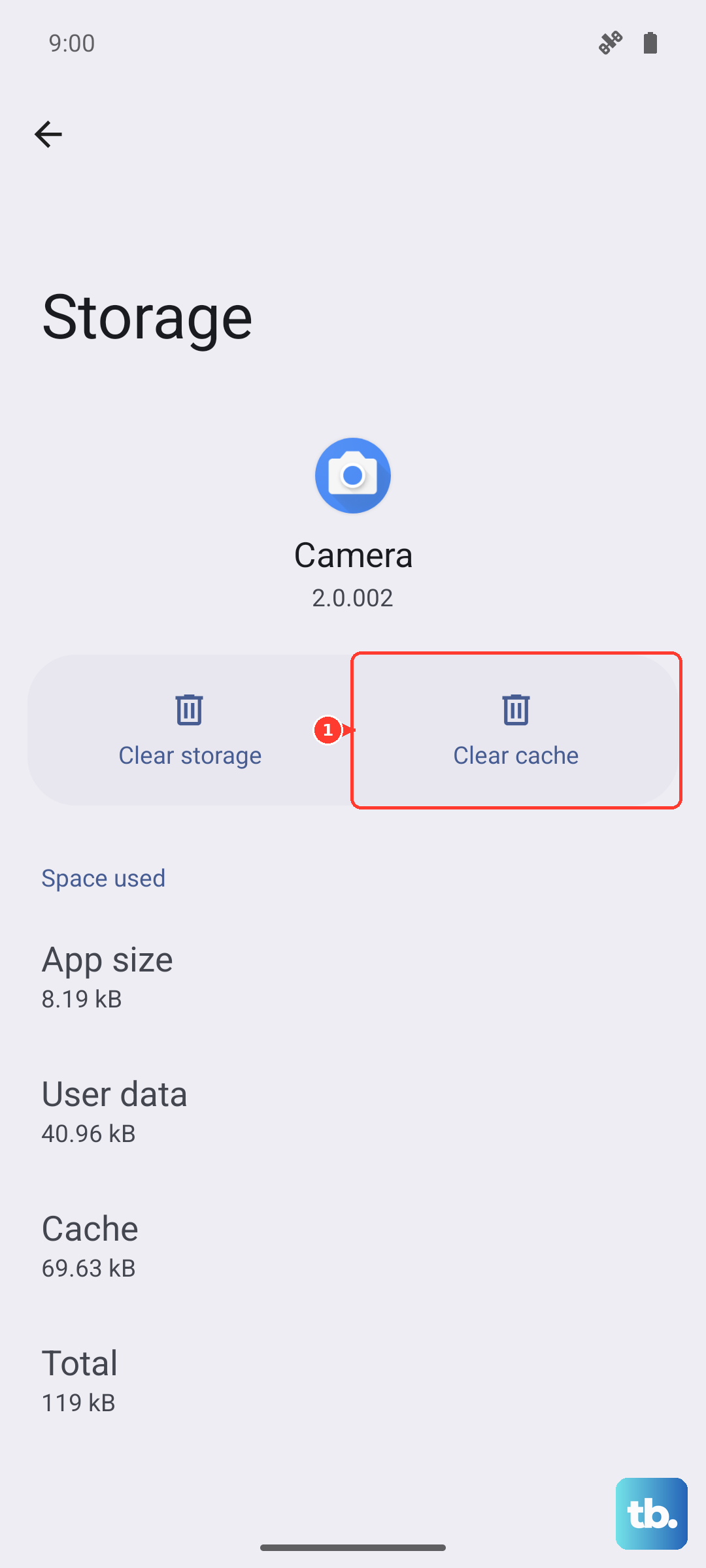
Corrupted temporary files can cause the messaging app to malfunction. Go to Settings > Apps > Apps again. Find and tap on Messages.
Select Storage and then tap Clear cache. This deletes temporary data without touching your actual messages. After clearing, try sending an MMS again.
Update Your Phone's Software
Huawei releases updates for EMUI that often include bug fixes for connectivity and messaging issues. Keeping your Pura 70 Pro updated is crucial. Go to Settings > System & updates > Software update.
Tap on Check for updates and install any that are available. The Kirin 9010 chipset performs well, but software optimizations from updates are key for network stability.
Reset Your Network Settings
If the problem is deeper in the network configuration, a reset can help. This will erase all your saved Wi-Fi networks, Bluetooth pairings, and mobile data settings, returning them to factory defaults.
Navigate to Settings > System & updates > Reset. Choose Reset network settings. Confirm the action and let your phone restart. You'll then need to reconnect to your Wi-Fi and re-pair Bluetooth devices, but it often resolves stubborn MMS issues.
Ensure You Have Enough Storage Space
Your phone needs a bit of free space to process and temporarily store MMS data before sending it. If your internal storage is nearly full, it can fail. Open the Phone Manager app and check your storage status.
Delete any old message threads filled with videos or large photos, clear app caches, or uninstall apps you no longer use. Aim to have at least a few hundred megabytes of free space.
Try a Different Messaging App
The default Huawei Messages app is good, but sometimes using an alternative can bypass the issue. Since the Pura 70 Pro uses Huawei's AppGallery, you'll need to find your app there.
Search for popular messaging apps like "Telegram" or "Signal," which handle media through data and not the traditional MMS system. You can also look for third-party SMS/MMS apps. Download one, set it as your default messaging app in Settings > Apps > Default apps, and test if MMS works.
Contact Your Mobile Carrier
If you've tried everything else, the issue might be on your carrier's end. Give them a call or use online chat support. Tell them you're using a Huawei Pura 70 Pro and cannot send MMS.
They can check if there's an outage, reprovision your line for MMS services, and double-check that the APN settings they provide are fully compatible with your device's EMUI software. They may also need to ensure your plan includes MMS messaging.