
When the microphone on your Huawei Pura 70 Pro stops picking up your voice, it can turn simple tasks like making a call or sending a voice message into a real headache. The issue could be anything from a blocked mic port to a software setting, and I'd start by figuring out exactly which microphone is acting up.
A fast way to narrow this down is a browser based mic test. If the meter responds when you talk, the mic itself is fine and the problem sits in software or settings.
Test Which Microphone Is Failing
Your Pura 70 Pro has several microphones. The main one for calls and voice commands is at the bottom of the phone. There's also one near the top for noise cancellation and one on the back for video recording.
Open the built-in Voice Recorder app from your home screen or AppGallery. Tap the red record button, speak normally for a few seconds, and then play it back. If the recording is muffled or silent, you've confirmed a problem.
Next, try making a regular phone call. Ask the person on the other end if they can hear you clearly. If they can't, but your voice recording was fine, it might point to a network or calling app issue instead.
Remove the Case and Check for Blockages
This is the quickest fix to try. Some phone cases, especially rugged ones, can partially cover the tiny microphone holes. Take the case off your Pura 70 Pro and test the microphone again.
With the case off, take a close look at the microphone grilles. You'll find the primary one on the bottom edge next to the USB-C port. Use a soft-bristled brush, like a clean toothbrush, to gently dislodge any lint or pocket debris.
You can also try blowing gently into the openings. Avoid using compressed air, as the high pressure could potentially damage the internal components.
Disconnect Bluetooth and Audio Accessories
If you have Huawei FreeBuds or any other Bluetooth headphones connected, your phone will route all audio through them. This includes the microphone for calls and recordings.
Swipe down from the top of your screen to open the Control Panel. Tap the Bluetooth icon to turn it off temporarily, then test your phone's built-in microphone. Also, check that no wired headphones are plugged into the USB-C port.
Force Restart Your Phone
A simple reboot can clear out temporary software glitches that might be affecting the audio subsystem. Press and hold the Power button on the right side of your Pura 70 Pro for about 10 seconds.
Keep holding until you see the Huawei logo appear on the screen, then release. This force restart doesn't delete any of your data or settings, so it's always a safe first step.
Check App Permissions in EMUI
Apps like WhatsApp, Telegram, or Zoom need explicit permission to use your microphone. If you denied this permission accidentally, the app won't be able to hear you.
Go to Settings > Apps. Find the app that's having microphone trouble and tap on it. Then, go to Permissions and make sure the Microphone permission is set to "Allow."
For a broader check, you can go to Settings > Privacy > Permission manager. Tap on Microphone to see a list of all apps and their current access levels.
Update Your System Software
Huawei releases updates for EMUI that often include bug fixes for hardware components like the microphone. Keeping your Pura 70 Pro updated is one of the best ways to prevent issues.
Head to Settings > System & updates > Software update. Tap on "Check for updates." If an update is available, connect to Wi-Fi and plug in your 100W SuperCharge adapter to install it.
Since the Pura 70 Pro runs EMUI 14.2, which is based on HarmonyOS, updates are delivered through Huawei's own system rather than Google Play Services.
Clear the Cache for Problem Apps
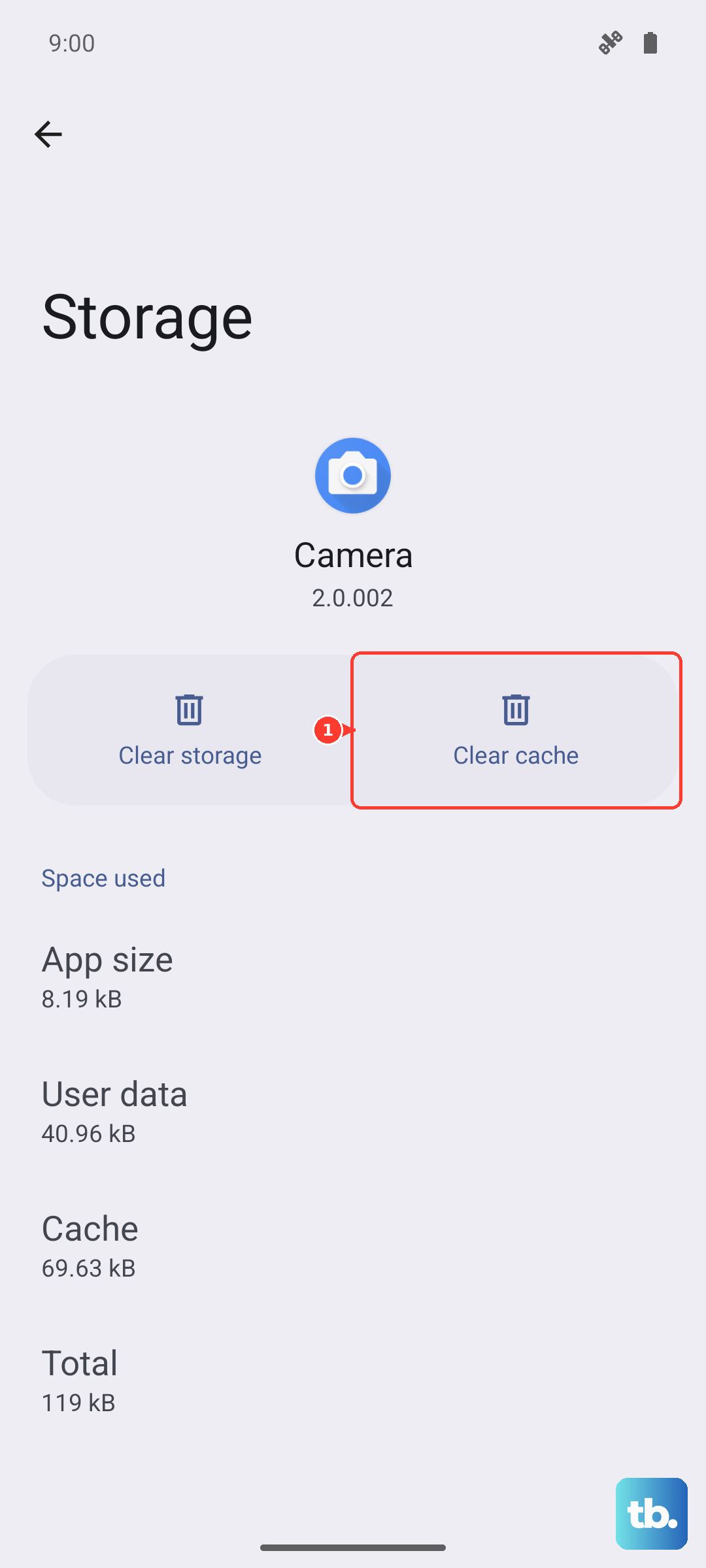
If the microphone only fails in one specific app, that app's cached data might be corrupted. Go to Settings > Apps and select the problematic app.
Tap on Storage and then select Clear cache. This won't delete your login information or personal data within the app, but it will remove temporary files that could be causing the conflict. After clearing, restart the app and test the microphone again.
Reset All Network Settings
This can help if the microphone issue seems tied to phone calls or VoIP apps like WhatsApp calls. Resetting network settings will erase your Wi-Fi passwords, Bluetooth pairings, and mobile data preferences, so you'll need to reconnect to networks afterward.
To do this, go to Settings > System & updates > Reset. Choose Reset network settings and confirm. Your personal files and app data will remain untouched.
Check for App Compatibility Issues
Since the Huawei Pura 70 Pro doesn't have Google Mobile Services, some apps downloaded from third-party stores or sideloaded as APK files might not function perfectly. An app's microphone feature could be one of the affected functions.
Try using the microphone in a different, similar app. If it works fine elsewhere, the problem is likely with that specific application. Check the Huawei AppGallery for an official version or look for an update from the app developer that improves HarmonyOS compatibility.
Perform a Factory Reset
If you've tried everything else and the microphone is still unresponsive, a factory reset is the final software step. This will erase all data on your phone and return it to its original out-of-the-box state.
It's absolutely crucial to back up everything first. Use Huawei's built-in backup tool by going to Settings > System & updates > Backup and restore. Once your data is safe, go back to Reset and choose Reset phone > Erase all data.
After the reset is complete, set up the phone as new without restoring your backup immediately. Test the microphone in the Voice Recorder app right away. If it works now, the problem was a software conflict. If it still doesn't work, the issue is likely hardware-related.