
Is your Huawei Pura 70 Pro starting to feel sluggish? It's a powerful phone, but like any device, it can slow down over time. The good news is you can usually fix this yourself with a few simple steps.
Lagging on the Pura 70 Pro often comes from storage filling up, too many background apps, or the unique challenges of using EMUI without Google Play Services. Let's get straight into the most effective fixes to speed it up.
Perform a Force Restart
This is the quickest thing to try. A force restart clears the phone's temporary memory and stops any stuck processes. Just press and hold the power button for about 10 seconds until you see the Huawei logo appear and the phone restarts. It's a simple step that solves a lot of random slowdowns.
Close Apps Running in the Background
Apps you've used recently stay in memory, which can drain resources. To close them, swipe up from the bottom of the screen and hold for a second to enter the recent apps view. You can then swipe up on each app's preview to close it individually, or tap the trash can icon at the bottom to clear them all at once.
Free Up Internal Storage Space
When your phone's storage is nearly full, everything slows down. Go to Settings > Storage to see what's using space. The Pura 70 Pro has a great camera, but photos and videos can eat up gigabytes quickly. Use Huawei's built-in Phone Clone or a file manager to move media to a computer or cloud service. Also, uninstall apps you never use, especially large games downloaded from third-party stores.
Clear App Caches
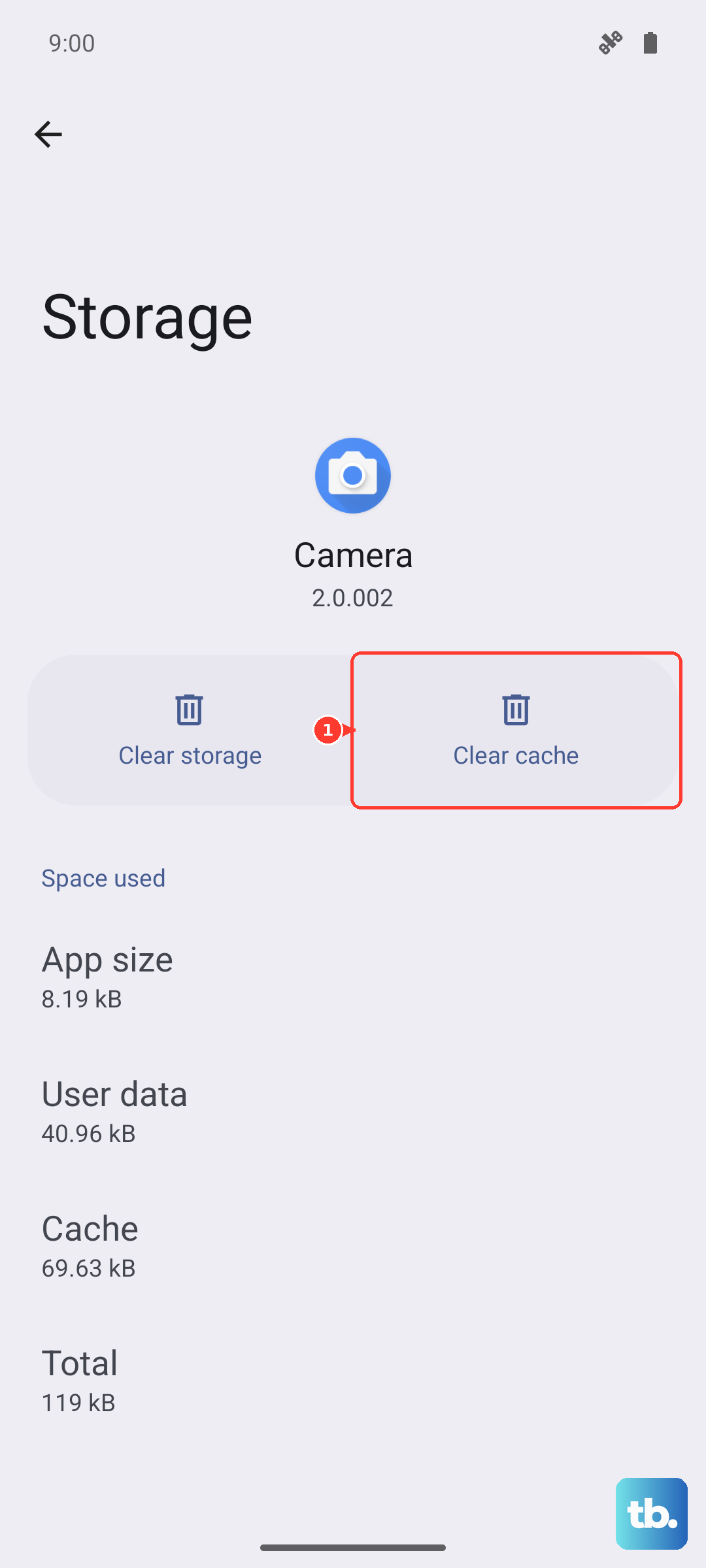
Over time, apps store temporary data that can become bloated. You can clear this cache for individual apps. Go to Settings > Apps > App Management. Tap on an app, then select Storage > Clear Cache. Do this for apps like your browser, social media apps, and any apps from the Huawei AppGallery that feel slow.
Update Your Apps and EMUI
Outdated apps, especially those sideloaded without Google Services, can have performance bugs. Open the Huawei AppGallery, tap on 'Me' in the bottom right, and go to Update Management to update everything. For the system, check Settings > System & updates > Software update. Huawei releases optimizations that can improve speed and stability.
Manage Background Activity and Notifications
Some apps are overly aggressive about running in the background. You can restrict them. Go to Settings > Battery > App launch. Here, you can manage apps manually. For apps you don't need instant notifications from, set them to "Manage manually" and disable "Auto-launch," "Secondary launch," and "Run in background." This prevents them from waking up the processor unnecessarily.
Check for Problematic Apps
Since the Pura 70 Pro doesn't have Google Mobile Services, some Android apps installed via APK files might not be fully compatible. This can cause crashes and lag. Go to Settings > Battery and see which apps are using the most power in the last 24 hours. If an app you sideloaded is at the top, try finding an alternative in the AppGallery or Petal Search, as these are optimized for HarmonyOS.
Reduce Visual Effects
Fancy animations look great but use processing power. You can tone them down. Go to Settings > Accessibility > Display & text size. Look for options to reduce animation scale or turn off transparency effects. You can also go to Settings > Home Screen & Wallpaper > Home screen style and try the simpler "Standard" style instead of "Drawer" if you're using it.
Use Performance Mode
The Pura 70 Pro has a performance mode that prioritizes speed over battery life. Swipe down from the top right to open the Control Center. Look for a tile labeled "Performance Mode" or "Turbo." If you don't see it, tap the pencil icon to edit your shortcuts and add it. Turning this on can give you a noticeable boost during gaming or intensive tasks.
Reset All Settings
If you're still having issues and you've tried everything else, this can help. It resets all your preferences, like Wi-Fi passwords, wallpaper, and accessibility settings, back to default without deleting your personal data. Go to Settings > System & updates > Reset > Reset all settings. You'll need to re-configure some things, but it can clear out any system-level glitches causing the slowdown.