
If your Huawei Pura 70 Pro's camera app is crashing, freezing, or just showing a black screen, start with a simple restart. Press and hold the power button for about 10 seconds until the phone vibrates and the Huawei logo appears. I've found this clears up most temporary software glitches that can lock up the camera.
Before digging into settings, open a quick webcam test in your browser. If the preview shows a live picture, the camera hardware works and the issue is with app permissions or configuration.
Key Points
- Restart and Update Your Phone: A force restart is the fastest way to fix a frozen camera app.
- Clear the Camera App's Cache and Data: Corrupted temporary files are a common cause of camera crashes.
- Check for App Conflicts in Safe Mode: A third-party app could be interfering with the camera's operation.
- Verify App Permissions and Microphone Access: The camera needs permission to access storage and the microphone for video.
- Inspect the Camera Hardware and Lenses: A smudged or obstructed lens will ruin every photo.
- Reset All Settings as a Last Resort: This can fix deeper software conflicts without erasing your personal data.
Give the phone a full minute to reboot completely before trying the camera again. If the app is still unresponsive, don't worry, there are several other steps to try.
Your first stop should be the phone's updater. Huawei frequently releases optimizations and bug fixes through EMUI updates. Open Settings > System & updates > Software update and tap on 'Check for updates'.
Install any available updates and restart your phone when prompted. This can resolve compatibility issues introduced by older software.
Clear the Camera App's Cache and Data
Over time, the camera app stores temporary files that can become corrupted. Clearing this cache is a safe first step that won't delete your photos. Go to Settings > Apps > App management.
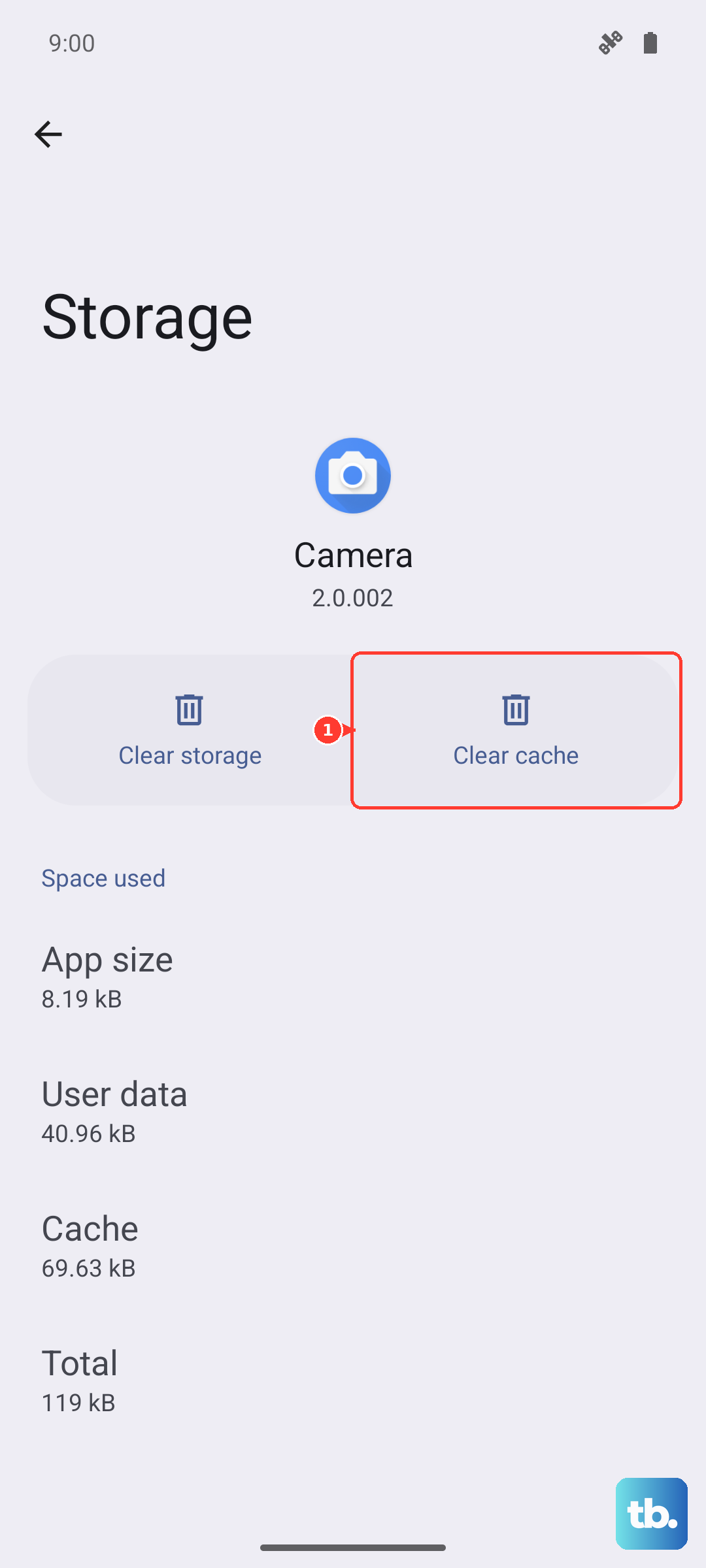
Find and tap on 'Camera' in the app list. Then, select Storage usage and tap 'Clear cache'. Test the camera. If it's still broken, you can go back and tap 'Clear data'. This will reset the camera app to its default settings, so you may need to reconfigure any custom modes.
Check for App Conflicts in Safe Mode
If a recently installed app is causing a conflict, it can stop the camera from working properly. Booting into Safe Mode temporarily disables all third-party apps. Press and hold the power button until the shutdown menu appears.
Then, press and hold the 'Power off' option on your screen. A prompt will ask if you want to reboot to Safe Mode, tap 'OK'. If the camera works perfectly in Safe Mode, you know a downloaded app is the problem.
Restart normally to exit Safe Mode, then start uninstalling apps you installed around the time the camera issues began. Social media apps, other camera apps, or battery savers are common culprits.
Verify App Permissions and Microphone Access
The camera app needs specific permissions to function. If these were accidentally denied, the app might crash. Go to Settings > Apps > App management > Camera > Permissions.
Ensure that 'Camera' and 'Microphone' are set to 'Allow'. Also, check that 'Storage' or 'Files and media' permission is granted, otherwise the app can't save your photos and videos. Sometimes toggling a permission off and then on again can kick-start a stuck process.
Inspect the Camera Hardware and Lenses
Before diving deeper into software, take a close look at the camera module on the back of your Pura 70 Pro. Gently wipe all the lenses with a clean, dry microfiber cloth. Fingerprints and dust are the most common cause of blurry or hazy photos.
Also, check that no phone case is misaligned and partially covering a lens. Make sure the protective film that sometimes comes on new phones has been completely removed from the camera area.
Reset All Settings as a Last Resort
If you've tried everything and the camera is still broken, a settings reset can help. This won't delete your photos, apps, or personal files, but it will revert all system settings to factory defaults. You'll need to reconnect to Wi-Fi and reconfigure things like display brightness and notifications.
Go to Settings > System & updates > Reset > Reset all settings. Enter your lock screen password if prompted and confirm. After the phone restarts, test the camera before you start changing settings back.
Check for Third-Party App Interference
Since the Pura 70 Pro uses Huawei's AppGallery, some apps you've sideloaded from other sources may not be fully compatible. These apps can sometimes run processes in the background that interfere with the camera hardware.
Pay special attention to any apps that claim to enhance camera performance, clean memory, or manage battery. Try uninstalling these types of apps one by one, restarting your phone after each removal to see if the camera functionality returns.
Consider the Impact of Google Services
Some third-party apps that rely on Google Play Services for certain functions might behave unpredictably on your Huawei phone. If you use a social media app's in-built camera and it's failing, try using the native Huawei camera app instead to see if the problem is with the hardware or the third-party software.
The native camera app is always the most optimized for your device's hardware. If it works flawlessly, the issue is likely with the other app's compatibility, not your phone's camera.
Monitor for Overheating
The Kirin 9010 chip and the powerful camera sensors can generate heat during prolonged use, like recording 4K video. If the phone gets too hot, it may automatically shut down the camera app to protect the hardware.
If your camera consistently fails during long sessions or in hot environments, let the phone cool down. Remove any case to help with heat dissipation and avoid using the camera while the device is charging, especially with the 100W SuperCharge adapter.