
When your Huawei Pura 70 Pro won't download apps, it can stop you in your tracks. Since this phone doesn't have Google Play Services by default, you're likely using the Huawei AppGallery or other sources, which can have their own unique hiccups. The process is a bit different from a standard Android phone, but the fixes are usually straightforward.
Let's go through the steps to get your app downloads working again, starting with the most common solutions.
Check Your Internet Connection First
This sounds obvious, but it's the most frequent culprit. Whether you're on Wi-Fi or mobile data, a weak or blocked connection will stop any download in its tracks. Pull down your notification shade and make sure your connection icon is active.
If you're on Wi-Fi, try switching to your mobile data plan for a moment. Some public or restricted Wi-Fi networks can block the ports needed for app stores to communicate with their servers. Toggling between networks often reveals if the problem is with your connection.
Restart Your Pura 70 Pro
A quick restart clears out temporary glitches in the system that might be interfering with the AppGallery or other app stores. Just press and hold the power button, then tap 'Restart'.
If the phone is completely unresponsive, you can force a restart by pressing and holding the power button for about 10 seconds until you feel it vibrate and the Huawei logo appears. This takes about 30 seconds and often resolves one-off download stalls.
Clear the AppGallery Cache and Data
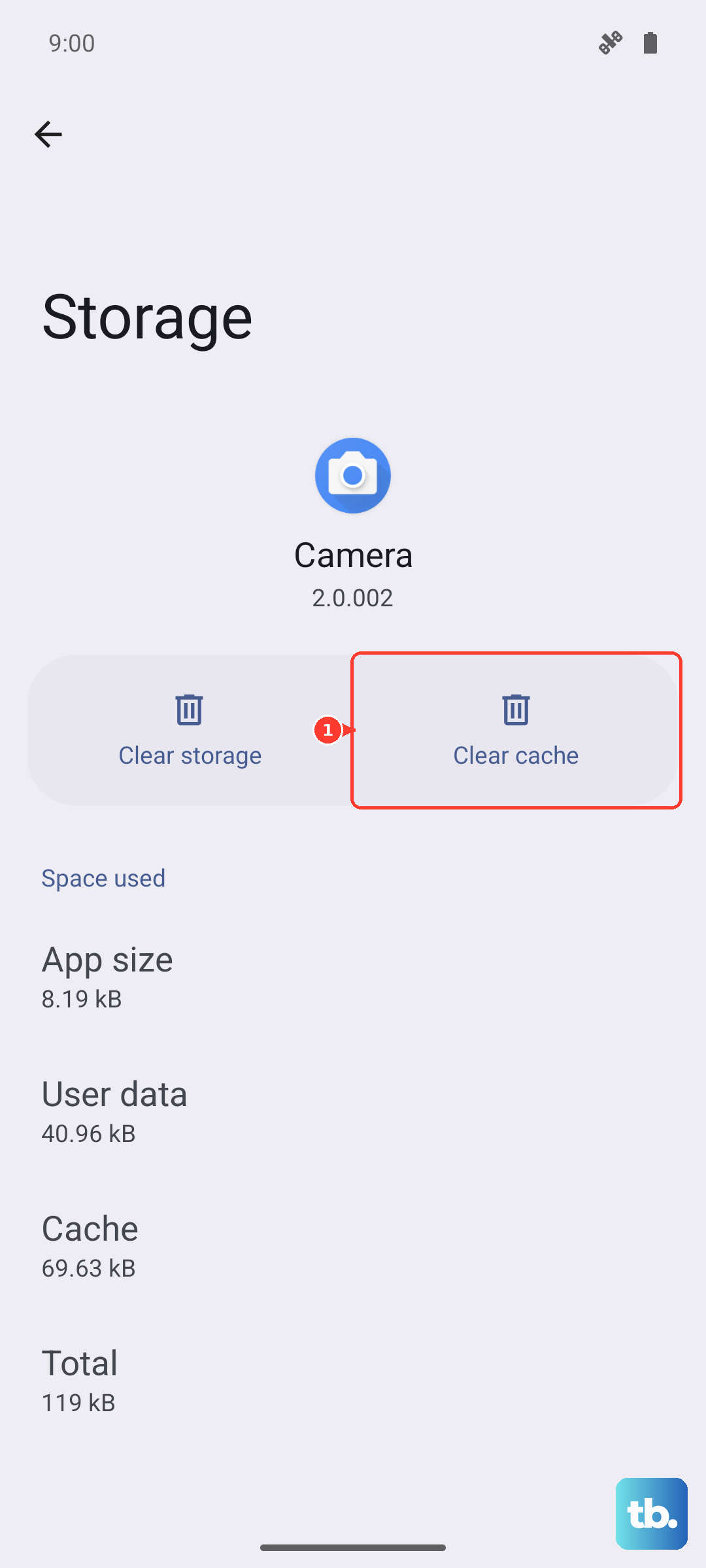
Corrupted temporary files in the Huawei AppGallery can prevent it from downloading properly. Clearing this cache is a safe first step that doesn't delete your account or settings.
Go to Settings > Apps > AppGallery. Tap on Storage, then hit Clear Cache. Try your download again. If it still fails, go back and tap Clear Data. This will reset the AppGallery app, so you may need to sign back in.
Verify Your Huawei ID is Active
The AppGallery requires a valid Huawei ID for downloads. If there's an issue with your account sync or session, downloads can hang.
Open the AppGallery, tap on the 'Me' tab at the bottom right, and check that you're signed in. If you are, try signing out and back in. Sometimes just refreshing the account connection is all it takes to get things moving again.
Check Available Storage Space
The Pura 70 Pro has ample storage, but if you've filled it with photos, videos, or large files, there might not be room for new apps. The phone needs a bit of free space to download and unpack the installation files.
Head to Settings > Storage to see how much space you have left. If you're running low, consider offloading some photos to your computer or cloud storage, or uninstalling apps you no longer use.
Update Your Phone's Software
Running an outdated version of EMUI can cause compatibility issues with the latest versions of the AppGallery or the apps you're trying to install. Huawei frequently releases updates that include stability fixes.
Go to Settings > System & updates > Software update and tap 'Check for updates'. If an update is available, install it. Your phone will restart, and it's a good idea to try your download again afterward.
Review Your App Installation Settings
For security, Huawei phones have settings that control where you can install apps from. If you're trying to install an app from a source outside the official AppGallery (known as sideloading), you need to enable this permission.
Navigate to Settings > Security > More settings and look for 'Install apps from external sources' or a similar option. Ensure the specific app store you're using (like APKPure or a browser) has permission granted. The AppGallery itself should always be allowed.
Check the Date and Time Settings
Incorrect date and time settings can disrupt secure connections to app servers, causing downloads to fail. Your phone uses this information to verify security certificates.
Go to Settings > System & updates > Date & time. Make sure 'Automatic date & time' is switched on. If it's already on and you're having issues, try turning it off, manually setting the correct date and time, and then turning automatic setting back on.
Try an Alternative App Source
If one app store is failing, it might be a temporary issue with that specific service. The Pura 70 Pro's ecosystem is designed around the Huawei AppGallery, but other trusted third-party stores like APKPure or Aptoide can work as alternatives.
I'd recommend downloading any alternative store directly from its official website to ensure you get a legitimate version. This can help you determine if the problem is with a single app source or a broader phone issue.
Reset All Network Settings
This is a more involved step, but it can fix persistent network-related download problems. It will erase all your saved Wi-Fi passwords, Bluetooth pairings, and mobile data settings, returning them to factory defaults.
Before you proceed, make sure you know your Wi-Fi passwords. Go to Settings > System & updates > Reset. Tap on Reset network settings and confirm. After your phone reboots, reconnect to your Wi-Fi and try the AppGallery again.