
When your HP Spectre x360 14 can't find or hold a WiFi signal, it's incredibly frustrating. The problem could be a driver glitch, a Windows setting, or a simple software hiccup that's easy to clear up.
I'd start by opening the HP Support Assistant. It's a great tool for this specific laptop. Open it from the Start menu, run a check for updates, and let it install any available network or system driver updates. It often catches issues that Windows Update misses.
Run the Windows Network Troubleshooter
Right-click the WiFi icon in your taskbar and select Troubleshoot network problems. Windows will scan for common issues and try to fix them automatically. This is a quick first step that can resolve simple connection state errors.
Toggle Airplane Mode On and Off
Click the network icon in the taskbar to open the quick settings panel. Click the Airplane mode tile to turn it on, wait about 10 seconds, and then turn it off again. This performs a hard reset of the wireless radio, which can clear up detection problems.
Forget and Reconnect to Your Network
Go to Settings > Network & Internet > Wi-Fi > Manage known networks. Find your home or office network in the list and click the Forget button next to it. Then, select the network again from the available list and re-enter your password. This fixes corrupted network profiles.
Update Your WiFi Driver Manually
Press Windows + X and select Device Manager. Expand the Network adapters section, right-click your Intel or Realtek wireless adapter, and choose Update driver. Select Browse my computer for drivers and then Let me pick from a list of available drivers.
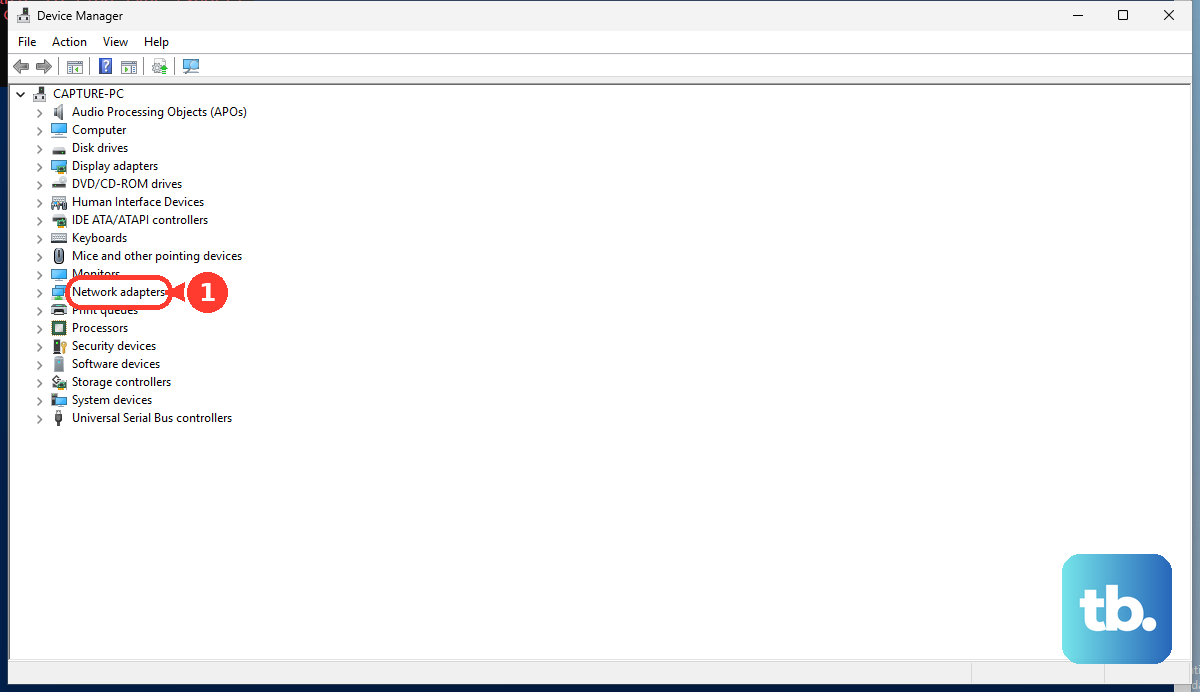
If you see an older driver version in the list, select it and click Next to roll back. Sometimes, a new driver from Windows Update causes problems, and reverting to the previous one is the fix. Afterward, check the HP website for the latest official driver for your exact Spectre model.
Restart Your Laptop Completely
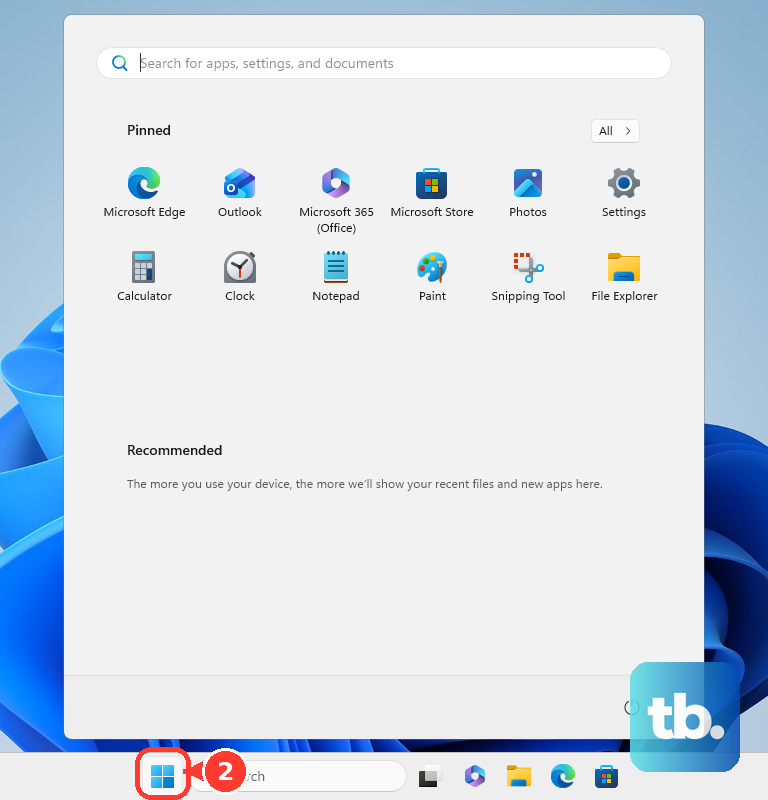
Click Start > Power > Restart. Don't just put it to sleep and wake it. A full restart clears the network stack and reloads all drivers from scratch. It's a simple step, but it resolves a surprising number of intermittent WiFi issues on the Spectre x360.
Reset Your Network Settings in Windows
Go to Settings > Network & Internet > Advanced network settings. At the bottom, click Network reset. Click Reset now and confirm. This will remove all network adapters and reinstall them, and it will wipe your saved WiFi networks and VPN settings, so you'll need to reconnect.
Disable the WiFi Adapter in Device Manager
Open Device Manager again and expand Network adapters. Right-click your WiFi adapter and select Disable device. Wait a moment, then right-click it again and choose Enable device. This forces the hardware to reinitialize without requiring a full system reboot.
Check for Power Saving Settings on the Adapter
In Device Manager, right-click your WiFi adapter and select Properties. Go to the Power Management tab. Uncheck the box that says Allow the computer to turn off this device to save power. Click OK. This prevents Windows from putting the WiFi card into a low-power state that can cause dropouts.
Flush DNS and Reset Winsock
Search for "Command Prompt" in the Start menu, right-click it, and select Run as administrator. Type the following commands, pressing Enter after each one: ipconfig /flushdns, netsh winsock reset, and netsh int ip reset. After running them all, restart your laptop for the changes to take effect.
Run HP Hardware Diagnostics
Restart your Spectre x360 14. As soon as the HP logo appears, press the F2 key repeatedly to launch the HP Hardware Diagnostics. Run the component tests, specifically the wireless test, to check if there's a hardware fault with the WiFi module itself.
Check Your Router and Environment
If other devices in your home are also struggling to connect, the issue is likely with your router. Unplug it from power for 30 seconds and plug it back in. Also, metal surfaces can interfere with the Spectre's signal. Try moving the laptop away from large metal desks or appliances to see if the signal improves.