
When your HP Spectre x360 14's keyboard stops responding, it can feel like you've hit a brick wall. Whether it's a few keys acting up, the entire keyboard going dead, or keys typing the wrong characters, the solutions are usually software-based and fixable at home.
If some keys seem unresponsive, run an online key test first. Keys that register there but not in your app point to software rather than hardware.
Force Restart Your Spectre
This is almost always the first thing I'd try. A full power cycle clears temporary glitches in the keyboard controller. Hold down the power button for about 15 seconds until the laptop completely powers off and the lights go out.
Wait a few seconds, then press the power button once normally to turn it back on. This simple step resolves a surprising number of unresponsive keyboard reports.
Check for Physical Debris
The Spectre's keyboard is relatively low-profile, making it susceptible to crumbs or small debris. Gently turn the laptop on its side and tap the back to dislodge anything loose.
For a more thorough clean, use a can of compressed air to blow between the keys. Hold the can upright and use short bursts to avoid moisture buildup. A single tiny obstruction can prevent a key from making proper contact.
Update Drivers via HP Support Assistant
Outdated or corrupted keyboard drivers are a common culprit. The best tool for this on an HP is the HP Support Assistant. Open it from your Start menu and run a check for updates.
It will scan for the latest drivers specifically for your Spectre model, including chipset and keyboard drivers that generic Windows Update might miss. Install any available updates and restart your laptop.
Reinstall the Keyboard Driver in Device Manager
If the keyboard is still unresponsive, you can manually refresh the driver. Press the Windows key + X and select Device Manager. Expand the Keyboards section, right-click on HID Keyboard Device or HP Keyboard, and select Uninstall device.
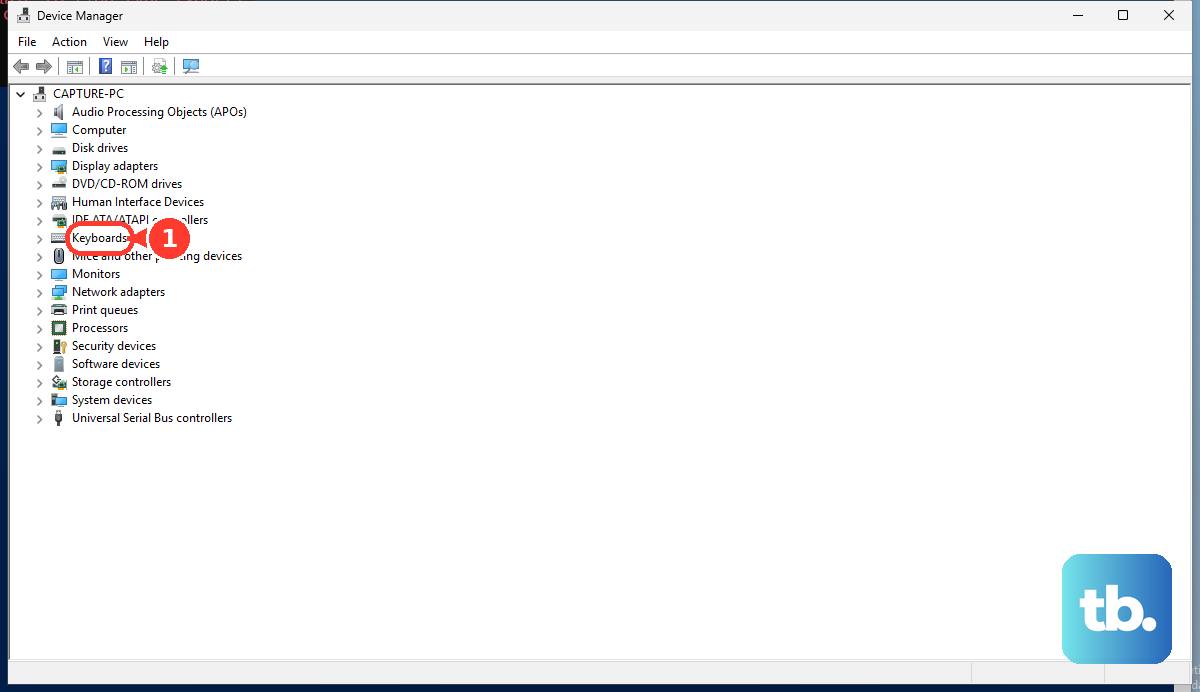
Don't check the box to delete the driver software. Restart your laptop, and Windows will automatically reinstall a fresh driver upon boot. This often clears up driver corruption.
Disable Filter Keys and Sticky Keys
Windows accessibility features can sometimes be triggered accidentally, making the keyboard seem broken. Go to Settings > Accessibility > Keyboard.
Make sure Sticky keys, Filter keys, and Toggle keys are all turned off. Filter Keys, in particular, can ignore brief keystrokes, making typing feel laggy and unresponsive.
Verify Your Keyboard Language and Layout
If your keys are typing the wrong symbols or letters, your input language may have switched. Click the language abbreviation in your taskbar (like "ENG") to see if another language is selected.
To manage this permanently, go to Settings > Time & language > Language & region. Ensure your correct language is at the top of the list and remove any others you don't use to prevent accidental switching.
Run the HP Hardware Diagnostics
HP builds a diagnostic suite right into the BIOS. Turn off your Spectre, then turn it back on and immediately press the F2 key repeatedly until the HP PC Hardware Diagnostics UEFI menu loads.
From there, you can run a Component Tests menu and select the keyboard test. This will check the hardware itself and tell you if there's a physical failure with the keyboard or its connection.
Boot into Safe Mode
If the keyboard works in Safe Mode, you know a third-party app or service is causing the conflict. To enter Safe Mode, go to Settings > System > Recovery and click Restart now next to "Advanced startup."
After the reboot, choose Troubleshoot > Advanced options > Startup Settings > Restart. When your laptop restarts again, press 4 or F4 to enable Safe Mode. If the keyboard works here, you'll need to uninstall recent software to find the culprit.
Check for Windows Updates and Known Issues
A buggy Windows update can sometimes introduce keyboard problems. Go to Settings > Windows Update and install any available updates, as they may contain fixes.
Conversely, if the problem started right after an update, you can roll it back. Go to Settings > Windows Update > Update history > Uninstall updates, find the most recent update, and select uninstall.