
When you plug your HP Spectre x360 14 into a monitor or TV and the screen stays blank, it's usually a quick settings or driver fix. Let's get that second screen working.
Start by pressing Windows + P on your keyboard. This opens the projection menu right away. Choose Extend or Duplicate. If it was set to "PC screen only," your HDMI output was essentially turned off. This single shortcut fixes the problem more often than not.
Inspect Your Cable and Connections
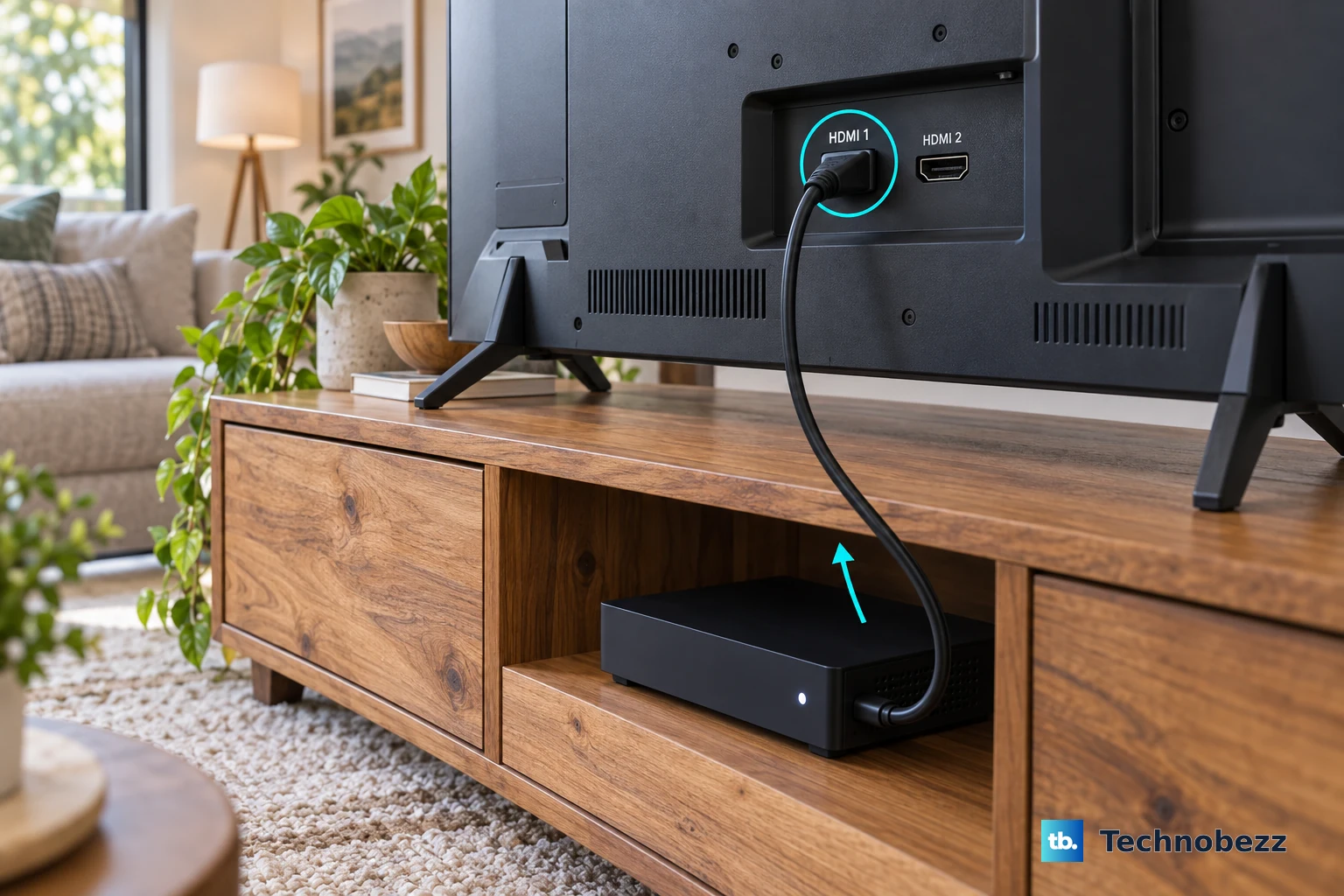
Unplug the HDMI cable from both your Spectre and the monitor. Check the ports for any debris or bent pins, then reconnect everything firmly. I'd recommend trying a different HDMI cable if you have one handy, as cables can fail internally without any visible damage.
Also, double-check that your external monitor or TV is powered on and set to the correct HDMI input source. You'd be surprised how often it's just the display waiting on the wrong input.
Run a Quick Diagnostic
HP includes some useful built-in tools. Restart your Spectre x360 and immediately press the F2 key repeatedly to launch HP PC Hardware Diagnostics. You can run a system test from there, which includes checking display and video components.
For a more software-focused check, open the HP Support Assistant app. It can scan for outdated drivers, including your graphics and chipset drivers, which are common culprits for HDMI issues. Let it install any available updates.
Update Your Display Drivers Manually
While HP Support Assistant is good, getting drivers directly from the chipmaker is sometimes better. Open Device Manager, expand Display adapters, and right-click on your Intel Iris Xe or other GPU.
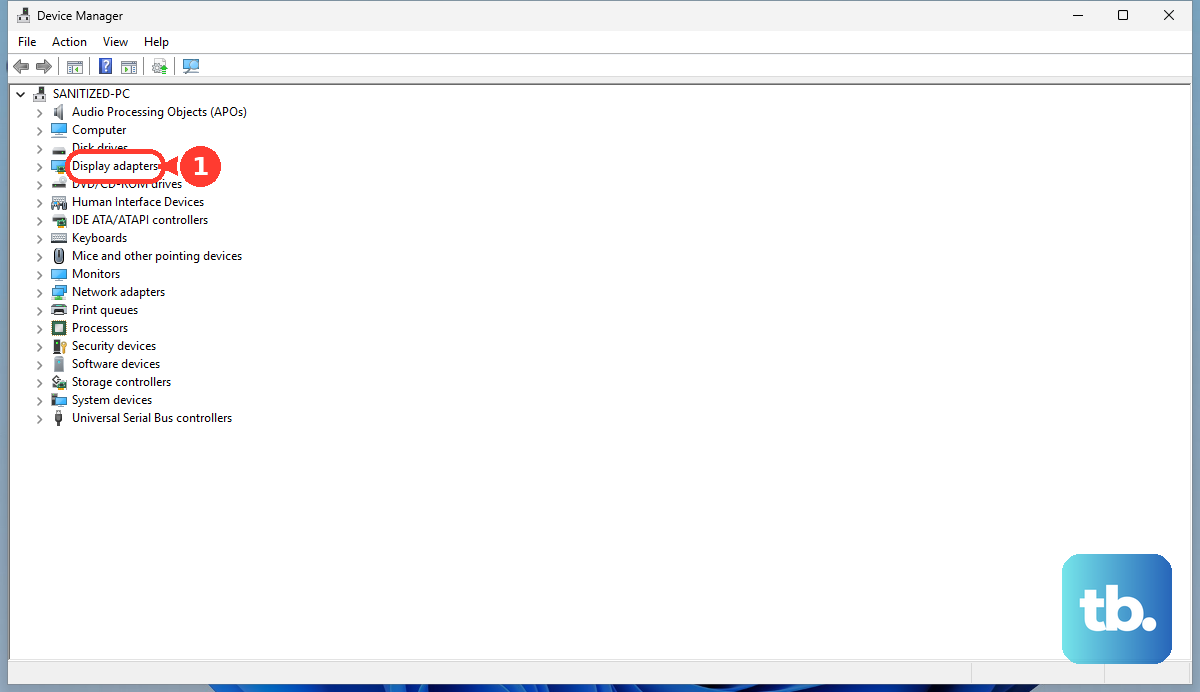
Select Update driver and then Search automatically for drivers. If that doesn't find a new one, visit Intel's website directly to download and install the latest graphics driver for your specific processor. HDMI handshake problems are frequently patched in these updates.
Configure Your Display Settings
Go to Settings > System > Display. Click the Detect button. If Windows sees your external display, it will appear as a second screen. Click on it and scroll down to ensure the display resolution and refresh rate are set to values your monitor supports.
If you're unsure, try a common resolution like 1920x1080 at 60Hz. Some 4K monitors can be finicky over HDMI, so lowering the resolution temporarily can confirm the connection is alive.
Try the USB-C Ports
The Spectre x360 14 has USB-C ports that support DisplayPort Alt Mode. This means you can use a USB-C to HDMI adapter or cable as an alternative video output. If your HDMI port isn't working but the USB-C video output does, it points to a potential hardware fault with the dedicated HDMI port itself.
It's a great way to confirm your laptop's graphics are functioning normally.
Reset the Graphics Driver
This is a handy trick that doesn't require a restart. Simply press Windows + Ctrl + Shift + B. Your screen will flicker black for a second as the graphics driver resets. It can jolt the system into recognizing the connected HDMI display.
You can also go into Device Manager, right-click your display adapter, and choose Disable device. Wait about ten seconds, then enable it again. This forces a full re-initialization of all video outputs.
Check for BIOS and Windows Updates
Restart your laptop and press F10 to enter the BIOS Setup. Look through the menus for any settings related to display output, video, or ports. While it's rare for these to be disabled, a BIOS update can sometimes reset preferences.
Also, run Windows Update to make sure you have the latest system files. Microsoft and HP often release fixes through this channel that can resolve peripheral connectivity bugs.
Test with Another Monitor and Cable
If you're still stuck, try your Spectre on a completely different TV or monitor. If it works, the issue is with your original display. If it still doesn't work, you've at least ruled out the other device.
Combine this test with a brand-new or known-good HDMI cable. Trying both a new display and a new cable together is the definitive way to isolate a hardware problem with your laptop's port.