
When Bluetooth stops working on your HP Spectre x360 14, your wireless mouse, headphones, or keyboard become useless. The connection might drop, a device won't pair at all, or the Bluetooth toggle itself can disappear. Let's get it working again.
Toggle Bluetooth On and Off
First, click the network icon in your taskbar and make sure the Bluetooth tile is turned on. If you don't see it there, open Settings > Bluetooth & devices and enable it. If Bluetooth is completely missing from these menus, the driver is likely the culprit.
Restart Your Spectre
A simple restart is often the fastest fix. It reloads the Bluetooth driver and clears any temporary software glitches that can happen after the laptop wakes from sleep or following a Windows update. Just shut down and power it back on.
Forget and Re-Pair the Device
Go to Settings > Bluetooth & devices. Find the problematic device in the list and click the three dots next to it, then select Remove device. Put your Bluetooth accessory into pairing mode, click Add device on your Spectre, and pair it fresh. Corrupted pairing data is a very common blocker.
Run the Windows Bluetooth Troubleshooter
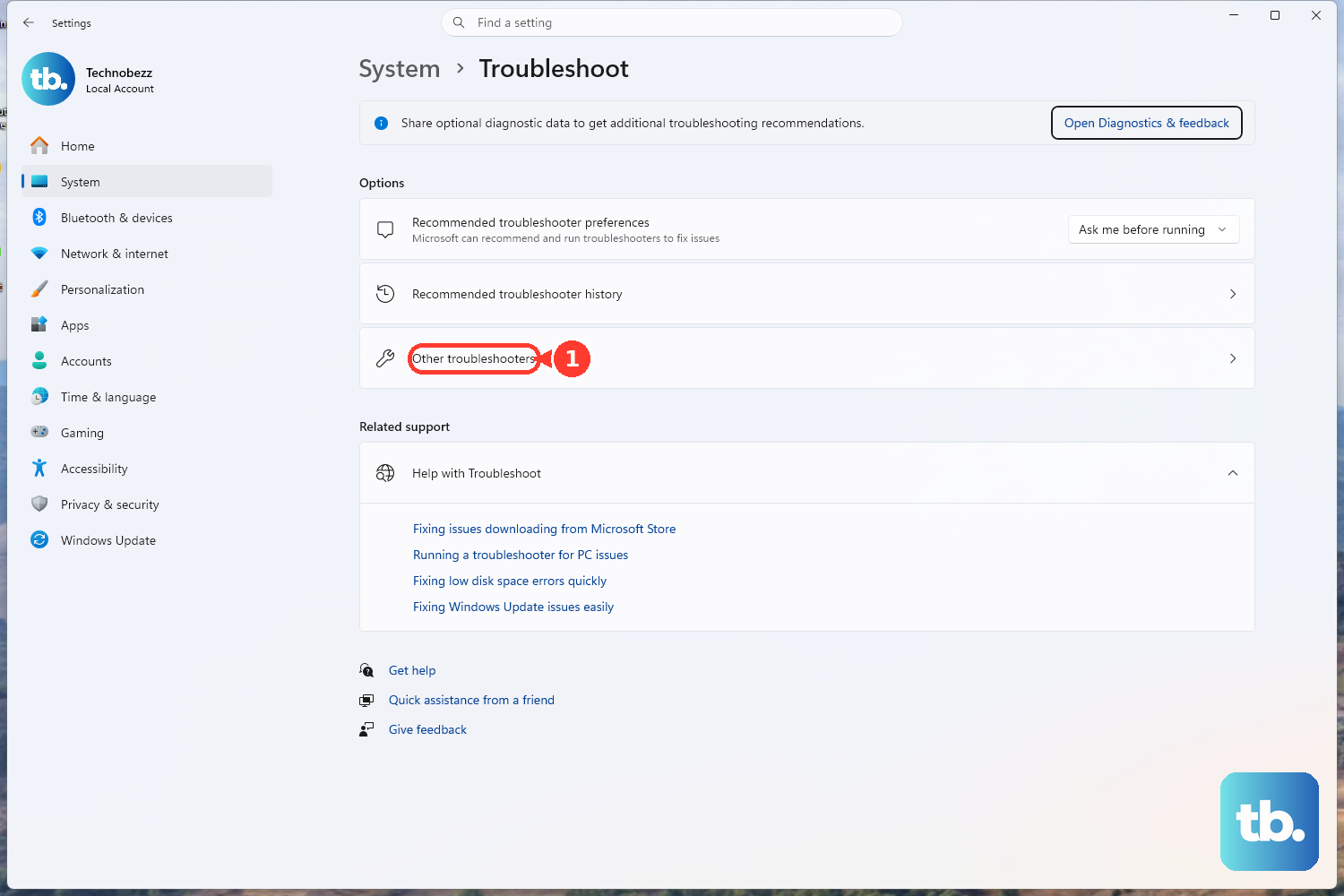
Windows has a built-in tool for this. Go to Settings > System > Troubleshoot > Other troubleshooters. Find the Bluetooth troubleshooter and click Run. It will scan for common configuration problems and try to apply automatic fixes.
Update Your Bluetooth Drivers
Outdated drivers are a frequent cause. Press Windows + X and select Device Manager. Expand the Bluetooth section, right-click your adapter (it might be listed as Intel Wireless Bluetooth), and choose Update driver > Search automatically for drivers. For the most reliable driver, I'd use the HP Support Assistant app or download directly from HP's support site for your specific Spectre model.
Restart the Bluetooth Support Service
Press Windows + R, type services.msc, and hit Enter. Scroll down to find Bluetooth Support Service. Right-click it and select Restart. Also, double-check that its Startup type is set to Automatic so it runs every time you start Windows.
Check for Wireless Interference
Bluetooth shares the 2.4GHz band with WiFi and other electronics. USB 3.0 devices, especially flash drives or hubs, can also cause signal interference. Try moving your Bluetooth device closer to the laptop and temporarily unplug any USB 3.0 gear to see if the connection stabilizes.
Install All Windows Updates
Head to Settings > Windows Update and click Check for updates. Install any available feature or quality updates. Microsoft regularly patches Bluetooth connectivity and audio issues in Windows 11 updates, so staying current is important.
Reinstall the Bluetooth Adapter
This gives you a clean driver slate. In Device Manager, right-click your Bluetooth adapter and select Uninstall device. If you see a checkbox to delete the driver software, check it. Restart your Spectre x360. Windows will automatically detect the hardware on boot and install a fresh driver.
Use HP's Diagnostic and Recovery Tools
HP includes some useful hardware checks. You can restart your laptop and press F2 at the HP logo to run the built-in HP PC Hardware Diagnostics. For a more nuclear option, pressing F11 at boot launches HP Cloud Recovery, which can reinstall a clean version of Windows and all HP drivers if a software issue is deeply rooted.