
You hit print, the HP Smart Tank 5101 churns, but nothing comes out. Or it feeds paper through and kicks out a blank page. This 2022 ink tank printer runs on refillable bottles (HP 32XL black plus HP 31 cyan, magenta, and yellow), connects over 2.4 GHz WiFi or USB, and ships with up to three years of ink in the box. But when it stops mid-job, the fix is usually straightforward.
Start with the simplest thing: power-cycle the printer. Unplug it for 30 seconds, plug it back in, and send a fresh print job from the HP Smart app or your computer. If the queue was holding a bad job, this clears it. Most stuck-queue problems end right here.
If that didn’t work, work through the rest of these fixes in order.
Check the Ink Levels and Tank Fill
The Smart Tank 5101 uses an ink tank system, not cartridges. You can see the ink levels through the transparent tank windows on the front. If any tank looks low or empty, the printer may refuse to print. Open the HP Smart app on your phone (iOS 16+ or Android 8+) and check the estimated ink levels there too.
If you recently refilled and the printer still won’t cooperate, you may have mixed colors. The initial tank fill or any refill requires matching the bottle to the correct tank. A drop of black in the cyan tank will contaminate the whole system. Check that the bottle numbers match: HP 32XL black goes in the black tank, HP 31 cyan/magenta/yellow go in their respective tanks. If you mixed colors, you’ll need to drain and flush the affected tank with distilled water.
Run a Print Head Cleaning
If the printer pulls paper but the page comes out blank or streaky, the print head is likely clogged. This is the most common issue on the Smart Tank 5101 when it sits unused for a week or two. Open the HP Smart app, tap your printer, then select Print Quality Tools > Clean Printheads. Run a standard cleaning cycle. It takes about 90 seconds and uses a small amount of ink.
Print a test page after. If it still looks bad, run a deeper cleaning from the same menu. You can also start cleaning from the printer’s control panel: Setup > Tools > Clean Printhead. Don’t run more than two deep cleanings in a row — you’ll burn through ink fast.
If you print rarely, set a calendar reminder to run a cleaning once a month. It keeps the head from drying out.
Is Your WiFi WPA3 or on a Mesh Network?
The Smart Tank 5101 only supports 2.4 GHz WiFi. If you’re on a mesh system like Eero, Orbi, or Deco that defaults to WPA3 security, the printer may connect briefly and then drop mid-job. WPA3 is too new for this printer’s WiFi chip, and Protected Management Frames (PMF) on mesh networks can block the handshake entirely.
Open your router’s app and check the security mode. Switch it to WPA2/WPA3 transitional if available, or drop to WPA2-only. The printer should reconnect and stay connected after that. You may need to run the wireless setup again by holding the Wireless and Cancel buttons together for about five seconds until the Wi-Fi light blinks, then finishing setup in the HP Smart app — the 5101 has a small icon display with buttons, not a touchscreen with a Wireless Setup Wizard.
Set the Smart Tank 5101 as Your Default Printer on Windows
Windows 11 has a habit of switching your default printer to whatever you used last, which is often Microsoft Print to PDF. Open Settings > Bluetooth and Devices > Printers and Scanners. Turn off Let Windows manage my default printer. Click on your Smart Tank 5101 and select Set as default. Now print jobs always route to it.
Restart the Print Spooler on Windows
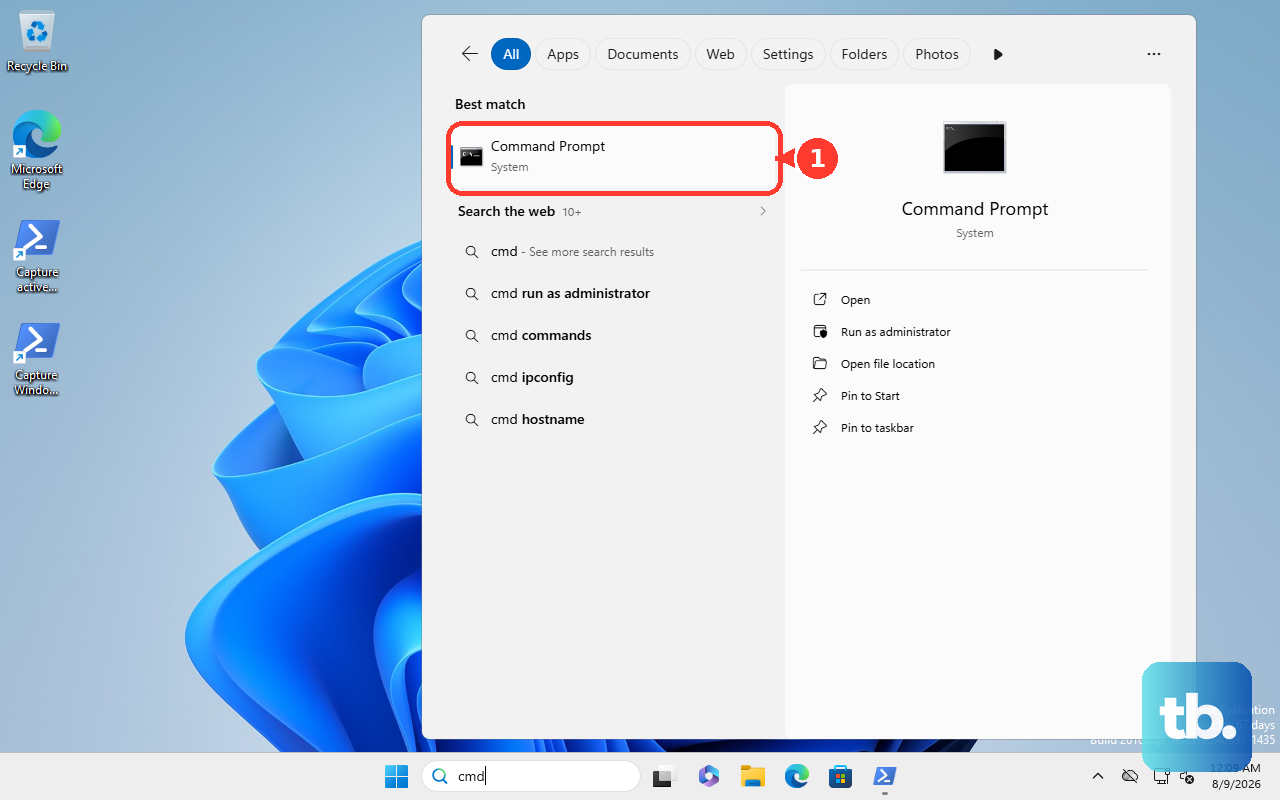
If a stuck job refuses to cancel, the Windows print spooler may have crashed. Open Command Prompt as Administrator. Run net stop spooler, wait a moment, then run net start spooler. The spooler restarts cleanly and any corrupted job is dropped.
If the spooler won’t start even after a restart, a file inside the spool directory is blocking it. Stop the spooler, open %windir%\System32\spool\PRINTERS in File Explorer, delete everything inside that folder, then start the spooler again.
Reset the Print System on macOS
On a Mac, go to System Settings > Printers and Scanners. Right-click the printer list and choose Reset printing system. This removes all configured printers. Confirm the reset, then re-add your Smart Tank 5101 using the + button and selecting it from the list. Fresh configuration often clears stuck-job issues that nothing else fixes.
Update the Firmware and Driver Through HP Smart
HP releases firmware updates for the Smart Tank 5101 that fix print bugs and improve WiFi stability. Open the HP Smart app, select your printer, then tap Printer Settings > Advanced Settings. This opens the printer’s web interface. Look for a Tools or Maintenance section and check for firmware updates. You can also find the latest driver on HP’s support site by searching “Smart Tank 5101 driver” for your operating system.
A firmware update takes about five minutes. Don’t turn off the printer while it’s updating.
Factory Reset as a Last Step
If you’ve tried everything and the printer still refuses to print, a factory reset clears any corrupted settings. Because the 5101 has no touchscreen or on-screen menu, factory-reset it with a button sequence instead: turn the printer off, press and hold the Resume and Black Copy buttons, then turn the printer back on while continuing to hold both until it restarts. This wipes your network and custom settings, so you’ll need to redo the wireless setup afterward. But it also clears the stubborn ghost jobs and configuration bugs that mimic hardware failure.
After the reset, set up the printer fresh through HP Smart and send a test page. If it still doesn’t print, the issue is likely hardware-related — a blocked print head or a failed sensor.











