You hit print, nothing happens, and your HP printer sits there stubbornly marked "Offline" even though it is powered on and you used it yesterday. The offline label usually means Windows has lost a clean line of communication with the printer, not that the hardware is broken. Most of the time you can clear it in a few minutes without touching drivers or settings you do not understand.
The fixes below are ordered from the easiest and safest to the more involved. Work through them in order and stop as soon as your printer comes back online. The steps cover both Windows 11 and Windows 10, since the menu paths differ slightly between the two versions.
Power Cycle the Printer, PC, and Router First
Before changing any settings, restart everything in the chain. A temporary glitch in the printer, your PC, or the network often produces a false offline state, and a clean power cycle clears it.
- 1.Turn off your HP printer and disconnect it from the power supply.
- 2.Restart the device you are printing from (your PC) and your internet router.
- 3.Wait about 30 seconds, then plug the printer back in and turn it on.
- 4.Try to print again once the printer has fully powered up.
This is the single most reliable first move because it resets the temporary error and offline states on both ends. If the printer is still offline afterward, move to the next fix.
Let the Built-In Windows Printer Troubleshooter Take a Pass
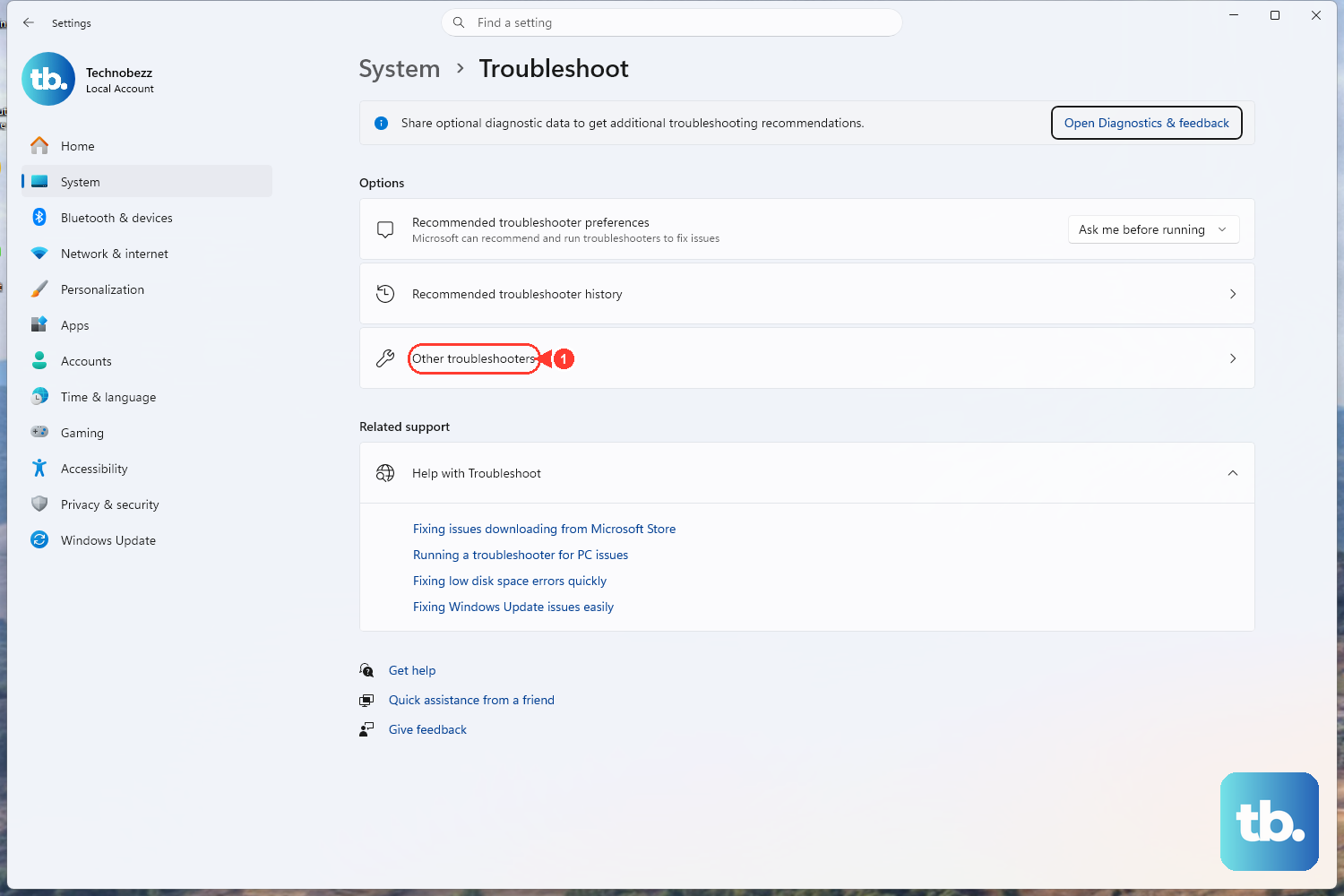
On Windows 11, Microsoft recommends starting with the automated printer troubleshooter that lives in the Get Help app. It runs diagnostics for you and attempts to fix most printer problems automatically, including an offline status.
Open the Get Help app and run the printer troubleshooter (Microsoft provides a "Run the troubleshooter in Get Help" option in its official offline-printer guidance). Let it complete its checks; if it finds and repairs the issue, you may be done here. If the offline label persists, keep going.
Confirm the Same Network and Set the Printer as Default
For a wireless HP printer, both the PC and the printer must be on the same Wi-Fi network name (SSID). If your PC has hopped onto a different band or a guest network, Windows will report the printer as offline.
Check the network name on both devices. If they do not match, disconnect the PC from its current network and reconnect to the same SSID the printer uses.
Next, make the HP printer your default so Windows stops trying to route jobs elsewhere.
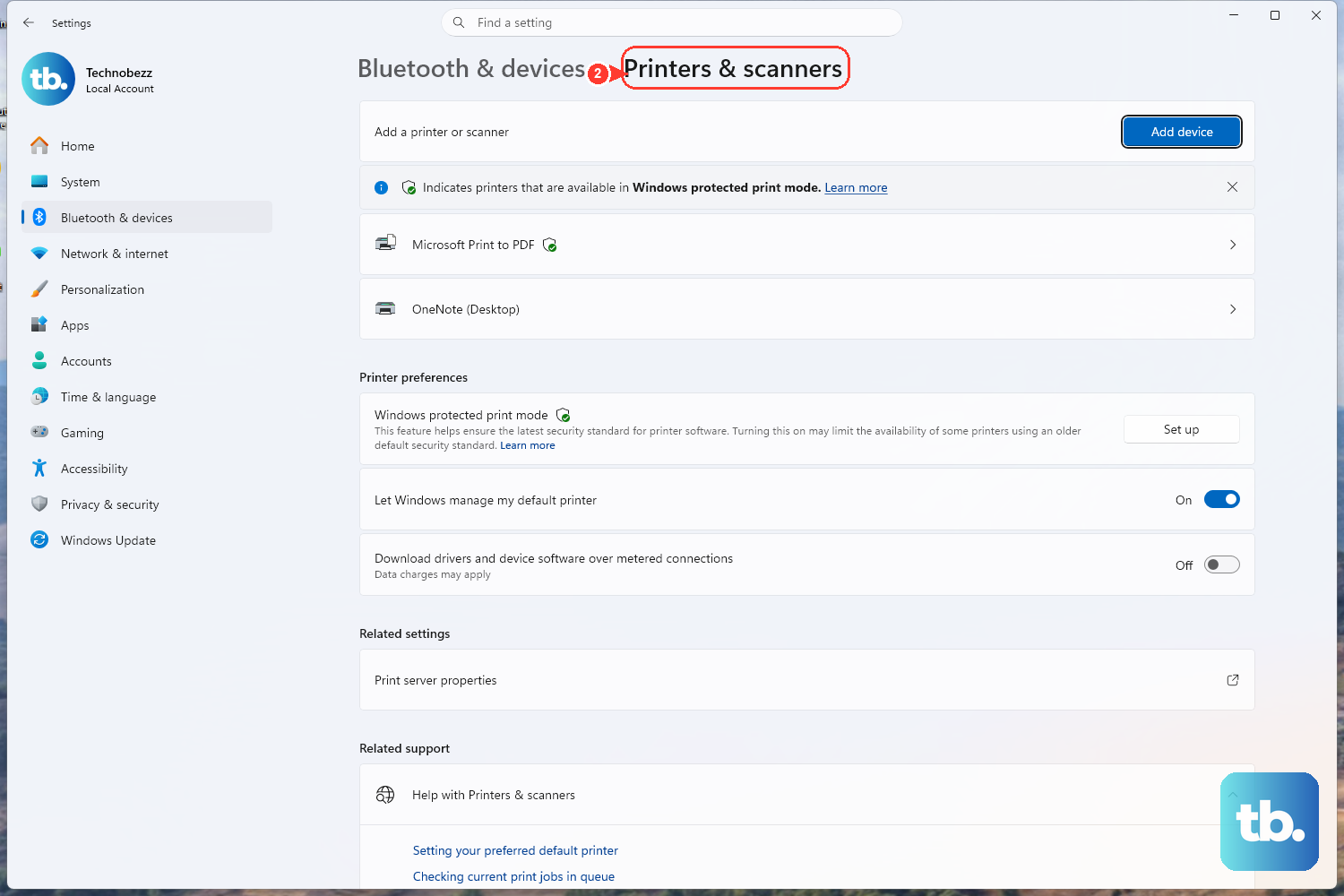
On Windows 11, go to Start > Settings > Bluetooth & devices > Printers & scanners, turn off "Let Windows manage my default printer," select your printer, then choose Set as default.
On Windows 10, go to Start > Settings > Devices > Printers & scanners, make sure "Let Windows manage my default printer" is not selected, then select the printer, choose Manage, and select Set as default.
Turn Off the "Use Printer Offline" Setting
Windows has a manual "Use Printer Offline" toggle that can get stuck on, which forces the printer into the offline state no matter what the hardware is doing. Clearing it often brings the printer straight back.
On Windows 10, open Start > Settings > Devices > Printers & scanners, select your printer, then choose Open queue. In the Printer menu, clear Pause Printing and Use Printer Offline if either is checked.
On Windows 11, open Settings > Bluetooth & devices > Printers & scanners, select your printer, and choose Open print queue to reach the equivalent controls.
HP documents a second route to this setting through Control Panel. Open Control Panel, choose View devices and printers (Devices and Printers), right-click your HP printer, select See what's printing, and uncheck "Use printer offline" in the Printer menu.
Clear a Stuck Print Queue
A single jammed print job can hold the whole printer in an offline or unavailable state until you remove it. Clearing the queue releases that lock.
On Windows 11, go to Start > Settings > Bluetooth & devices > Printers & scanners, select your printer, choose Open print queue, then right-click each print job and select Cancel.
On Windows 10, go to Start > Settings > Devices > Printers & scanners, select your printer, choose Open queue, then right-click each print job and select Cancel.
Once every job is cleared, send a fresh test print. If the queue refuses to empty, the next fix resets the underlying service that manages it.
Restart the Print Spooler Service
The Print Spooler is the Windows service that manages your print jobs. When it hangs, the printer can appear offline even though everything else is fine. Restarting it is a clean way to reset that pipeline on both Windows 10 and Windows 11.
- 1.Press the Windows key + R to open the Run dialog.
- 2.Type
services.mscand press Enter. - 3.Scroll down and locate
Print Spoolerin the Services list. - 4.Right-click
Print Spoolerand select Restart.
You can also open Services from the taskbar Search by typing "services." After the restart, try printing again.
If a stubborn job is still wedged in the system, do a deeper clear. Stop the Print Spooler service first so nothing is writing to the queue, delete everything inside C:\Windows\System32\spool\PRINTERS, then restart the Print Spooler service. Be aware that this permanently removes every queued job for all printers on the PC, so only do it once you no longer need those jobs. This is the Microsoft-documented way to manually remove stuck spooled jobs.
Run HP's Diagnose & Fix Tool
HP's own automated repair tool, Diagnose & Fix, is built into the HP app for Windows and macOS. HP says it resolves common printing and connection issues, including print queue errors, network connectivity issues, and print spooler errors, which makes it a strong all-in-one option for the offline state.
- 1.Install the HP app from 123.hp.com or your device app store.
- 2.Connect your printer, then open the HP app.
- 3.Select your printer, then choose Diagnose & Fix.
- 4.Start the tool and wait for the analysis to finish. Do not close the app while it runs.
One important note: the older HP Print and Scan Doctor was retired on May 27, 2025, and HP advises removing it. Use Diagnose & Fix in the HP app instead, since it is HP's stated replacement.
Remove and Re-Add the HP Printer
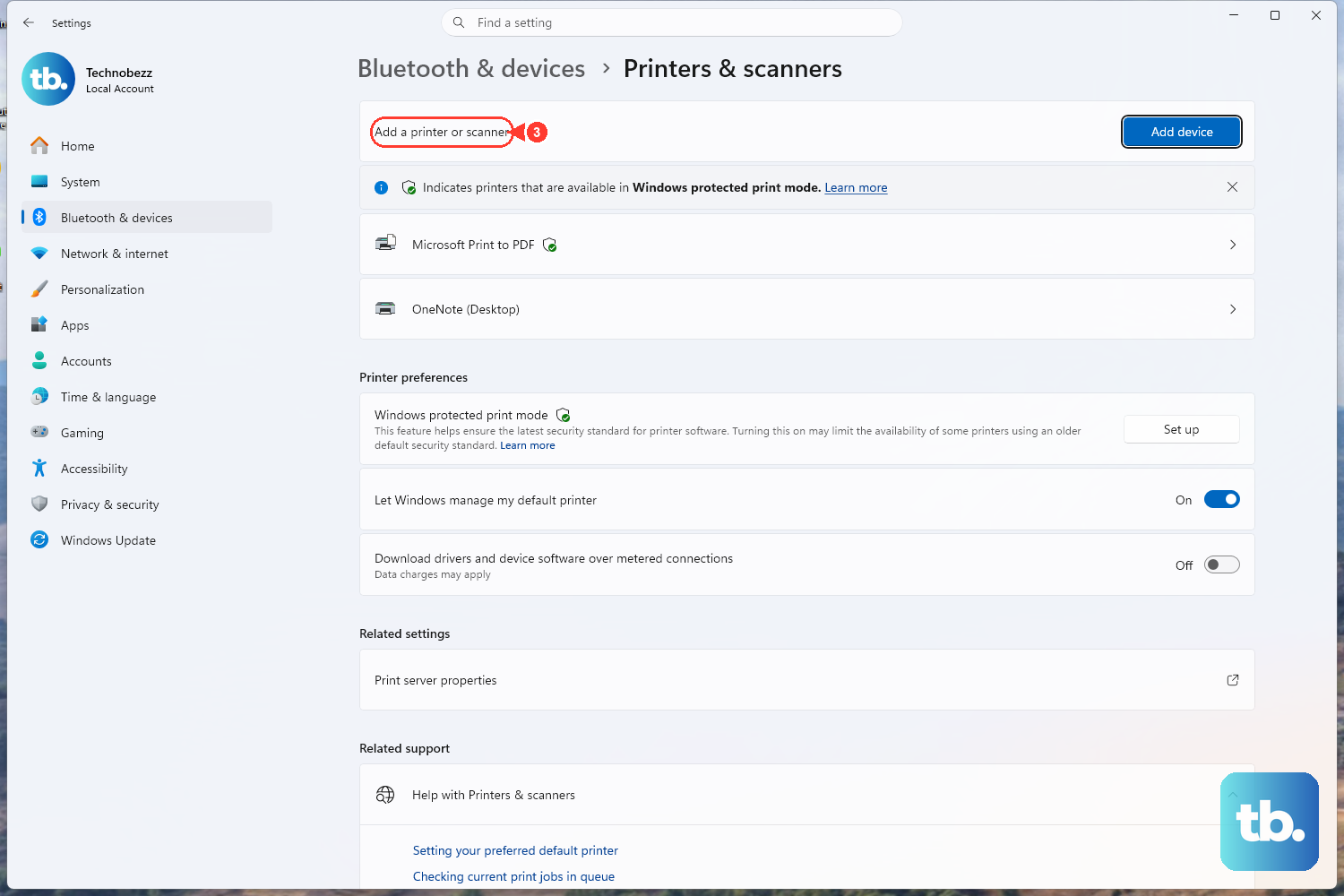
If the printer is still offline, removing it from Windows and adding it back gives the connection a fresh start. HP documents this directly.
Open Printers & scanners in Windows. On Windows 11 that is Settings > Bluetooth & devices > Printers & scanners; on Windows 10 it is Settings > Devices > Printers & scanners.
Select your printer, click Remove device, then confirm with Yes. With the printer turned on, click Add a printer or scanner and let Windows reinstall it.
Reinstall the Latest HP Driver and Software
When the offline state survives everything above, an outdated or corrupted driver is the likely culprit. Reinstall the current HP printer software from HP's official sources only.
You have two official options: install the HP app from 123.hp.com, or get HP Software and Driver Downloads from HP's official support site and enter your specific printer model. HP also notes that Windows includes basic built-in print support for many HP printers over USB and network, so a clean driver install usually restores full functionality.
A quick note for Windows 10 users: Microsoft ended support for Windows 10 on October 14, 2025, and recommends upgrading to Windows 11. The fixes above still work on Windows 10, but an unsupported operating system can introduce its own printing quirks over time.
Frequently Asked Questions
Why does my HP printer keep showing as offline when it is turned on?
The offline label usually means Windows has lost a clean line of communication with the printer rather than a hardware failure. Common causes include a stuck "Use Printer Offline" setting, a jammed print queue, a hung Print Spooler service, or the PC and printer sitting on different Wi-Fi networks. Power cycling everything and clearing those settings resolves most cases.
Should I use HP Print and Scan Doctor to fix the offline issue?
No. HP retired Print and Scan Doctor on May 27, 2025, and advises removing it. HP's stated replacement is the Diagnose & Fix tool inside the HP app, which you can get from 123.hp.com or your device app store.
How do I restart the Print Spooler service?
Press the Windows key + R, type services.msc, and press Enter. Scroll to Print Spooler, right-click it, and select Restart. For a deeper clear, stop the service, delete everything in C:\Windows\System32\spool\PRINTERS, then restart the service. Note that the deeper clear erases all queued jobs on the PC.
Where do I find Printers & scanners on Windows 11 versus Windows 10?
On Windows 11, go to Settings > Bluetooth & devices > Printers & scanners. On Windows 10, go to Settings > Devices > Printers & scanners. Both paths let you set a default printer, open the print queue, and remove or re-add the printer.
What is the safest first step when my printer goes offline?
Power cycle the printer, your PC, and your router. Turn off the printer and unplug it, restart your PC and router, wait about 30 seconds, then plug the printer back in and turn it on. This clears temporary error and offline states without changing any settings.