When your HP Pavilion 15 won't connect to WiFi, it feels like you're cut off from the world. Whether the network list is empty, you're stuck on "Connected, no internet," or the signal keeps dropping, these steps will get you back online.
Run the Windows Network Troubleshooter
This is the quickest place to start. Right-click the WiFi icon in your taskbar and select Troubleshoot network problems. Windows will automatically scan for and try to fix common issues like IP address conflicts or adapter problems. It often resolves simple glitches in under a minute.
Toggle Your WiFi Adapter Off and On
Click the network icon in the system tray and turn the WiFi toggle off. Wait about 10 seconds, then switch it back on. This forces your Pavilion's wireless adapter to restart and scan for networks fresh, which can clear up temporary connection states. You can also toggle Airplane mode for a more complete reset.
Forget and Re-add Your Network
Sometimes the saved connection profile gets corrupted. Go to Settings > Network & Internet > Wi-Fi > Manage known networks. Click on your home network and select Forget. Then, scan for networks again, select yours, and re-enter the password. This creates a clean connection from scratch.
Update Your WiFi Driver
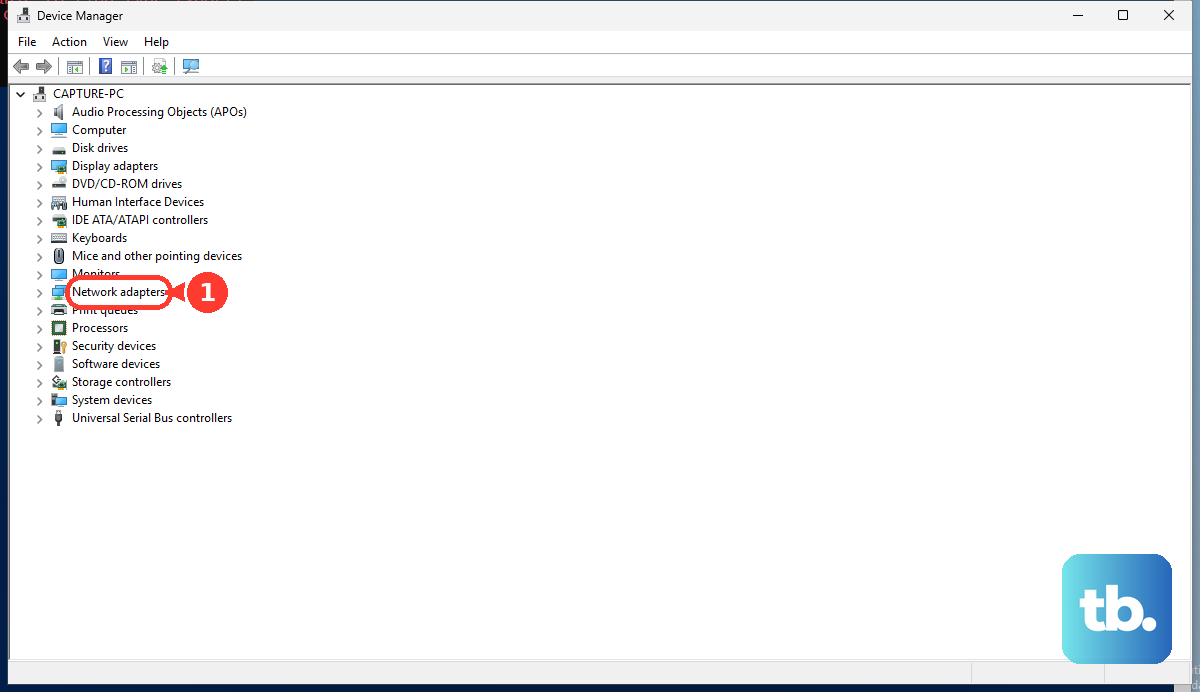
Outdated or buggy drivers are a major culprit. Press Windows + X and choose Device Manager. Expand the Network adapters section, right-click your wireless adapter (it might be named Realtek, Intel, or MediaTek), and select Update driver > Search automatically for drivers.
If that doesn't find an update, I'd use the HP Support Assistant. It's pre-installed on your Pavilion and can check for and install the latest, HP-certified drivers with one click, which is often more reliable than Windows Update for hardware drivers.
Restart Your Laptop and Router
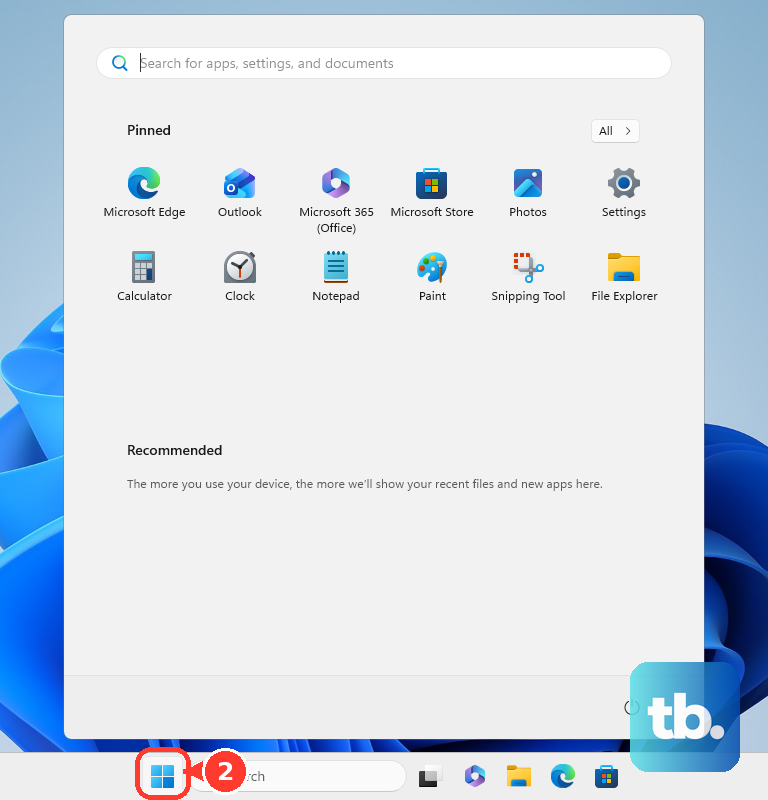
Give both devices a fresh start. For your Pavilion, click Start > Power > Restart. Don't just put it to sleep. A full reboot clears the network stack and reloads all drivers. Then, unplug your router from power for 30 seconds before plugging it back in. Wait for all the lights to stabilize before trying to connect again.
Disable Power Saving for the WiFi Adapter
HP laptops sometimes have aggressive power management that can turn off the WiFi adapter to save battery, causing dropouts. In Device Manager, right-click your wireless adapter and go to Properties > Power Management. Uncheck the box that says Allow the computer to turn off this device to save power. Click OK and see if your connection stabilizes.
Reset Your Network Settings
This is a more comprehensive fix. Go to Settings > Network & Internet > Advanced network settings > Network reset. Click Reset now. This will remove and reinstall all network adapters and set every networking component back to default. You'll need to reconnect to your WiFi and re-enter passwords afterward.
Run the HP Hardware Diagnostics
It's worth checking if there's a hardware fault with the wireless card. Restart your Pavilion and immediately press the F2 key repeatedly as it boots. This will launch the HP PC Hardware Diagnostics UEFI. Run the network test to see if it detects any failures with the WiFi hardware itself.
Check for Windows Updates
Go to Settings > Windows Update and click Check for updates. Install any available feature or quality updates. Microsoft frequently releases patches that fix compatibility and connectivity issues with specific WiFi adapters and security protocols like WPA3.
Flush DNS and Reset TCP/IP via Command Prompt
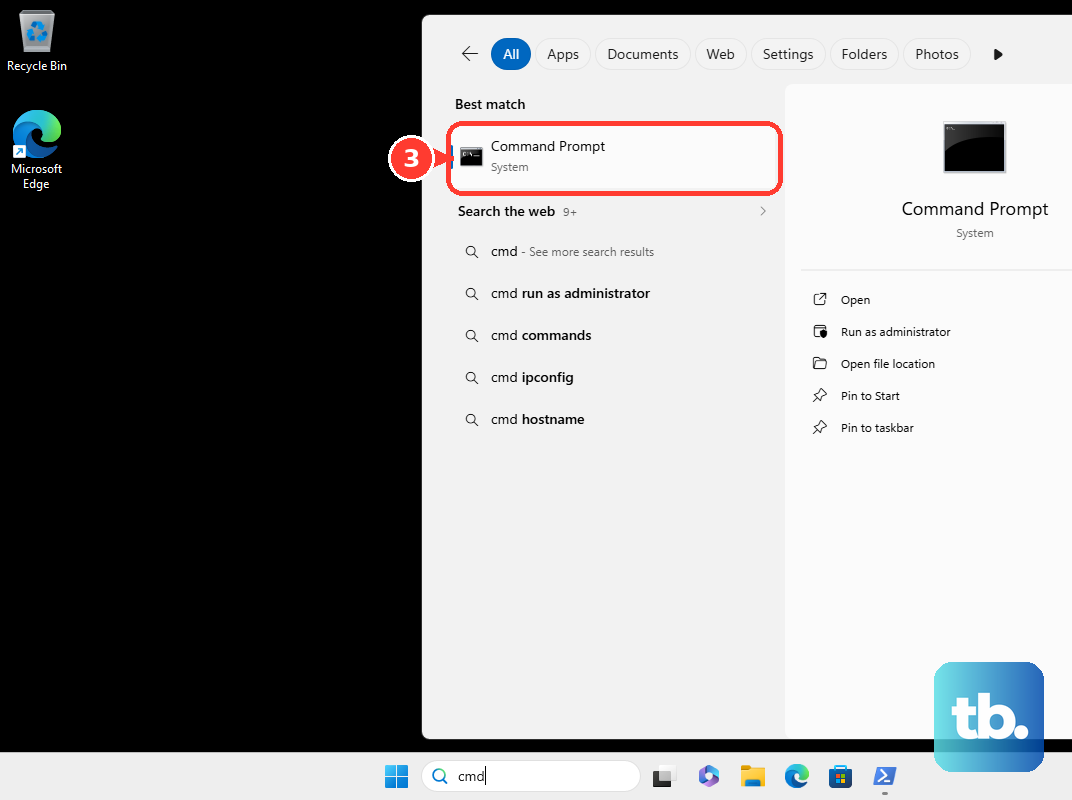
Open Command Prompt as an administrator by searching for "cmd," right-clicking it, and selecting Run as administrator. Type the following commands one at a time, pressing Enter after each: ipconfig /flushdns, netsh winsock reset, and netsh int ip reset. You must restart your laptop for these changes to take effect.