
When your HP Pavilion 15 shows a "USB Device Not Recognized" error or just doesn't see your flash drive, mouse, or printer, it's a real roadblock. The problem could be with the port itself, a driver glitch, or a power setting that's a bit too aggressive. Let's get it working again.
Start With a Different Port
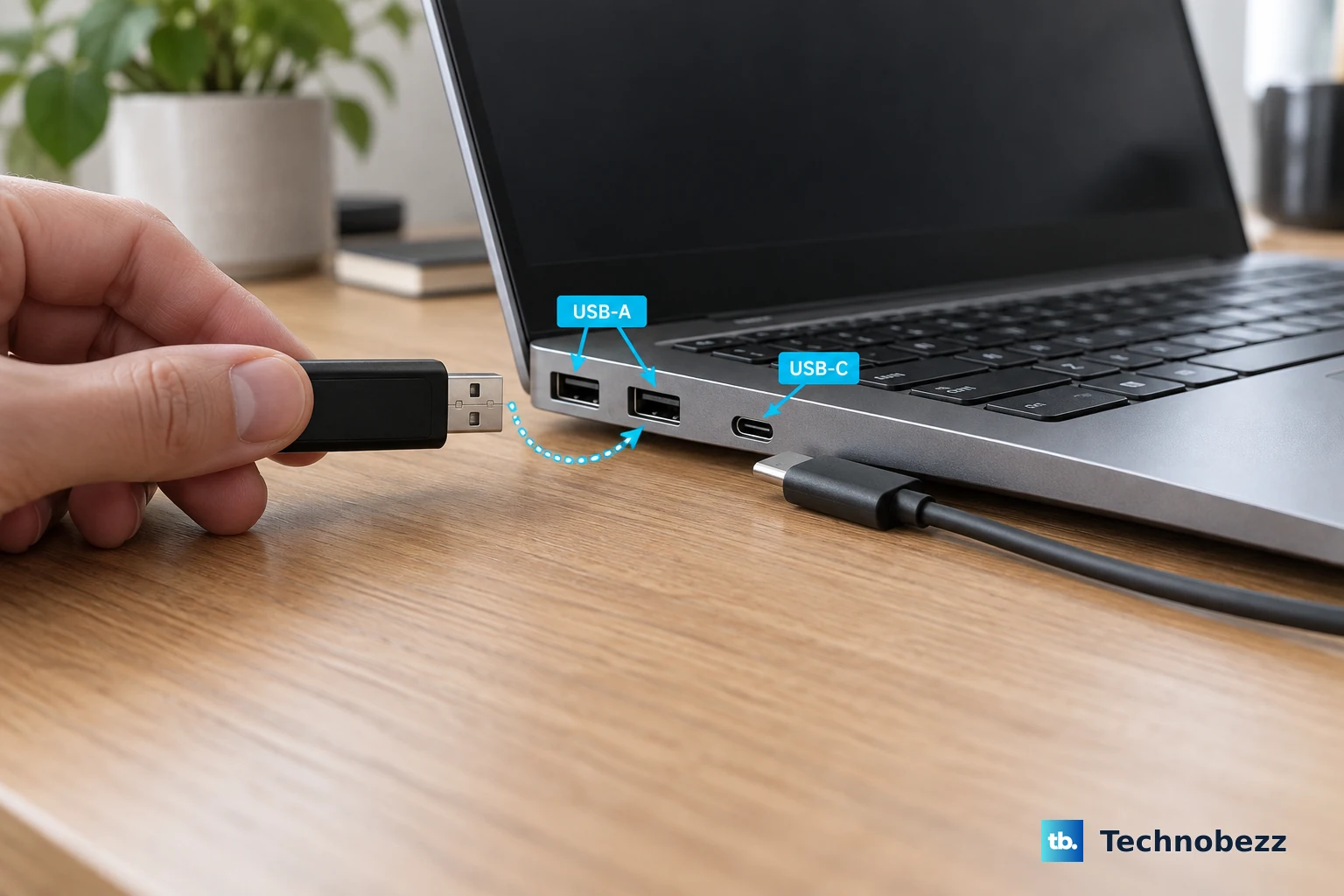
Unplug your device and try it in another USB port on your Pavilion. If it works in a different port, you've likely got a hardware issue with the first one. Try all the ports, including any USB-C ones if your model has them.
Sometimes a port can get disabled in software, but physical damage from a bent connector is also common. If it's just one port acting up, you can work around it while you figure out the next steps.
Perform a Full Restart
This is the classic fix for a reason. A full restart clears out temporary driver errors and resets the USB controller. Don't just put the laptop to sleep and wake it up.
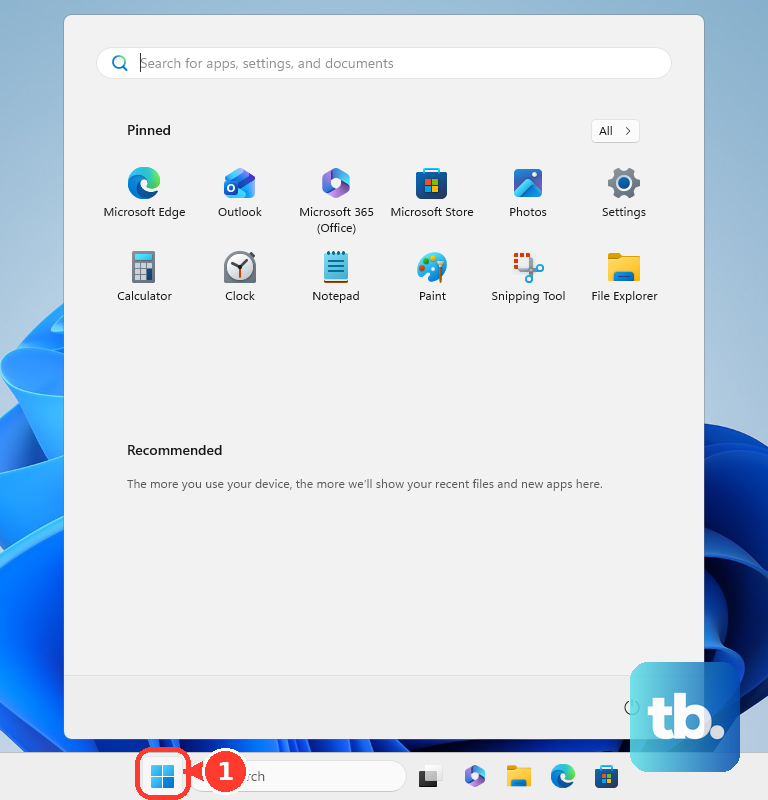
Click the Start menu, select the power icon, and choose "Restart." Give it a full minute to boot back up, then try your USB device again. I've seen this solve more USB issues than any other single step.
Test the Device Elsewhere
Take your USB flash drive, mouse, or whatever isn't working and plug it into another computer. This simple test tells you where the problem lies.
If the device doesn't work on any other machine either, the device or its cable is faulty. If it works perfectly on another PC, then the issue is specific to your Pavilion's configuration.
Swap Out the Cable
If you're connecting something like an external hard drive, phone, or printer with a cable, the cable itself is a prime suspect. Cables fail, especially near the connectors where they get bent.
A cable might still deliver power (so a phone charges) but have broken internal wires for data transfer. Always try a known-good, high-quality cable before digging deeper into software fixes.
Update or Reinstall USB Drivers
Press the Windows key + X and select "Device Manager." Look for the section called "Universal Serial Bus controllers" and expand it. Keep an eye out for any entries with a little yellow warning icon.
Right-click on your USB device (or on generic controllers like "USB Root Hub") and choose "Update driver." Let Windows search automatically. If that doesn't help, try "Uninstall device" and then restart your laptop. Windows will reinstall fresh drivers on boot.
For the easiest path, open the HP Support Assistant app. It can scan your system and provide one-click updates for all your drivers, including USB chipset drivers, which is often the fastest fix.
Disable USB Selective Suspend
Windows has a power-saving feature that can turn off USB ports when it thinks they're not in use, and it can sometimes be too eager. To turn it off, go to the Control Panel, then "Power Options."
Click "Change plan settings" next to your active plan, then "Change advanced power settings." In the new window, scroll down and expand "USB settings," then expand "USB selective suspend setting." Set both "On battery" and "Plugged in" to "Disabled." Click Apply and OK.
Run the Hardware Troubleshooter
Windows has a built-in tool for this. Press the Windows key, type "cmd," right-click on "Command Prompt," and select "Run as administrator." In the black window, type the following command and press Enter: msdt.exe -id DeviceDiagnostic.
This launches the Hardware and Devices troubleshooter. Follow the prompts on screen. It will scan for common problems with connected hardware, including USB devices, and attempt to apply fixes automatically.
Check for System Updates
Go to Settings > Windows Update and click "Check for updates." Install any available updates. After major updates, go back and check again until it says you're up to date.
Don't forget the optional updates. Click "Advanced options," then "Optional updates." There, you might find driver updates specifically for your HP hardware that didn't come through the main update channel.
Run the HP Hardware Diagnostics
HP builds a useful diagnostic tool right into your Pavilion. Restart your laptop and immediately press the F2 key repeatedly until the HP PC Hardware Diagnostics UEFI menu loads.
From there, you can run system tests, including a component test specifically for the USB ports. This will tell you definitively if there's a hardware failure with the port itself, separate from any Windows software issues.