
A non-responsive trackpad turns your laptop into a desktop, forcing you to plug in a mouse just to get anything done. Whether the cursor is frozen, clicks aren't registering, or two-finger scrolling has stopped, these steps will help you get your HP Pavilion 15's touchpad working again.
Check the Physical Toggle or Function Key
First, look at the top row of your keyboard. On many HP Pavilion 15 models, you can quickly toggle the trackpad on and off by pressing the Fn key and the F6 or F7 key simultaneously. The key will have a small icon that looks like a touchpad with an "X" over it or a hand on a rectangle.
Also, double-tap the very top-left corner of the trackpad surface itself. Some HP models have a small LED indicator there that lights up when the trackpad is disabled by this double-tap gesture.
Restart Your Pavilion
This is the classic fix for a reason. A simple restart reloads all your drivers, including the one for the trackpad. If it stopped working after the laptop woke from sleep or hibernation, a restart almost always resolves it.
You can do this without the trackpad. Press the Windows key on your keyboard, then use the Tab and arrow keys to navigate to the power icon in the Start menu. Select Restart and press Enter.
Disconnect Any External Mouse
Windows has a setting that can automatically disable the internal trackpad when it detects an external mouse. Unplug any USB mouse or disconnect any paired Bluetooth mouse.
After removing the external mouse, check if your trackpad springs back to life. To stop this from happening in the future, go to Settings > Bluetooth & devices > Touchpad. Look for a setting labeled something like "Leave touchpad on when a mouse is connected" and make sure it's turned on.
Update Your Drivers with HP Support Assistant
Outdated or corrupted drivers are a common culprit. HP makes this easy with their built-in tool. Open the HP Support Assistant app from your Start menu. It will scan your system and show you available updates, including critical driver updates for components like your trackpad.
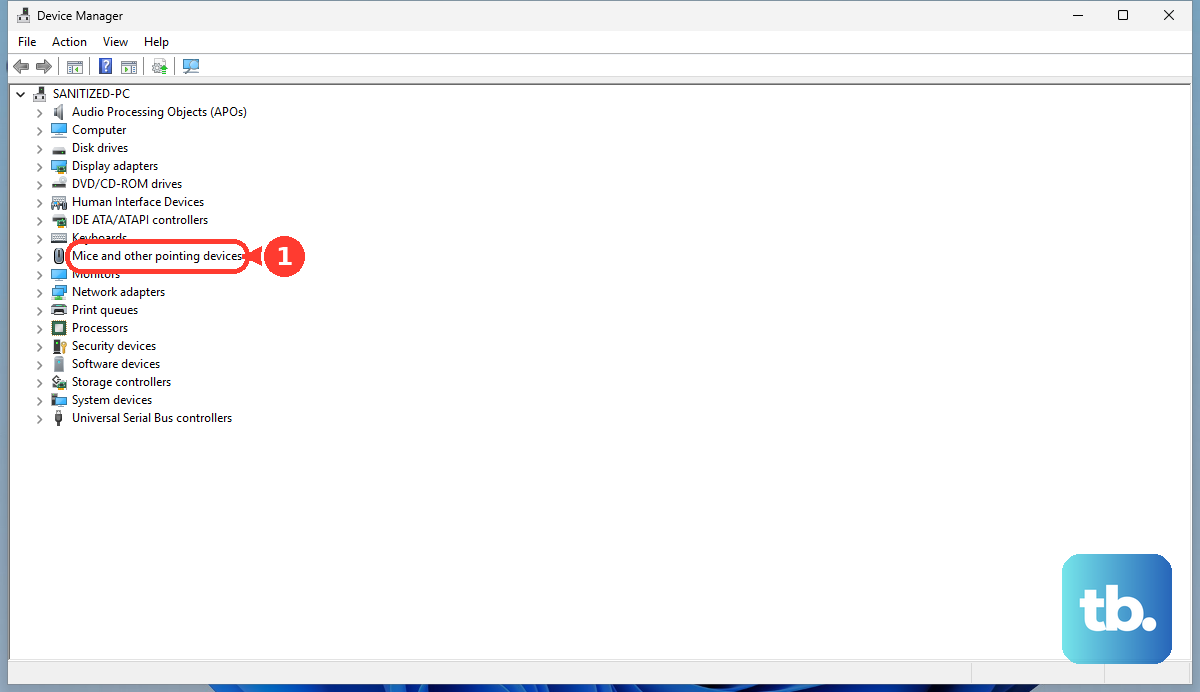
I'd start here, as it's a one-click solution for HP-specific drivers. If you don't have the app or want to manually check, you can also go to Device Manager, expand Mice and other pointing devices, right-click on your touchpad (it might be listed as Synaptics, ELAN, or a HID-compliant mouse), and select Update driver.
Clean the Trackpad Surface
Over time, oils from your fingers, dust, or minor moisture can interfere with the trackpad's capacitive sensors. Power off your laptop and gently wipe the trackpad surface with a microfiber cloth slightly dampened with water.
Make sure the surface is completely dry before turning the laptop back on. Also, check that your fingers are clean and dry, as lotions or sweat can sometimes cause issues.
Run the HP Hardware Diagnostics
HP builds a hardware test utility right into your Pavilion. Restart your computer and immediately begin pressing the F2 key repeatedly until the HP PC Hardware Diagnostics UEFI menu appears.
From there, you can run component tests. Choose the System Tests > Quick Test or a more thorough test. This will check if the trackpad hardware itself is failing and can help rule out a software problem.
Reinstall the Trackpad Driver Completely
If updating didn't work, a clean reinstall might. Go back to Device Manager and find your trackpad under Mice and other pointing devices. Right-click on it and select Uninstall device.
Check the box that says "Attempt to remove the driver software for this device" if you see it, then restart your laptop. Windows will install a basic driver upon reboot. For full functionality, follow up by using HP Support Assistant or downloading the latest Synaptics or ELAN driver directly from the HP support website for your specific Pavilion 15 model.
Check for System File Corruption
Corrupted Windows system files can affect input devices. Press the Windows key, type cmd, right-click on Command Prompt, and select Run as administrator.
In the window that opens, type sfc /scannow and press Enter. This System File Checker will scan and repair protected system files. Let it complete, and restart your laptop when it's done.
Consider Software Conflicts and Bloatware
Some pre-installed software or other utilities can interfere with hardware operation. On many HP Pavilions, there is a significant amount of pre-loaded software that can consume resources.
You can review and remove non-essential programs by going to Settings > Apps > Installed apps. Look for any third-party touchpad enhancement software or old utilities you don't use. Also, try booting into Safe Mode (hold Shift while clicking Restart in the power menu) to see if the trackpad works there. If it does, a software conflict in your normal startup is likely.