
Seeing your HP Pavilion 15's screen flicker or flash is incredibly distracting. It can be a rapid shimmer, random black frames, or persistent horizontal lines that make the laptop hard to use. The good news is, it's often a software issue you can fix yourself.
Update Your Display Drivers
Outdated or corrupted graphics drivers are the most common cause of screen flickering. For your Pavilion 15, the best approach is to use HP's own tool. Open the HP Support Assistant app, which comes pre-installed, and run a check for updates. It will find the correct drivers for your specific model.
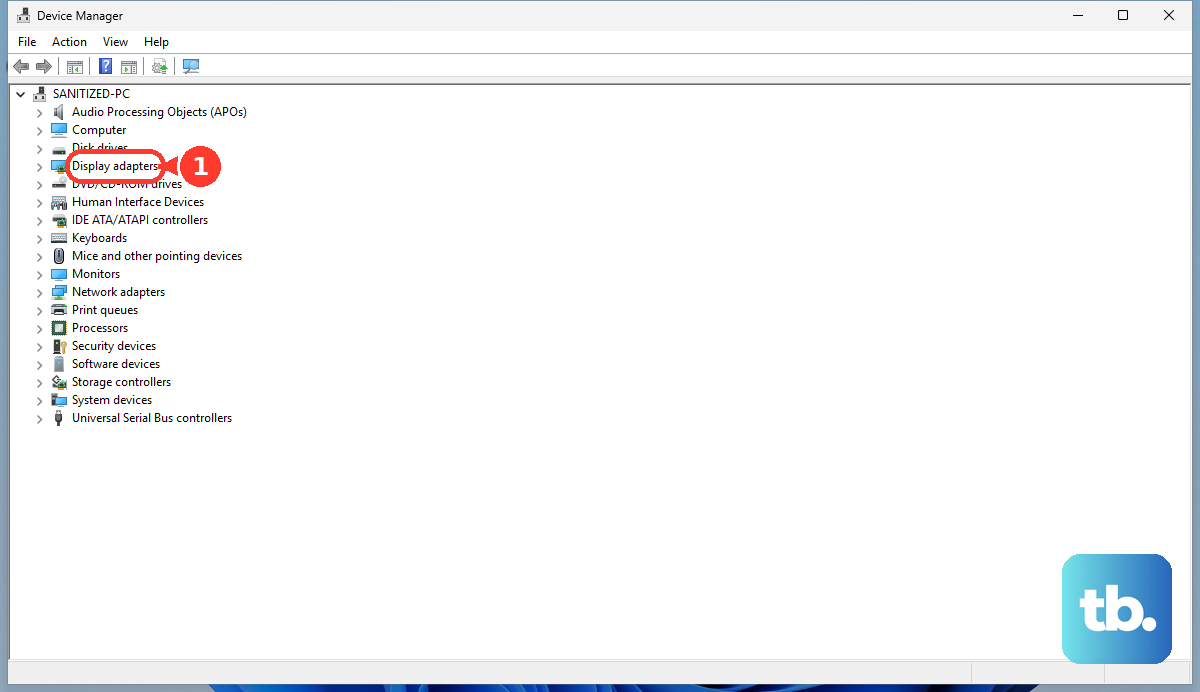
You can also go directly to the source. Open Device Manager, expand Display adapters, right-click your GPU (likely Intel UHD Graphics or an NVIDIA chip), and select Update driver. Choose "Search automatically for drivers." For the most reliable fix, I'd download the latest driver from the Intel or NVIDIA website directly.
Check Task Manager to Pinpoint the Problem
Press Ctrl + Shift + Esc to open Task Manager. Watch it closely. If Task Manager itself flickers along with your desktop, the issue is system-wide, pointing to a driver or Windows problem. If Task Manager remains perfectly stable while everything else flickers, a specific application is likely the culprit.
This simple test saves a ton of time. It tells you whether to focus on drivers or start uninstalling software.
Adjust Your Screen's Refresh Rate
An incorrect refresh rate setting can cause a persistent flicker. Right-click your desktop and select Display settings. Scroll down and click Advanced display.
Look at the Refresh rate dropdown. Most Pavilion 15 models use a 60Hz panel. Try switching it to 59.94Hz or, if available, a different 60Hz option. Sometimes the communication between the display and the graphics driver gets out of sync, and a small adjustment fixes it.
Disable Hardware Acceleration in Apps
Many applications, like web browsers and video players, use a feature called hardware acceleration to offload work to your GPU. When this conflicts with your drivers, it can cause flickering or tearing just within that app.
In Chrome or Edge, go to Settings > System and turn off Use hardware acceleration when available. Restart the browser and see if the flickering stops. You can find similar settings in other media-heavy applications.
Boot Into Safe Mode
If the flickering is constant and severe, booting into Safe Mode is a great diagnostic step. It loads Windows with only the most basic drivers and no startup programs. Hold the Shift key while clicking Restart from the Windows power menu.
Navigate to Troubleshoot > Advanced options > Startup Settings > Restart. After your PC reboots, press 4 to enable Safe Mode. If the screen is perfectly stable here, you've confirmed a software or driver issue. You can then use Safe Mode to uninstall problematic programs or drivers.
Uninstall Problematic Software
If Task Manager was stable, a third-party program is interfering. Start with recently installed applications. Go to Settings > Apps > Installed apps and remove them one by one, checking the screen after each uninstall.
Also consider removing unnecessary HP bloatware, which can sometimes cause conflicts. Look for HP-branded apps you don't use in the same Apps list. Common software culprits include certain antivirus suites, cloud storage apps, and older display utilities.
Roll Back a Recent Display Driver
Did the flickering start right after a Windows or driver update? You can revert to the previous driver version. Go back to Device Manager, double-click your display adapter, and go to the Driver tab.
Click Roll Back Driver. If the button is grayed out, Windows doesn't have the old driver saved. This is a quick fix that often resolves issues introduced by a bad update.
Run the HP Hardware Diagnostics
HP builds a powerful diagnostic tool right into your Pavilion's BIOS. Turn off the laptop, then turn it on and immediately press the F2 key repeatedly. This will launch the HP PC Hardware Diagnostics UEFI menu.
Run the System Fast Test first. For a more thorough check, select Component Tests, then Video. This will test your display hardware and graphics memory for failures. Any errors here strongly suggest a hardware problem.
Check for a Loose Internal Cable
If the flickering gets worse when you move the laptop lid or open and close it, the internal display cable might be loose or damaged. This ribbon cable connects the screen to the motherboard and can wear out over time with hinge movement.
This is a hardware repair. If your laptop is under warranty, contact HP support. Otherwise, a repair shop can reseat or replace the cable. It's a more involved fix but is common on laptops used for several years.