
When your HP Pavilion 15 goes silent, it's usually a quick software fix. I'd start with the volume mixer, as Windows can sometimes mute individual apps without you realizing it.
Check the Volume Mixer First
Right-click the speaker icon in your taskbar and select Open Volume mixer. You'll see sliders for both the system and each open application. Make sure nothing is set to zero or muted, especially the app you're trying to use like your browser or media player.
Run the Windows Audio Troubleshooter
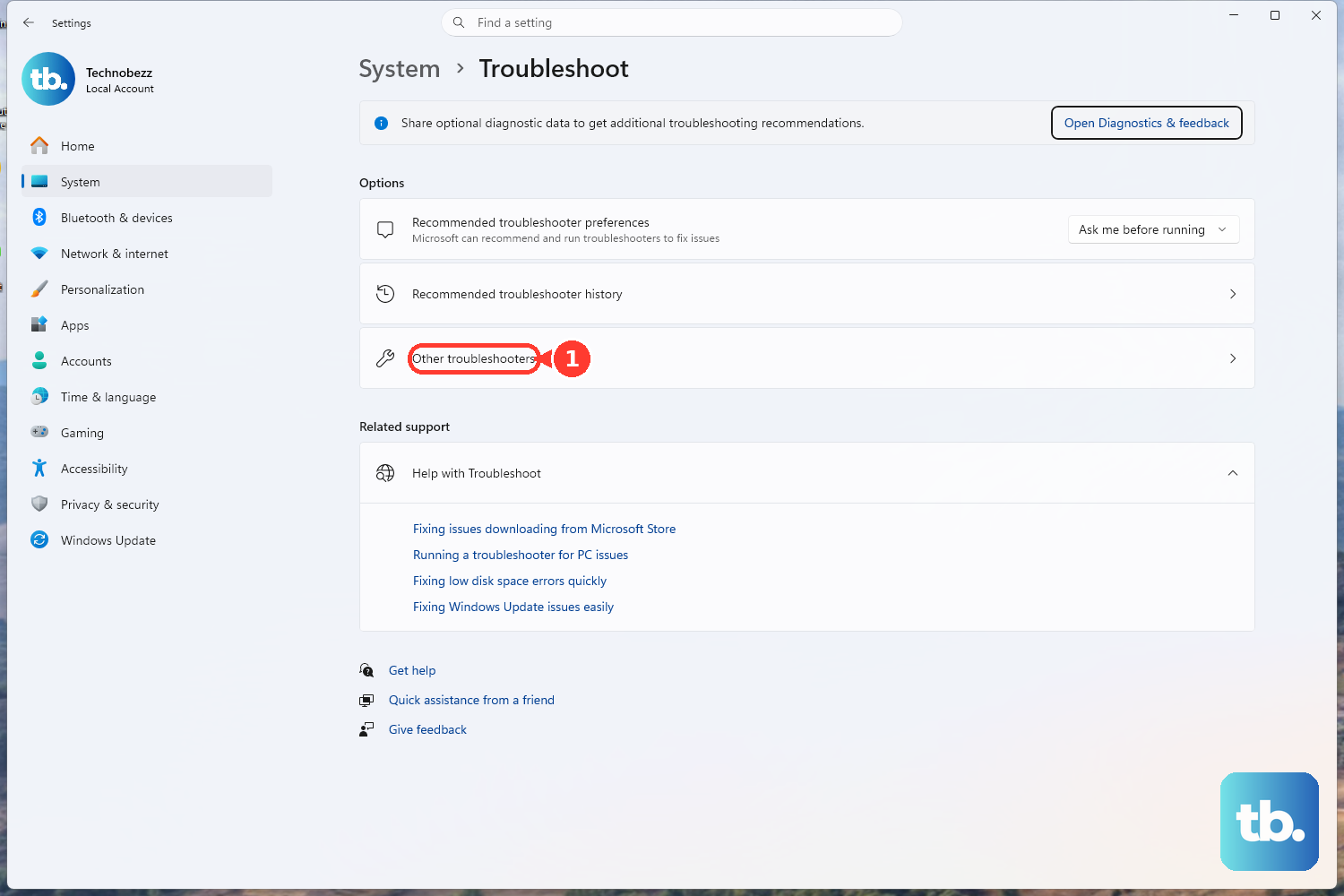
Windows has a built-in tool for this. Go to Settings > System > Troubleshoot > Other troubleshooters. Find Playing Audio and click Run. It will automatically check for common issues like disabled services or incorrect default devices and attempt to fix them.
Update Your Audio Drivers with HP Support Assistant
For HP laptops, the easiest way is often the HP Support Assistant. Open it from your Start menu, go to the updates section, and check for any driver updates, especially for audio. This ensures you get the driver HP has tested for your specific Pavilion 15 model. If you don't have it, you can update manually via Device Manager > Sound, video and game controllers.
Verify Your Output Device
Click the speaker icon on the taskbar, then click the small arrow above the volume slider. A list of available audio outputs will appear. Make sure your laptop's internal speakers are selected, not a disconnected Bluetooth headset or an HDMI output you used previously. If you see "Digital Output" selected, switch it to "Speakers."
Restart the Windows Audio Services
Press the Windows key + R, type services.msc, and hit Enter. In the list, find Windows Audio. Right-click it and select Restart. Do the same for the Windows Audio Endpoint Builder service right below it. This resets the core audio components in Windows.
Disable Audio Enhancements
Some audio enhancements from Realtek or Windows can conflict. Go to Settings > System > Sound. Click on your output device (your speakers), then scroll down and find Audio enhancements. Set the dropdown menu to Off and test your sound. This resolves a lot of crackling or complete audio loss issues.
Check for Physical Connection Issues
If you're using headphones or external speakers, try unplugging them completely. Sometimes the headphone jack can get stuck thinking something is plugged in. Gently insert and remove headphones a few times. Also, check if the speakers are physically blocked by something on your desk.
Perform a System Restart
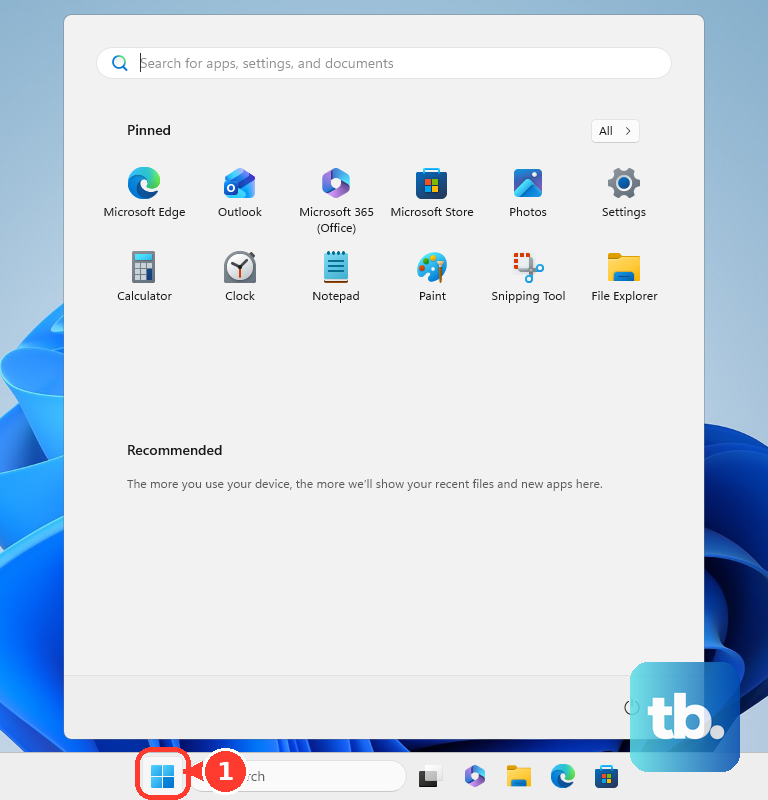
A full restart clears out temporary glitches that can affect audio. Click Start > Power > Restart. Don't just shut down and turn it back on; use the restart option to ensure drivers reload cleanly. This is particularly helpful if the sound stopped after the laptop woke from sleep mode.
Roll Back a Problematic Driver Update
If the audio just stopped after a recent Windows Update, you might need to revert the driver. Open Device Manager, expand Sound, video and game controllers, right-click your audio device, and choose Properties. Go to the Driver tab and click Roll Back Driver if the option is available.
Run the HP Hardware Diagnostics
HP builds a hardware test right into your laptop. Restart it and immediately press the F2 key repeatedly as it boots up. This will launch the HP PC Hardware Diagnostics. You can run a system audio check from there to see if there's a hardware failure with the speakers themselves.