
When the keyboard on your HP Pavilion 15 stops responding, it can feel like you're locked out of your own computer. Whether it's a few keys acting up, the entire keyboard going dead, or keys typing the wrong characters, the fixes are usually straightforward.
A browser based key test shows every keypress in real time, which makes it easy to tell a failed switch from a settings problem before you start troubleshooting.
Restart Your Pavilion
A simple restart is the best place to start. It clears out temporary software glitches and reloads the keyboard driver. If the keyboard is completely unresponsive, hold down the power button for about 10 seconds to force a shutdown, then press it again to turn the laptop back on.
Check for Physical Debris
Crumbs, dust, or a small piece of debris can easily get lodged under a key and stop it from working. Turn your laptop upside down and give it a gentle shake. For a more thorough clean, use a can of compressed air to blow between the keys and dislodge any stubborn particles.
Disable Filter Keys in Windows
Sometimes, an accessibility feature called Filter Keys gets turned on by accident, often by holding the Shift key for too long. This feature can make your keyboard seem laggy or unresponsive. Go to Settings > Accessibility > Keyboard and make sure the toggle for Filter keys is switched off.
Update or Reinstall the Keyboard Driver
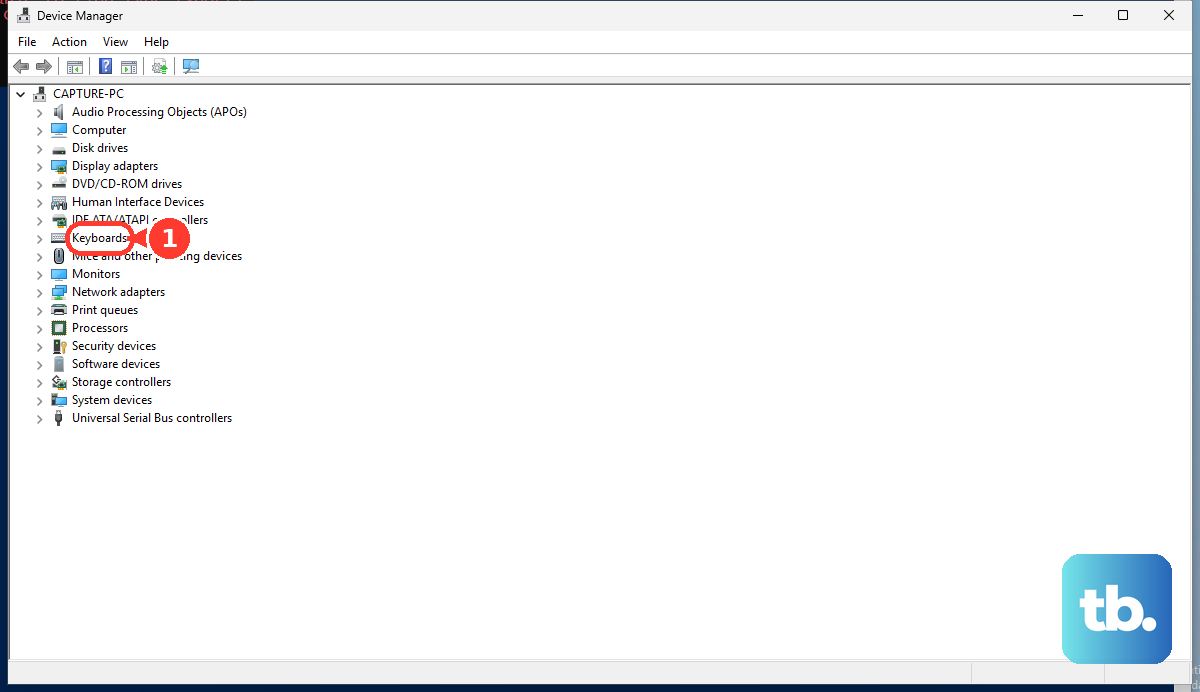
Outdated or corrupted drivers are a common culprit. Press the Windows key + X and select Device Manager. Expand the Keyboards section, right-click on the listed keyboard (often "Standard PS/2 Keyboard" or similar), and choose Update driver. If that doesn't help, select Uninstall device, restart your laptop, and Windows will automatically reinstall a fresh driver.
For the easiest path, use the HP Support Assistant app that came pre-installed on your Pavilion. It can check for and install all the latest drivers for your specific model with one click, which I've found saves a lot of time.
Verify Your Keyboard Language and Layout
If your keys are typing the wrong symbols or letters, your keyboard layout might have been switched. Go to Settings > Time & language > Language & region. Under your preferred language, click Options and check that the correct keyboard layout is set. Remove any extra layouts you don't use to prevent accidental switching with Windows key + Space.
Boot into Safe Mode to Isolate Software
If the keyboard works fine in Safe Mode, you know a third-party program is causing the conflict. To boot into Safe Mode, go to Settings > System > Recovery and click Restart now next to "Advanced startup." After the restart, choose Troubleshoot > Advanced options > Startup Settings > Restart. When your laptop reboots, press 4 or F4 to enable Safe Mode. Once in, you can uninstall any recently added software.
Check for Windows Updates
A recent Windows update can sometimes introduce bugs that affect hardware. Head to Settings > Windows Update and install any available updates. If the keyboard issue started right after an update, you can roll it back by going to Settings > Windows Update > Update history > Uninstall updates.
Use an External Keyboard to Test
Plugging in a USB keyboard is a great diagnostic step. If the external keyboard works perfectly, it strongly suggests a hardware problem with your Pavilion's internal keyboard. This could be a loose ribbon cable connection inside the chassis or, unfortunately, spill damage.
Run the HP Hardware Diagnostics
HP builds a hardware test utility right into your laptop's firmware. Restart your Pavilion and immediately press the F2 key repeatedly as it boots. This will launch the HP PC Hardware Diagnostics UEFI menu. From there, you can run a system test or a specific component test for the keyboard to see if the hardware itself is failing.
While you're troubleshooting, remember that some Pavilion 15 models came with a fair amount of pre-installed software that can slow things down. If your system feels sluggish in general, you can remove unused programs by going to Settings > Apps > Installed apps. This can free up resources and sometimes resolve underlying performance issues that might affect peripheral responsiveness.