
When Bluetooth won't connect on your HP Pavilion 15, it cuts off your wireless mouse, headphones, and speakers. You might see the device fail to pair, connections that drop constantly, or the Bluetooth toggle might even be missing from Windows. Let's get it working again.
Toggle Bluetooth On and Off
First, check the quick action center. Click the notification icon in the bottom-right corner of your taskbar and make sure the Bluetooth tile is lit up. If it's off, click it to turn it on. You can also go to Settings > Bluetooth & devices and flip the main Bluetooth switch there.
Restart Your HP Pavilion 15
A simple restart is often the fastest fix. It clears out any temporary software glitches that can hang up the Bluetooth radio, especially if the issue started after the laptop woke from sleep. Just save your work and do a full shutdown and power back on.
Forget and Re-Pair Your Device
Go to Settings > Bluetooth & devices. Find the problematic device in the list and click the three dots next to it, then select Remove device. Put your Bluetooth accessory back into pairing mode, then click Add device on your Pavilion to start fresh. A corrupted pairing profile is a very common culprit.
Use the Windows Bluetooth Troubleshooter
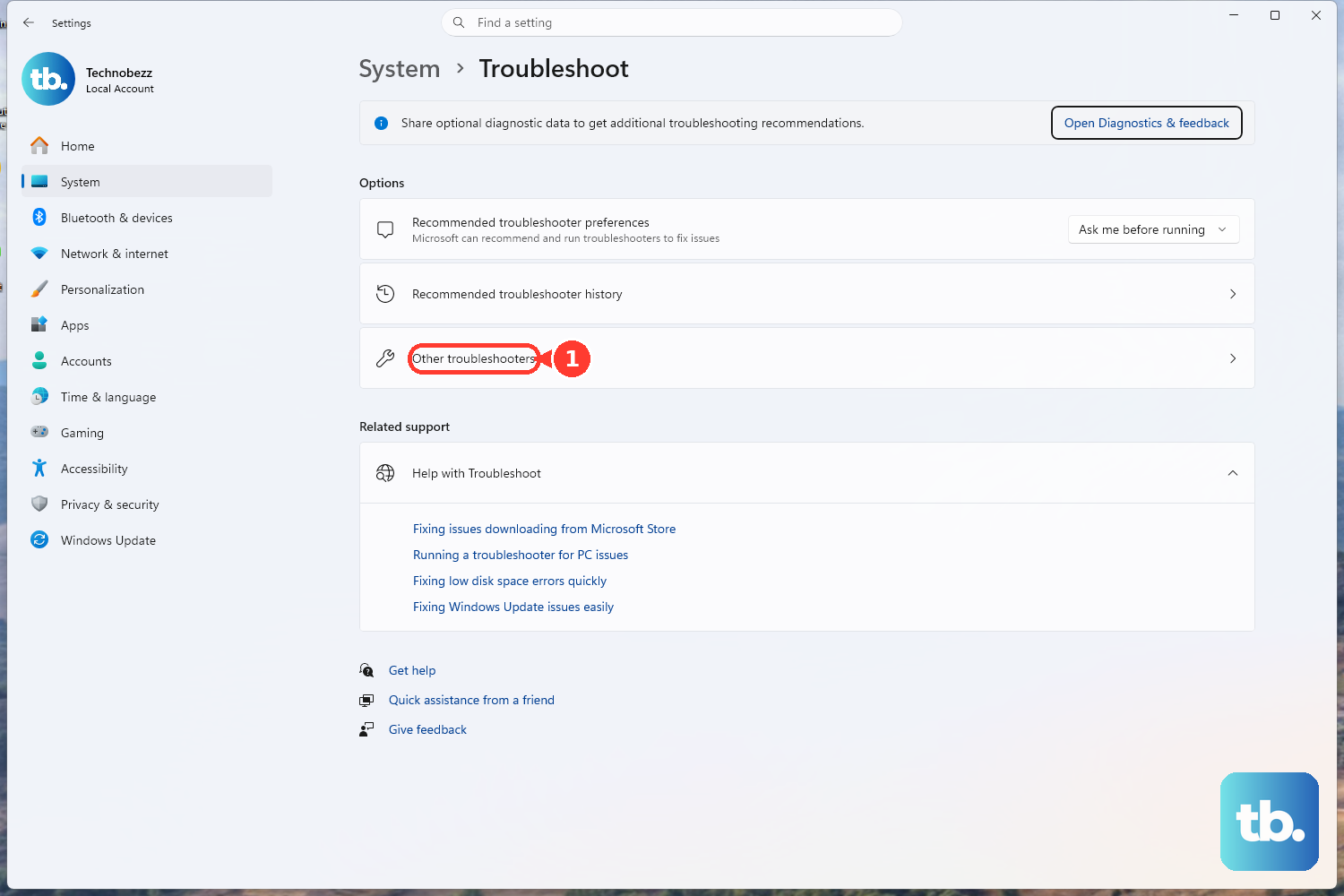
Windows has a built-in tool for this. Navigate to Settings > System > Troubleshoot > Other troubleshooters. Find the Bluetooth option and click Run. The troubleshooter will scan for common configuration problems and try to apply fixes automatically.
Update Your Bluetooth Drivers
Outdated or corrupt drivers are a frequent cause. Press the Windows key + X and select Device Manager. Expand the Bluetooth section, right-click on your Bluetooth adapter (it might be named Realtek, Intel, or Qualcomm), and choose Update driver > Search automatically for drivers.
If that doesn't find an update, I'd use the HP Support Assistant app that came pre-installed on your Pavilion. It can check for and install the latest, manufacturer-approved drivers with one click, which is often more reliable than Windows Update for hardware drivers.
Restart the Bluetooth Support Service
Press Windows key + R, type services.msc, and hit Enter. In the long list, scroll down to find Bluetooth Support Service. Right-click on it and select Restart. Also, double-click it to open its properties and ensure the Startup type is set to Automatic.
Check for Power Management Interference
Some HP laptops have a known issue where Windows power-saving settings turn off the wireless adapter to save battery, which can include Bluetooth. In Device Manager, right-click your Bluetooth adapter under the Bluetooth section, select Properties, go to the Power Management tab, and uncheck Allow the computer to turn off this device to save power.
Run the HP Hardware Diagnostics
HP builds a hardware test right into your Pavilion. Restart your laptop and immediately press the F2 key repeatedly as it boots. This will launch the HP PC Hardware Diagnostics UEFI. You can run a system quick test or a more extensive component test to check if there's a physical issue with the Bluetooth hardware.
Install All Windows Updates
Head to Settings > Windows Update and click Check for updates. Install any available feature or quality updates. Microsoft regularly releases patches that fix connectivity bugs in the Windows Bluetooth stack, so being up-to-date is crucial.
Reinstall the Bluetooth Adapter
If nothing else works, a clean driver reinstall is the next step. Go back to Device Manager, right-click your Bluetooth adapter, and select Uninstall device. Check the box that says Attempt to remove the driver for this device if you see it. Then, restart your laptop. Windows will detect the hardware on boot and install a fresh driver.
If Bluetooth is still missing after the restart, you may need to download the specific driver from the HP support website using another internet connection and install it manually.