
Seeing a blue screen on your HP Pavilion 15 after a recent update is a jarring experience, but it's Windows' way of stopping a serious error from causing more damage. This is often a driver conflict triggered by the update, a corrupted system file, or sometimes a hardware issue like overheating. The fixes below will walk you through resolving it, starting with the simplest steps first.
Restart and See if It Happens Again
The first thing to do is restart your laptop. A single blue screen can sometimes be a one-time fluke caused by a temporary driver hiccup. If your Pavilion 15 boots up normally and runs fine afterward, you can likely carry on. If the blue screen returns immediately or within a short time of using Windows, you have a persistent issue that needs fixing.
Write Down the Stop Code
When the blue screen appears, look for the all-caps stop code near the bottom. Common ones include DRIVER_IRQL_NOT_LESS_OR_EQUAL, SYSTEM_SERVICE_EXCEPTION, or CRITICAL_PROCESS_DIED. Jot this code down on your phone or a piece of paper. It points to the category of the problem and can be very useful if you need to search for a more specific fix later on.
Boot Into Safe Mode
If the crashes are preventing you from reaching the desktop, you'll need to boot into Safe Mode. From the sign-in screen, hold the Shift key on your keyboard and, while holding it, click the power icon and select Restart. After your laptop reboots to a blue menu, go to Troubleshoot > Advanced options > Startup Settings > Restart. When it restarts again, press the 4 key to enable Safe Mode. This loads Windows with minimal drivers, which can help you troubleshoot without crashing.
Uninstall the Problematic Update
Since this started after an update, that's the prime suspect. From Safe Mode or a normal boot, go to Settings > Windows Update > Update history. Near the top, click Uninstall updates. Look for the most recent quality update or feature update, select it, and click Uninstall. Your laptop will restart. I've seen this resolve post-update blue screens on many HP models when a driver and the new Windows version don't get along.
Update Your Drivers with HP Support Assistant
Outdated or corrupt drivers are the most common cause of persistent blue screens. HP makes this easy with their Support Assistant app, which should already be on your Pavilion 15. Open it and run a check for updates; it will find and install the latest official drivers for your specific model with one click. Pay special attention to graphics, chipset, and network adapter drivers.
Run a System File Check
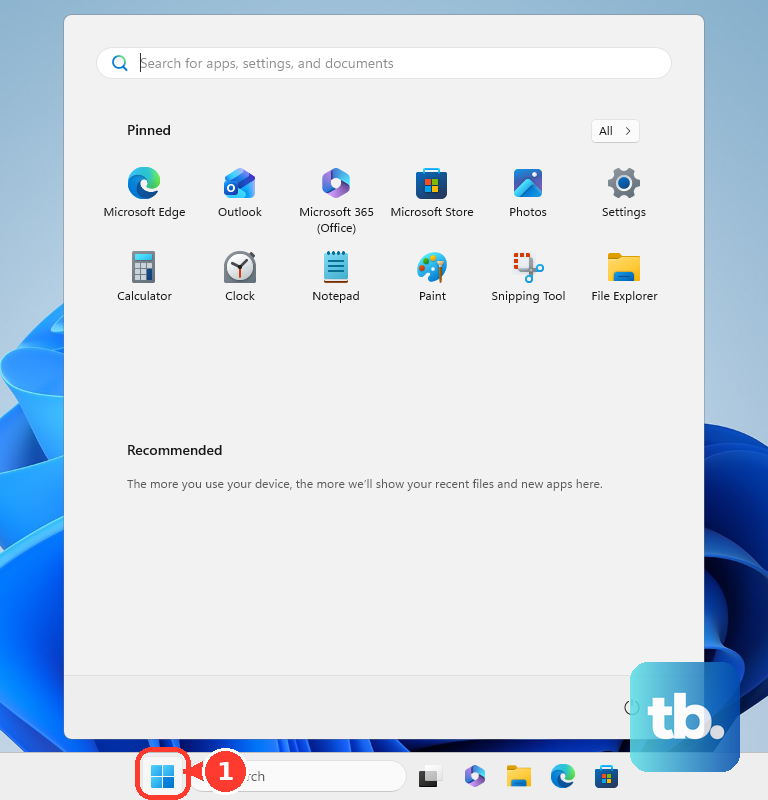
Corrupted Windows system files can also trigger crashes. To check for this, open the Start menu, type cmd, right-click on Command Prompt, and select Run as administrator. In the black window, type sfc /scannow and press Enter. This scan will look for and attempt to repair any damaged system files. If it finds problems it can't fix, run DISM /Online /Cleanup-Image /RestoreHealth first, then try sfc again.
Check Your Memory for Errors
Faulty RAM is a classic hardware cause of blue screens. Search for Windows Memory Diagnostic in the Start menu and open it. Choose Restart now and check for problems. Your Pavilion 15 will reboot and run a comprehensive memory test before Windows loads. If it detects any errors, you may need to reseat the RAM modules or, in some cases, replace them.
Scan Your Hard Drive for Issues
If your Pavilion 15 has a traditional hard disk drive (HDD), it can be prone to errors that cause crashes, and these models are already known for slower boots. Open an Administrator Command Prompt like before and type chkdsk C: /f /r and press Enter. It will schedule a disk check for the next restart. This scan looks for bad sectors and file system errors. If it finds a large number of bad sectors, it could mean the drive is failing.
Manage Startup Programs and Bloatware
HP laptops often come with pre-installed software that can consume resources and sometimes cause conflicts. You can clean this up by going to Settings > Apps > Installed apps. Look for non-essential HP utilities you don't use and uninstall them. Also, check your startup programs by opening the Task Manager (Ctrl+Shift+Esc) and going to the Startup tab. Disabling heavy programs here can improve stability, especially on models with less RAM.
Check for Overheating
Blue screens during demanding tasks like gaming could point to overheating. Laptops collect dust in their vents and fans over time. Make sure your Pavilion 15 is on a hard, flat surface for proper airflow. Using a can of compressed air to gently blow out the vents can help. If the fans are constantly loud and the laptop is hot to the touch, overheating might be forcing a protective shutdown.
Run the Built-in Hardware Diagnostics
HP includes a powerful hardware diagnostic tool in your laptop's BIOS. Restart your Pavilion 15 and immediately press the F2 key repeatedly as it boots. This will launch the HP PC Hardware Diagnostics UEFI. You can run comprehensive tests on your system memory, hard drive, and other components from here. It's a great way to get a definitive answer on whether a hardware failure is behind the crashes.
Reset Your PC
If you've tried everything and the blue screens won't stop, a Windows reset is a strong final option. Go to Settings > System > Recovery and click Reset this PC. Choose Keep my files to reinstall Windows while preserving your personal documents, photos, and other data. This will remove all your apps and drivers, giving you a fresh start that often clears up deep-seated software conflicts.